
Business Wallets: Opening, balances, accepted issuers, statements, and portal access
Before you start, sign in and open Digital Wallets / Our Wallet / Business Wallet Balances.
Can’t find it? It may be turned off for your business, or your account may not be allowed to open it. Ask the person who set up your FeePrime. They can fix both.

Photo: Centre for Ageing Better on Unsplash
When Amina Bello first started accepting digital payments at Sunrise Bakery in Akwa, every customer sent money to her personal wallet. By 6 PM, bread deliveries for Hôtel Akwa, her daughter’s school bus fare, and flour advances sat in one messy list. Whenever Grace Ewane needed to check whether a buyer had paid, she had to phone Amina. On Friday afternoons, the accountant lost two hours separating bakery revenue from personal errands.
FeePrime solves this cleanly by giving your company its own Business Wallet — completely separate from your personal money, backed by clear staff roles, live balances, and audit-ready statements. Every FeePrime organisation is automatically one Business Wallet, whether you manage it from an office laptop or from your phone on the shop floor.
In this lesson, you will learn how to open and switch into your Business Wallet, add teammates safely with the right roles, choose which currency issuers your shop accepts, pull instant audited statements, and complete Business KYB verification so your limits grow with your sales.
1. One Business Wallet, two doors (ERP and Wallet Portal)
You never have to maintain two separate wallets for your business. Sunrise Bakery has one Business Wallet, and your team can reach it through two doors depending on where they are working:
                 +-----------------------------------+
                 |    ONE SUNRISE BAKERY WALLET      |
                 |  (One balance, one set of rules)  |
                 +-----------------+-----------------+
                                   |
              +--------------------+--------------------+
              |                                         |
              v                                         v
     FeePrime ERP (Office)                 Issuer Portal (Phone)
  Digital Wallets / Our Wallet             Top Account Switcher:
  - Live balances & statements             [ Me ]  -->  [ Sunrise Bakery ]
  - Accepted issuers                       - Check live FCFA balance
  - Invoices, bills & payroll              - Show standing QR / pay link
  - Spending controls & OHADA              - Initiate or approve payouts
On a desktop at the bakery office, Amina opens Digital Wallets / Our Wallet inside FeePrime ERP. On her phone while visiting the Bonapriso branch, she opens the Manna Finance Wallet Portal and taps the Account Switcher at the top of the screen to toggle from Me (her personal wallet) to Sunrise Bakery.
Both doors read the exact same ledger and enforce the exact same Spending Controls. A payment Grace initiates on her phone appears immediately in the ERP, and an invoice paid by Hôtel Akwa in the ERP updates the portal balance in real time.
Never run business sales through your personal wallet (Me). Mixing personal and company funds breaks your OHADA bookkeeping, hides true shop cash flow, and forces you to hand out your phone whenever staff need to check a payment.
Group Wallet vs Business Wallet: Need an informal joint pot for a family tontine or market association where members cast N-of-M votes on every withdrawal? Use a Group Wallet (covered in Lesson 5). Running a real business with staff roles, Spending Controls, invoices, supplier bills, and OHADA books? Always use a Business Wallet.
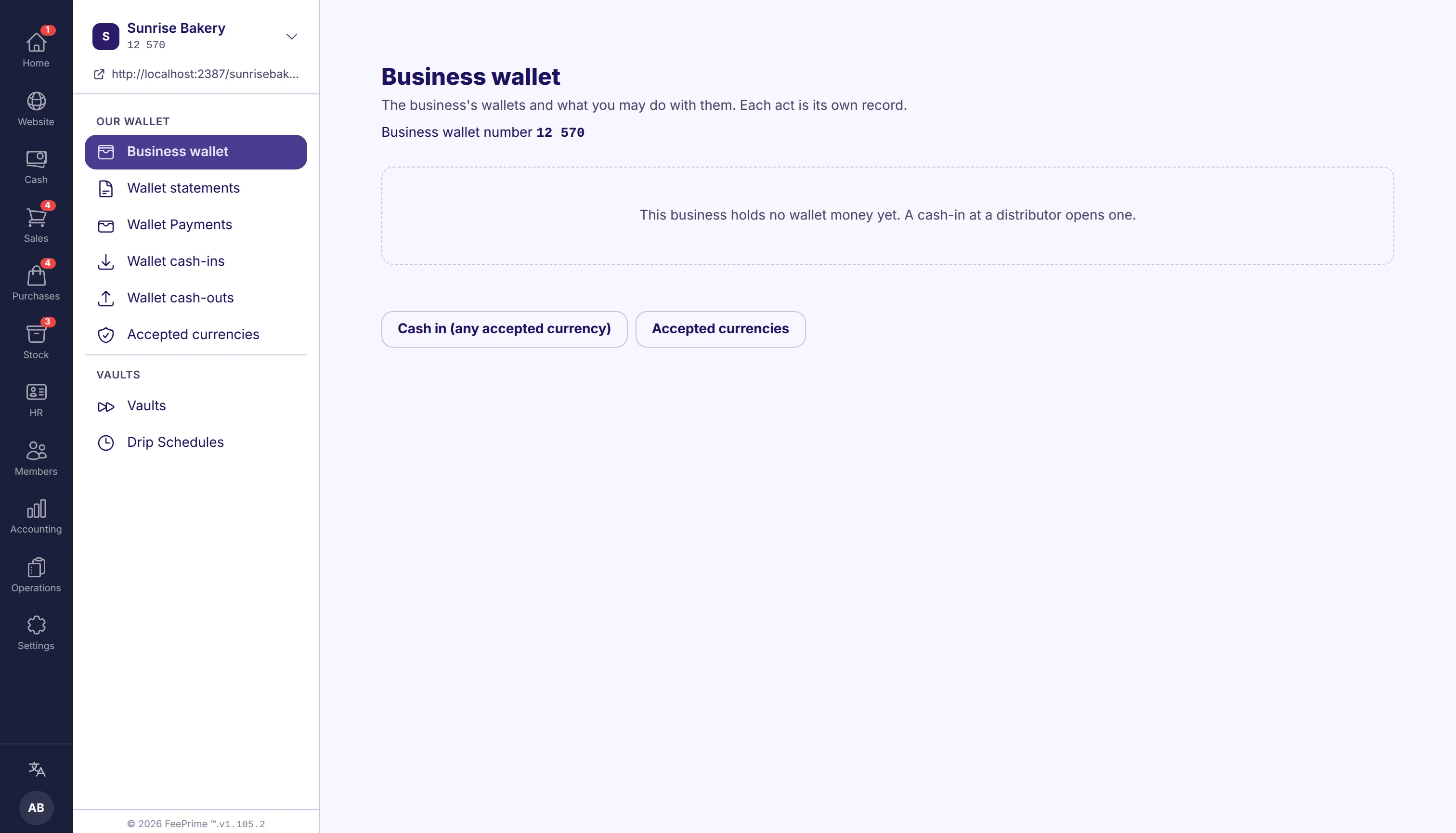 Sunrise Bakery Business Wallet Balances showing real FCFA balances by issuer and accepted currencies.
2. Opening a Business Wallet — even before you touch the ERP
There are two ways a Business Wallet starts, and both produce the exact same result:
- You already use FeePrime ERP: Like Sunrise Bakery, your organisation already has its Business Wallet ready under Digital Wallets / Our Wallet. You do not need to register a separate account.
- You start on your phone in the Issuer Portal: Suppose Amina’s cousin runs a small tailoring shop in Bonapriso and has never used FeePrime ERP. She signs into her personal Manna Finance wallet, opens the top Account Switcher, and creates a Business Wallet right there by entering just two details:
- Business Name (what customers and staff see)
- Web Address (a unique FeePrime address for the business)
Behind the scenes, FeePrime creates a real FeePrime organisation immediately. She can collect counter payments and pay suppliers from her phone today — and six months later, when she signs into the full ERP to issue formal invoices or track stock, her wallet, balances, and full history are already waiting there.
Never create a second FeePrime organisation just to get a fresh wallet. One legal business equals one organisation and one Business Wallet. If you want to separate money for rent or taxes, use Vaults (Lesson 10) instead of splitting your company in two.
3. Adding teammates with the 4 Business Wallet roles
Inside the portal’s Business Wallet settings, an Owner can add teammates in seconds using each person’s personal wallet number — no corporate email addresses or IT setup needed. Every teammate gets one of 4 clear roles:
- Owner (Amina Bello): Full control over the Business Wallet — adding or removing staff, approving accepted issuers, configuring Spending Controls, and approving payouts.
- Approver (Amina or a finance manager): Reviews and approves held payments, supplier payouts, and cash-out requests that exceed a payer’s limit.
- Payer (Grace Ewane): Prepares supplier transfers, bill payouts, and payment requests inside the business’s Spending Controls. Even if Grace personally holds 0 FCFA in her own Manna Finance wallet, the send and confirm screens still display Sunrise Bakery’s money cleanly in FCFA.
- Viewer (Paul Kamga or an outside bookkeeper): Read-only access to balances and transaction history. Paul can confirm that Hôtel Akwa’s morning payment has landed before releasing 400 croissants to the delivery rider, without ever being able to send a franc.
Never share your personal login or PIN with a cashier so they can check a payment. Add them as a Viewer or Payer under their own wallet number. Every action then carries the right person’s name in your audit trail.
4. Choosing your Accepted Issuers
Open Digital Wallets / Our Wallet / Accepted Issuers.
Every digital franc in a FeePrime wallet is backed by a licensed currency issuer — in Douala, Sunrise Bakery uses FCFA issued by Manna Finance (led by Clarisse Mbarga). FeePrime always displays the real currency the money is pegged to (FCFA, alongside the issuer name Manna Finance) — never cryptic internal codes.
Here is the rule that protects your treasury: Accepted Issuers are turned on per issuer AND per currency. Even if two different licensed issuers both peg 1:1 to FCFA, a shared peg does not make them the same promise. Accepting FCFA from Manna Finance does not automatically mean Sunrise Bakery accepts FCFA from another issuer.
- To start receiving money from an issuer’s customers, an admin adds that Issuer and Currency in Accepted Issuers.
- Adding or archiving an accepted issuer requires admin approval. Deciding whose digital money your shop is willing to hold is an owner’s treasury decision, not something a cashier should toggle mid-shift.
- Never assume all FCFA wallets are interchangeable. Before telling a new buyer to pay by wallet, check that their issuer appears as active in Accepted Issuers.
One small shop serving one city? Accepting the single issuer your customers and nearby agents (like Alain Fokou at Kiosk Bonapriso) already use is plenty — leave other issuers off. Growing across regions or working with corporate partners on different issuers? Add each vetted issuer explicitly as you expand.
5. Reading live balances, collecting via QR, and pulling audited statements
Live balances
Open Digital Wallets / Our Wallet / Business Wallet Balances. This screen is strictly read-only — nobody can manually edit or overwrite a balance. You see one live row per accepted issuer and currency (for example, Manna Finance — FCFA).
Your business dashboard stays calm during normal days: wallet tier limits only appear on the dashboard when you are getting close to reaching one, so your attention goes where it matters.
Receiving payments with standing QR and payment links
From the portal’s Business Wallet screen, staff can display Sunrise Bakery’s standing Receive QR at the counter or copy a payment link to send over WhatsApp. Setting an amount on the link is optional: leave the amount blank for walk-in bread buyers at the Bonapriso shop, or pre-fill 185,000 FCFA when requesting payment from Hôtel Akwa for a confirmed delivery.
Audited Business Wallet Statements
At month-end, when Sunrise Bakery’s accountant reconciles the OHADA books, open Digital Wallets / Our Wallet / Business Wallet Statements and create a new statement record. Choose:
- Issuer (for example, Manna Finance)
- Currency (FCFA)
- Start Date and End Date (for example, 1 October to 31 October)
- Reason (optional, such as October OHADA reconciliation)
Unlike an issuer pulling a customer’s private statement — which always requires a second person to approve — pulling your own Business Wallet statement computes immediately with no waiting. FeePrime saves it as an immutable, archived-only record showing who pulled it, which period it covers, and why.
Never reconcile your books from phone screenshots or hand-typed spreadsheets. Generate a formal Business Wallet Statement so every opening balance, fee, incoming invoice payment, and payout ties back cleanly to your ledger.
6. Completing Business KYB verification and requesting higher tiers
Every newly opened Business Wallet starts at Tier 1 with entry-level transaction limits so you can receive small payments right away. Before big corporate invoices from Hôtel Akwa or monthly salary runs hit your wallet, verify your business.
Open the dedicated Business Verification (KYB) page for your Business Wallet and submit your organisation’s documents (such as your RCCM registration, taxpayer card, and owner ID). Your submission drops directly onto the issuer’s Task Board so Clarisse Mbarga’s compliance team at Manna Finance can review it quickly.
- Once approved, FeePrime confirms clearly that your business is verified — and stops prompting you to verify again.
- Need limits above Tier 2? You can request a higher tier (Tier 3, Tier 4, and above) in the very same verification trip, or anytime after verification, without waiting for a payment to fail.
- Do not wait until a 2,400,000 FCFA hotel settlement bounces at a Tier 1 limit. If a receiver’s tier cannot accept an incoming amount, the sender’s form refuses the payment up front.
Small neighborhood shop with modest daily counter sales? Standard verified Tier 2 is usually plenty to start. Wholesaler, bakery supplying hotels, or employer paying staff by wallet? Complete Business KYB early and request the tier that matches your busiest week.
Try it
Practice on staging.feeprime.com — a practice copy of FeePrime, kept apart from the real thing, where you can click safely without touching live money.
- Open Digital Wallets / Our Wallet / Business Wallet Balances and confirm how your balance is displayed by Issuer and Currency (for example, Manna Finance — FCFA).
- Open Digital Wallets / Our Wallet / Accepted Issuers and review which issuer-currency pairs your practice business currently accepts.
- Open Digital Wallets / Our Wallet / Business Wallet Statements, create a statement for the last 30 days with the reason
Practice month-end check, and confirm that it computes immediately. - Open the Issuer Wallet Portal, tap the top Account Switcher to switch from Me to your business, and inspect the standing Receive QR and optional-amount payment link.
- Check the Business Wallet team section to review the four roles (Owner, Approver, Payer, Viewer) and locate the Business KYB Verification page.
Once you have walked through those five steps, your team can collect and reconcile business wallet funds cleanly from day one.