
Paying Salaries via Wallet: Employee onboarding and maker-checker payroll
Before you start, sign in and open HR / Payroll Runs.
Can’t find it? It may be turned off for your business, or your account may not be allowed to open it. Ask the person who set up your FeePrime. They can fix both.

Photo: Clay Banks on Unsplash
Month-end at Sunrise Bakery in Douala used to mean closing the Akwa office door at 5 PM, counting stacks of banknotes into brown envelopes, hunting for 5,000 FCFA change, and chasing delivery riders coming back from Marché Central to sign a paper list. Meanwhile, Hôtel Akwa had just paid Sunrise Bakery’s monthly bread invoice straight into the bakery’s Manna Finance business wallet. Pulling digital money out as cash only to hand it back out envelope by envelope wastes time, invites counting errors, and leaves no clean trail when someone asks which month a payment covered.
FeePrime lets you pay staff directly from your business wallet right off your posted Payroll Run. Grace Ewane initiates each salary in a click, Amina Bello reviews and approves it under Sunrise Bakery’s Spending Controls, Paul Kamga receives his FCFA in seconds, and your HR and accounting books settle themselves. Paul can keep his balance digital or walk to Alain Fokou’s Kiosk Bonapriso to cash out whenever he wants.
1. Save every employee’s wallet number before payday
Wallet payroll starts on the employee’s Contact record, not on the afternoon of the 30th.
- Open Sales / Customers / Contacts, find the employee linked to their profile under HR / Employees, and save their personal FeePrime wallet number.
- Watch your Task Board. Whenever you hire someone new and add them to HR / Employees without a FeePrime wallet number on their Contact, FeePrime automatically puts an HR card on your Task Board reminding you to add it. Clear those cards during onboarding so nobody gets stuck waiting on payday.
- Check their KYC tier early. Every personal wallet starts at Tier 1. If an employee’s monthly net salary is higher than a Tier 1 wallet is allowed to receive, FeePrime will refuse the payout right on the form before a single franc moves. Ask the employee to upload their ID and selfie in the Manna Finance Wallet Portal to upgrade to Tier 2 — or, if they use a basic feature phone, send them to an accredited field agent like Alain Fokou at Kiosk Bonapriso for Assisted Signup.
Never wait until payday afternoon to ask staff for wallet numbers or check KYC limits. Fixing a missing number takes thirty seconds on Monday; fixing it at 6 PM on the 30th delays the whole team.
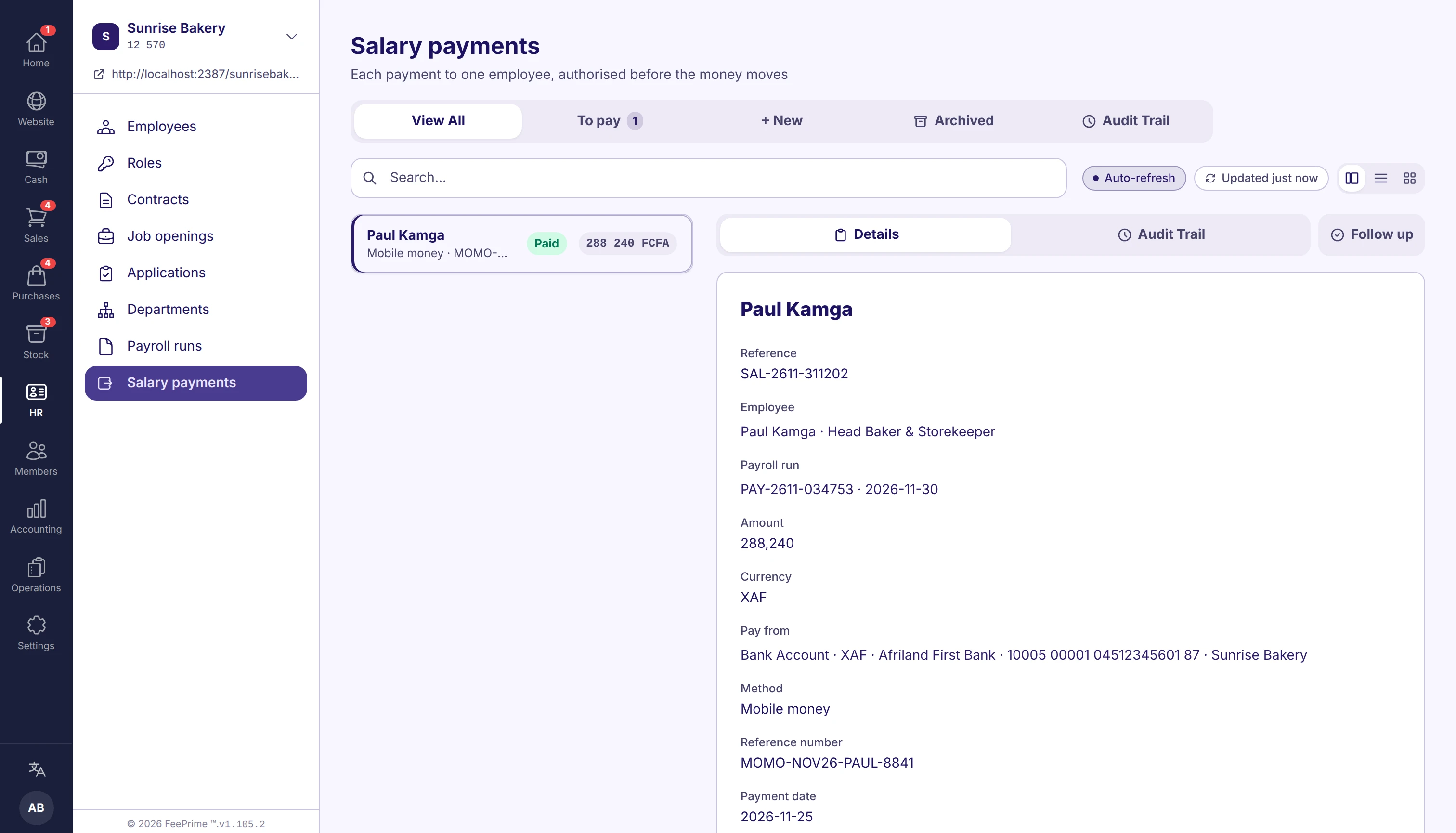 Paying employee salaries via Wallet under HR / Salary Payments routed safely through wallet approval controls.
2. How wallet payday flows from payroll run to settled salary
FeePrime deliberately separates calculating what you owe from sending the money and approving the transfer. Here is how one employee’s salary moves end to end:
HR / Employees + Contact (personal wallet number saved)
        |
        v
HR / Payroll Runs  --->  Click "Pay via Wallet" (1 employee line at a time)
        |                [Server calculates exact unpaid balance + locks line]
        v
Digital Wallets / Our Wallet / Wallet Payments
        |                [Checked against Settings / Access / Spending Controls]
        v
Approver reviews held reason & payee name (ERP or Portal Account Switcher)
        |
        v
FCFA lands in employee wallet  +  HR / Salary Payments booked automatically
        |
        v
Payroll Run line updates  --->  Still owed = 0 FCFA
Because every step writes to the same ledger, nobody has to copy figures from a wallet statement into a spreadsheet or type a manual salary voucher afterward.
3. Prepare the payroll run cleanly
Before you click Pay via Wallet, make sure your run under HR / Payroll Runs is solid:
- One currency per run. A Payroll Run posts one balanced accounting entry per currency. All staff paid in
FCFAsit in one run; anyone paid in another currency needs their own run. - One pay frequency per run. Never sweep a weekly helper into Sunrise Bakery’s monthly run. A weekly worker in a monthly run would be accrued at their weekly rate for the whole month, and a monthly baker in a weekly run would be accrued a full month every week.
- Pick the whole pay period. Select the full month, half-month, fortnight, or week from the period picker rather than typing loose dates, so you never create overlapping runs for the same work.
- Check your wallet balance first. Open Digital Wallets / Our Wallet / Business Wallet Balances to confirm your Manna Finance
FCFAbalance covers the run. If you set aside payroll money in a Payroll Reserve vault under Digital Wallets / Vaults / Wallet Vaults, withdraw it into your operating wallet before you start.
Posted payroll runs cannot be edited. Just like invoices and bills, once a Payroll Run is posted, its accrual is locked so nobody can silently alter history. If you spot a wrong allowance or the wrong pay frequency, archive the run and create a clean one before paying.
4. Pay one employee line at a time with Pay via Wallet
Open the posted Payroll Run in HR / Payroll Runs. On Paul Kamga’s line, Grace Ewane (Sunrise Bakery’s Payer) clicks Pay via Wallet.
Paying one employee line at a time is built around three quiet safeguards that protect busy teams:
- Impossible to overpay. FeePrime reads Paul’s exact unpaid net balance directly from that Payroll Run. Grace never types the
FCFAfigure by hand, so a stray zero can never turn 180,000 FCFA into 1,800,000 FCFA. - Protected against double-clicks. If Douala 3G stalls and Grace clicks Pay via Wallet twice — or two finance clerks open the same run at the same moment — FeePrime locks that employee’s line on that run so only one payment can be created.
- Clear checks up front. The form shows the amount in readable
FCFA(never a raw internal token label) alongside the recipient wallet holder’s name, and checks whether Paul’s wallet tier can accept the transfer before creating it.
5. Maker-checker approval and bulletproof settlement
Clicking Pay via Wallet does not immediately drain Sunrise Bakery’s wallet. It creates a payment record under Digital Wallets / Our Wallet / Wallet Payments that obeys the exact same Spending Controls (Settings / Access / Spending Controls) you already configured for supplier bills and wallet transfers.
- Clear context for the approver. If Paul’s payout exceeds Grace’s personal cap, or if this is the first time Sunrise Bakery is paying a newly onboarded baker’s wallet, FeePrime pauses the payment in the Pending tab and records the held reason. Amina Bello does not just see a mysterious waiting line — she sees why it paused (“over limit” vs “new recipient”), the exact
FCFAfigure, and the wallet holder’s name. - Approve from the office or on the road. Amina can approve or reject inside Digital Wallets / Our Wallet / Wallet Payments, or directly from her phone inside the Manna Finance Wallet Portal by tapping the top Account Switcher from
MetoSunrise Bakery. FeePrime enforces one final decision per held payment, so two approvers can never approve the same row twice. - Crash-proof, double-pay-proof execution. The moment Amina approves, FeePrime sends the transfer with a unique ledger fingerprint that makes double-paying mathematically impossible. Even if a network blip or server restart interrupts the exact second she taps Approve, an automatic background check runs every three minutes to finish the transfer and write the accounting entry.
- Automatic HR booking. As soon as the
FCFAlands in Paul’s wallet, FeePrime creates the matching record under HR / Salary Payments, automatically tagged to that exact Payroll Run. Tagging the run credits that specific period directly (whereas an untagged manual payment settles the oldest unpaid period first). Return to HR / Payroll Runs, and Paul’s line now showsStill owed = 0 FCFA. Need a signed voucher for your physical binder? Open HR / Salary Payments and print the slip.
If a transfer is ever refused at execution time, FeePrime keeps the exact error visible on the Wallet Payments row so Grace and Amina know immediately what failed and what to fix.
6. Common payday mistakes to avoid
- Never type over or try to patch a wrong Salary Payment. Like Payroll Runs, HR / Salary Payments cannot be edited after creation because changing one would alter what someone signed off. Archive the mistaken record and create a clean one.
- Never share one Owner login between the clerk who initiates and the boss who approves. Maker-checker only protects your bakery when Grace signs in as Payer and Amina signs in as Approver or Owner.
- Never ignore a receiver tier refusal by splitting one month into bogus payroll runs. Help the employee finish Tier 2 verification once; after that, every future payday takes seconds.
- Small shop vs growing team: Running a two-person shop where the owner handles both HR and cash? Set a sensible personal limit in Settings / Access / Spending Controls so routine wages settle smoothly without slowing you down. Running a growing bakery with a dedicated finance clerk? Keep maker-checker active and leave the new-recipient hold switched on so a stranger’s wallet can never be slipped into payday.
Try it
Practice a full maker-checker payday on staging.feeprime.com — a practice copy of FeePrime, kept apart from the real thing:
- Check the Task Board for an employee missing a FeePrime wallet number, then open their Contact under Sales / Customers / Contacts and save a test personal wallet number.
- Open Digital Wallets / Our Wallet / Business Wallet Balances to confirm your test business wallet has enough
FCFAto cover one salary. - Go to HR / Payroll Runs, open a posted monthly run, and click Pay via Wallet on that employee’s line. Notice that FeePrime fills in the exact unpaid amount automatically.
- Open Digital Wallets / Our Wallet / Wallet Payments (or switch to your business in the Wallet Portal via the Account Switcher), inspect the held reason and recipient name, and approve the payout.
- Return to HR / Payroll Runs to verify
Still owed = 0 FCFA, then open HR / Salary Payments to see the automatically booked salary record linked to that run.
You have just closed the full circle of FeePrime’s digital wallet ecosystem — from issuer minting and field agents, to customer invoice prompts, vaults, and instant, controlled payday.