
Users, roles and permissions
Before you start, sign in and open Settings / Access / Users and Roles.
Can’t find it? It may be turned off for your business, or your account may not be allowed to open it. Ask the person who set up your FeePrime. They can fix both.
When Sunrise Bakery opens its second counter in Bonapriso, sharing one phone at the till stops working fast. A price changes on 400 croissants for Hôtel Akwa, a supplier bill gets approved twice, or a cashier leaves at the end of the month—and nobody can tell for sure who touched what.
In FeePrime, every colleague is a member of your business with their own personal login and their own per-module permissions. You decide who can view, who can enter, and who can approve—and every action stays permanently stamped with the real person’s name.
1. Add a staff member in three steps
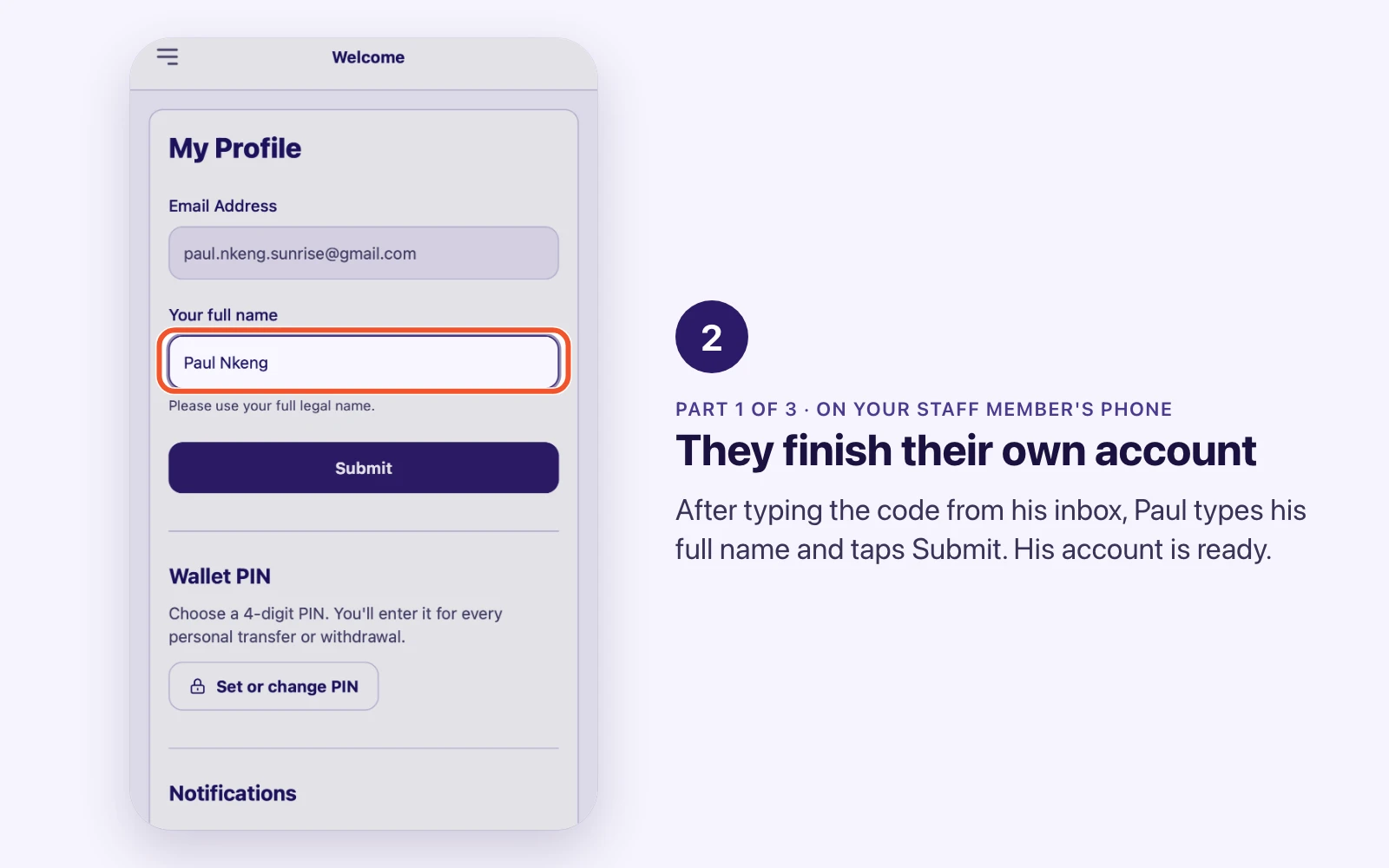
Adding a colleague in FeePrime does not work like most business software. You do not create a username or password for your staff member. They create their own personal FeePrime account on their own phone, and you link them to your business.
  Colleague signs up         Sends personal wallet       You add them in
  on their own phone   --->  account number        --->  Settings / Access / Users and Roles
  (keeps own login)          (Copy or Share)             & pick their module roles
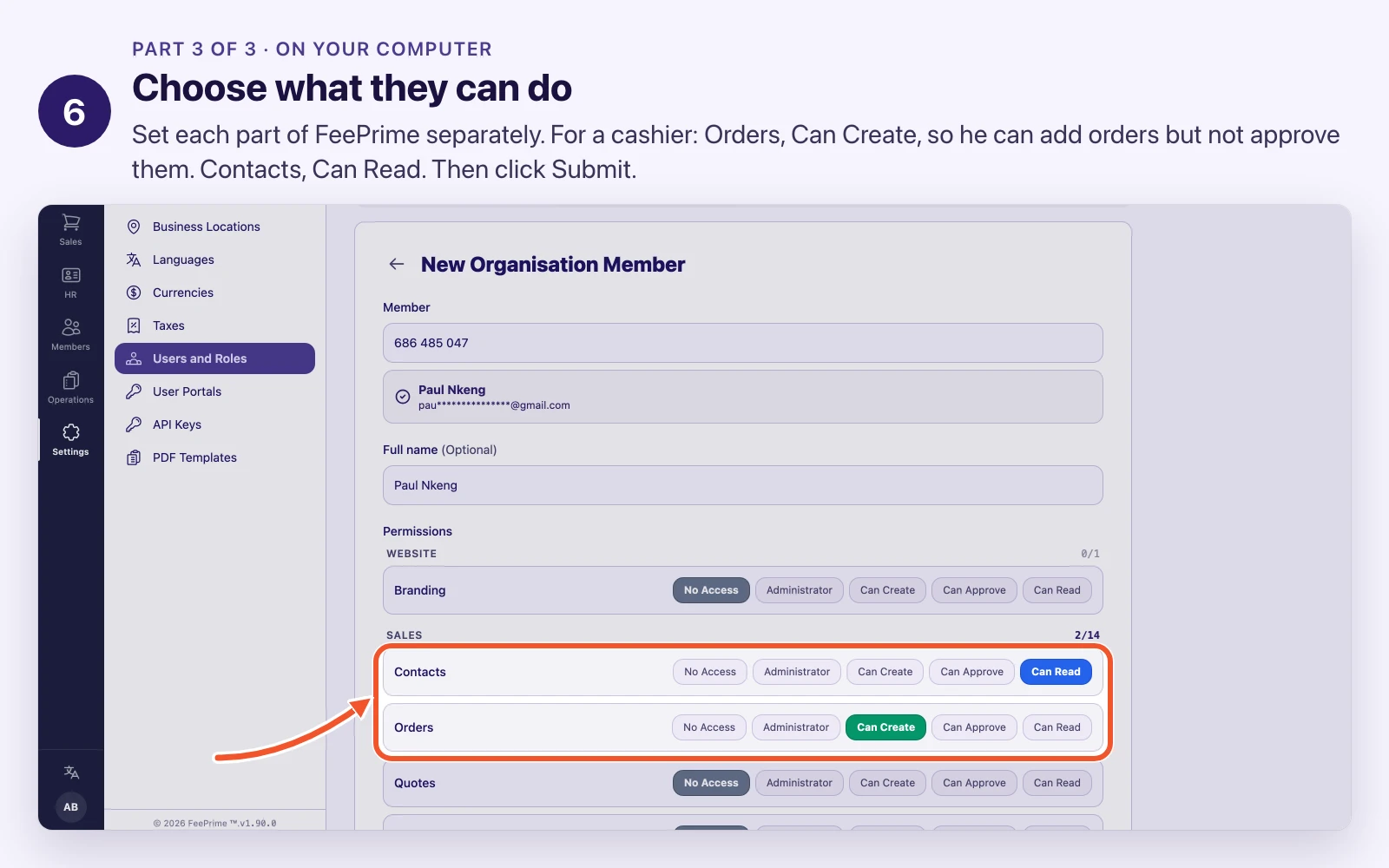
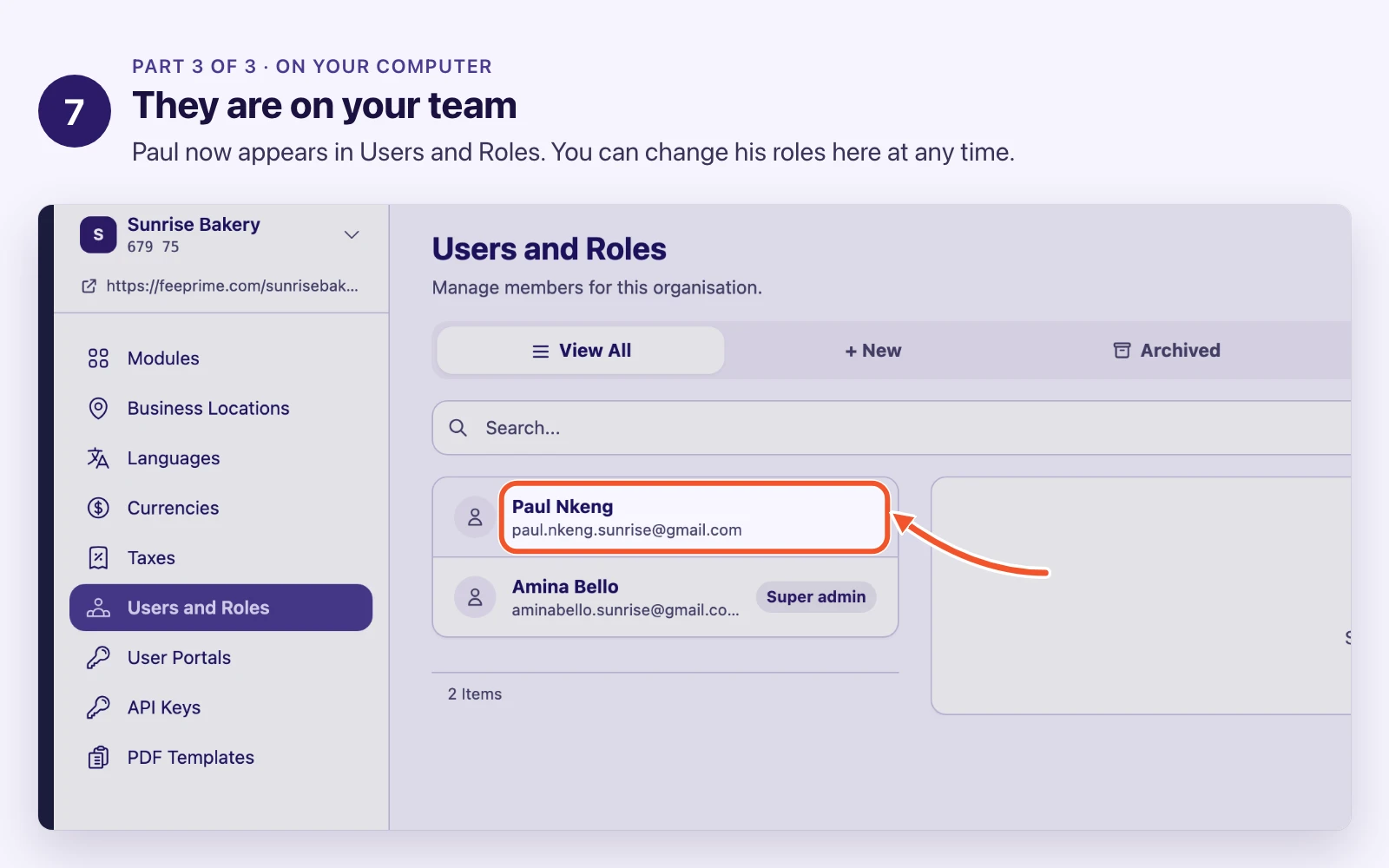
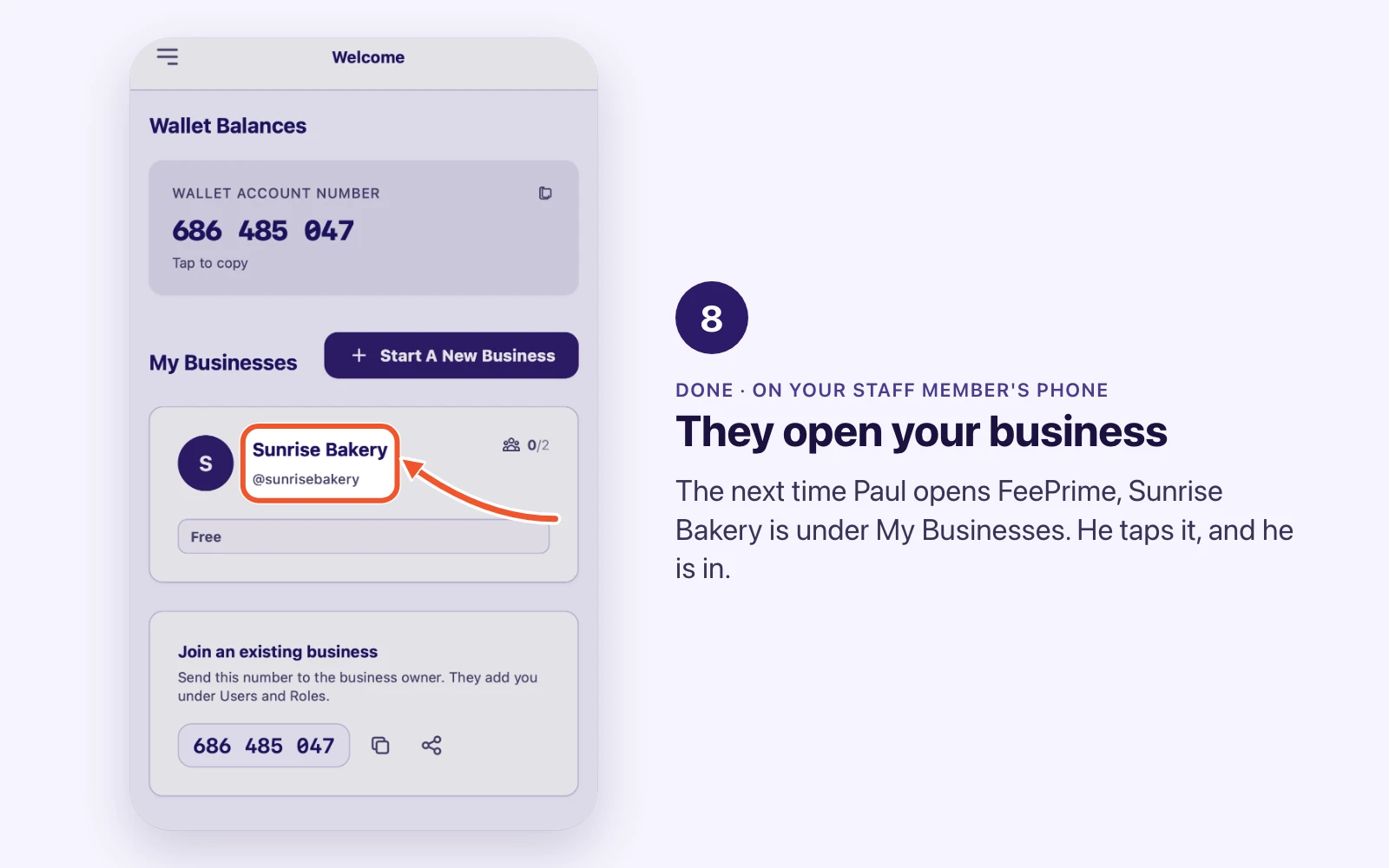
The video with this lesson shows all three steps. The screenshots below walk through it screen by screen:
- Your staff member creates their own FeePrime account on their own phone. You cannot create it for them.
- They send you their personal wallet account number. It appears on their Home page with Copy and Share buttons.
- You add them in Users and Roles and pick what they can do. On your dashboard, Add a teammate takes you straight there—or open Settings / Access / Users and Roles and click New.
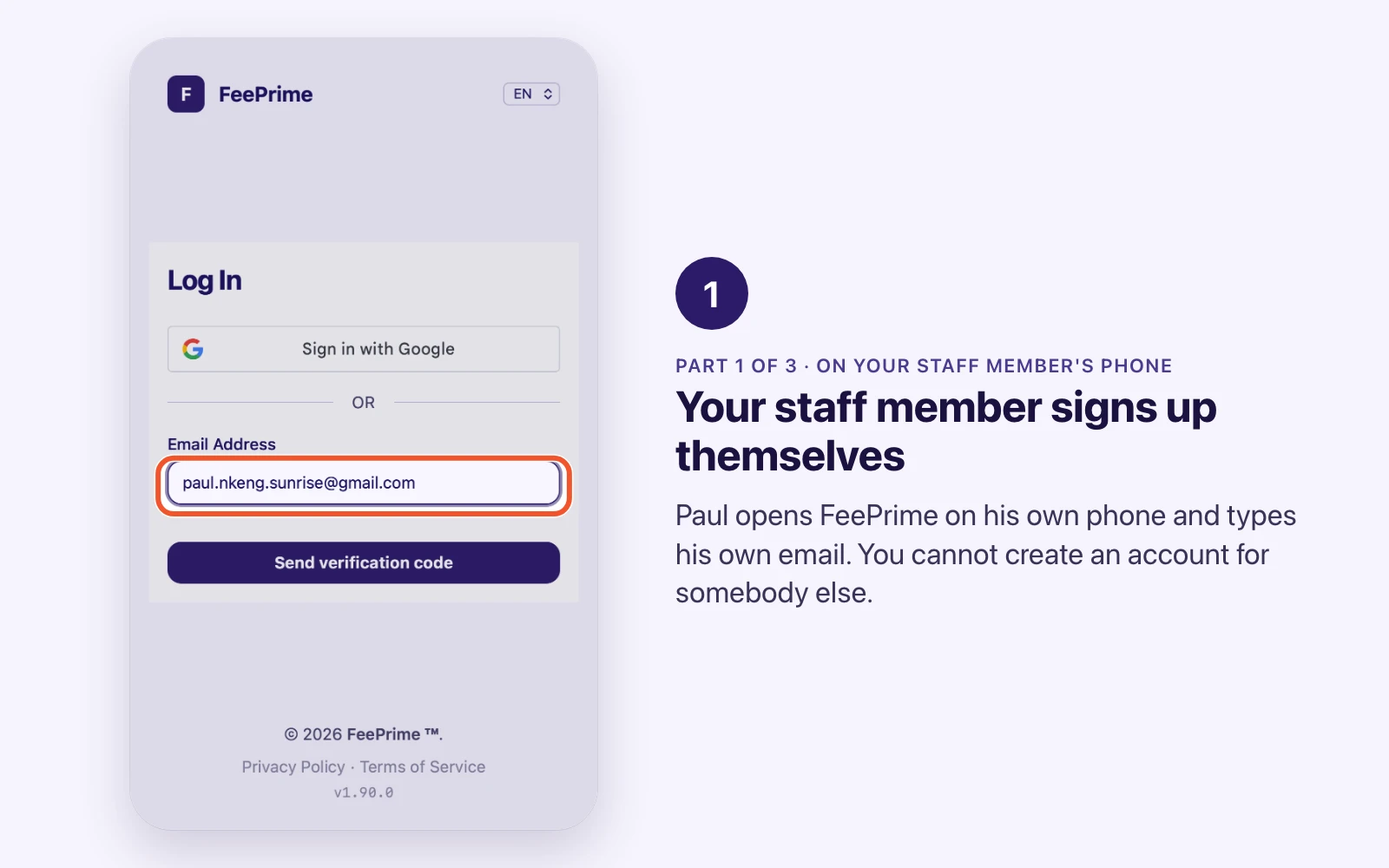
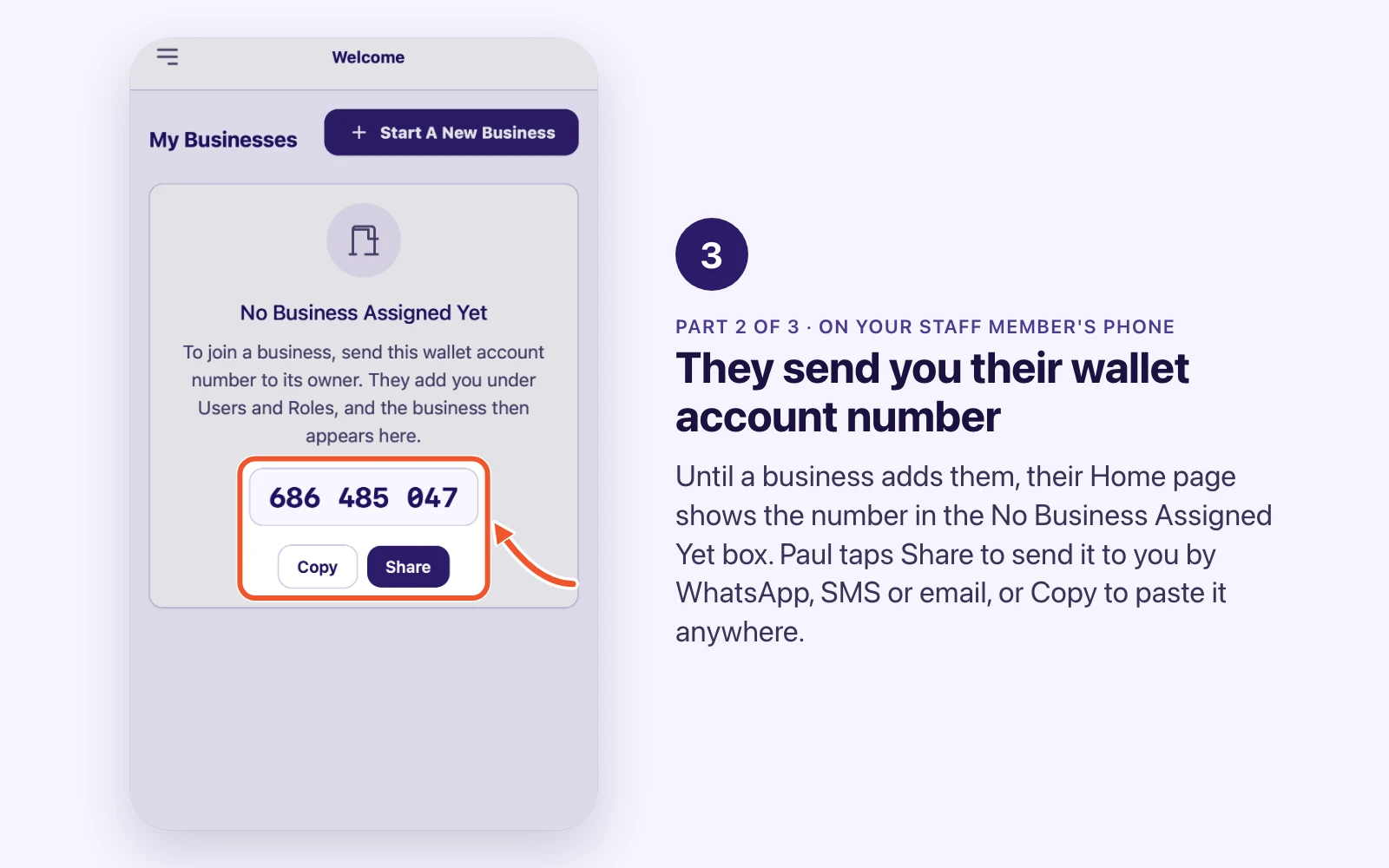
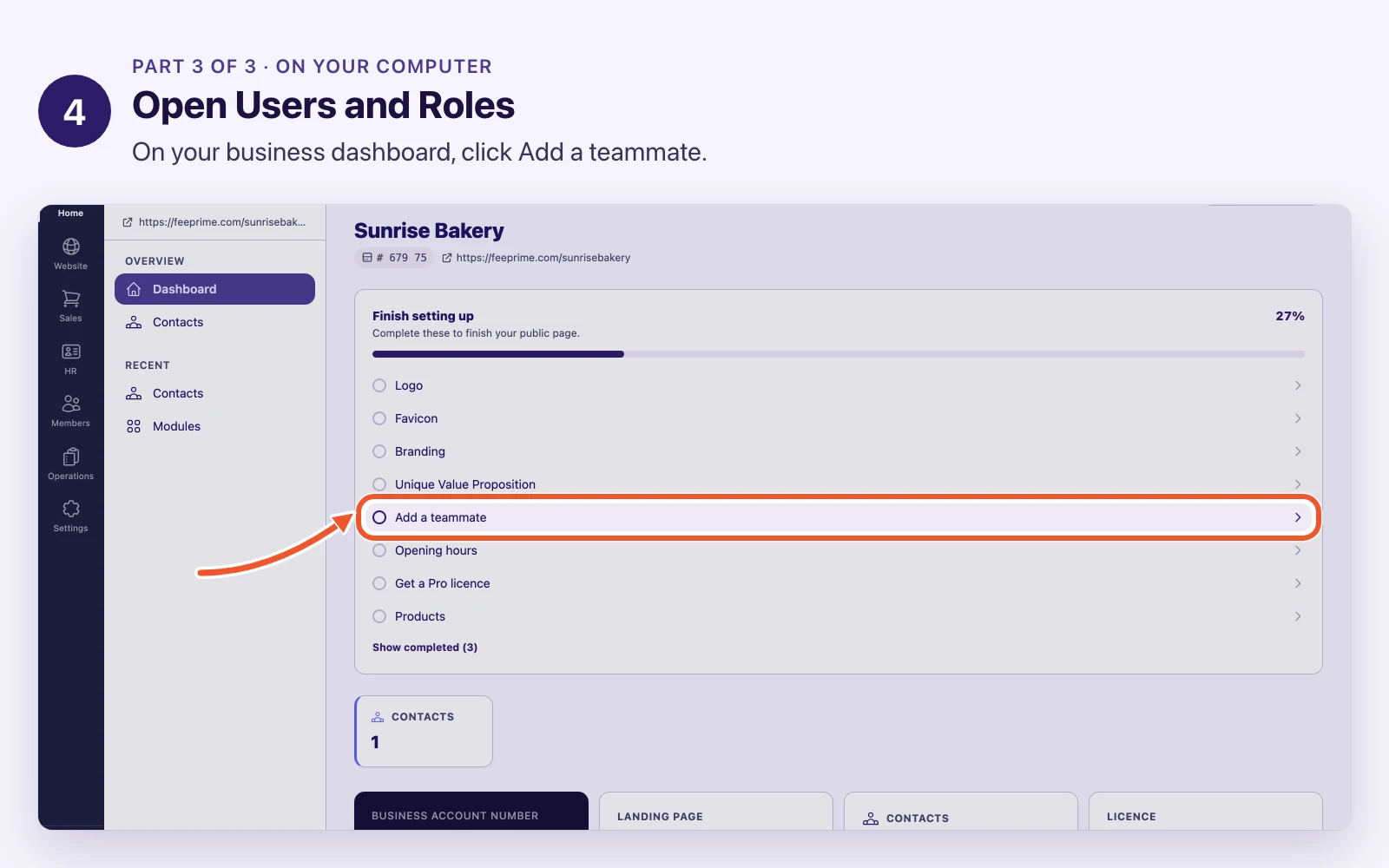
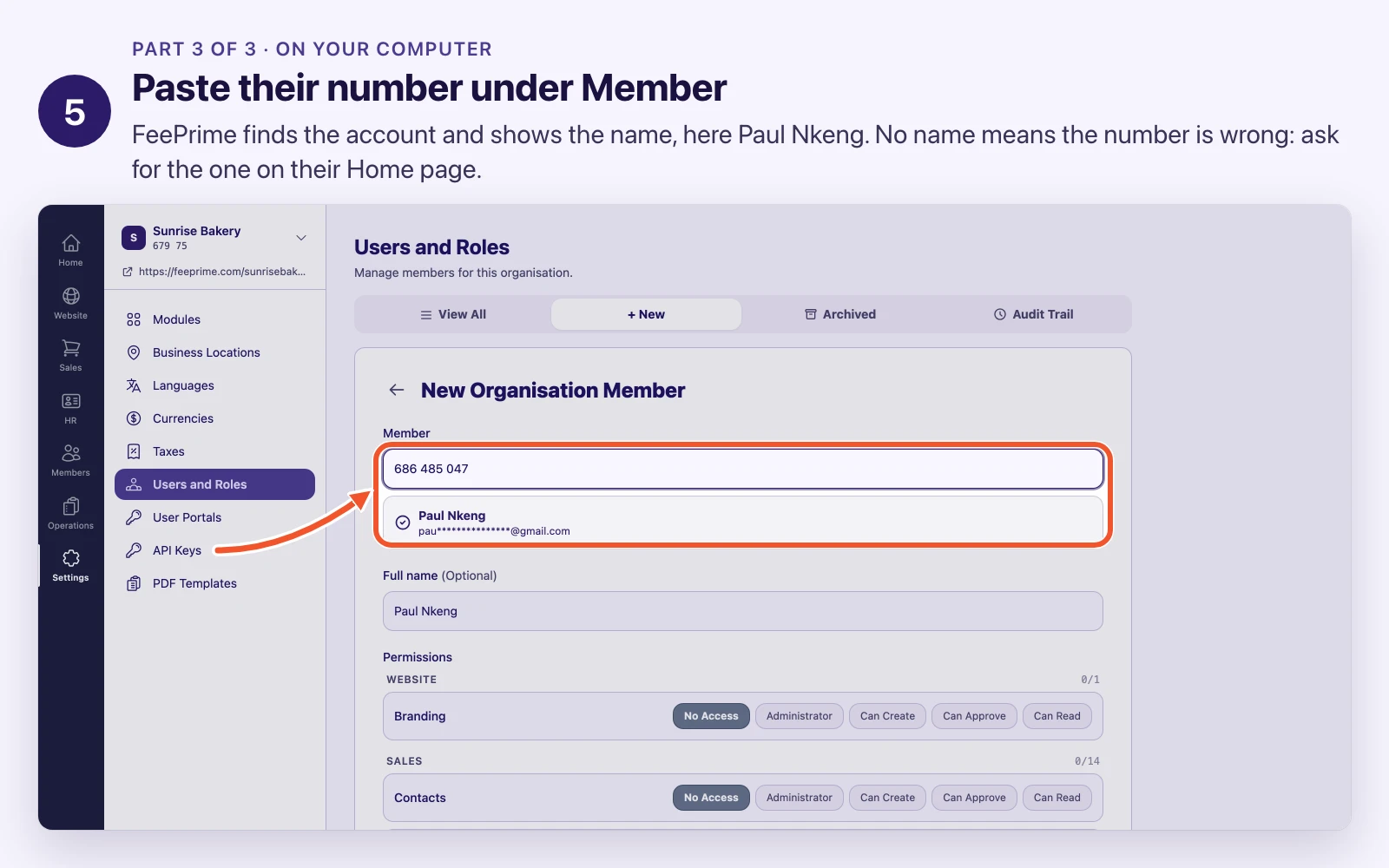
You can type or paste their number exactly as they send it—spaces and dashes are ignored. Make sure it is a personal account number. If you paste a business’s own wallet number, FeePrime refuses it because you are adding a person, not an organisation.
2. Why identity belongs to the person, not the shop
When a shop invents a username and password for Paul, the owner holds credentials they could use to act as Paul—and Paul’s audit trail is no longer trustworthy. By granting access to an identity Paul already owns, FeePrime can honestly prove who created an order, changed a price, or approved a payment.
A member’s name is read straight from their own personal profile. The full name field on the member record is simply a fallback: if a colleague never typed their name on their own account, an administrator can label them there so they do not appear as unknown, and their own profile name fills in later.
Two things can stop you when adding someone:
- Already a member: FeePrime refuses duplicates. If a former colleague returns later, you can re-add them after their earlier membership was archived.
- Your own permissions: Adding a teammate follows the same approval rules as any other module. If you only have Can Create in Users and Roles, the new teammate waits in Pending until an approver confirms them.
3. Pick the right access level for every module
Permissions in FeePrime are not one slider from junior to senior. You set access module by module, choosing one of five levels for each part of the business:
- Administrator: Can view, create, edit, and approve.
- Can Create (maker): Can create or edit records, but cannot approve them.
- Can Approve (checker): Can approve pending changes, but cannot create or edit them.
- Can Read (viewer): Can view records only.
- No Access: The module does not appear in their sidebar at all.
Here is how Amina sets up Sunrise Bakery across departments:
  Module              Paul (Cashier)   Storekeeper     Amina (Manager)
  -----------------   --------------   -------------   ---------------
  Orders              Can Create       No Access       Administrator
  Contacts            Can Read         Can Read        Administrator
  Inventory           No Access        Can Create      Can Approve
  Purchase Orders     No Access        Can Create      Administrator
  Payroll             No Access        No Access       No Access
Notice how cleanly that separates daily work from approval. Paul can take a 45,000 XAF morning order at the Akwa counter without touching stock counts or payroll. The storekeeper can log 20 incoming bags of Flour 50kg, and Amina approves the stock adjustment.
Small shop with two people? Start simple: give the owner Administrator and the cashier Can Create on Sales / Selling / Orders and Can Read on Sales / Customers / Contacts. You can split maker and checker on purchasing, cash, and stock later as your team grows.
4. What your team actually sees on screen
Once roles are set, three everyday behaviours make complete sense:
- A module is missing from the sidebar: Either it is switched off for the business, or the person has No Access to it.
- Saves land in Pending: The person has Can Create without Can Approve in that module. That is maker-checker working as designed, not an error.
- An action button is absent or refused: FeePrime tells the user plainly that they lack permission instead of failing silently.
5. Never share a login, and disable instead of deleting
Two mistakes break more SME audit trails than anything else:
- Never share a login—even for thirty seconds. If Paul borrows Amina’s signed-in phone to approve an urgent credit note for Hôtel Akwa, FeePrime permanently records Amina as the approver. If a colleague needs a role they do not have, ask an administrator to grant it. That takes two minutes and keeps the record honest.
- Disable or archive leavers—never rename them for a replacement. When Junior the delivery rider leaves, disable or archive his membership. He loses access to Sunrise Bakery immediately, his personal FeePrime account stays his own, and every delivery he completed keeps his name on it. Renaming Junior’s record to the new rider would silently rewrite history under the wrong person’s name.
6. Signatures, stamps, and API keys (for bigger operations)
Running a small bakery counter with no stamped certificates or external software? Skip this section for now. Nothing breaks.
- Members who sign documents: A member record can store a signatory title, a signature image, and a stamp image. When that person approves a signed document, FeePrime freezes those exact details into the document at signing time—so a certificate reprints identically years later even if the signer updates their record or leaves. Treat uploaded signature and stamp images with the same care as a physical rubber stamp.
- API keys: Under Settings / Access, a business can issue API keys so external software can connect to FeePrime. Each API key carries its own module permissions just like a staff member, so an integration only gets the narrow access it needs—and when “the system” posts an entry, you can trace which key and owner did it.
Try it
Practice on staging.feeprime.com—a practice copy of FeePrime kept completely apart from your real business.
- Sign in and open Settings / Access / Users and Roles.
- Open one existing team member’s record and read their access level across three modules (such as Orders, Contacts, and Inventory).
- Compare those permissions against what appears in your own sidebar.
- Click New to see the Member wallet-number field and the five permission levels (Administrator, Can Create, Can Approve, Can Read, No Access).
- Check where signatory title, signature image, and stamp image sit on a member profile so you know where to find them when your business needs signed documents.
Once you see how one member’s role list maps directly to their sidebar and Pending queue, managing a growing team in FeePrime becomes second nature.