
Inventory transactions: which documents move stock
Before you start, sign in and open Stock / Stock / Stock Items and Stock / Movements / Inventory Transactions.
Can’t find one? It may be turned off for your business, or your account may not be allowed to open it. Ask the person who set up your FeePrime. They can fix both.
Photo: Hardik Monga on Unsplash
Picture a busy Tuesday morning at Sunrise Bakery in Akwa. Hôtel Akwa confirms a big order: 10 bags of Flour 50kg and 400 croissants. Amina opens a sales order, sends the storekeeper to gather the bags, prints an invoice for 320,000 XAF, and hands the boxes to Junior on the delivery motorbike.
At 6 pm, Amina checks the stock screen. If she does not know which of those four steps actually changed her balance, every missing bag feels like a mystery. Did the sales order deduct the flour? Did the invoice deduct it twice? Did Junior’s delivery deduct it a third time?
Here is the single most useful rule in FeePrime stock control:
Stock only ever moves through an inventory transaction. Nothing else changes a shelf balance. Not a quote. Not a sales order. Not a pick request. Not a purchase order. Not an invoice tied to a sales order.
Under Stock, FeePrime organizes this cleanly into Stock (items, categories, warehouses, suppliers), Movements (every document and ledger row that moves goods), Production (recipes and production runs), and Reports. Whenever a balance changes anywhere in FeePrime, one row is written in Stock / Movements / Inventory Transactions.
1. Planning documents record intent — movements change stock
People often expect a sales order or purchase order to change stock right away. In FeePrime, planning documents record intent — what you promised to sell, buy, or return. Physical movements happen only when goods actually enter or leave a location.
OUTBOUND WITH WAREHOUSE PICKING:
  Sales Order ──> "Ask to pick and pack" ──> Pick Request (requested -> picking)
                                                    │
                                         "Pack into a shipment"
                                                    ▼
                                       Shipment ──> Inventory Transaction ──> Stock Leaves
                                          │
                                          ▼
                                       Delivery (tracks Junior's motorbike or truck)

OTHER WAYS STOCK MOVES:
  Goods Receipt (from PO)      ──> Inventory Transaction ──> Stock Enters
  Standalone Invoice (no SO)   ──> Inventory Transaction ──> Stock Leaves
  Standalone Bill (no PO)      ──> Inventory Transaction ──> Stock Enters
  Stock Transfer (dispatch/in) ──> Inventory Transaction ──> Leaves Store A, Enters Store B
  Production Run / Stock Count ──> Inventory Transaction ──> Stock Adjusts
Every movement ends up as one readable row in Stock / Movements / Inventory Transactions. There is no hidden second counter anywhere in FeePrime.
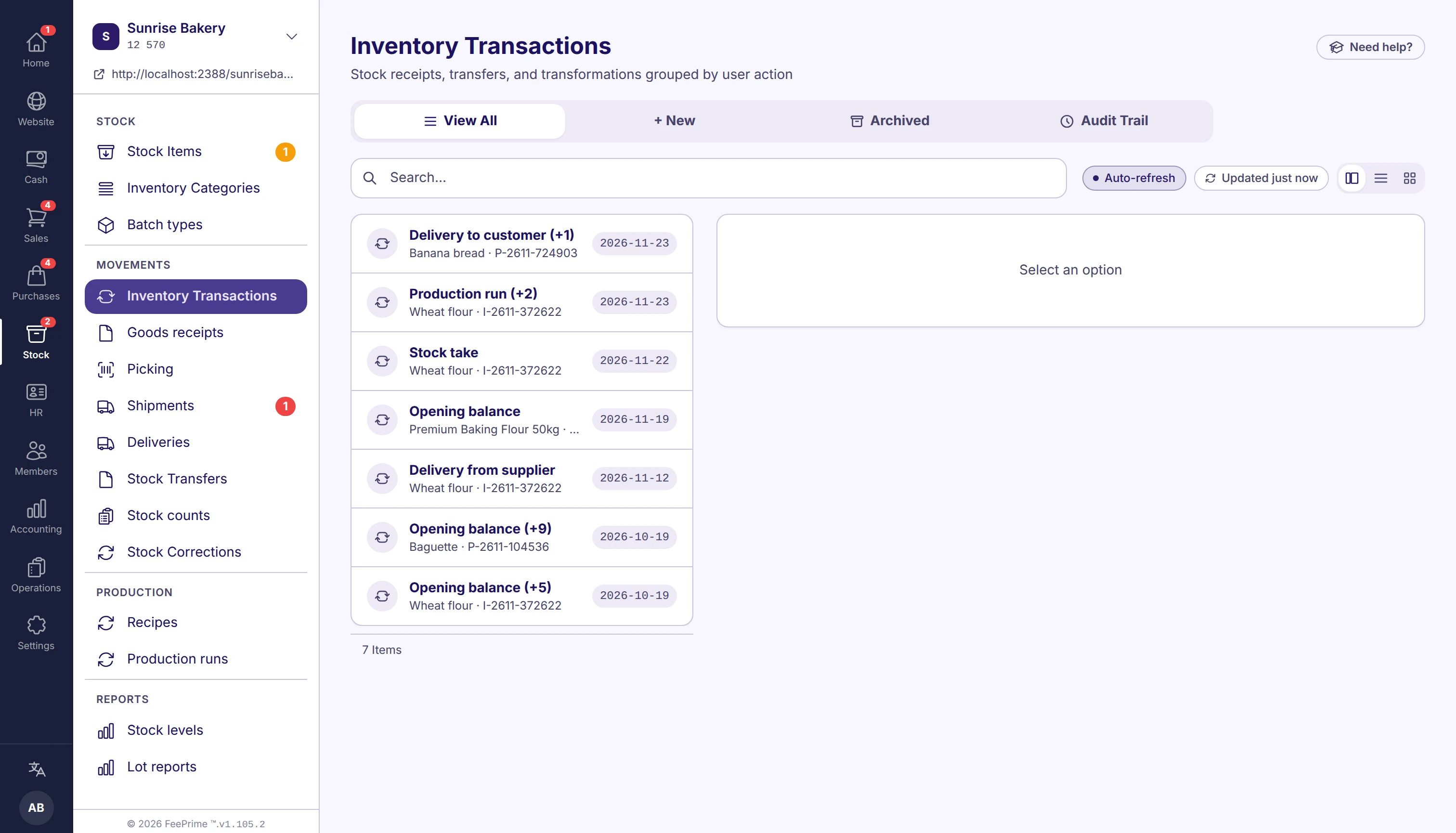 inventory transactions screen in FeePrime (Sunrise Bakery).
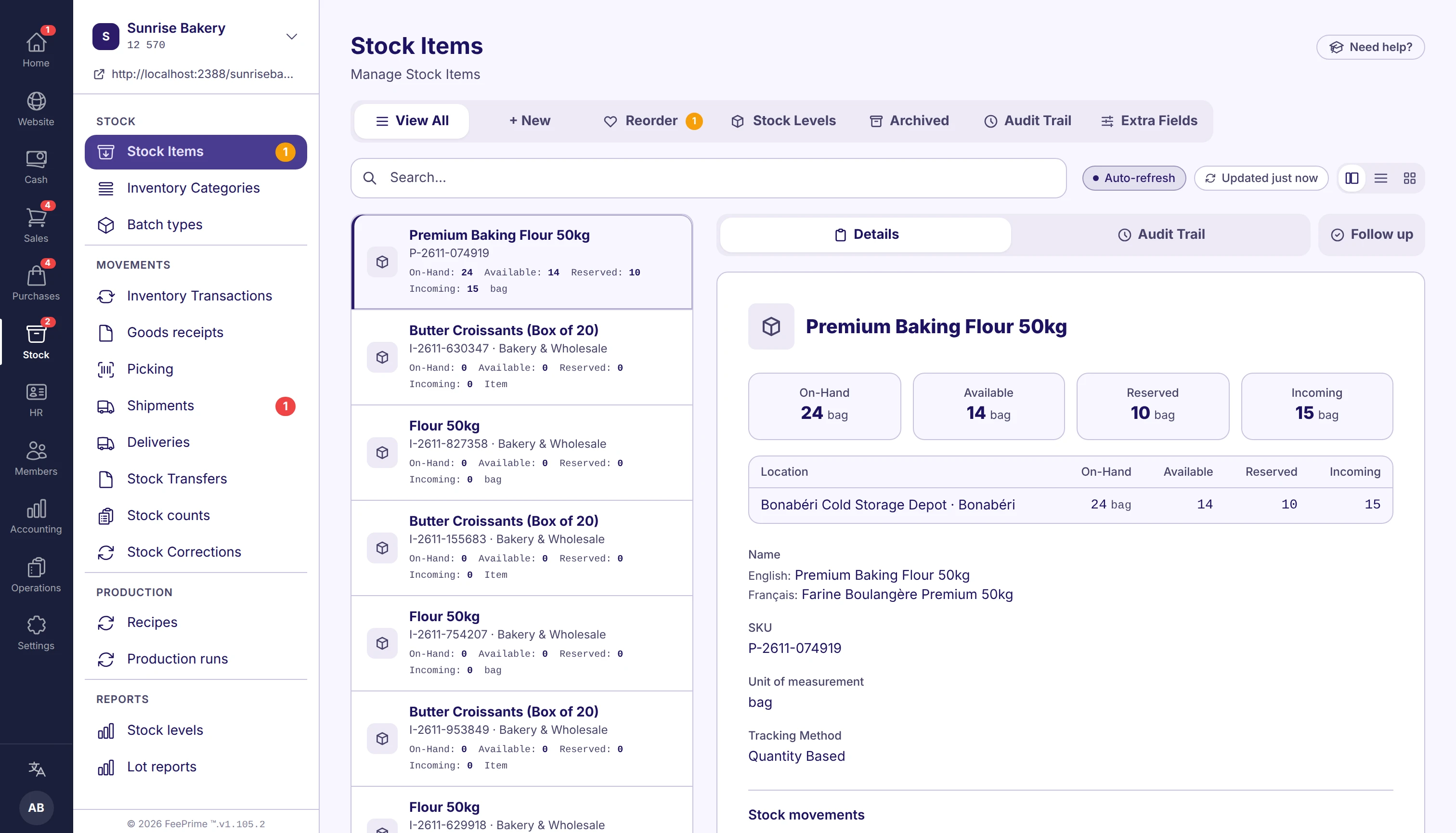 inventory items screen in FeePrime (Sunrise Bakery).
2. How picking, packing, and shipments move stock out
When your sales desk is separate from your storeroom or warehouse, FeePrime gives your team a clean handoff under Stock / Movements / Picking and Stock / Movements / Shipments.
Follow Hôtel Akwa’s 10-bag flour order step by step:
- Confirm the sales order under Sales / Selling / Sales Orders. Zero stock has moved. All 10 bags are still on the Akwa pallet.
- Click “Ask to pick and pack” on the sales order. FeePrime creates a pick request under Stock / Movements / Picking (and shows it on the order’s Inventory tab) with status requested. Still zero stock moved.
- Gather the goods. The storekeeper opens the pick request (status moves to picking), taps
+or-as they stack bags onto the trolley, or scans an optional barcode or SKU. - Click “Pack into a shipment.” This is the exact moment stock moves. FeePrime marks the pick request packed, creates the shipment under Stock / Movements / Shipments, and posts the outbound inventory transaction.
- Dispatch the delivery. When Junior loads his motorbike under Stock / Movements / Deliveries, the delivery tracks the trip (
picked_up,in_transit,arrived,completed). It never deducts stock a second time.
Two warehouse safeguards protect you every week:
- Short picks never hold up the truck. If the storekeeper only finds 7 of the 10 bags and clicks “Pack into a shipment,” FeePrime ships 7 bags now (stock drops by 7), and the remaining 3 stay open on the sales order for the next pick.
- Short-stock safeguard (“pack anyway”). If FeePrime shows 4 bags on hand in Akwa while 6 physical bags are sitting in front of you because a morning supplier delivery was not booked yet, FeePrime warns you. Choose “pack anyway” so the customer does not wait — then book the missing goods receipt right after.
One small shop, no warehouse team or deliveries? Leave Picking and Shipments turned off. Nothing breaks — standalone invoices and bills move your stock cleanly.
3. Why standalone invoices and bills behave differently
To prevent double-counting, FeePrime follows one strict rule: Each physical move happens once, on the first document that confirms goods actually moved.
- Sales side: An invoice under Sales / Selling / Invoices tied to a Sales Order does not move stock — the shipment already did. A standalone invoice (no sales order behind it, like Paul the cashier selling 3 boxes of croissants to a walk-in customer at Bonapriso) does move stock out, because nothing else will.
- Buying side: A bill under Procurements / Paying / Bills tied to a Purchase Order (Procurements / Ordering / Purchase Orders) does not move stock — the Goods Receipt (Stock / Movements / Goods Receipts) already brought the flour in. A standalone bill (no purchase order, like buying 10 kg of emergency butter at Marché Central) does move stock in.
- Returns: A supplier return under Procurements / Returns & Assets / Supplier Returns is intent; the linked Shipment moves damaged bags out. Likewise, Sales / Selling / Customer Returns records what comes back into store.
4. Automatic movements vs. movements your team records
To prevent accidental duplicates, FeePrime generates some movement rows automatically instead of asking you to hand-type them:
- Shipment movements (posted when a pick is packed or a shipment is approved).
- Both halves of a stock transfer — dispatch leaving Akwa bakery and receive arriving at Bonapriso shop — driven by Stock / Movements / Stock Transfer Orders.
The movements your team records directly through dedicated screens are supplier receipts (Stock / Movements / Goods Receipts), Stock / Production / Production Runs (turning flour, butter, and sugar into croissants), Stock / Movements / Stock Counts, wastage or spoilage, opening balances, and returns.
Never fix a wrong stock balance by typing over a number. There is no balance box to overwrite. If someone entered 25 bags instead of 15 or chose the wrong warehouse, undo it cleanly under Stock / Movements / Inventory Transaction Reversals and post the correct movement. Your audit trail stays honest.
5. Product lines only move stock when linked
You do not have to put raw stock items on every receipt. A product under Sales / Catalogue / Products can link to the stock item behind it. When Paul sells Croissant Box (12 pcs) for 6,000 XAF on a standalone invoice, FeePrime follows that link and deducts the stock item automatically.
Common mistake: selling a product that was never linked to a stock item. The invoice prints, cash enters the till, and the customer leaves happy — while your stock balance never drops by a single piece. If a fast-selling item stays frozen at the same count all week, check its product-to-stock-item link first.
6. How to investigate a wrong stock number
Stock is not a number somebody types in. It is the sum of every movement in and out of a location.
When Amina counts 15 bags of Flour 50kg in Akwa while FeePrime shows 18, do not ask “Who typed 18?” Ask “Which movement is missing, duplicated, or at the wrong warehouse?”
Check four places in order:
- Open Stock / Movements / Inventory Transactions filtered to that item and warehouse.
- Open Stock / Movements / Picking — is a pick request still stuck in picking because nobody clicked “Pack into a shipment”?
- Open Stock / Movements / Stock Transfer Orders — were 3 bags sent to Bonapriso without being dispatched or received in FeePrime?
- Check whether a counter product was sold unlinked, or whether spoiled goods were thrown out without recording wastage.
Try it
Head over to staging.feeprime.com — a practice copy of FeePrime, kept apart from the real thing — and verify the rule in five minutes:
- Sign in and open Stock / Stock / Stock Items. Pick any item with stock on hand and note its current balance.
- Open Stock / Movements / Inventory Transactions, filter to that item and warehouse, and add up the ins and outs. Confirm the sum matches the item’s balance.
- Open a sales order under Sales / Selling / Sales Orders and click “Ask to pick and pack.” Check the stock item again — confirm the balance has not changed yet.
- Open Stock / Movements / Picking, open your pick request, tap
+to pick fewer units than ordered (a short pick), and click “Pack into a shipment.” - Return to Stock / Movements / Inventory Transactions to see the new outbound row — then reopen the sales order to confirm the unpicked remainder is still open.
Once you verify one item balance by hand, stock stops being a mystery number and becomes a ledger you can explain in thirty seconds.