
How linking two FeePrime businesses works
What Linked Businesses & Third-Party Payments do: They connect two or more separate FeePrime businesses so quotes, purchase orders, invoices, credit notes, and payments made on another company’s behalf flow directly between their books — always with maker-checker approval on both sides, zero re-typing, and clean OHADA inter-company accounting.
Before you start, sign in and open Sales / Customers / Contacts.
Can’t find it? It may be turned off for your business, or your account may not be allowed to open it. Ask the person who set up your FeePrime. They can fix both.

Photo: Ali Mkumbwa on Unsplash
Picture a busy Monday morning at Sunrise Bakery in Douala. Amina Bello orders 50kg bags of flour every week from Littoral Flour Mills, run by Samuel Nkeng. Across town, Ibrahim Bello runs Bello Group Holdings, the sister company that often pays Sunrise Bakery’s rent, generator repairs, and urgent flour bills on the bakery’s behalf.
When two businesses are not linked, every transaction gets typed twice. Samuel sends a quote PDF on WhatsApp. Amina’s clerk retypes it into a purchase order. Samuel retypes that into a sales order, delivers the flour, and sends a 450,000 XAF invoice. Amina’s clerk retypes the whole invoice as a bill. One slipped zero turns month-end closing into two hours of phone calls.
Linking two FeePrime businesses ends the double typing without ever letting another company touch your books. Once both sides agree to link, quotes, purchase orders, invoices, credit notes, and payment reports travel straight into the other company’s Home / Incoming queue — ready to review and accept with a click.
1. Why both businesses must agree to link
Two FeePrime businesses are linked only when both sides agree. You can set that up in two ways:
- One-tap linking: One business requests a link in one tap, and the other business accepts in one tap.
- Business wallet numbers: Both businesses enter each other’s FeePrime business wallet number on their Contact record for that partner.
Why does FeePrime insist on mutual consent? Because your business wallet number is not a secret — it can appear on a printed invoice, a quote PDF, or a payment request. If one company could link to you just by typing your number, any stranger holding your invoice could push fake bills or bogus orders into your workspace. Mutual consent closes that door completely.
One detail you will see right away: FeePrime links itself automatically to the businesses it serves, so your own FeePrime subscription bills and service notices arrive cleanly through the same trusted channel.
Sunrise Bakery (Amina)                     Littoral Flour Mills (Samuel)
──────────────────────                     ─────────────────────────────
1. Opens Contact: Littoral Flour Mills
   Adds wallet number / taps to link  ───▶ Sees request in Home / Incoming
   Status: Not linked yet (Waiting)        Accepts in one tap (or adds Amina's number)
                                                          │
2. Both sides now show:                                   ▼
   Linked on FeePrime with ...       ◀───▶ Linked on FeePrime with ...

3. Sends Quote, PO, Invoice, Credit Note, or Payment Report
                        │
                        ▼
   Stops safely in receiver's Home / Incoming ──(Review & Accept)──▶ Enters books
   (Never posts straight into books; >20 docs/day auto-pauses the link)
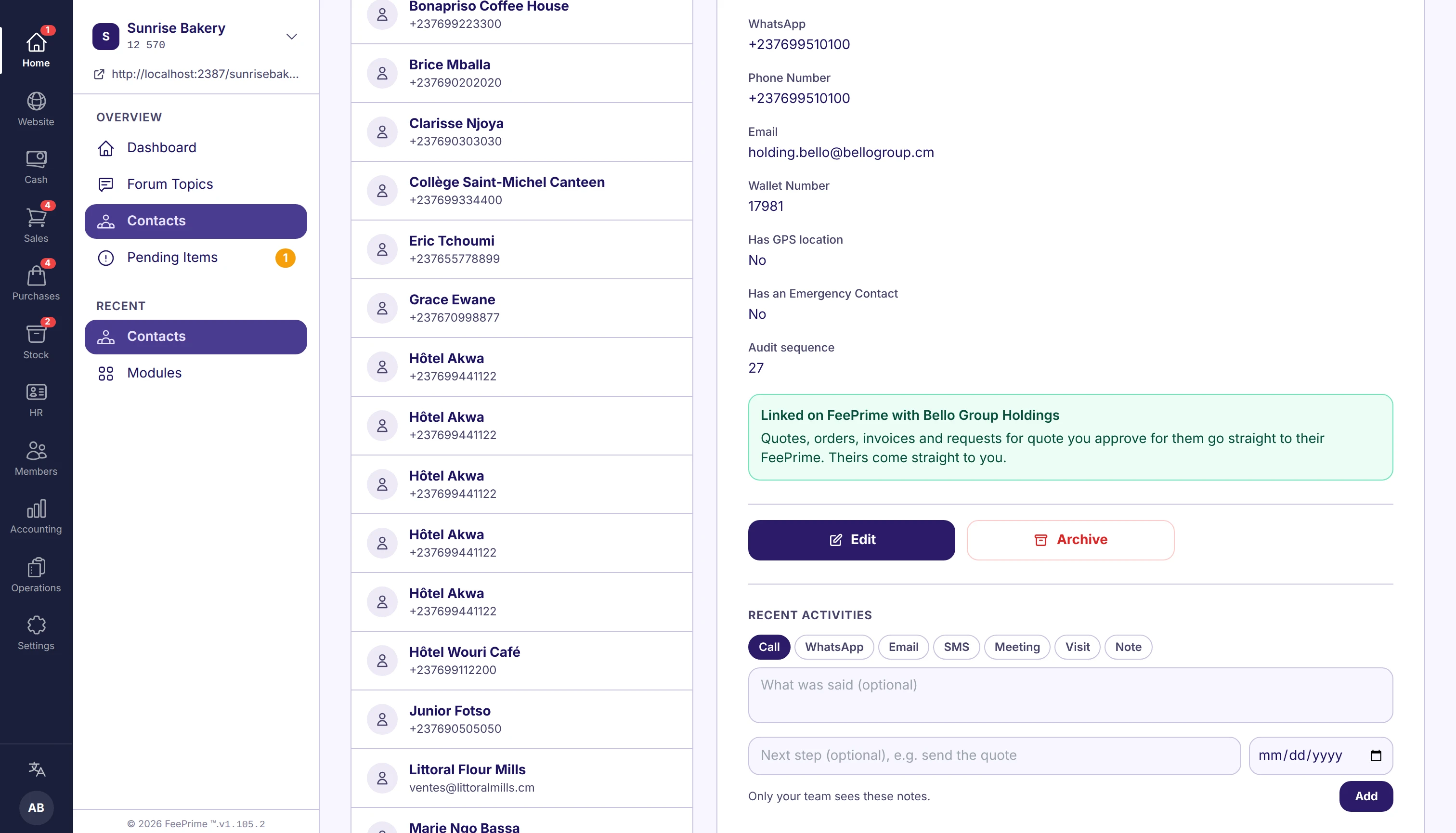 Contacts in FeePrime: mutual business wallet numbers activate the green “Linked on FeePrime with Bello Group Holdings” badge.
2. Linking an existing contact without creating duplicates
Before you link a supplier, corporate buyer, or sister company, open Sales / Customers / Contacts and look up their name first.
Search before you add a contact. If Amina already has a Contact for Littoral Flour Mills from last year and creates a second one called Littoral Flour Mills — Linked, her history splits in two. Old bills sit on one record while new linked invoices arrive on another, making balances painful to reconcile. Always open the existing Contact record and link it there.
One linked Contact works across your whole business. You do not need separate contacts for purchase orders, supplier bills, and inter-company payments under Cash / Money / Paid for Others. Linking Bello Group Holdings once covers every document and shared payment.
3. The three contact link states you will see
FeePrime shows the link state clearly on every Contact record — and right on document forms when a partner is not linked yet.
State 1: Linked on FeePrime with ...
Both businesses have agreed. Whenever Samuel sends a quote or invoice, or Ibrahim reports a payment made on Amina’s behalf, it routes straight into Home / Incoming.
State 2: Not linked yet (Waiting in amber)
Only one side has done its part. For example, Amina entered Samuel’s business wallet number — or tapped to request a link — and Samuel’s team has not accepted yet.
Never expect documents to flow while the status still says Not linked yet (Waiting). Nothing crosses the link until both sides agree. Send Samuel a quick WhatsApp message or call so he accepts in one tap, and the badge turns green immediately.
State 3: Unlinked contact — the blue document nudge
When you create a document — such as a request for quote, quote, purchase order, or invoice — for an unlinked contact, FeePrime shows a calm blue nudge banner on the form. It explains in plain words what linking would do for that specific document (for instance, delivering your purchase order straight to the supplier’s Incoming queue instead of exporting a PDF).
The banner gives you three options:
Add their FeePrime number— use this when your partner is already on FeePrime and you have their business wallet number.Copy an invitation— copies a short WhatsApp-ready message so your supplier or buyer can join FeePrime and link with you.Not a business— dismisses the banner permanently for that contact.
Never click Not a business on a real supplier, corporate buyer, or sister company just to clear the blue banner. Use Not a business only for individuals or walk-in retail customers — like Nadège Fouda ordering a family birthday cake — who will never run a FeePrime business account.
4. Where linked documents land (and what if a module is off?)
Linking never lets another business write directly into your books. Nothing Samuel or Ibrahim sends ever posts automatically as an approved bill, sales order, or expense.
Every incoming document or payment report lands in Home / Incoming, right under Dashboard in your Home menu:
- Whenever something waits for review,
Homelights up with a live badge count so nothing gets buried. - Every incoming item has its own web address (URL), so Amina can copy that link and message her accountant or Ibrahim with a quick question.
- Only after your team reviews the document and clicks to accept or record it does it enter your own books.
What if Samuel sends a linked 450,000 XAF invoice before Amina has switched on Purchases / Paying / Bills? Nothing bounces and nothing is lost. FeePrime holds the invoice safely (waiting for them to switch it on), displays it inside Home / Incoming, and lets the owner switch that module on in one tap right from Incoming. Once Amina switches it on, Samuel’s waiting invoice delivers automatically.
5. The 20-documents-per-day anti-flood safeguard
Mistakes happen in busy offices. A junior clerk at Littoral Flour Mills might accidentally send twenty-five draft invoices in one afternoon, or resend the same order over and over.
To keep your Incoming queue clean, FeePrime enforces a daily safety brake: if one linked business sends more than 20 documents to another in a single day, FeePrime pauses that link automatically.
- On the sender’s side, further documents stop and display
Not delivered: they paused this link. - On the receiver’s side, deliveries stay paused until an owner or manager checks what happened and clicks
Resume.
Never click Resume blindly after a pause. Take thirty seconds to message the partner and ask why more than 20 documents arrived in one day. Once you confirm it was genuine high-volume trade — or they fixed the mistaken resend — click Resume and normal flow picks up again.
6. One small shop vs. a multi-company group
- Running one bakery or retail shop with walk-in customers? Link only the suppliers or corporate buyers who use FeePrime — like Littoral Flour Mills — and check
Home / Incomingwhen the badge lights up. For walk-in shoppers, tapNot a businessonce and ignore linking elsewhere. Nothing breaks. - Running sister companies or a holding group (like Bello Group Holdings and Sunrise Bakery)? Link every sister company on both sides from day one. That single link unlocks shared document flows, inter-company payment reports, and clean reconciled balances across Lessons 2 through 8.
Try it
Practice on staging.feeprime.com — a practice copy of FeePrime, kept apart from the real thing. You can finish this in five minutes:
- Open
Sales / Customers / Contactsand search for an existing supplier contact before adding anyone new. - Open that contact and check its FeePrime link status to see whether it shows
Linked on FeePrime with ..., amberNot linked yet(Waiting), or unlinked. - Open
Purchases / Ordering / Purchase Orders(orSales / Selling / Quotes) and start a draft for an unlinked business contact. Read the blue nudge banner. - Click
Copy an invitationon the banner to preview the WhatsApp-ready invite, and note whereNot a businesssits for walk-in individuals. - Open
Home / Incomingright underDashboardto see where every linked document and payment report waits safely before entering your books.
Once you are comfortable with mutual linking and Home / Incoming, you are ready for Lesson 2: sending RFQs, quotes, and purchase orders between linked businesses.