
Creating and attaching order form templates to offers
Before you start, sign in and open Sales / Setup / Order Form Templates and Sales / Catalogue / Offers.
Can’t find one? It may be turned off for your business, or your account may not be allowed to open it. Ask the person who set up your FeePrime. They can fix both.
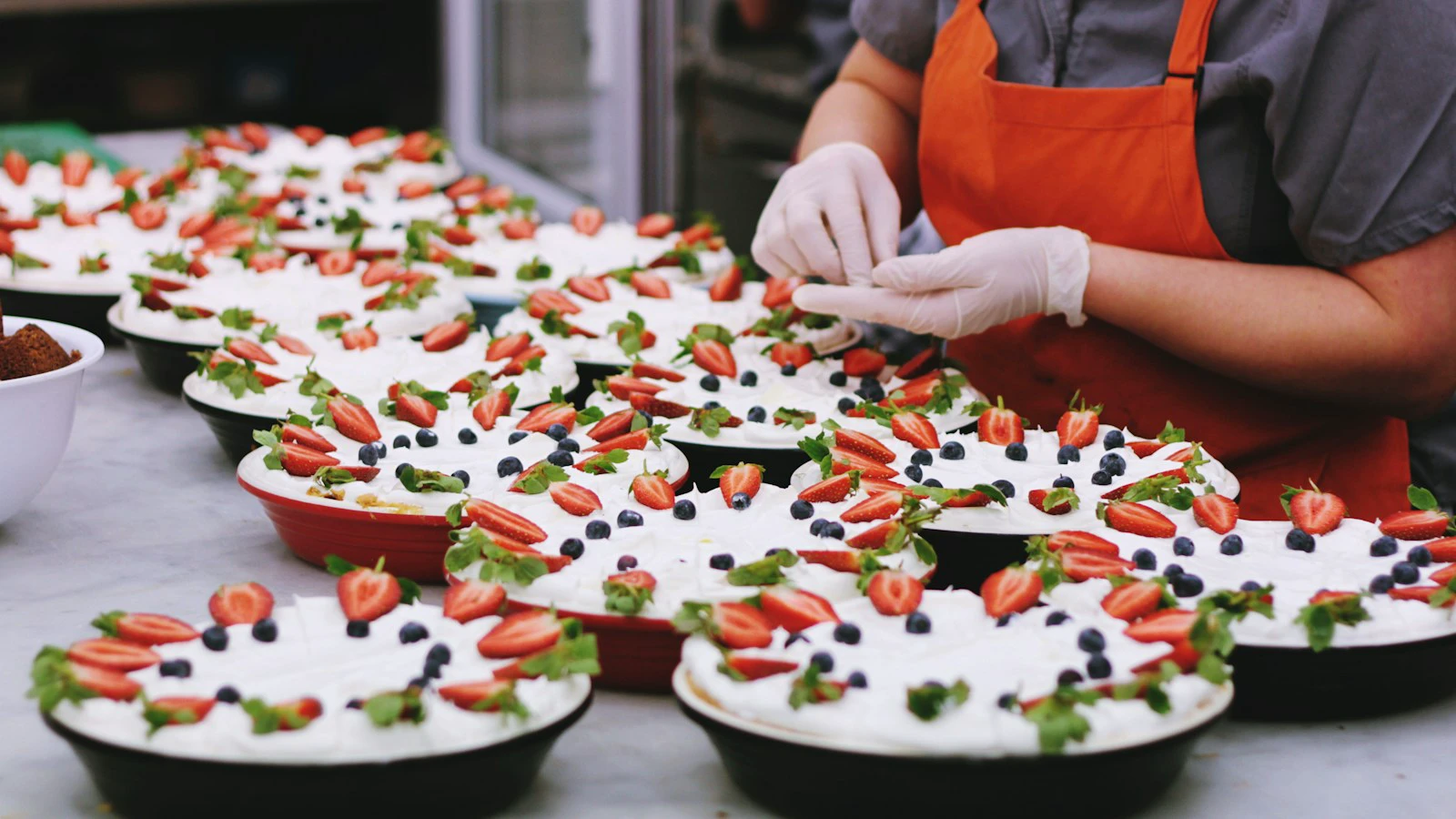
Photo: Toa Heftiba on Unsplash
Picture a busy Friday morning at Sunrise Bakery in Douala. Fifteen celebration cake orders land before 9:00 AM. Every line says Chocolate Gateau — 15,000 XAF. That tells the bakers what to bake, but it leaves out the three things they actually need before icing a single cake: what message goes on top, which branch the customer will collect from, and which contact at Hôtel Akwa signed off the corporate tray.
Without a structured form at checkout, Paul the cashier spends two hours phoning customers back and scribbling notes on slips of paper that go missing near the ovens. Someone writes “Happy Birthday Nadège” on the wrong cake. Another cake goes to Bonapriso while the customer is standing at the Akwa counter.
Order Form Templates solve this at the exact moment the order is placed. Instead of chasing answers after the sale, you build a reusable set of questions once and attach it to your offers. The customer’s answers arrive attached directly to the order — ready for your counter staff, your bakers, and your warehouse team.
1. How a template flows from offer to picking list
Think of an order form template as a reusable clipboard that clips onto an offer. You design the questions once in Sales / Setup / Order Form Templates, attach that template to one or more offers in Sales / Catalogue / Offers, and every order placed on those offers carries the customer’s answers straight into Sales / Selling / Orders.
Order Form Template (Sales / Setup / Order Form Templates)
  ├── Label: "Cake Pickup & Inscription"
  └── Fields:
        1. Pickup branch  [Choices: Akwa bakery | Bonapriso shop | Marché Central stall]
        2. Message on cake [Free text]
        3. Approving contact [Contact -> Sales / Customers / Contacts]
              │
              ▼  attached to one or more offers
Offer (Sales / Catalogue / Offers)
  └── e.g. Chocolate Gateau, Vanilla Celebration Cake, Corporate Pastry Box
              │
              ▼  customer answers while ordering
Order (Sales / Selling / Orders)
              │
              ▼  printed on order & picking documents
Counter, kitchen, warehouse, and customer all read the exact same details
Notice how the offer handles what is being sold and at what price, while the order form template handles the extra information the products alone cannot tell you — which pupil a school uniform pack is for, what name goes on an engraving, or which shop branch holds the pickup.
2. Anatomy of a template: label and the three field kinds
Every template has two parts: a label and its fields.
- Label: The internal name your team sees when picking a template from a list. Give it a plain, obvious name like Cake Pickup & Inscription or School Booklist Details — never Form 1 or Test Final.
- Fields: The individual questions the customer answers when ordering.
Fields come in three kinds, and picking the right kind is the difference between clean operations and messy spreadsheets:
- Free text — Open typing for answers you cannot predict ahead of time. A cake message (“Happy 40th Amina!”), a wooden plaque engraving, a pupil’s full name, or a short gate instruction all belong here. Free-text fields can also remember what was entered before, which saves repeat customers from retyping the same detail every week.
- Choices — A fixed list of answers that you define in advance. The buyer picks one of your exact options instead of typing their own spelling. Pickup branch, shirt size, class level, or bread slicing preference all belong here.
- Contact — Resolves to a real record in your address book (Sales / Customers / Contacts) rather than storing a plain typed name.
That third kind deserves special attention. A Contact field stores a live link to the record, not a frozen string of text. Suppose Nadège Fouda at Hôtel Akwa is selected as the sponsor on a recurring breakfast order, and next month she updates her name or title in Sales / Customers / Contacts. Wherever that order answer is displayed, FeePrime shows her current name automatically — no stale typos, no guessing whether “Nadege F.” and “Nadège Fouda” are the same person.
3. Why fixed choices beat free text almost every time
When you ask “Which branch will you collect from?” as a free-text box, real customers give you Douala, douala, Dla, Akwa, akwa centre, and Bonaberi in the same week.
Come Saturday morning, Amina the manager wants to hand Junior the rider a clean stack of Bonapriso orders and keep Akwa pickups at the main counter. Because every customer typed the branch differently, nobody can group those orders reliably without opening them one by one and fixing the spelling by hand.
Switch that single question to Choices (Akwa bakery, Bonapriso shop, Marché Central stall), and you get three clean, identical values forever.
Rule of thumb: use free text only when the answer genuinely cannot be listed ahead of time — and use Choices for everything else. Names, inscriptions, and custom notes need free text. Branches, sizes, classes, and delivery slots need choices.
4. Where the answers go once an order lands
Filling in a form only helps if the people doing the work can actually see the answers without hunting for them.
In FeePrime, form answers travel right on the order in Sales / Selling / Orders — never buried in an email inbox or stuck on a cashier’s personal phone. Better still, answers are exposed to your printed documents. When your team prints a picking list or order sheet, the pupil’s name and class, the pickup branch, or the cake inscription sits right beside the items being packed.
Your warehouse or kitchen reads the exact same words the customer submitted at checkout. No phone tag, no hand-copied slips, and far fewer mistakes on busy days.
5. Reuse one template — never rebuild per offer
Templates are built to be reused across many offers. One School Booklist template serves every primary and secondary school pack you publish. One Cake Pickup & Inscription template serves every celebration cake at Sunrise Bakery. One Engraving Details template serves every personalised gift in your catalogue.
Never create a separate template for each offer when the questions are the same. That is how teams end up with “Pickup branch”, “Collection shop”, “Branch?”, and “Where to collect” across four offers — four slightly different questions producing four incompatible sets of answers that nobody can group or report on together.
If five offers need the same three questions, attach the same template to all five.
6. What small shops need vs bigger operations
Not every business needs order form templates on day one:
- Single-counter shop selling standard goods: If you sell plain loaves and croissants over one counter with no custom messages and no multi-branch pickup, leave order form templates off. Nothing breaks, and checkout stays as fast as possible.
- Multi-branch shops, bakeries, schools, and B2B suppliers: Start with one or two short templates — two to four questions each. Every extra box slows the buyer down, so only ask for details your team genuinely needs to fulfil the order without calling back.
Keep these four habits close as you set yours up:
- Never use free text for fixed lists like branches, classes, or sizes — use Choices.
- Never type a known customer’s name into free text when a Contact field keeps it linked to Sales / Customers / Contacts.
- Never rebuild the same template for every offer — reuse one shared template so answers stay comparable.
- Never overload the form — ask only what your kitchen, counter, or warehouse actually uses to prepare the order.
Try it
Open staging.feeprime.com — a practice copy of FeePrime, kept apart from the real thing — and run through this in five minutes:
- Open Sales / Setup / Order Form Templates and create a new template with a clear label such as Cake Pickup & Inscription.
- Add one Choices field for Pickup branch with three options (Akwa bakery, Bonapriso shop, Marché Central stall) and one Free text field for Message on cake.
- Save the template, then open Sales / Catalogue / Offers and attach your new template to an active offer.
- Place a test order on that offer from the public side, selecting a branch and typing a short cake message.
- Open the new order under Sales / Selling / Orders and confirm both answers sit right on the order ready for your team.
Once you see those answers land cleanly on the order without a single follow-up call, you will never go back to scribbled paper slips.