
Prices, currencies and taxes
Before you start, sign in and open Sales / Catalogue / Products, Settings / Business / Currencies, and Settings / Business / Taxes.
Can’t find it? It may be turned off for your business, or your account may not be allowed to open it. Ask the person who set up your FeePrime. They can fix both.

Photo: Brooke Cagle on Unsplash
Getting money right on a product is never just typing one number and moving on. It is three separate decisions working together: what you charge, which currency you charge it in, and what tax sits on top.
Mix up any one of those three and the trouble shows up weeks later. Paul the cashier quotes 500 FCFA for a croissant at the Bonapriso shop counter, assuming tax is already inside. Meanwhile Amina invoices Hôtel Akwa for 400 croissants and adds 19.25% TVA on top of the exact same product price. At the end of the month, nobody can explain why the till and the wholesale bills do not match.
This lesson shows you how FeePrime keeps prices, currencies, and taxes clean from day one—so every quote, sales order, and invoice says what you actually meant.
1. Set your currencies first — one price per currency
Before anyone types a single product price, check Settings / Business / Currencies. Make sure every currency your business truly sells in is listed there.
In Sales / Catalogue / Products, a product’s prices box holds one explicit price for each currency your business uses. FeePrime does not store a single base price and convert it on the fly whenever a customer opens your page.
That design is deliberate. Imagine Sunrise Bakery sells a box of 20 pastries for 10,000 FCFA at the Akwa bakery, and also bills a visiting regional NGO in EUR. If FeePrime converted 10,000 FCFA using yesterday’s rate, the customer would see a strange number like 15.24 EUR one week and 15.31 EUR the next. With separate prices per currency, Amina sets a clean 10,000 FCFA locally and a clean 16 EUR for euro buyers—the exact price she chose for each market.
Do not add currencies as an afterthought. If you create 85 products in FCFA today and add EUR next month in Settings / Business / Currencies, none of those 85 products will have a EUR price. Every single one will stay blank in EUR until someone opens it and enters a figure.
Why FCFA displays properly without extra work
Some currencies in FeePrime are tied to another currency rule that decides how amounts are written and how many decimal places they show. FCFA is one of them.
You do not need to tweak decimals on every product or invoice to stop stray cents from appearing. It is simply worth knowing why a total like 24,500 FCFA looks right on screen and on printed invoices—it is built into the currency setup, not luck.
Running one shop in Douala and selling only in FCFA? Keep only FCFA in your currency list. Leave extra currencies out. Nothing breaks, and every product form stays shorter and faster to fill.
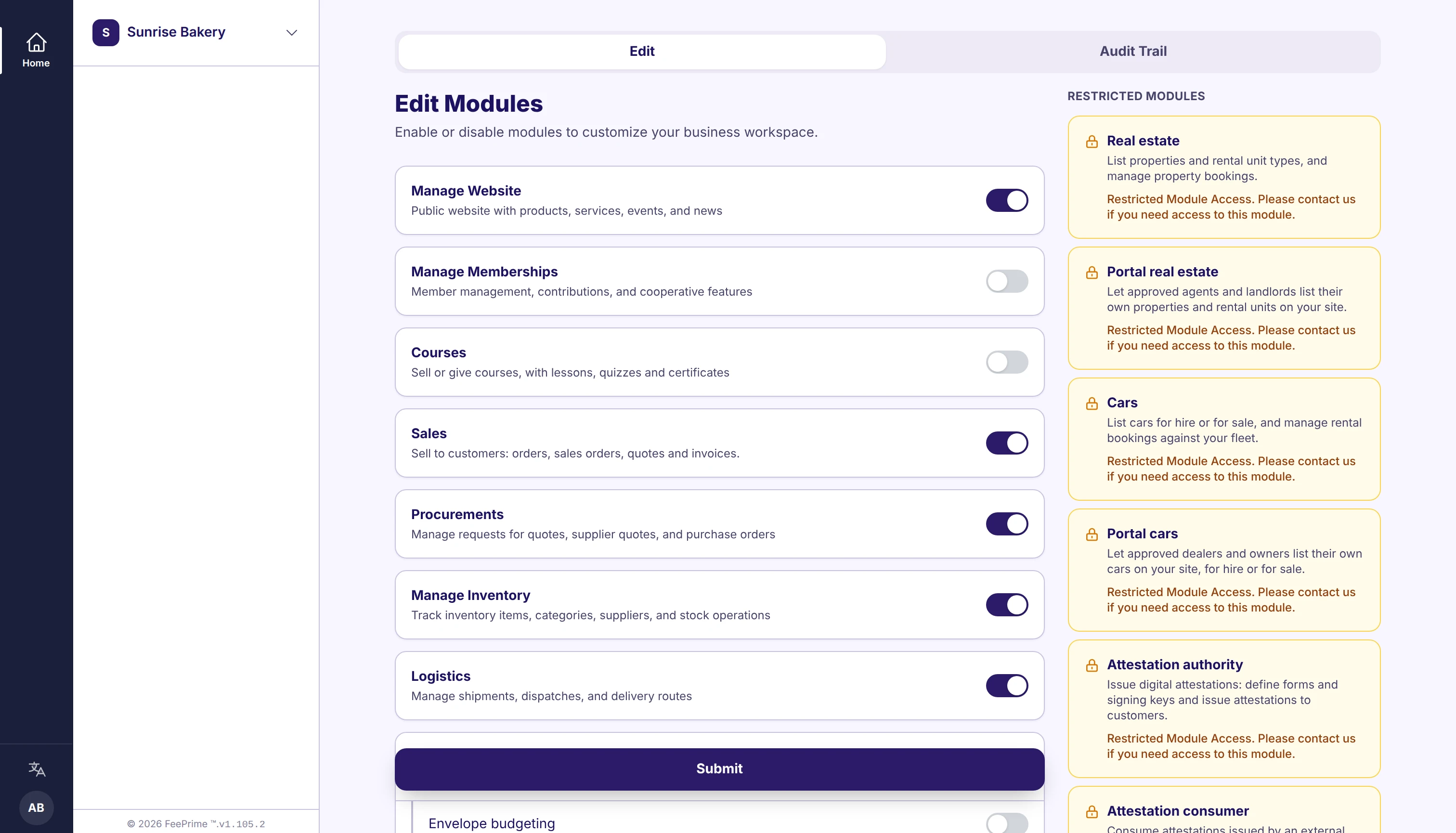 modules edit screen in FeePrime (Sunrise Bakery).
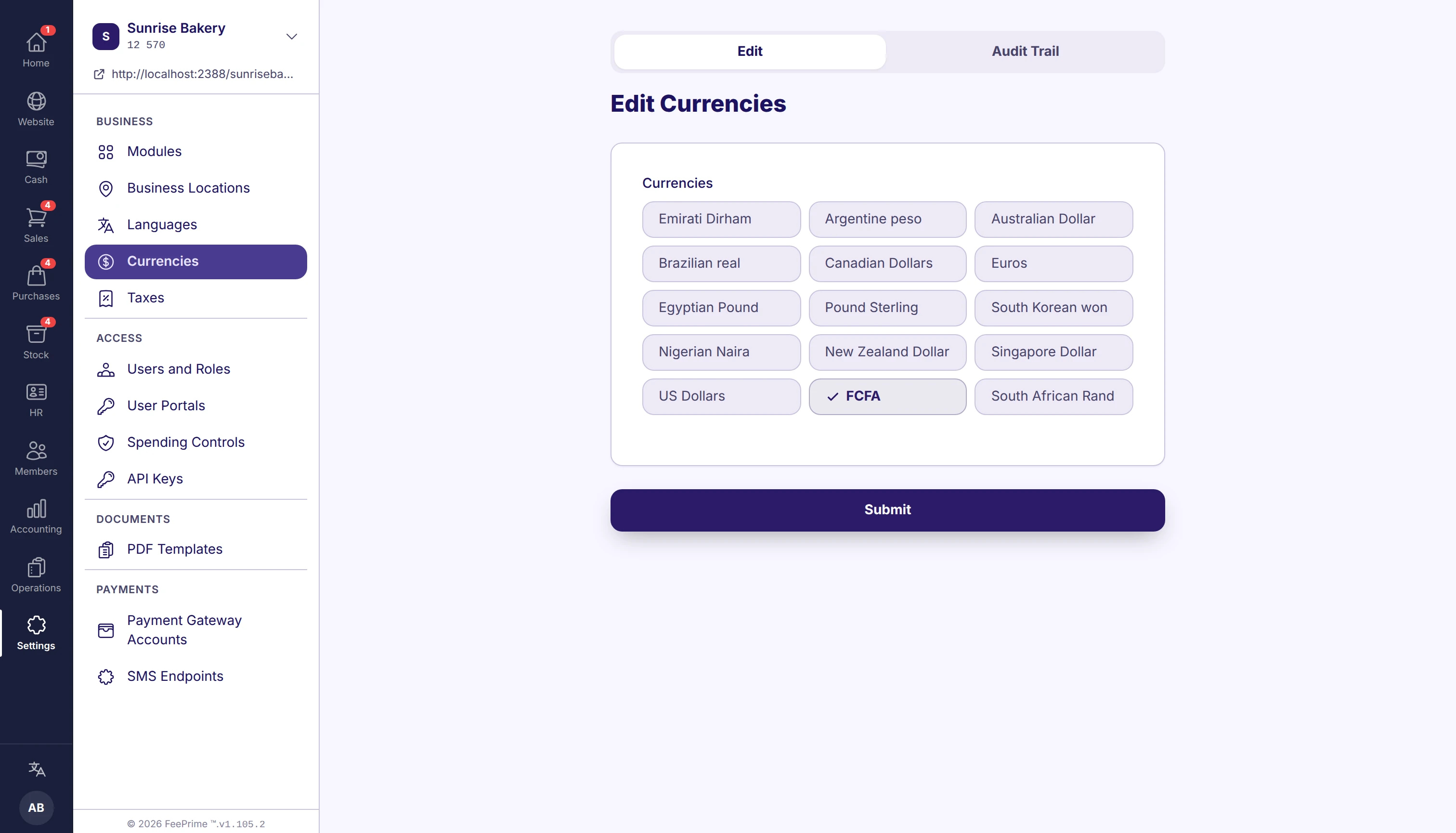 currencies edit screen in FeePrime (Sunrise Bakery).
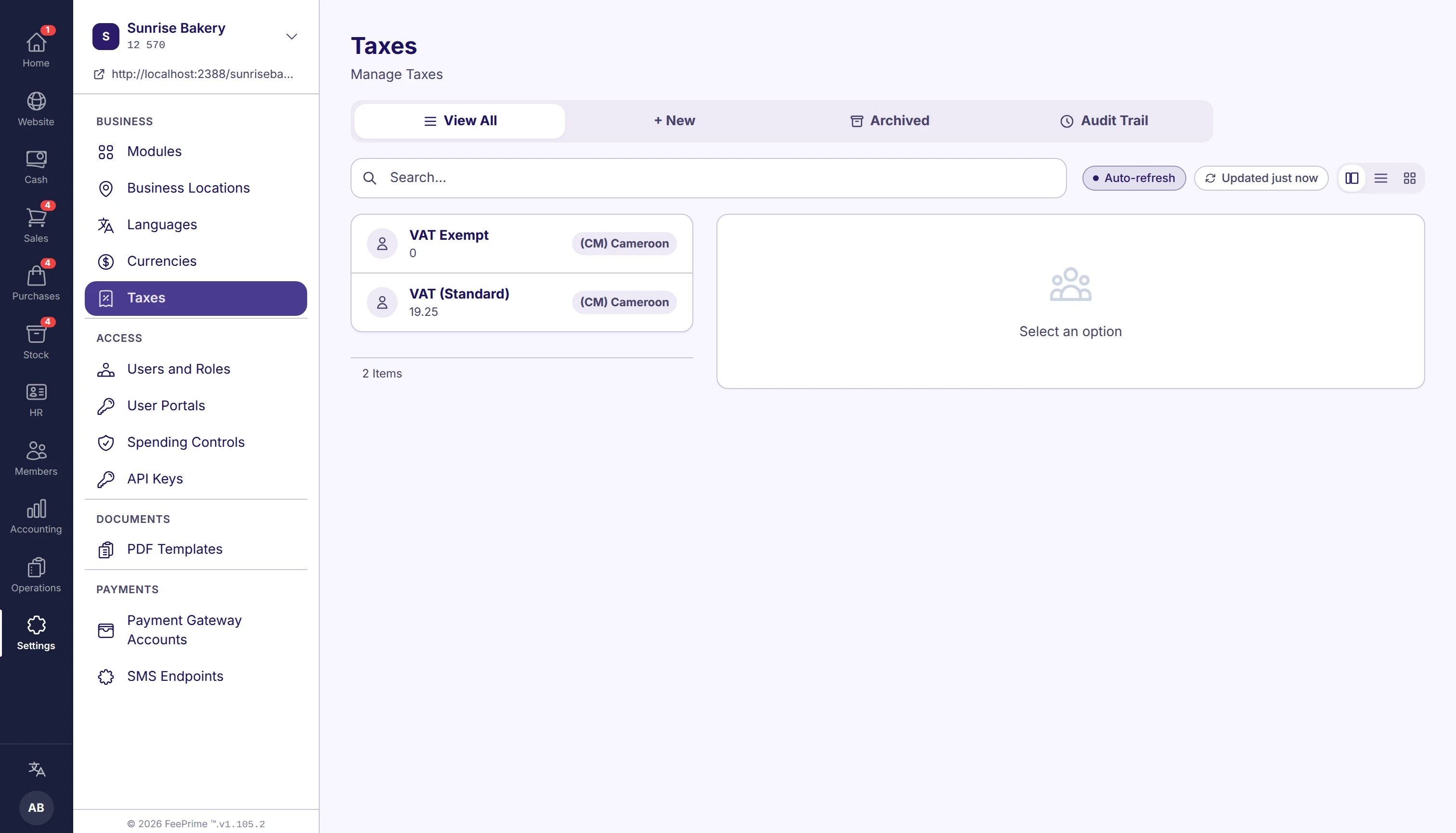 taxes screen in FeePrime (Sunrise Bakery).
2. Point at a tax record, never edit an old rate
Open Settings / Business / Taxes. Each tax record stores four concrete details:
- Tax code (a clear short label, such as
TVA 19.25%) - Percentage (the rate itself, such as
19.25) - Country (where the tax applies, such as Cameroon)
- State (when a regional or state-level rate applies)
Here is the single most important habit in this entire lesson: your documents point at the tax record—they do not copy the percentage into themselves.
   Invoice #104 (last year)  ---points at--->  TVA 19.25%
   Invoice #219 (last month) ---points at--->  TVA 19.25%
   Quote #305   (yesterday)  ---points at--->  TVA 19.25%
                                                   ^
                                  Edit this number to 20% and you
                                  quietly change what all three mean
Suppose the government raises VAT from 19.25% to 20% starting next quarter. It is tempting to open the old TVA 19.25% record, type 20, and hit save.
Never edit an existing tax rate. Because older quotes, sales orders, and invoices still point at that record, changing the percentage quietly rewrites the tax meaning on invoices you already sent last year—and nothing on screen pops up to warn you.
Instead, create a brand-new tax record for 20% and attach the new rate to products and documents from the change date onward. Your old invoices stay true to the law on the day you issued them, and your new sales use the new rate cleanly.
3. Decide once: tax-inclusive or tax-exclusive
Before you publish your price list, make one firm business rule and write it down where every staff member can see it:
Do our product prices already include tax, or is tax added on top?
This is a business policy, not a hidden switch to go hunting for in Settings:
- Walk-in retail shops (like Sunrise Bakery’s Marché Central stall or Bonapriso counter) usually quote tax-inclusive prices. When a customer picks up a loaf of bread marked 600 FCFA, they expect to hand Paul 600 FCFA—not 715.50 FCFA at the till.
- B2B and wholesale suppliers (like supplying Flour 50kg bags or weekly pastry trays to Hôtel Akwa) often quote tax-exclusive prices, with 19.25% TVA shown clearly on the invoice line below.
Whatever fits your buyers, pick one rule and stick to it across your catalogue. A price list where half the items include tax and the other half exclude it is almost impossible to untangle later. There is no shortcut—someone has to open every single product and verify what the number meant.
Small shop with walk-in buyers only? Keep one clear tax-inclusive policy and one local tax record. Selling wholesale across borders or regions? Set up separate tax records per country or state in Settings / Business / Taxes, and document your tax policy clearly for anyone adding products.
4. Run a four-point check before you publish a price
Everything in FeePrime’s pricing flows in one direction. Set the foundations in Settings / Business first, attach them on each product in Sales / Catalogue / Products, and let quotes, sales orders, and invoices inherit them cleanly:
   Settings / Business                 Sales / Catalogue             Sales / Selling
  +---------------------+            +--------------------+        +-------------------+
  | Currencies          | ---------> | Products           | -----> | Quotes            |
  | (FCFA, EUR, ...)    |            | - Price / currency |        | Sales Orders      |
  |                     |            | - Clear unit       |        | Invoices          |
  | Taxes               | ---------> | - Attached tax     |        |                   |
  | (Code, %, Country)  |            +--------------------+        +-------------------+
  +---------------------+
Before you make any product price live—especially on your public storefront or quotes—run this quick four-point check:
- Every selling currency has a price. If you sell in FCFA and EUR, confirm both boxes are filled so a buyer in the second currency never hits a blank price.
- The unit is unmistakable. If 24,500 FCFA is for a 50kg bag of flour—not per kilo, per metre, or per carton—make sure the unit is clear so Nadège and your customers read the exact same quantity.
- The right tax is attached for the right country. Check that the product points to the tax record matching where you sell, not an old rate or another country’s code.
- Tax-inclusive or tax-exclusive matches your rule. Double-check that the price you typed follows the same rule as every other product in your catalogue.
Thirty seconds on this checklist saves hours of credit notes, awkward apologies to regular buyers, and month-end accounting headaches.
Try it
Open staging.feeprime.com — a practice copy of FeePrime, kept apart from the real thing — and build the right habits in five minutes:
- Open Settings / Business / Currencies and confirm two currencies are available (for example, FCFA and EUR).
- Open Settings / Business / Taxes and check your existing tax rate (or create a sample 19.25% rate with its code and country).
- Open Sales / Catalogue / Products, pick or create a test product like Flour 50kg, enter a realistic price in both currencies, and attach your tax record.
- Preview how the product appears on the public page and notice how FCFA displays cleanly without stray decimals.
- Go back to Settings / Business / Taxes and add a second tax rate (for example,
20%) instead of editing the first one—practising the habit before a real rate change ever costs you money.
You now have the three pillars of clean pricing—currencies, explicit prices, and safe tax records—under control.