
Sending RFQs, quotes, and purchase orders between linked businesses
Before you start, sign in and open Purchases / Sourcing / Requests for Quote (if you are buying) or Home / Incoming (if you are receiving requests and orders).
Can’t find it? It may be turned off for your business, or your account may not be allowed to open it. Ask the person who set up your FeePrime. They can fix both.

Every Tuesday morning in Douala, Amina Bello at Sunrise Bakery needs 40 bags of T55 pastry flour from Littoral Flour Mills. The old way looked familiar to every small business: Amina sent a WhatsApp voice note, Samuel Nkeng at the mill typed a PDF quote, Amina’s clerk retyped the lines into a purchase order, and Samuel’s clerk retyped the same lines back into a sales order. One misread digit turned 23,800 XAF into 28,300 XAF, or 40 bags into 4.
When two FeePrime businesses are mutually linked, the pre-invoice chain runs straight from one account to the other without anyone retyping a single line. Better still, nothing ever jumps straight into the other business’s books or stock. Every request, quote, and purchase order pauses in Home / Incoming as Pending approval until a real person reviews and accepts it.
1. The pre-invoice chain at a glance
Before documents can travel automatically, both businesses must have accepted the link (covered in Lesson 1). If you pick an unlinked supplier on a form, FeePrime shows a blue nudge explaining what linking would do for that document, with Copy an invitation for WhatsApp, Add their FeePrime number, or Not a business. If only one side has added the other, the link stays amber (Not linked yet) and nothing flows until the partner accepts.
Once mutually linked, the buying-to-selling chain moves cleanly in three hops:
SUNRISE BAKERY (Buyer)                     LITTORAL FLOUR MILLS (Supplier)
======================                     ===============================

Purchases / Sourcing /
Requests for Quote
  |  (1) Send RFQ
  +--------------------------------------> Home / Incoming  [Pending]
                                           (also Sales / Selling / Quotes -> Incoming)
                                             |  Click "Quote this" or "Decline"
                                             v
Home / Incoming  [Pending] <-------------- Sales / Selling / Quotes
(also Purchases / Sourcing /                 (2) Send Quote (revises while pending;
 Supplier Quotes)                                locked once accepted)
  |  Review & Accept
  v
Purchases / Ordering /
Purchase Orders
  |  (3) Send PO (strict: no edits;
  |      withdraw with reason if pending)
  +--------------------------------------> Home / Incoming  [Pending]
                                           (also Sales / Selling / Sales Orders)
                                             |  Review stock & Accept
                                             v
                                           Confirmed Sales Order
Notice how Home / Incoming sits right under Dashboard in the Home menu for both companies. Whenever a linked partner sends you a document, Home lights up with a live count of what is waiting, and every incoming document gets its own direct web address so you can share the link with a colleague.
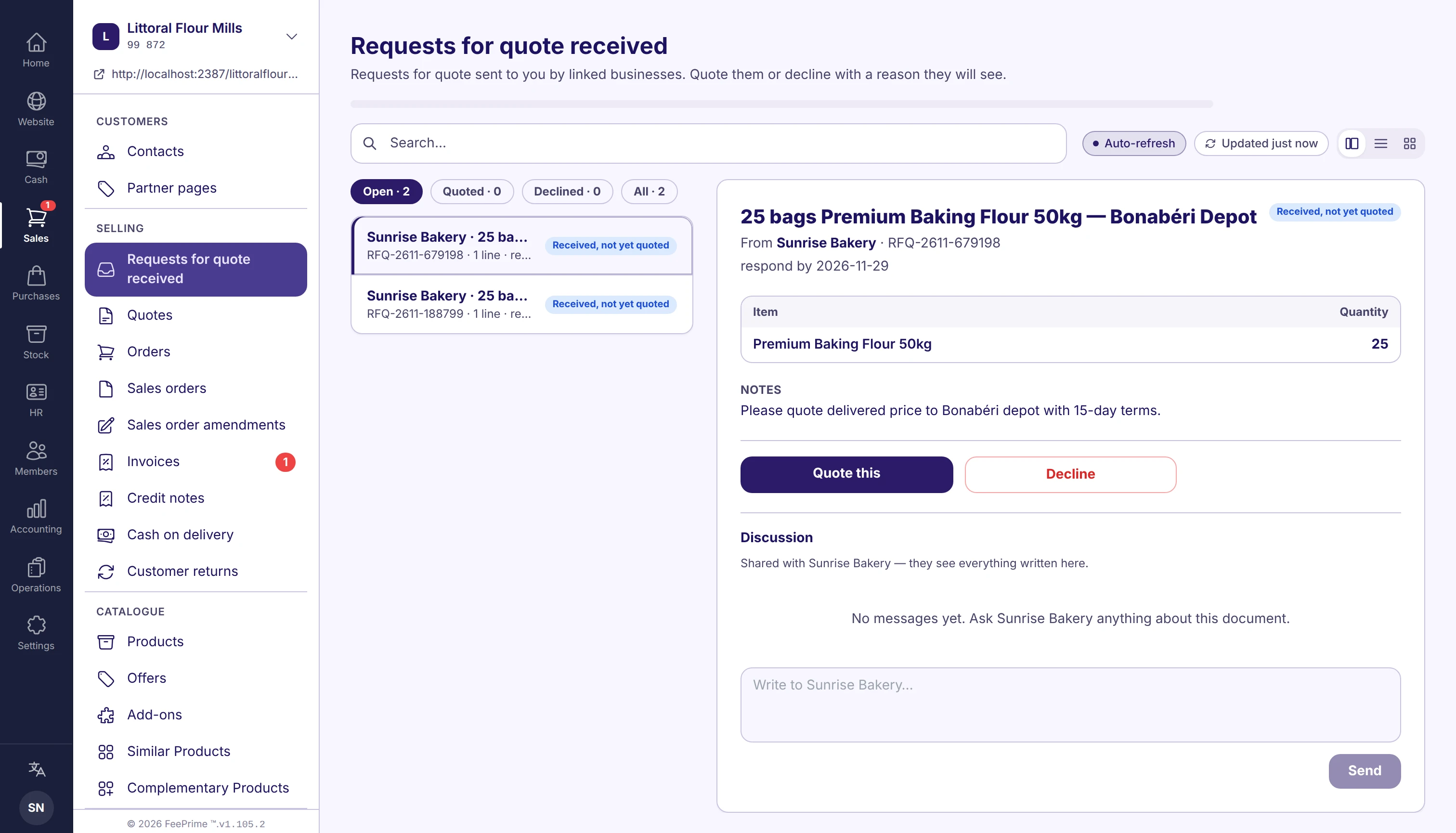 Sales → Requests for quote from linked businesses: Sunrise Bakery’s RFQ lands straight in Littoral Flour Mills’ inbox with Quote this and Decline.
2. Step 1: Sending a Request for Quote (and how the supplier answers)
Amina opens Purchases / Sourcing / Requests for Quote and creates a new request for Littoral Flour Mills. She enters the request date, chooses XAF as the currency, optionally picks a delivery location (such as the Akwa bakery), and adds her line: 40 bags of T55 Flour 50kg.
If Amina is sourcing flour for a specific customer job—say, a large pastry order for Hôtel Akwa—she can link the RFQ to that customer order on her own side. Your internal warehouse and customer order stay private: Littoral Flour Mills sees the items, quantities, dates, and currency, never your internal customer details.
At Littoral Flour Mills, Home lights up. Samuel opens Home / Incoming (or the Incoming tab inside Sales / Selling / Quotes, which opens the linked RFQ page; team access to these incoming requests is controlled by the Requests for quote from linked businesses role permission). Samuel has two clear choices:
Quote this— opens a prefilled Quote inSales / Selling / Quoteswith Sunrise Bakery’s RFQ reference already copied in, so both teams can match the reply to the request without typing.Decline— closes the request cleanly, and a reason is required (for example, “T55 mill run resumes Monday; only T45 available today”). Amina sees the reason immediately instead of waiting by the phone.
Don’t leave an incoming RFQ hanging in WhatsApp instead of clicking Quote this or Decline. And watch where you type notes while negotiating:
Recent Activitiesis strictly internal. Notes you write there never leave your business (e.g., “Check Bonaberi silo balance before offering a discount”).Discussionis the shared thread between both linked businesses. Anything Samuel and Amina write there notifies the other side and automatically carries forward onto the quote that follows.
3. Step 2: Sending and revising a Quote
Samuel prices the 40 bags at 24,500 XAF each and sends the quote from Sales / Selling / Quotes. Both RFQs and Quotes support offline capture too, so even if Samuel drafts a quote during a power or internet dip at the mill, it syncs cleanly once signal returns.
On Sunrise Bakery’s side, the quote appears in Home / Incoming and in Purchases / Sourcing / Supplier Quotes as Pending approval. Every quote line clearly states quantity, unit price, and line total in the currency (XAF), so Amina can check 40 × 24,500 XAF = 980,000 XAF at a glance without hunting for hidden totals.
Here is the revision rule every sales rep and buyer must remember:
- While the quote is still pending: If Amina replies in
Discussionasking for the regular bakery rate and Samuel edits his quote down to 23,800 XAF per bag (952,000 XAF total), FeePrime replaces the pending copy on Sunrise Bakery’s side with the updated revision. No duplicate quotes, no confusion over which PDF is current. - Once the buyer accepts the quote: It is locked. Neither side can silently change an agreed price afterward. If terms change after acceptance, Samuel must create a new quote.
Never edit an accepted quote expecting it to overwrite a deal you already shook hands on. Once accepted, treat it as a signed record and issue a fresh quote if you renegotiate.
4. Step 3: Sending a Purchase Order (and receiving it as a Sales Order)
Once Amina accepts Samuel’s 952,000 XAF quote, she raises the order under Purchases / Ordering / Purchase Orders (matching the accepted supplier quote). When she sends it, the Purchase Order lands in Littoral Flour Mills’ Home / Incoming and Sales / Selling / Sales Orders as Pending approval.
Nothing is reserved in Littoral’s warehouse yet. Samuel checks stock and delivery dates first, then accepts the sales order when he is ready to commit.
Purchase Orders follow a strict commitment rule that is tighter than quotes:
- No silent edits once sent. You cannot alter quantities or prices on a sent Purchase Order while the supplier is looking at it.
- Need to fix a mistake before the supplier accepts? Withdraw the Purchase Order with a required reason (for example, “Changed order from 40 bags to 30 bags after morning stock count”), then send a corrected PO.
- Nothing physical to deliver? A Purchase Order for services or non-physical items carries no delivery location, and a digital-only sales order on the supplier’s side will not clutter their team with a pick list or shipment.
One shop buying the same flour every week at a known price? You do not have to run an RFQ and Quote every time. Go straight to Purchases / Ordering / Purchase Orders and send the PO directly. Nothing breaks. Save the full RFQ → Quote → PO flow for price checks, new suppliers, bulk negotiations, or special customer jobs.
5. When a document is held: switched-off modules and daily limits
Two built-in safeguards protect both sides when something is not ready on the receiving end:
- The receiver has that module switched off: Suppose Bello Group Holdings sends a Purchase Order to a newly linked contractor who has not turned on
Salesyet. The document does not bounce or disappear. On the sender’s side, it shows as waiting for them to switch it on. On the receiver’s side, it still appears clearly insideHome / Incoming, and an owner can switch that module on in one tap right fromIncoming. The moment they tap, the waiting document delivers automatically. - More than 20 linked documents in a single day: If one business sends over 20 B2B deliveries in one day to the same linked partner, FeePrime automatically pauses the link (
Not delivered: they paused this link) so an accidental loop or runaway upload cannot flood the receiver. The receiving team simply clicksResumewhen they are ready to take more.
Never re-send the same Purchase Order three times because it looks stuck. Check its status first: either the partner has not accepted your business link yet, their module is switched off (waiting for a one-tap switch-on in Incoming), or the 20-per-day safeguard paused delivery.
Try it
Practice this entire flow on staging.feeprime.com—a practice copy of FeePrime, kept apart from the real thing—in five minutes:
- Sign in and click
Home / Incomingright underDashboardto see where linked requests, quotes, and orders wait for approval. - Open
Purchases / Sourcing / Requests for Quote, click New, and pick an unlinked contact first so you can see the blue nudge (Copy an invitation,Add their FeePrime number,Not a business). - Switch the supplier to a linked test business, enter
40bags ofT55 Flour 50kginXAF, and save the RFQ. - Open a pending linked quote in
Purchases / Sourcing / Supplier Quotesand verify that each line displays quantity, unit price, and total in the currency. - Open a linked document’s detail page and compare the internal
Recent Activitiesfeed against the sharedDiscussiontab so your team never posts private margin notes in the shared chat.
Once your buyers and sales reps run this three-step loop once, nobody will want to go back to retyping WhatsApp quotes.