
Contacts, membership types, and active memberships
Before you start, sign in and open Members / Membership / Membership Types, Members / Membership / Memberships, and Sales / Customers / Contacts.
Can’t find it? It may be turned off for your business, or your account may not be allowed to open it. Ask the person who set up your FeePrime. They can fix both.

Photo: Luke Southern on Unsplash
This course is for organisations whose people are members, not just one-off buyers. Trade associations, agricultural cooperatives, tontines and savings groups, sports clubs, churches, alumni networks, and professional bodies all run on the same foundation.
If you have ever run an association out of a WhatsApp group and two notebooks, you know where things break down. Somebody pays their annual dues in March, buys training materials in May, and shows up to vote in October—and nobody can tell in ten seconds whether they are still in good standing or if their name is spelled two different ways in two different sheets.
FeePrime solves this by separating who the person is, what tiers you offer, and whether their membership is active right now. Once those three pieces sit cleanly in place, member portals, dues, meetings, polls, and reports all fall into line.
1. Members are contacts first
Start here, because getting this right saves months of cleanup later.
A member is not a separate kind of address book. Every member starts as a contact in Sales / Customers / Contacts—the exact same shared directory you use for customers and suppliers—with a membership attached to it.
Picture the Douala Bakers Cooperative. Nadège Fouda buys bulk yeast from the cooperative store every month (customer), supplies packaging cartons twice a year (supplier), and sits on the cooperative as an Ordinary member. Because FeePrime keeps her as one contact, her full history stays in one place instead of splitting across three competing records.
   CONTACT  (Sales / Customers / Contacts)
     |
     +--- CUSTOMER / SUPPLIER   orders, invoices, bills
     |
     +--- MEMBERSHIP            their standing in your organisation
            |
            +--- PROFILE(S)     the individual people taking part
Search before you add. Before registering a new member, check Sales / Customers / Contacts first. If they already exist in your shop or office directory, attach their membership to that existing contact instead of creating a duplicate.
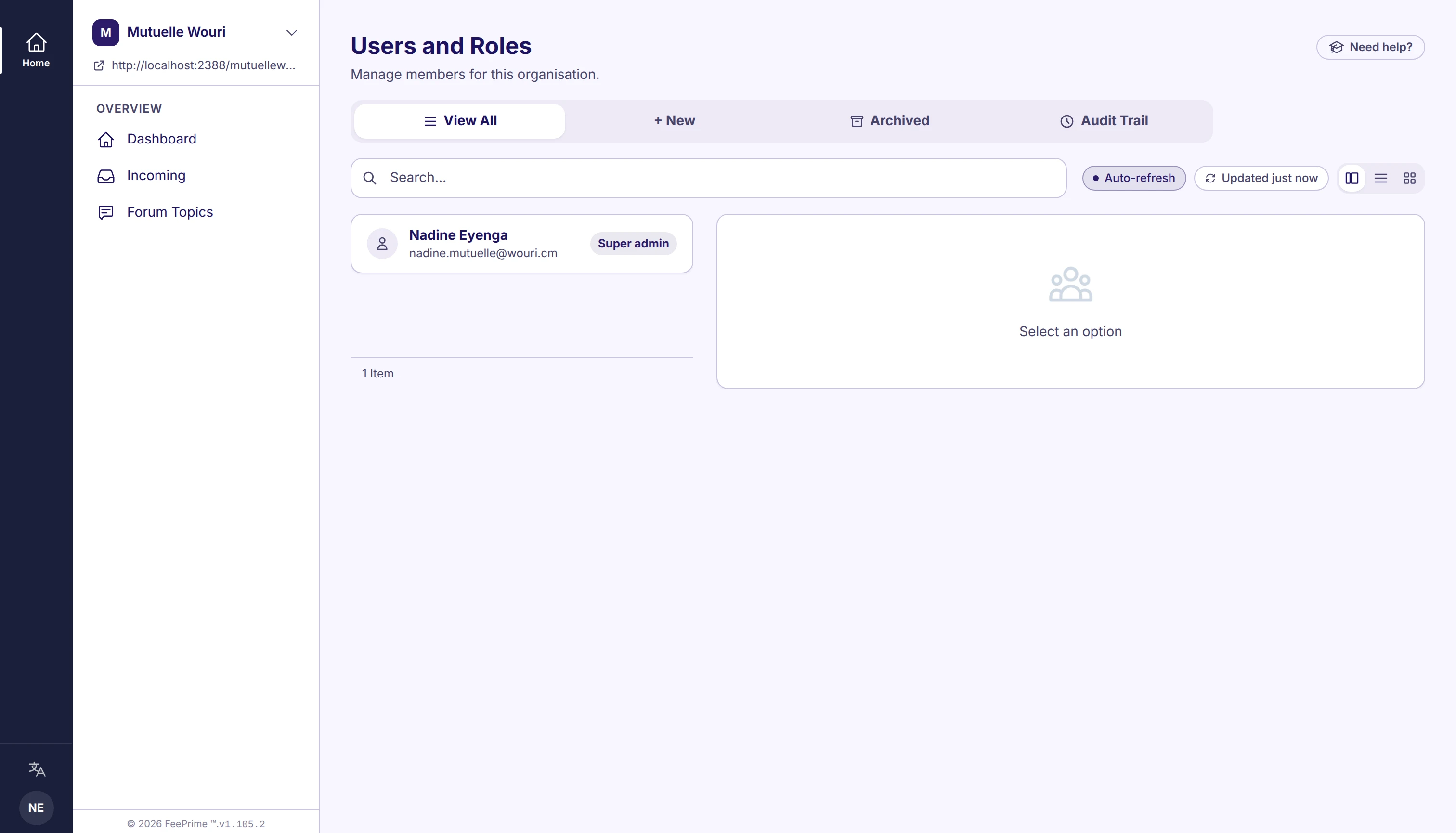 members screen in FeePrime (Mutuelle Wouri).
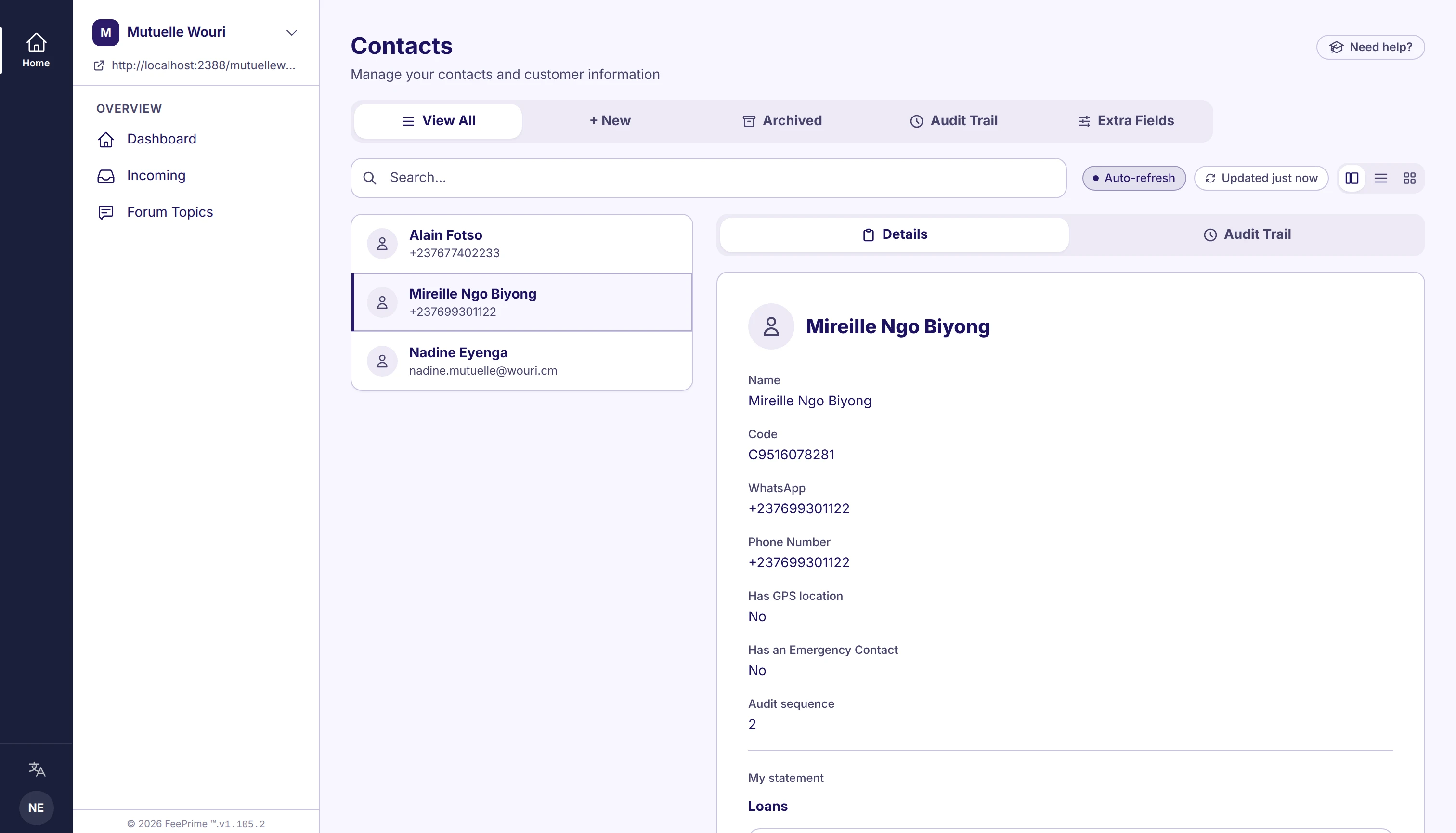 contacts screen in FeePrime (Mutuelle Wouri).
2. Build your membership types
Open Members / Membership / Membership Types. A membership type defines one tier your organisation offers—for example, Student, Ordinary, Corporate, or Life.
Each membership type holds a clear set of fields:
- Name and description: What members see when choosing a tier—keep it plain so anyone scanning on a phone understands what they get.
- SKU: A short internal code for your own reference (such as
MEM-ORDorMEM-CORP). - Rank: Controls the exact order your types appear on screen. Put your main tiers in the sequence you want people to read them.
- Most popular: A highlight badge you switch on for the tier you want to draw attention to. It does not reorder the list (that is what rank does) and it is not calculated automatically—you decide which tier gets the spotlight.
- Billing periods and prices: Turn on only the cycles you actually offer: daily, weekly, monthly, and yearly. Each period has its own switch and its own price per currency. One membership type can offer more than one cycle—for instance, the Douala Bakers Cooperative offers Ordinary at 5,000 XAF monthly for new bakers trying it out, and 50,000 XAF yearly for regulars who want two months free.
- Max profiles: Sets how many individual people can participate under one membership. When Hôtel Akwa takes a Corporate membership at 150,000 XAF yearly, setting Max profiles to
4lets their head chef, pastry lead, purchasing manager, and general manager each hold their own profile under one company membership. We cover how profiles work in the next lesson.
Running a small tontine, church group, or single-tier club? Create just one membership type, switch on yearly (or monthly) only, leave most popular off, and keep Max profiles at 1. Nothing breaks, and you can add extra tiers later when you grow.
3. Record each member’s standing
Once your types exist, open Members / Membership / Memberships. A membership is the link that joins one contact to one membership type.
Every membership record stores three practical details:
- Start date: When their standing began.
- End date: When their standing runs out.
- Whether it expires: Keep this switched on for annual, monthly, or seasonal memberships. Switch it off for a Life or honorary founding membership that never lapses.
  Contact (Amina - Sunrise Bakery)
        +
  Membership Type (Corporate - 150,000 XAF / year)
        +
  Dates (1 Jan 2026 -> 31 Dec 2026, Expires: Yes)
        =
  ACTIVE STANDING TODAY?  --->  YES (grants portal, prices, lessons)
That single record answers the only question your treasurer, secretary, or gatekeeper needs day to day: is this person an active member right now, and at which level?
4. Active vs expired: keep history, never delete
Most confusion in member organisations comes from treating “has a membership record” and “is a member right now” as the same thing.
Suppose Junior signed up for a Student membership that ran from October to September. On 15 October, his end date has passed. His record is still sitting in Members / Membership / Memberships, and it should stay there.
Never delete an expired membership to clean up your list. Deleting it erases the proof that Junior was a paid-up member for a full year—or that a long-time donor supported your association for three years before taking a break.
You do not need to delete expired records to protect your members-only benefits. Whenever someone tries to open a members-only page, claim a member price, or enter a locked course lesson, FeePrime checks for a membership that is active right now:
- Active membership: They walk straight in and get every perk tied to their tier.
- Expired membership: They see the exact same locked page a stranger sees, plus a clear invitation to renew.
- Never had a membership: They see the locked page and an invitation to join.
When Junior pays his dues next month, he renews cleanly—and your organisation keeps an honest timeline of every year he belonged.
5. Where the rest of this course goes
Everything else in the Members section builds directly on the foundation you just learned:
- Members / Membership / Membership Profiles — how families, companies, and clubs add individual participants under one membership.
- Members / Membership / Member Contributions and Member Payment Requests — collecting dues, special levies, and recurring contributions.
- Members / Membership / Member Portals — what your members actually see when they sign in.
- Members / Engagement (
Member Updates,Meetings,Polls) — keeping active members informed and voting. - Members / Reports / Membership Reports — checking at a glance how many members are active, expiring soon, or lapsed.
Try it
Practice on staging.feeprime.com—a practice copy of FeePrime, kept apart from the real thing. You can complete this walkthrough in five minutes:
- Open Members / Membership / Membership Types and create two types: Ordinary (rank
1, switched on for both monthly at5,000 XAFand yearly at50,000 XAF, marked most popular, Max profiles1) and Corporate (rank2, yearly at150,000 XAF, Max profiles4). - Open Sales / Customers / Contacts and confirm you have at least two contacts (or create two practice contacts, such as Nadège Fouda and Junior).
- Open Members / Membership / Memberships and give the first contact an Ordinary membership whose end date is next year.
- Give the second contact an Ordinary membership whose end date was last month, keeping expiry switched on.
- Compare both records in Members / Membership / Memberships, then check a members-only page as each of them to see how active standing unlocks access while an expired record prompts a renewal.
Once you see how cleanly contacts, types, and active dates fit together, managing fifty or five thousand members feels calm and predictable.