
What a portal is, and which one fits your business
Before you start, sign in and open Portals & Marketplaces / Vendors / Portal Settings.
Can’t find it? It may be turned off for your business, or your account may not be allowed to open it. Ask the person who set up your FeePrime. They can fix both.

Photo: Brandy Kennedy on Unsplash
Picture Amina in Douala. She manages a local food network that brings together Sunrise Bakery in Akwa, a spice packer in Bonapriso, a cold-drink wholesaler near Marché Central, and ten independent caterers. For six months, she tried running the whole group out of a WhatsApp chat and a spreadsheet. Buyers sent messages at midnight asking who still had 400 croissants for Saturday. One seller vanished after taking a 45,000 XAF deposit. Another copied Sunrise Bakery’s photos and pasted his own phone number underneath.
That is the exact wall every multi-seller business hits. A normal shop website works when one business sells its own stock. The moment you invite other businesses, dealers, landlords, farmers, or founders to advertise under your roof, you need rules, approvals, and separate shopfronts. In FeePrime, that setup is a portal.
This lesson shows you how a portal differs from a regular store, which portal type matches your business, and the three starter rules you set in Portal Settings before your first vendor ever applies.
1. Own shop vs. portal: do not mix them up
Before you touch a single setting, ask one plain question: whose goods or services are on the shelf?
- Only yours: Suppose Sunrise Bakery sells its own bread, 50kg flour sacks, and event trays from its Akwa bakery and Bonapriso shop. You do not need a portal. Use Sales and Website so Paul the cashier and your customers work straight from your own catalogue.
- Other people’s too: Suppose you run a Douala local-food market, a car-dealer directory, a property platform listing suites for Hôtel Akwa and ten other landlords, a cocoa cooperative in Moungo, or an investor dealroom. You are the operator. Outside sellers apply to join, maintain their own profile, and publish their own offers under rules you control.
Never open a portal when you only sell your own stock. A portal adds vendor applications and approval queues. If every item already belongs to your company, those extra steps only slow your own staff down.
Here is how every FeePrime portal runs from start to finish:
Outside business applies from your public portal
                     │
                     ▼
Staff check ID & approve ──► Portals & Marketplaces / Vendors / Portal Vendors
                     │
                     ▼
Vendor publishes offers  ──► Marketplace, Services, Dealroom, Cars, Real Estate, or Farms
                     │
                     ▼
Buyers browse & act      ──► Orders, Bookings, Buy Requests & Quotes, or Investor Intros
Notice the gate in the middle. Every new vendor profile waits for a human approval. A public trading name with a phone number on it is the first thing a scammer tries to forge. FeePrime never lets a stranger publish a shopfront automatically.
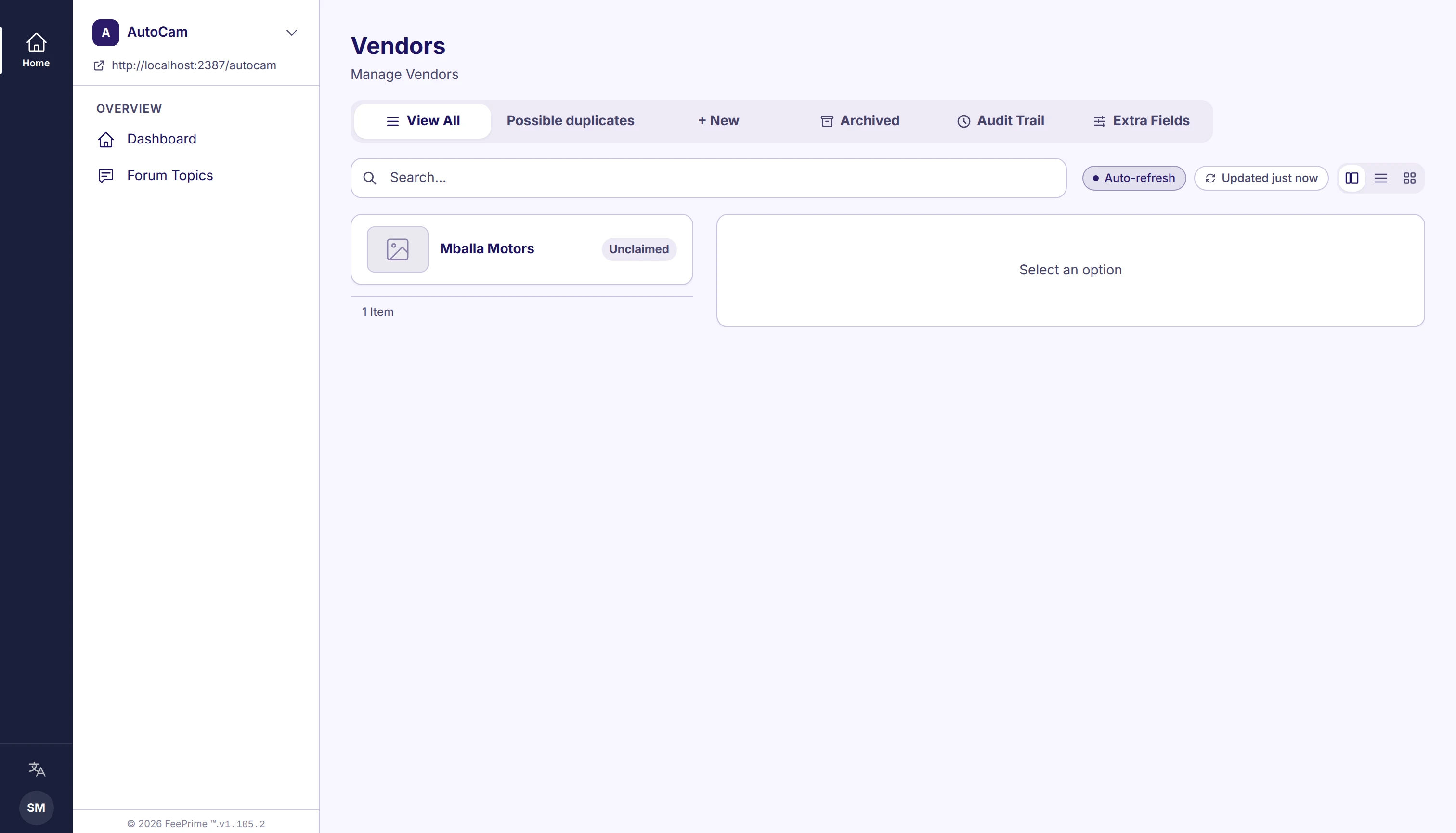 Marketplace & Portal Settings — configuring vertical type, listing approval, and vendor rules.
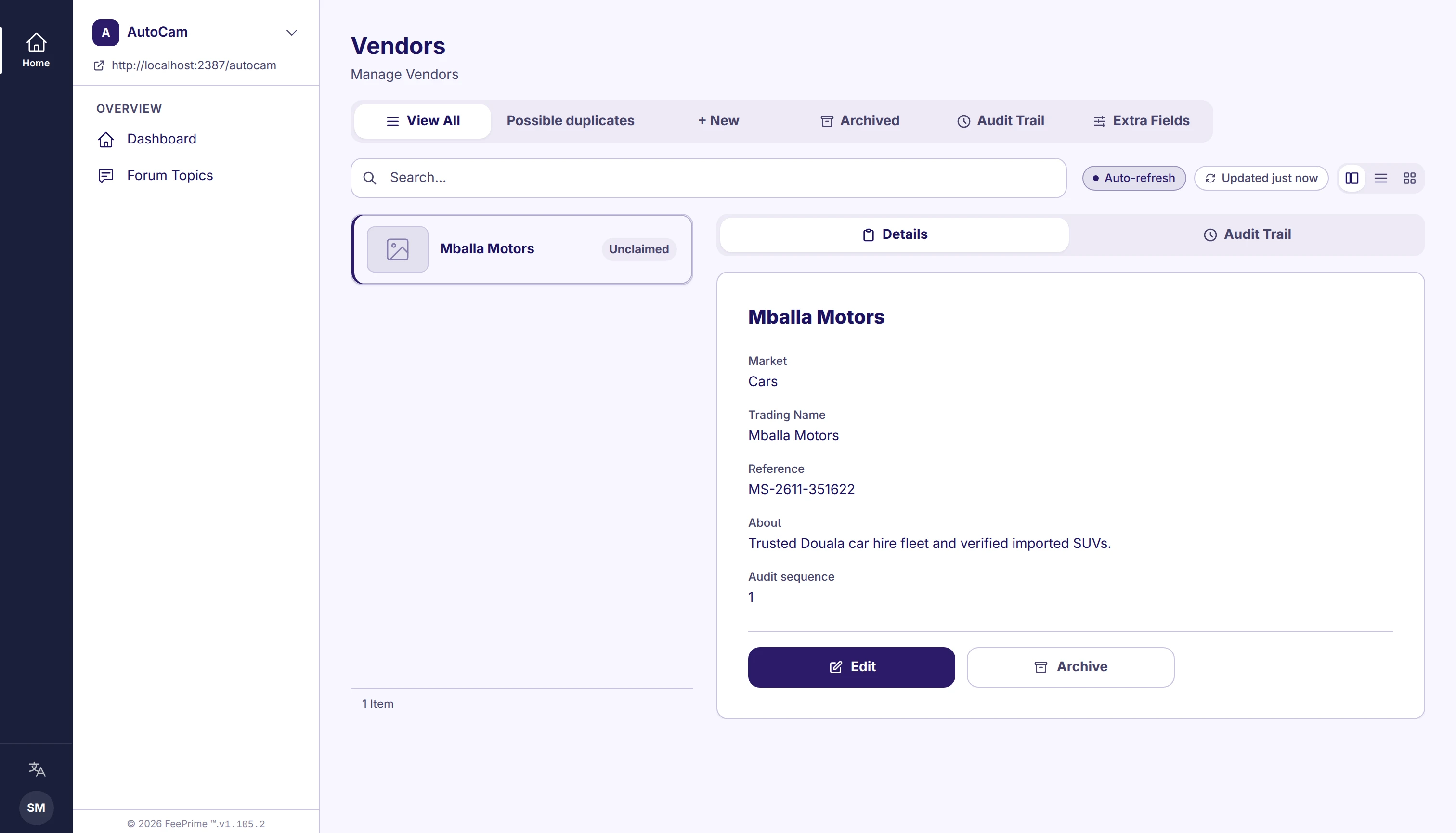 Portal Vendors — vetting partner sellers like Mballa Motors before their listings go live.
2. Pick the portal type that fits your market
Every portal runs on a market type (shown as the vertical in Portal Settings and Portal Vendors). Your market type decides which public sections listings appear in and which checks make sense for your risk level.
If FeePrime enabled only one portal type for your organisation, it is already selected for you. If your business was granted more than one, you choose between them when setting up:
- Marketplace: Multi-vendor physical goods. Sunrise Bakery can list 400-croissant event boxes alongside packaging suppliers and spice shops. Buyers browse Marketplace Listings, place Marketplace Orders, book slots in Marketplace Bookings, or post a need in Marketplace Requests to collect Marketplace Quotes.
- Services: Skilled trades and bookable teams — cold-room technicians, catering crews, or delivery fleets — publishing under Portals & Marketplaces / Services / Service Listings.
- Cars: Dealers and rental agencies listing vehicles for hire or sale in Portals & Marketplaces / Cars (Car Rental Offers, Car Sale Offers, and Fleet Vehicles).
- Real Estate & Land: Agencies and owners listing apartments, hotel suites, commercial spaces, and titled plots in Portals & Marketplaces / Real Estate (Real Estate Properties, Property Unit Types, and Real Estate Plots).
- Cooperative & Farmer: Agricultural cooperatives registering verified growers and plots in Portals & Marketplaces / Farms (Farmers and Farm Plots), such as Moungo cocoa producers sharing traceable lots.
- Dealroom: Vetted founders sharing investment decks and connecting with approved backers in Portals & Marketplaces / Dealroom (Deal Pitches, Deal Investors, and Deal Intros).
Selling a 25,000 XAF pastry box and advertising a 35,000,000 XAF land plot are not the same risk. Picking the right market type gives your staff the right screens and gives buyers the right filters from day one.
3. Set your three starter rules in Portal Settings
Open Portals & Marketplaces / Vendors / Portal Settings. Notice there is no long list of records here. Your organisation has one portal, so it has one set of settings. Every form your buyers and vendors see reads from this single page.
Focus on three decisions first:
- Listing approval policy: Choose how tightly staff check offers after a vendor’s shopfront is approved.
- Profile only: You vet the vendor once; every listing they post goes live straight away. Use this only for a tight circle of trusted members you already know face to face.
- First listing (the default): You approve the vendor’s shopfront and their first listing. That lets Amina verify their photo quality, honest pricing, and delivery terms once. After that, future listings go live automatically.
- Every listing: Staff review every single offer before buyers see it. Never use Profile Only for cars, land titles, or investment pitches. In high-risk markets, manual review on every listing is your safety net.
- Free listing limit: Decide how many live listings a vendor with no paid membership may hold at once.
- Leave it blank to use the built-in default of 3 live listings. That lets a new shop test your marketplace without paperwork.
- Enter 0 if every vendor must hold an active membership tier before they can publish even one listing.
- Open or closed to new sellers: Keep applications open while growing your directory. If your team is overloaded or you only admit members once a quarter, close public sign-ups until you are ready.
4. Keep vendor records clean as you grow
Once applications arrive, you manage them in Portals & Marketplaces / Vendors / Portal Vendors. Each vendor maintains their own shopfront details — trading name, logo, city, phone number, pickup address, opening hours, and delivery fee — while your team controls verification and status.
Two rules save months of headaches later:
- Check identity before ticking Verified. Ask for an ID document or ownership proof on high-value verticals before a seller carries your trust badge.
- Archive, never delete — and never overwrite an old vendor for someone new. Vendors cannot archive themselves, because walking away from open orders or bookings is your decision, not theirs. If a caterer closes down or breaks your rules, archive their record so their shopfront disappears from public view while every past order, booking, and dispute stays intact.
5. Starter portal vs. bigger multi-tier operation
You do not need every lever on day one.
- Starting small (10 to 25 trusted local vendors, no paid plans yet)? Keep the default First listing approval rule, leave the free listing limit blank (3 live listings), and leave Portal Vendor Types empty for now. Nothing breaks.
- Running a busy market or paid directory (50+ vendors competing for buyers)? Open Portals & Marketplaces / Vendors / Portal Vendor Types when you are ready to sell tiers (for example, Starter, Silver, and Gold). Tiers let you raise a vendor’s max listings, give them Featured placement (low, medium, or high rank boost), and cut their wait time (lead delay) so paying members answer buyer quote requests before free accounts.
Try it
Head over to staging.feeprime.com — a practice copy of FeePrime, kept apart from the real thing — and take five minutes to explore your portal rules:
- Sign in and open Portals & Marketplaces / Vendors / Portal Settings.
- Check which market type (vertical) is active for your practice organisation, and look at the listing approval policy options.
- Set the approval policy to First listing and leave the free listing limit blank so new sellers get the default cap of 3 live listings, then save.
- Open Portals & Marketplaces / Vendors / Portal Vendors and inspect an existing vendor profile to see their trading name, city, delivery options, and verification fields.
- Open Portals & Marketplaces / Vendors / Portal Vendor Types to see how membership tiers control listing caps, Featured rank boost, and lead delay — even if you plan to leave tiers off for now.
Once those three screens feel familiar, you are ready for Lesson 2: tuning your rules and building your first vendor tiers.