
Publishing your team with Public Members
Before you start, sign in and open Website / Content / Public Members.
Can’t find it? It may be turned off for your business, or your account may not be allowed to open it. Ask the person who set up your FeePrime. They can fix both.

Photo: Tim Mossholder on Unsplash
When a procurement officer at Hôtel Akwa looks up Sunrise Bakery online before placing a weekly order for 400 croissants, they want to see real people—not an anonymous form. Seeing who runs the kitchen, who handles wholesale deliveries, and who manages the Bonapriso counter builds trust before the first phone call ever happens.
At the same time, many business owners hesitate to touch team settings because they worry about exposing internal staff logins on the internet, or they assume an advisor who never uses FeePrime cannot appear on the website. FeePrime avoids both headaches by keeping your internal logins and your public website team completely separate.
Public Members are the people you deliberately choose to show on your public website. Nothing more, nothing less.
1. Two lists that sound alike: Members vs Public Members
This is the single biggest trap for new teams, and almost everyone mixes the two lists up at least once.
  SETTINGS / ACCESS / MEMBERS          WEBSITE / CONTENT / PUBLIC MEMBERS
  ---------------------------------    ----------------------------------
  Colleagues who log into FeePrime     Faces shown on your public website
  Controls permissions & approvals     Holds photo, role, bio, and rank
  Disable login when someone leaves    Archive profile to take them off
                                       the website
In real life, these two groups overlap. Inside FeePrime, they are completely independent:
- In both lists: Amina manages Sunrise Bakery. She logs into FeePrime every day to check sales and stock, and she also appears at the top of the public team page so clients know who leads the business.
- Login only, never on the website: Sunrise Bakery’s part-time bookkeeper logs into FeePrime every morning to check cash accounts. She has a login in Settings / Access / Members, and no profile in Website / Content / Public Members. Visitors never see her name.
- Website only, no FeePrime login: Sunrise Bakery’s founding advisor never touches the cash register or the back office, so he has no account in Settings / Access / Members. Amina still creates a profile for him in Website / Content / Public Members so partners see his backing.
Creating a FeePrime login never publishes anyone on your website. Likewise, creating a Public Member never gives that person access to your FeePrime data.
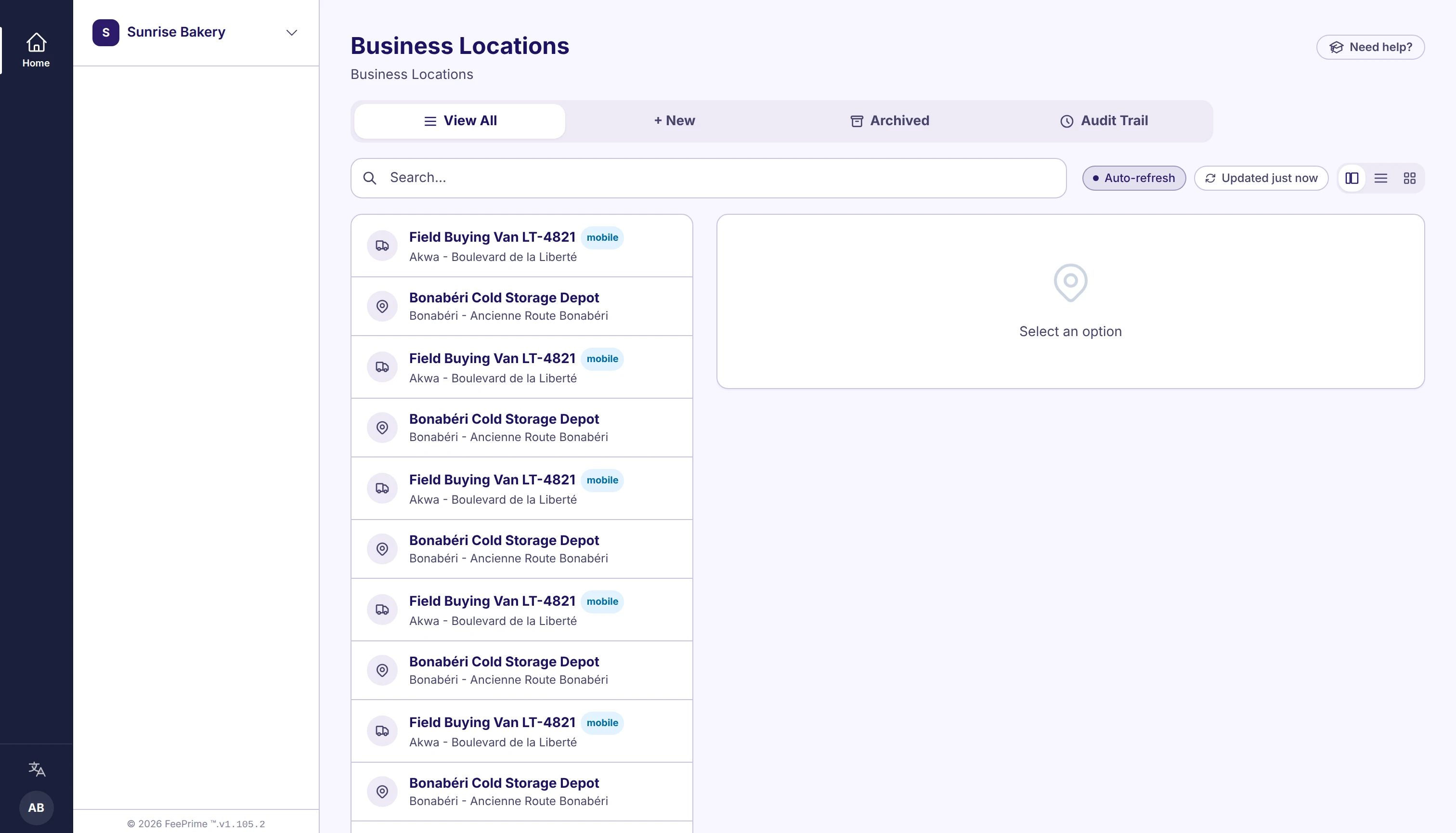 business locations screen in FeePrime (Sunrise Bakery).
 warehouses screen in FeePrime (Sunrise Bakery).
2. What goes into a Public Member profile
Every Public Member record holds a small, clear set of fields. Some appear on your main team listing, while others appear when a visitor opens that person’s full profile.
  PUBLIC MEMBER RECORD                  WHERE VISITORS SEE IT
  ----------------------------          ------------------------------------
  Full name + Organisation role  --->   Shown on both the team list & profile
  Photos                         --->   Portrait on the team list & profile
  Short bio                      --->   Quick summary on the team list
  About                          --->   Longer story on the profile page
  Rank                           --->   Controls top-to-bottom display order
  Contact (optional link)        --->   Connects internally to Sales /
                                        Customers / Contacts
Here is how to fill each field cleanly:
- Full name and organisation role: Use the name customers actually call them and a plain-language role (“Production Manager — Akwa Bakery”, not vague internal codes).
- Short bio: One or two crisp sentences for the main team listing. Keep it scannable on a phone screen.
- About: A longer description for visitors who click through to read more—useful for owners, leads, or specialists.
- Photos: A clear, well-lit portrait. Keep photo framing consistent across the team so the page looks intentional.
- Rank: A number that sets where this person appears in the list.
- Contact: An optional link connecting the Public Member profile to a record in your shared address book (Sales / Customers / Contacts).
Running a small shop with three to five people? Full name, organisation role, a two-sentence short bio, a clear photo, and rank are all you need. Leave the longer About text and Contact link blank if they add no value yet—nothing breaks.
Running several branches or a B2B operation? Use About to spell out each lead’s branch and wholesale coverage, and link key managers to their Contact record so your directory stays tidy.
3. Ordering your team with rank
Rank matters more on a team page than on almost any other list in FeePrime. A team list read top to bottom implies seniority and who to contact first, whether or not you meant it.
If you leave rank blank or let records sit in the order they happened to be typed, your newest delivery rider might appear above your managing director. Alphabetical accident is still a statement.
A simple habit keeps your team page easy to maintain:
- Number your ranks in tens: Give your owner or managing director
10, your operations lead20, your Bonapriso shop manager30, and your Akwa production lead40. - Leave room to insert later: When Sunrise Bakery hires Awa Ndiaye to oversee wholesale accounts and wants her right below Amina (
10), Amina simply gives Awa rank15. Nobody else has to be renumbered. - Group by branch for larger teams: For example,
10–19for leadership,20–29for Akwa bakery,30–39for Bonapriso shop, and40–49for Marché Central stall.
4. Writing bios that earn their space
A website visitor spends five seconds scanning your team page. They have only two questions: What does this person handle? and Is this the person I should ask for?
Compare these two short bios for Nadège Fouda at Sunrise Bakery:
- Weak: “Passionate professional with over ten years of experience in the food industry, committed to excellence and customer satisfaction.”
- Useful: “Runs Sunrise Bakery’s Akwa production floor and handles bulk croissant and bread orders for Douala hotels and caterers.”
The first sentence could belong to anyone in any country. The second immediately tells Hôtel Akwa’s buyer that Nadège is the exact person to ask about a 6 a.m. delivery of 400 croissants.
Keep the Short bio focused on branch + responsibility, and save background story or qualifications for the longer About section.
5. Privacy, consent, and the business-card rule
Everything saved in Website / Content / Public Members is world-readable on the open internet and will be indexed by search engines.
Apply one simple filter before you save any profile: would this colleague hand this exact detail on a printed business card to a stranger?
- Never publish personal mobile numbers, private WhatsApp lines, home neighbourhoods, or family details inside a bio or about section. If visitors need to reach the shop, direct them to your official business phone or booking page.
- Always ask permission before publishing a colleague’s photograph. It is their face on the public internet. Archiving the profile next week removes it from your FeePrime page, but it cannot erase copies that search engines or visitors have already saved.
6. When someone changes role or leaves
People get promoted, move branches, and move on. Two habits prevent embarrassing mistakes on your public site:
- Archive, never delete—and never overwrite an old profile with a new hire. When Paul the cashier leaves Sunrise Bakery and a new cashier joins, do not open Paul’s profile and type the new person’s name over it. Archive Paul’s profile and create a fresh Public Member for the new hire. That keeps your history clean and avoids mixed-up links or cached references.
- Remember the two-step offboarding rule. Because Settings / Access / Members and Website / Content / Public Members do not mirror each other automatically, closing a departing colleague’s login does not remove them from your website—and archiving their website profile does not disable their FeePrime login. When someone who appeared on your site leaves the business, check both lists on their last day.
Try it
Practice on staging.feeprime.com—a practice copy of FeePrime, kept apart from the real thing—so you can test freely without touching your live website.
- Sign in to staging.feeprime.com and open Website / Content / Public Members.
- Create a profile for Amina with an organisation role, a two-sentence short bio, a longer about note, and rank 10.
- Create a second profile for Nadège Fouda with rank 20 and a clear wholesale-order short bio, then link her to a record in Sales / Customers / Contacts if one exists.
- Preview your public website team page and check exactly where short bio lands versus about.
- Insert a third colleague at rank 15 and refresh the public page to watch them slot cleanly between
10and20. - Open Settings / Access / Members and compare the two lists—notice how your practice Public Members do not automatically gain a login, then archive one practice profile to see it disappear from the site cleanly.
Five minutes here is all it takes to make your team page clear, accurate, and safe to share with every customer.