
Subscribers and notifications
Before you start, sign in and open Members / Membership / Subscribers and Operations / Messages / Outbound Notifications.
Can’t find one? It may be turned off for your business, or your account may not be allowed to open it. Ask the person who set up your FeePrime. They can fix both.

Photo: Dan Burton on Unsplash
Every week, two very different headaches hit a growing shop.
First, casual visitors follow your website updates — and before you know it, somebody copies those email addresses into your sales address book until your team cannot tell a real buyer from a curious browser. Second, a big client like Hôtel Akwa phones at 8:00 AM claiming nobody confirmed their order or booking, and your staff is left guessing whether an email ever went out.
FeePrime solves both problems by keeping two kinds of outgoing messages strictly apart: the digest, which readers asked for, and outbound notifications, which fire because something happened to a real transaction.
1. Two messages, two very different jobs
Before you touch a single setting, get the mental model straight. Both leave your FeePrime account, but they serve completely different purposes.
  HOW MESSAGES LEAVE FEEPRIME
  ===================================================================

  [1] DIGEST (scheduled, reader-requested)
      Reader logs in on public site
          --> Members / Membership / Subscribers
          --> You publish a post in Website / Content / Updates
          --> FeePrime sends the digest in their language & timezone

  [2] OUTBOUND NOTIFICATION (event-driven, operational)
      Order, booking, or invoice changes
          --> FeePrime messages one specific person
          --> Logged in Operations / Messages / Outbound Notifications
          --> Searchable proof: channel, recipient, status, sent time
Keep this side-by-side split in mind whenever someone on your team asks, “How do we email people?”
  DIGEST                            OUTBOUND NOTIFICATION
  ------------------------------    ------------------------------
  They asked for it, regular        Something happened right now
  Everyone subscribed on the list   One named person
  Built from what you published     About their order, booking, invoice
  Marketing & updates               Operational proof
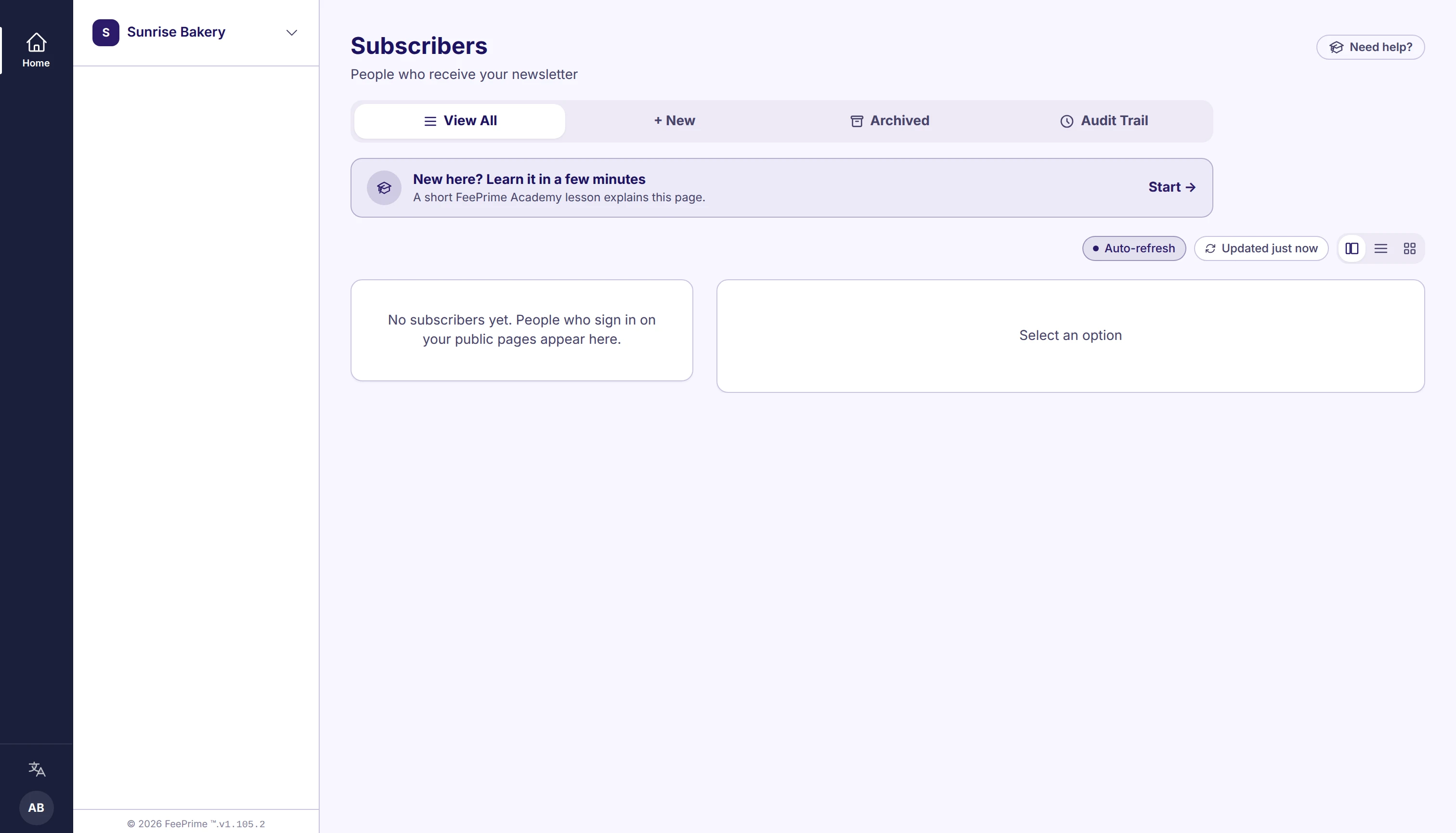 subscribers screen in FeePrime (Sunrise Bakery).
2. How subscribers work (and why they are not contacts)
Open Members / Membership / Subscribers. A subscriber is somebody who gave you their email address on your public website.
Each subscriber record holds: - Their email and name. - Whether they are still subscribed. - Their digest preferences: the time of day they want the digest, their timezone, and their language.
Here is the part that surprises almost every new business owner: somebody becomes a subscriber simply by logging in on your public website. There is no separate newsletter sign-up form for you to build, and the reader does not have to fill in a second form.
Now remember the golden boundary: a subscriber is not a contact.
Suppose Nadège Fouda reads Sunrise Bakery’s weekend menu posts from her phone in Bonapriso and logs in so she does not miss holiday pre-orders. She appears in Members / Membership / Subscribers — not in Sales / Customers / Contacts, and not in Members / Membership / Memberships.
- Subscribers are readers who agreed to hear about what you publish.
- Contacts are the customers, suppliers, and partners your sales and finance teams actually bill and call.
- Members are people with an active membership relationship with your organisation.
Never copy casual subscribers into Contacts just to pad your sales list. Keeping that line clean is why 200 casual website readers do not quietly turn into 200 cluttered entries in the address book Paul the cashier and Amina the manager rely on every day.
3. The digest: publishing is sending
Once you have subscribers, FeePrime sends them a regular digest of what you published — in each reader’s chosen language, in their timezone, at the time they picked.
That means if Sunrise Bakery has French-speaking regulars in Akwa and English-speaking expats in Bonapriso, FeePrime respects each reader’s preferences automatically. You do not write a separate weekly newsletter by hand. The digest is built straight from the updates you already publish under Website / Content / Updates.
Pause and sit with what that means: publishing is sending.
Never publish a rough draft just to preview how it looks or “get it ready for Monday.” If Amina types a Friday post about new 50kg flour rates or croissant prices with rough placeholder XAF figures and hits publish to “tidy it up later,” that unfinished post can go straight into subscribers’ next digest. Leave unfinished updates unpublished until every price, date, and spelling is final.
Small shop vs bigger operation: - One bakery or boutique posting once a week? Write clean, finished updates when you have real news — new stock, holiday hours, or a seasonal menu — and let the digest carry it for you automatically. - Multi-location or bilingual team? Agree on one person who reviews and publishes under Website / Content / Updates so half-finished drafts from two branches never slip into the digest.
4. Outbound notifications: proof that a message went out
Open Operations / Messages / Outbound Notifications. These are the second kind of message: a direct operational message sent to one particular person because something happened to their order, their booking, or their invoice.
Every notification is saved as a record you can search and open later. Each record holds: - Channel and type (how and why it was sent). - Recipient (who it went to). - Subject and body (the exact wording they received). - What record it was about (the specific order, booking, or invoice). - Status and when it was sent.
Picture a busy Tuesday morning at Sunrise Bakery. The kitchen manager at Hôtel Akwa calls Amina: “Nobody ever confirmed our 400-croissant booking for tomorrow!”
In most small businesses, that phone call turns into an argument between the front desk and the customer. In FeePrime, Amina opens Operations / Messages / Outbound Notifications, searches for Hôtel Akwa, and checks the record in ten seconds. She sees the exact booking it refers to, the email address it went to, the wording sent, the status, and the exact timestamp.
“Did the customer ever get told?” becomes a question with a clear, verifiable answer. (If your business also sends text alerts, you will find your SMS log right next door under Operations / Messages / SMS Messages.)
Small shop vs bigger operation: - Small shop with occasional orders? Open Operations / Messages / Outbound Notifications whenever a customer says they missed a confirmation or invoice. - High-volume operation with daily bookings or deliveries? Have a manager scan Outbound Notifications each morning for any failed statuses so you catch typos in customer emails before a delivery goes wrong.
5. Respect the unsubscribe every single time
From time to time, a reader will turn off subscribed on their subscriber record.
Treat that as a clear decision, not a mistake in your data.
- Never switch
subscribedback on because you think they clicked it by accident. - Never copy an unsubscribed reader into Contacts so your team can keep emailing them updates another way.
Leaving privacy rules aside, ignoring an unsubscribe is the fastest way to teach customers that your emails cannot be escaped. People mark persistent senders as spam — and once email providers see spam complaints against your business, even your important invoices and booking confirmations can start landing in spam folders.
A smaller list of readers who genuinely want your updates will always outperform a bigger list of annoyed ones.
Try it
Practice on staging.feeprime.com — a practice copy of FeePrime, kept apart from the real thing — so you can explore freely without emailing a single real customer.
- Open the public website on staging.feeprime.com and log in using a test email address you control.
- Sign in to the back office and open Members / Membership / Subscribers.
- Find your own email in the list and open the record to inspect name, subscribed, digest time, timezone, and language.
- Open Sales / Customers / Contacts and confirm your test subscriber did not clutter your sales address book.
- Open Operations / Messages / Outbound Notifications and click any notification record to inspect its channel, type, subject, body, linked record, status, and sent time.
Watching your own record appear in Subscribers — and checking a real notification log — takes five minutes and makes both systems click for good.