
Finding your way around
Before you start, sign in and open Sales / Contacts.
Can’t find it? It may be turned off for your business, or your account may not be allowed to open it. Ask the person who set up your FeePrime. They can fix both.
FeePrime has a lot of parts. The good news is that they almost all work the same way. So this lesson uses just one of them, Contacts, and shows you everything on it. Learn Contacts, and you can find your way around almost any other part.
The video with this lesson shows it all in about three minutes. The pictures below follow it screen by screen, and the gallery has the same pictures if you would rather flip through them.
1. Contacts: everyone you deal with
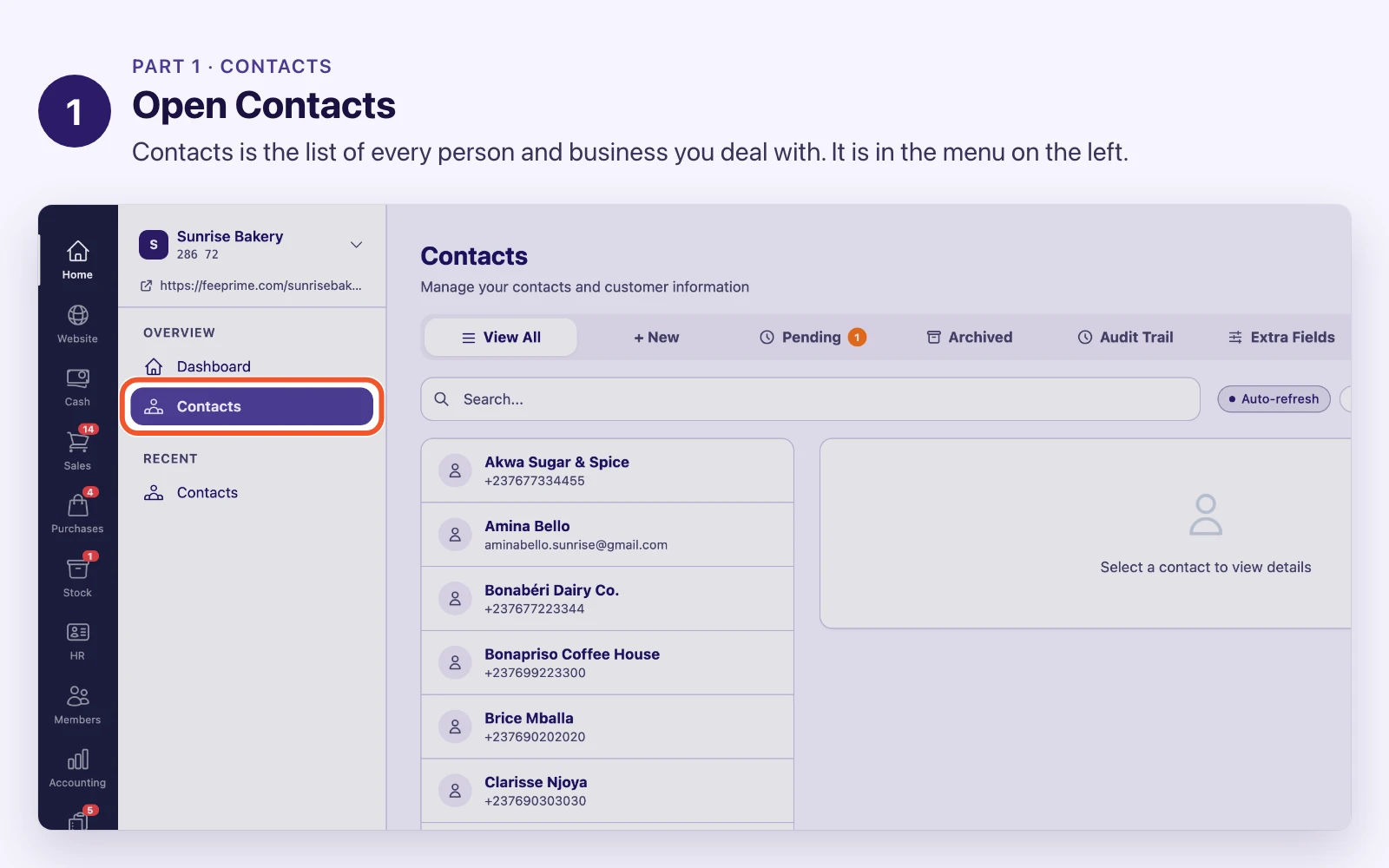
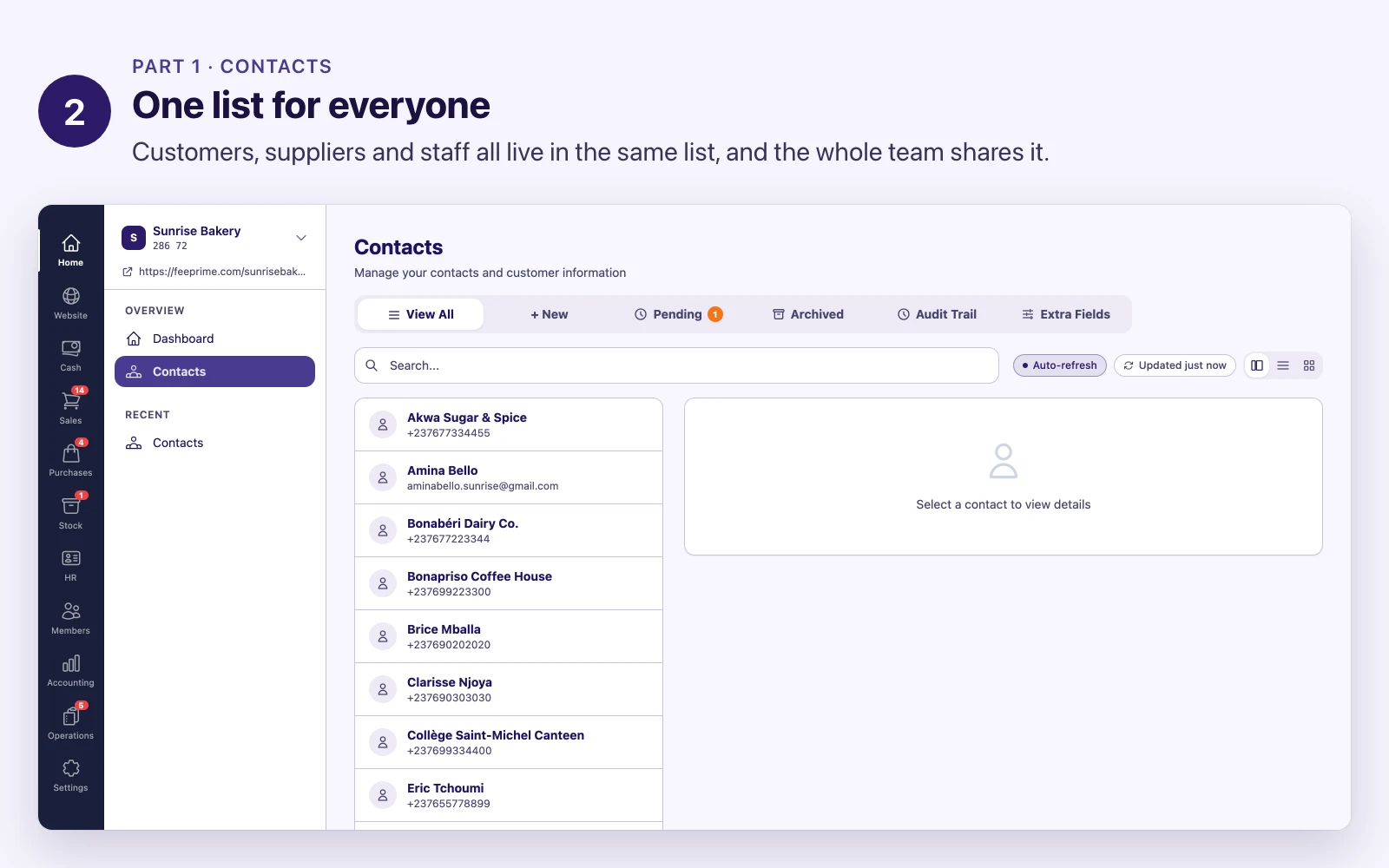
Contacts is the list of every person and business you deal with. Your customers, your suppliers and your staff are all in it. There is one list, and the whole team shares it.
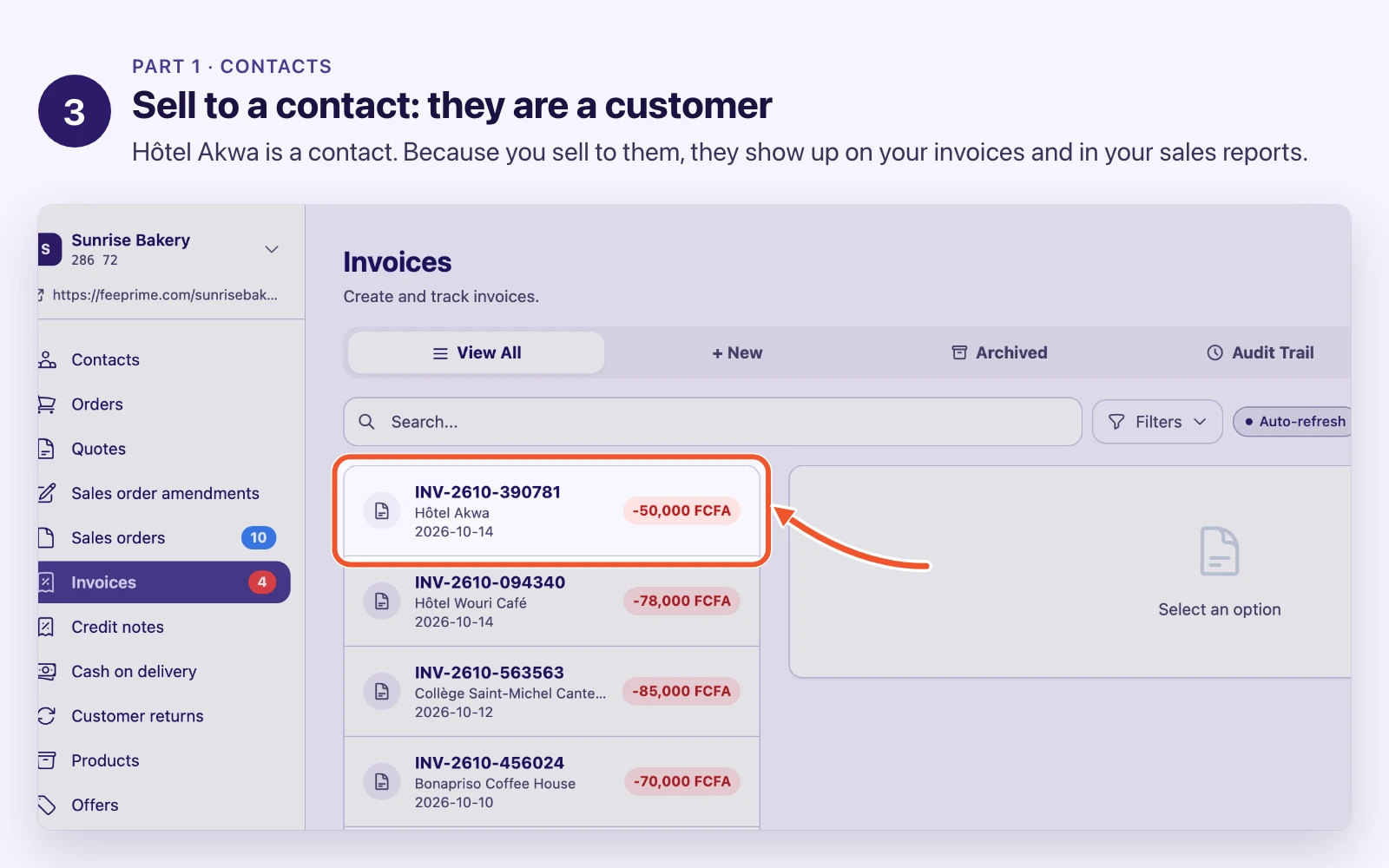
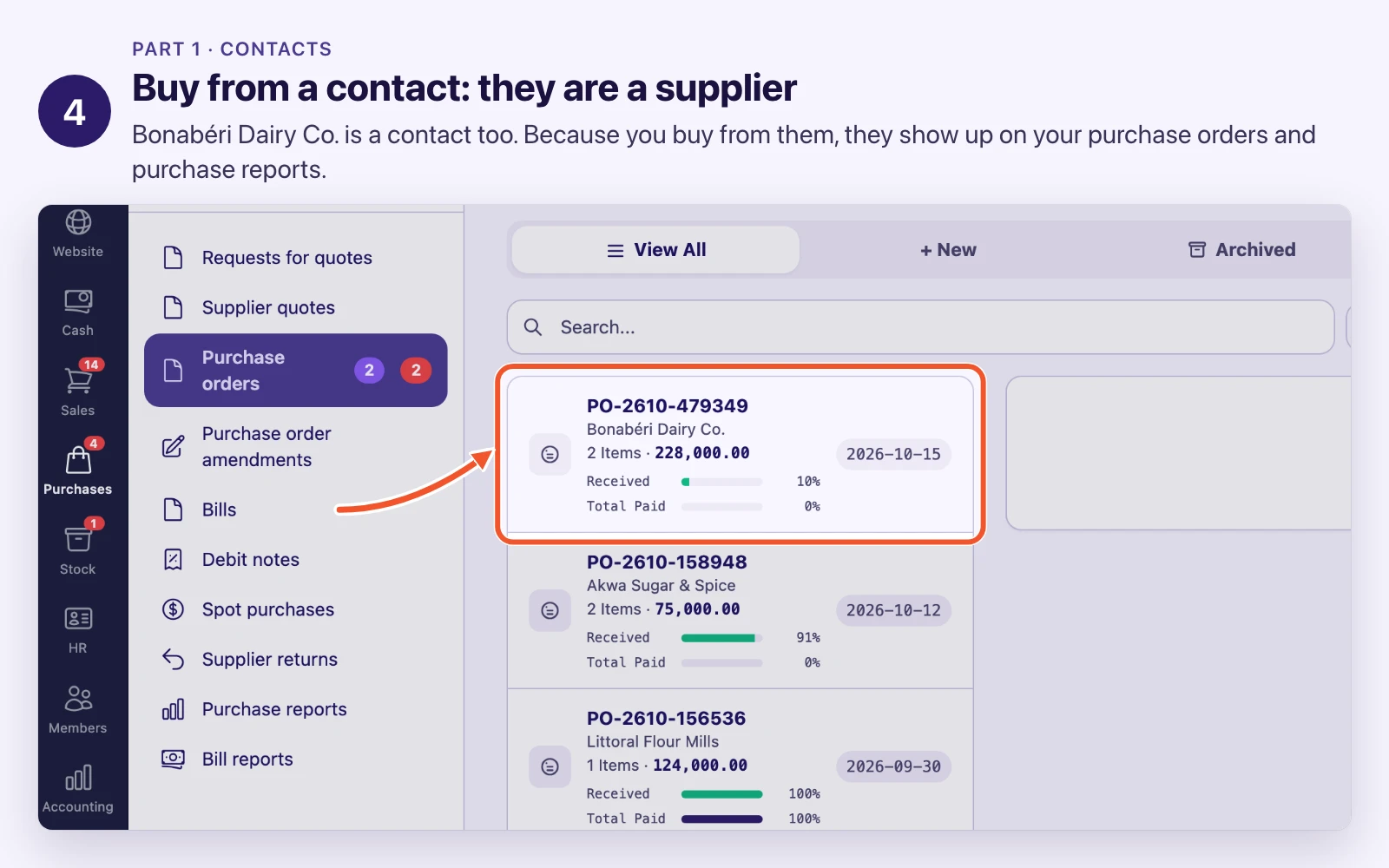
A contact is not “a customer” or “a supplier” by itself. It becomes one by what you do with it:
- You sell to them, so they are your customer. They show up on your invoices and orders, and in your sales reports.
- You buy from them, so they are your supplier. They show up on your purchase orders and bills, and in your purchase reports.
- You employ them, so they are your staff. They show up in HR.
Some people are more than one. The printer you buy paper from may also buy bread from you. That is still one contact, with one phone number and one address. Fix the phone number once, and every invoice and every purchase order sees the new one.
That is why almost every part of FeePrime points back to Contacts. Get this list right, and everything built on it is right.
Every contact also gets a short code, like C5938206309. FeePrime makes it for you. It tells two people with the same name apart, so do not type over it.
2. The menu
The dark bar on the far left groups FeePrime by job: Sales, Purchases, Stock, HR and so on. Click one, and its sections open beside it. Contacts sits at the top of Sales.
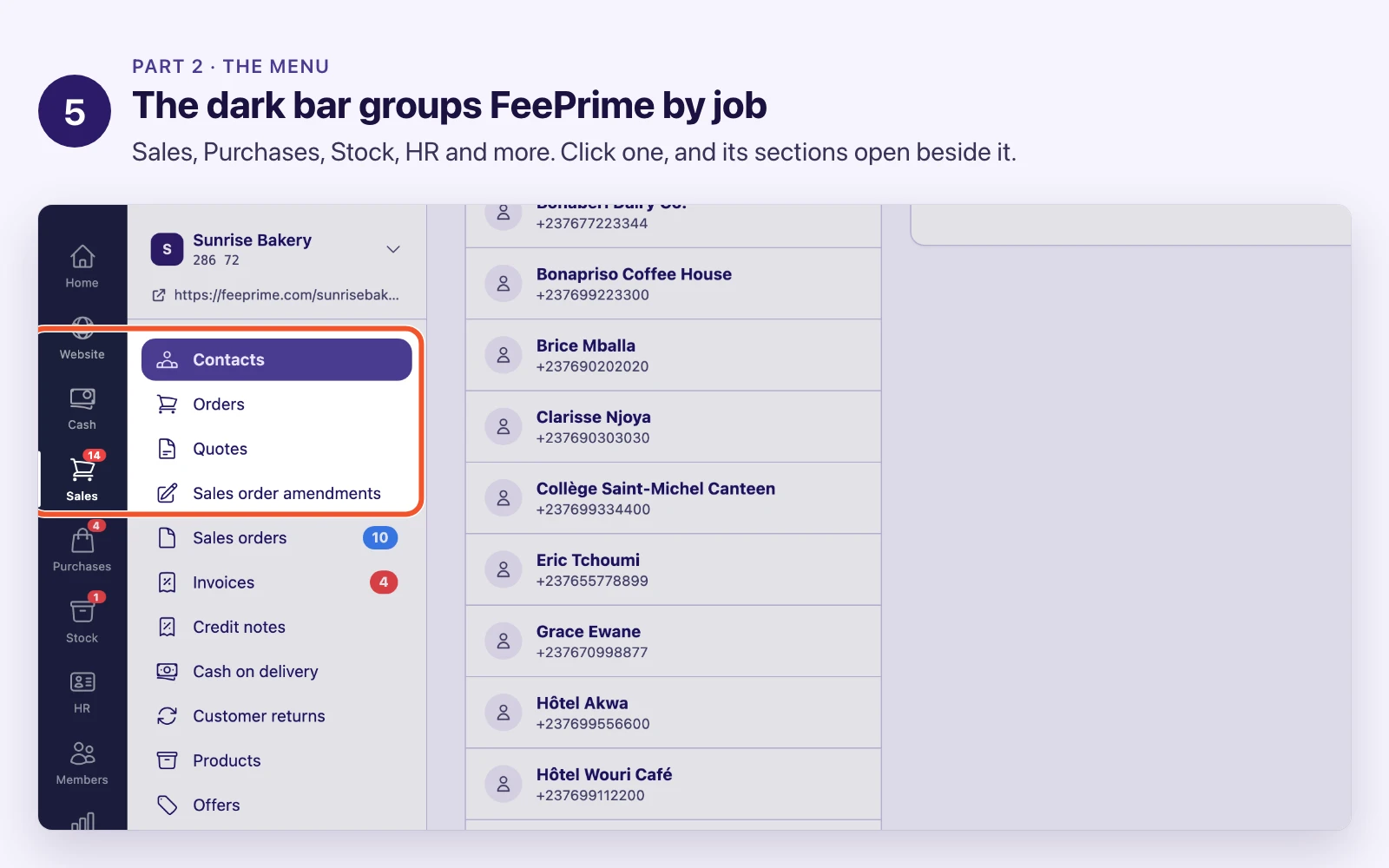
You will spend most of your day in one or two of these groups. You can ignore the rest.
If a colleague talks about a section you cannot see, nothing is broken. Either your business does not use that part, or you have not been given access to it.
3. Every list works the same
Open almost any section and you get the same screen. You find things on the left. Click one, and it opens in full on the right.
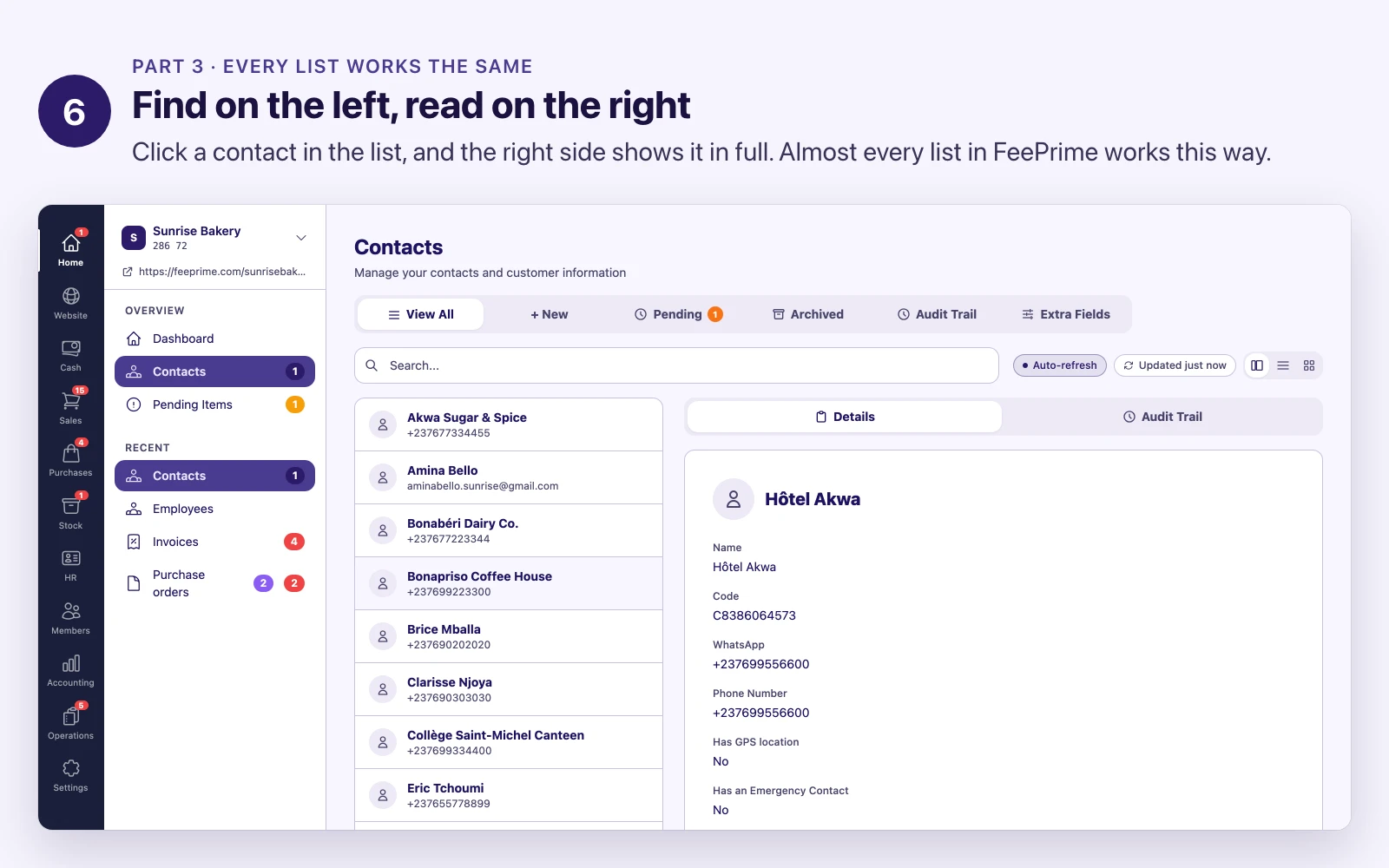
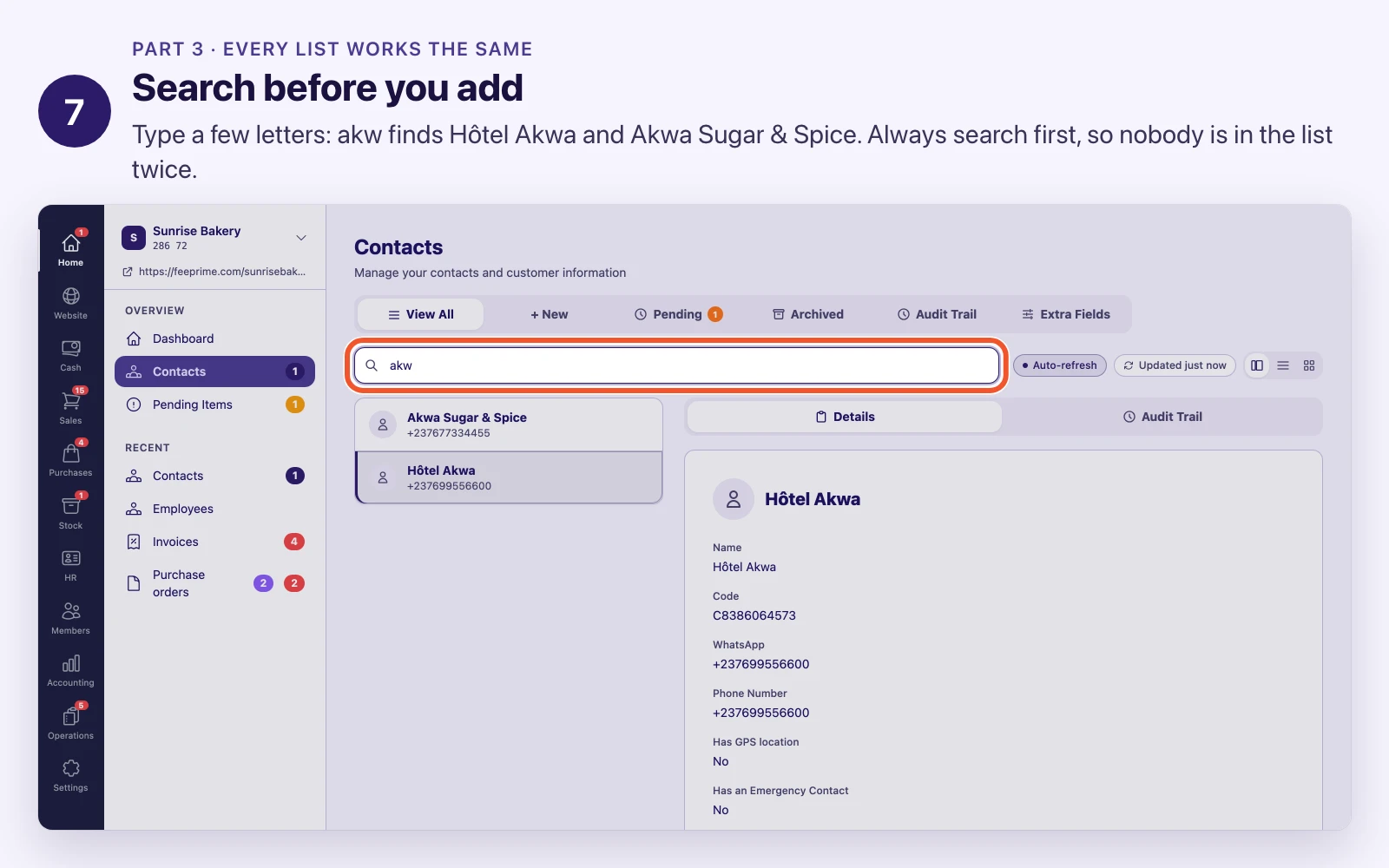
Search before you add. Type two or three letters in the search box. Search matches part of a word, so akw finds Hôtel Akwa, and you do not need to know how a colleague spelled a name.
This matters more than anything else in this lesson. The most common mistake in FeePrime is adding a contact who is already there:
   Ndiaye, Awa
   Awa Ndiaye        four contacts,
   AWA NDIAYE        one person
   A. Ndiaye
Now that person’s sales are split four ways, and nobody can say how much they owe you. FeePrime cannot warn you, because to a computer those are four different names. So search first, every time.
Long lists come in pages, with page numbers at the bottom. If a search finds nothing, check you are not still on page 4 of the last search.
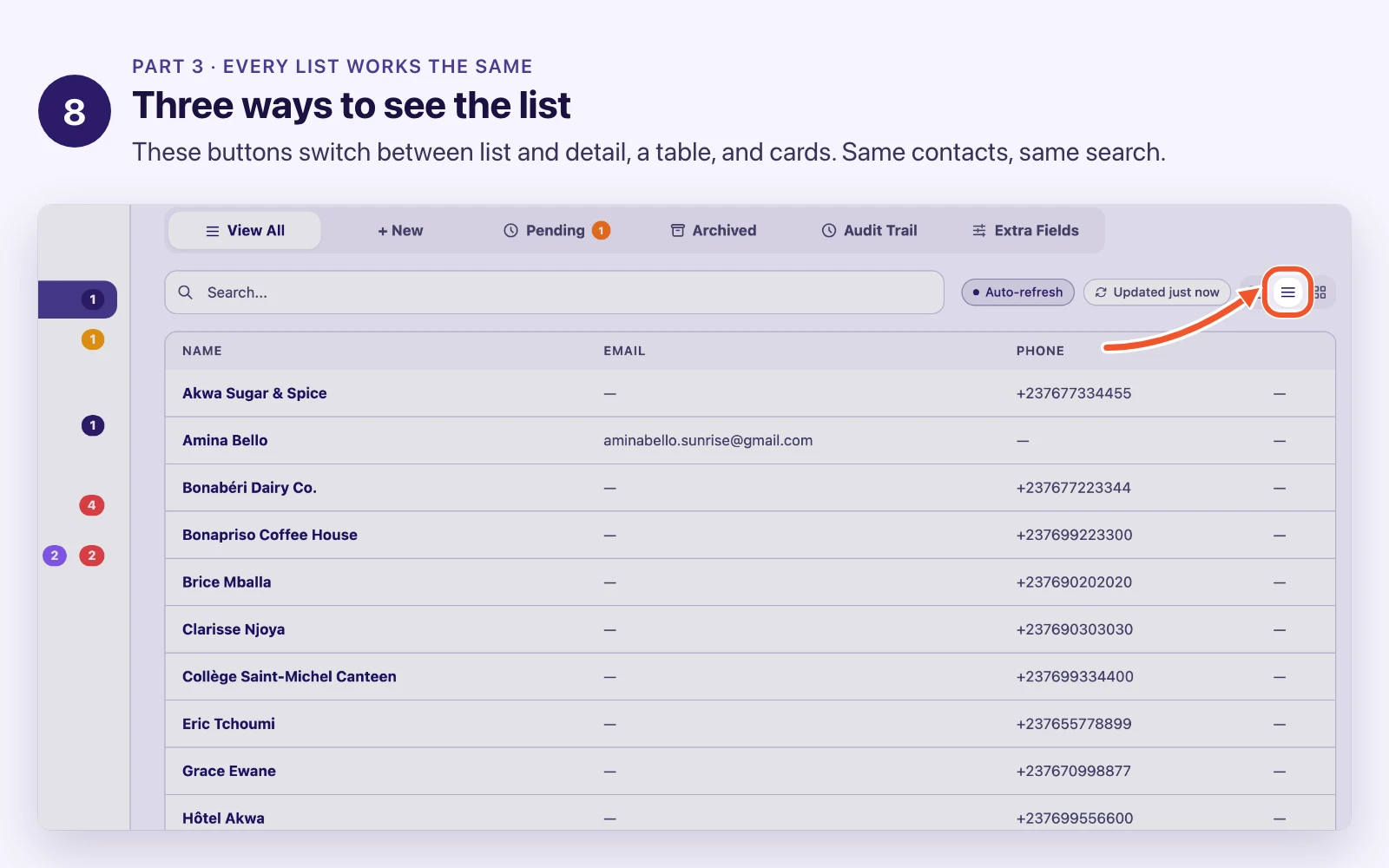
Three ways to see a list. The buttons beside the search box switch between list and detail, a table (good for comparing many rows), and cards. Same contacts, same search. Switch whenever you like.
The same tabs everywhere. Above the list are tabs you will find on almost every list in FeePrime:
- Pending: changes waiting for someone to say yes. It only shows when something is waiting.
- Archived: things you no longer use, kept safe.
- Audit Trail: every change anyone has made here.
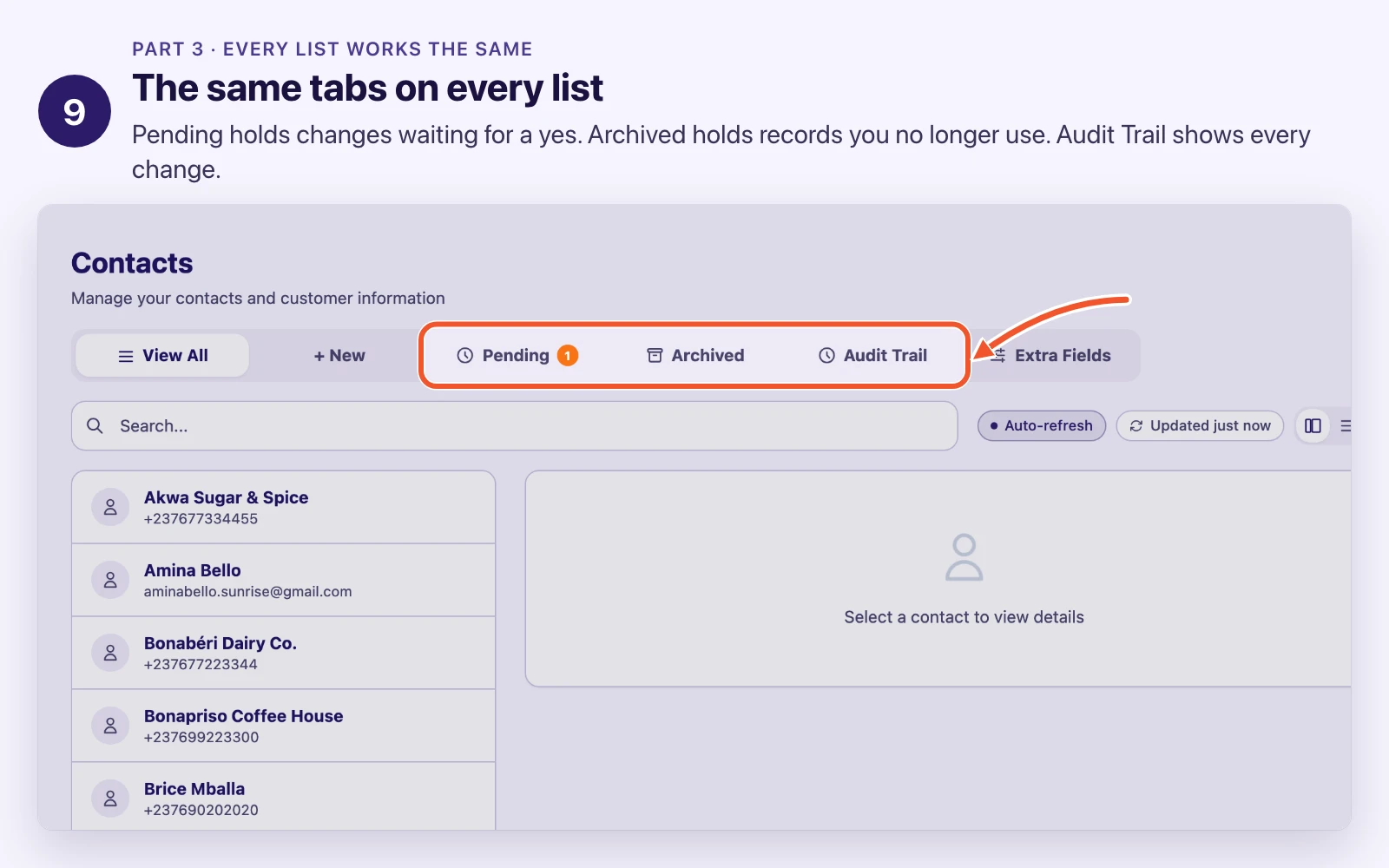
A few lists have no Archived or Audit Trail tab. That is on purpose, not a fault.
4. Changes that wait for a yes
When you save a change, one of two things happens:
   you save a change
          |
   are you allowed to approve here?
      |                  |
     yes                 no
      |                  |
   it is live now     it waits in Pending
                         |
                   someone who may approve
                   clicks Approve or Reject
In the video, Paul the cashier fixes Hôtel Akwa’s phone number. He is not allowed to approve changes, so his change waits in Pending. Amina sees the old number crossed out and the new one beside it.
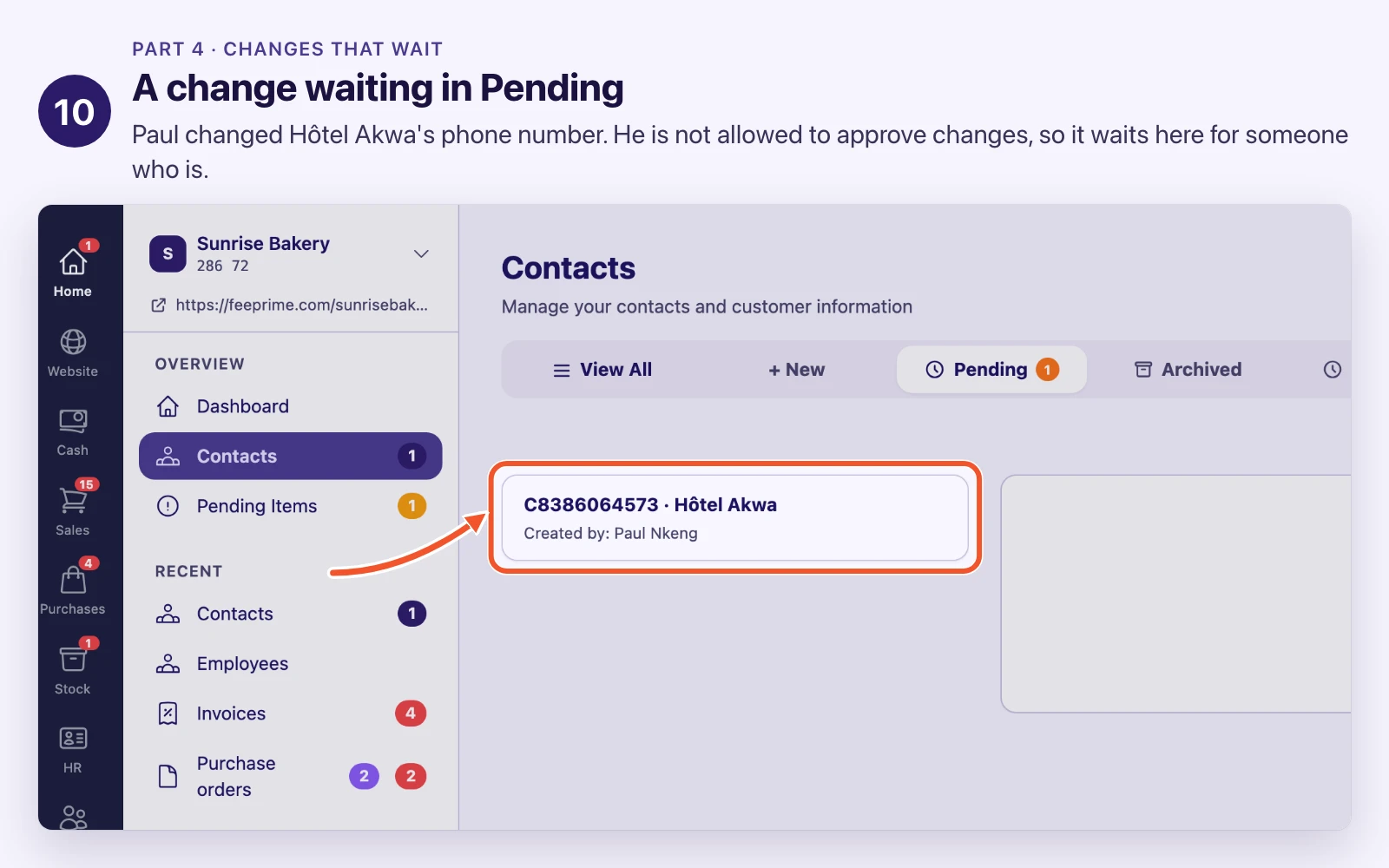
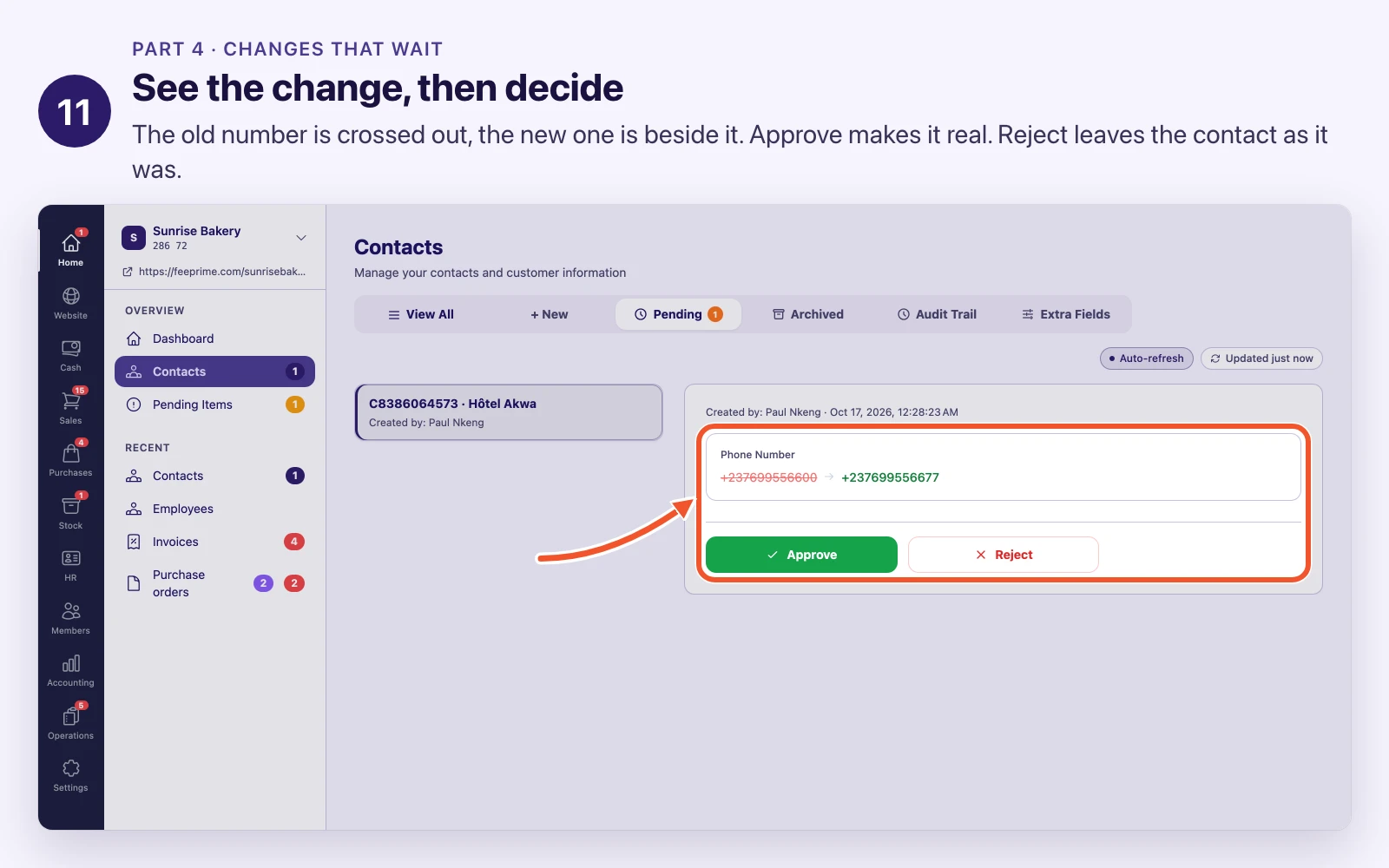
Approve makes the change real. Reject leaves the contact as it was. Either way, FeePrime keeps a record of the attempt.
This is how a junior can type in a supplier’s bank details while someone senior checks them before any money moves.
If you save something and it does not show, look in Pending first. You have not hit a bug. Your change is waiting for a yes. Find out who approves in your part of FeePrime.
5. The audit trail: who changed what
Every contact keeps its own story. Open it and click Audit Trail.
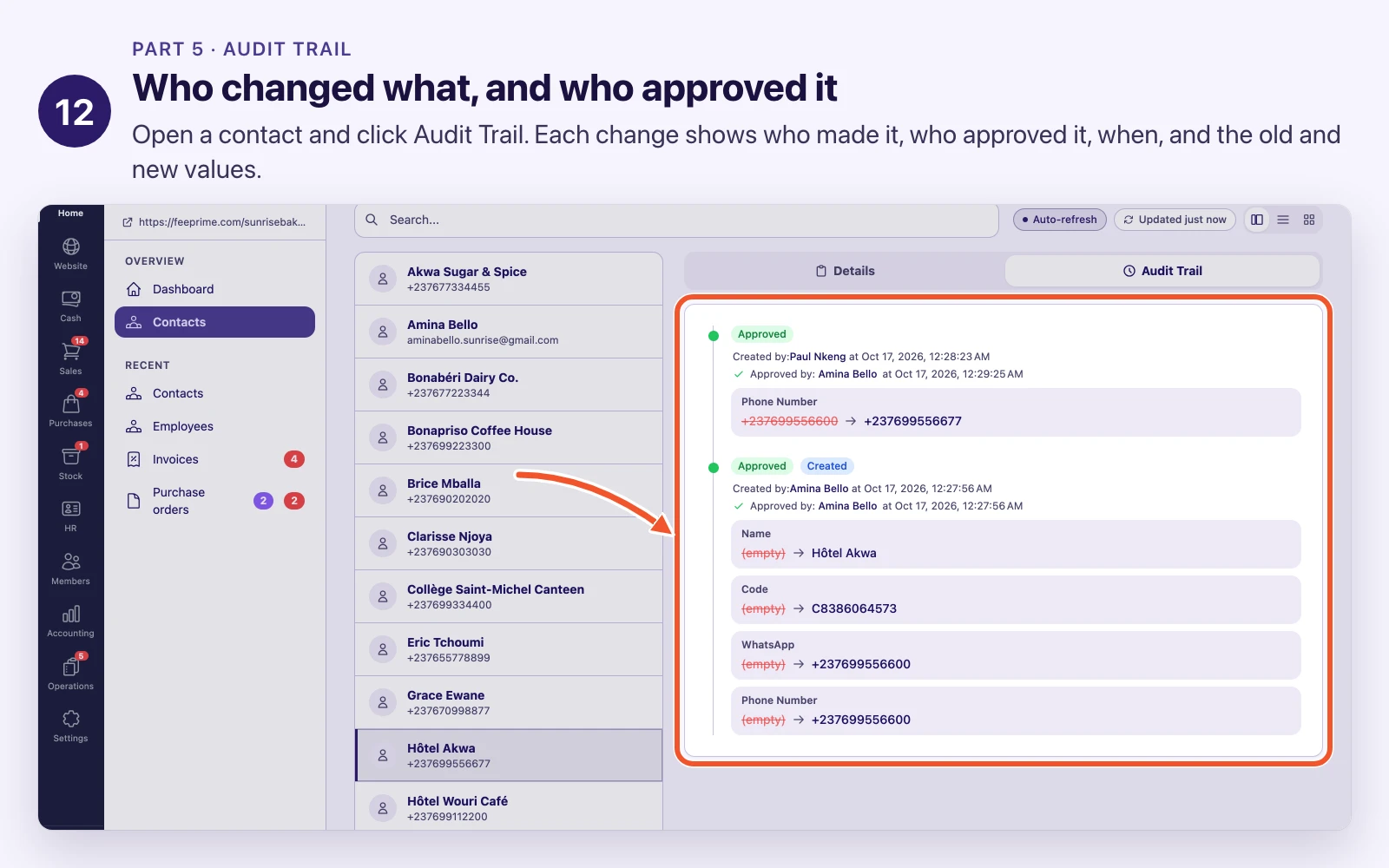
Each entry shows who made the change, who approved it, and when. Then it lists each field that changed, with the old value crossed out and the new one beside it. An empty old value shows as (empty), so you can tell “someone cleared this” from “nothing happened here”.
Nothing in FeePrime is changed in secret. That is what makes the history worth trusting.
There are two audit trails:
- One contact’s: open the contact, then its Audit Trail tab. Use it when you know which one is wrong.
- The whole list’s: the Audit Trail tab above the list. Use it when you only know that something is wrong. Its search also matches the record’s own details, so typing a customer’s name finds every change to their invoices.
Some records show an Audit sequence number. It counts up with no gaps as records are made, so auditors can see that nothing was removed. You will never type it, but you may be asked to quote it.
6. Archive, never delete
Some contacts stop mattering. A customer moves away. You stop buying from a supplier. Do not delete them: click Archive.
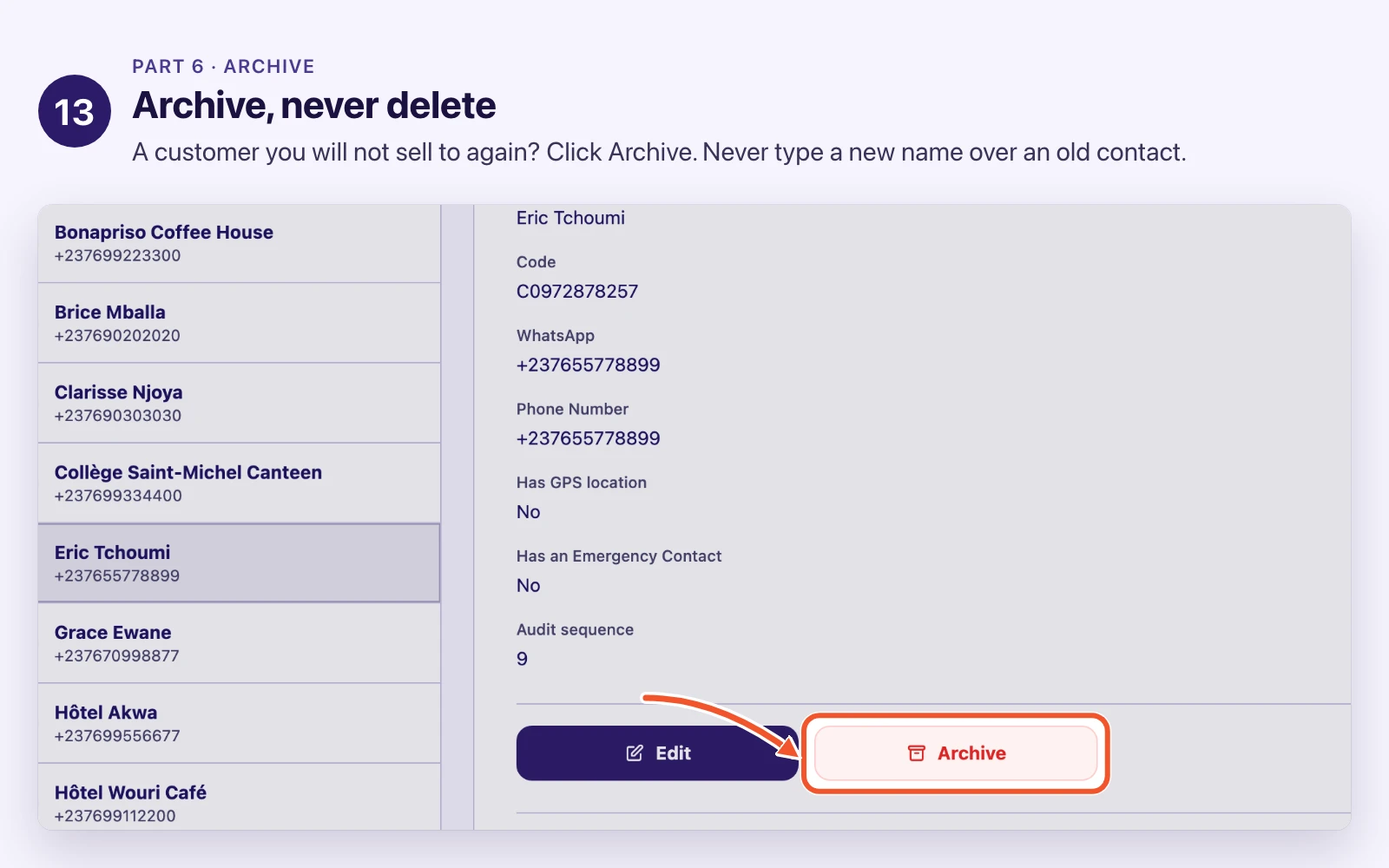
The contact leaves the normal list but is kept under the Archived tab, with all its history. Its old invoices and bills still point to it, so last year’s accounts still add up. Open it and FeePrime says This record is archived. Restore brings it back.
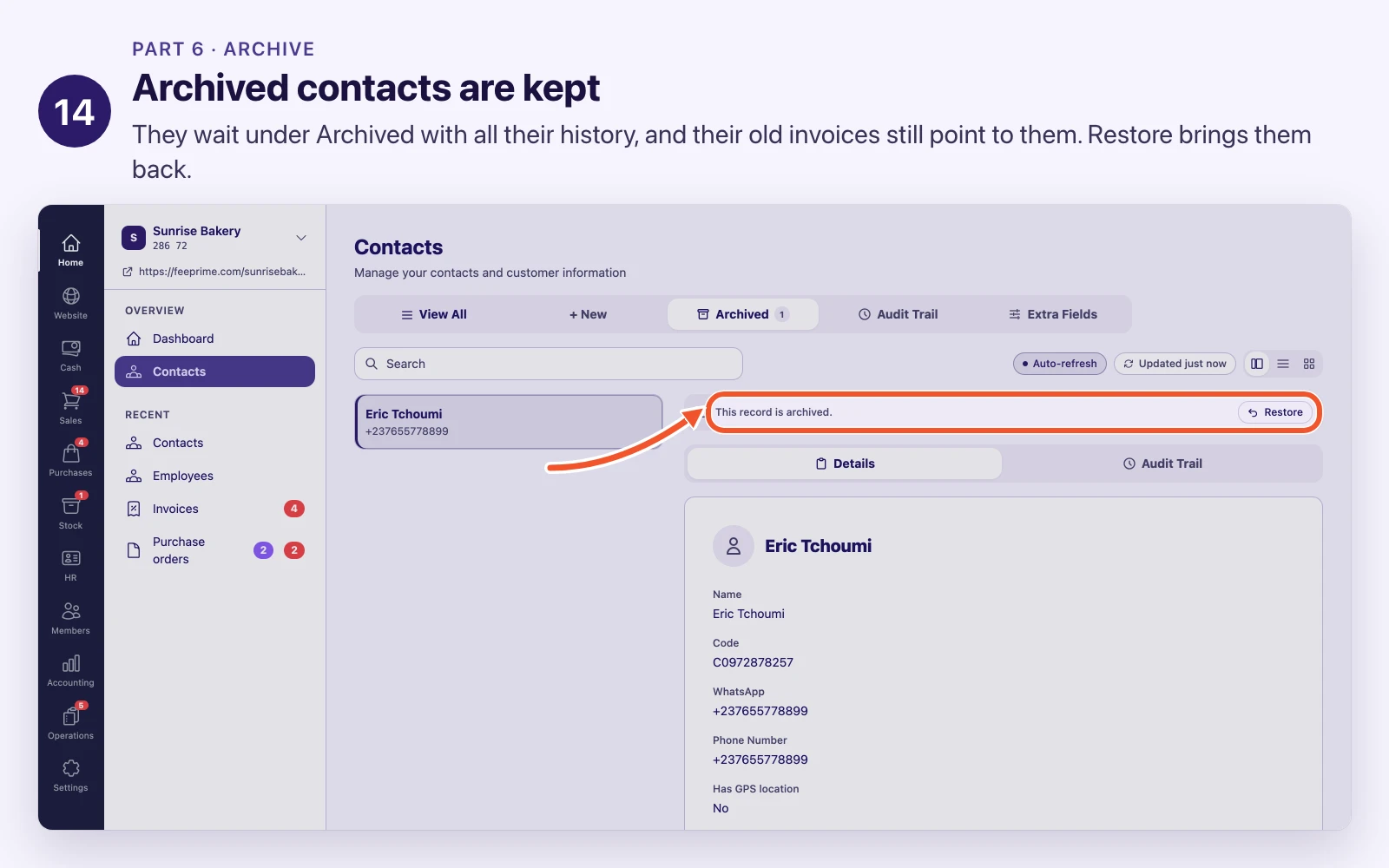
On Contacts, Archive works straight away, with no “are you sure?”. If you archive the wrong contact, open Archived and click Restore. The audit trail records who archived it and when.
Never rename an old contact for someone new. Typing a new supplier’s name over an old one looks tidy, but every bill that pointed at the old supplier now points at the new one, and last year’s reports quietly change. Archive the old one and add a new one.
7. On your phone, and with no signal
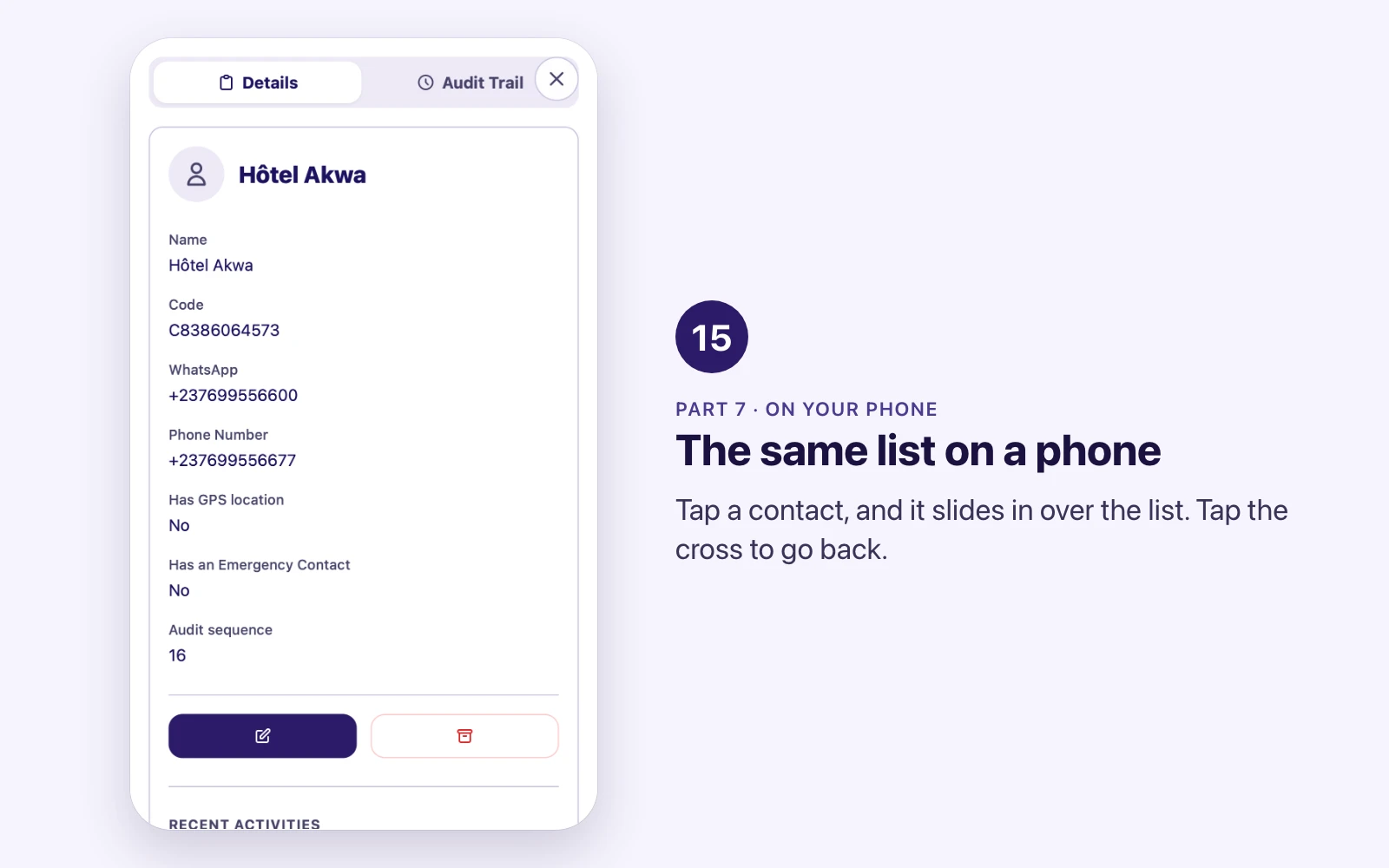
On a phone it is the same list. Tap a contact, and it slides in over the list. Tap the cross to go back.
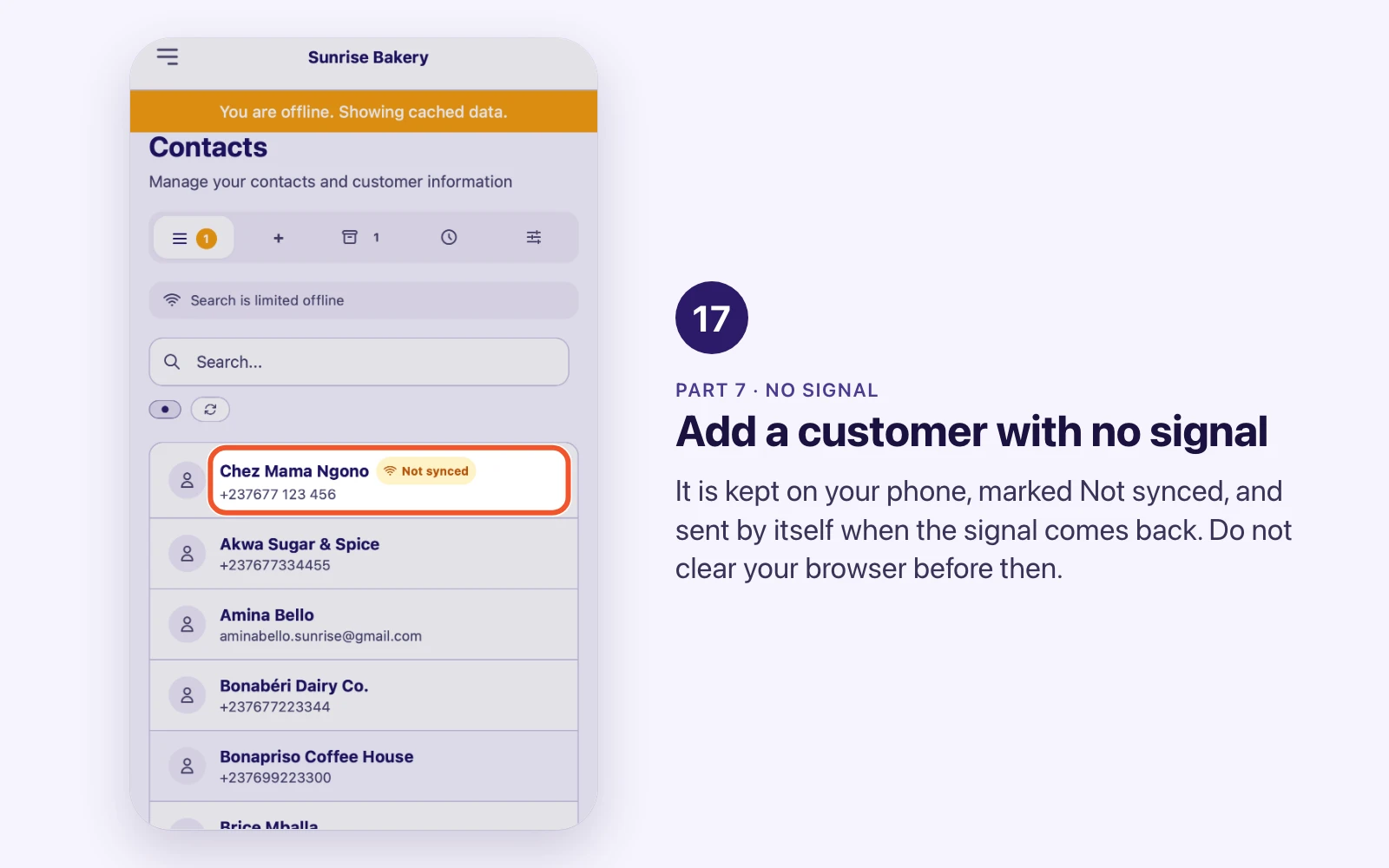
FeePrime keeps working when the signal drops. It tells you with a bar across the top: You are offline. Showing cached data.
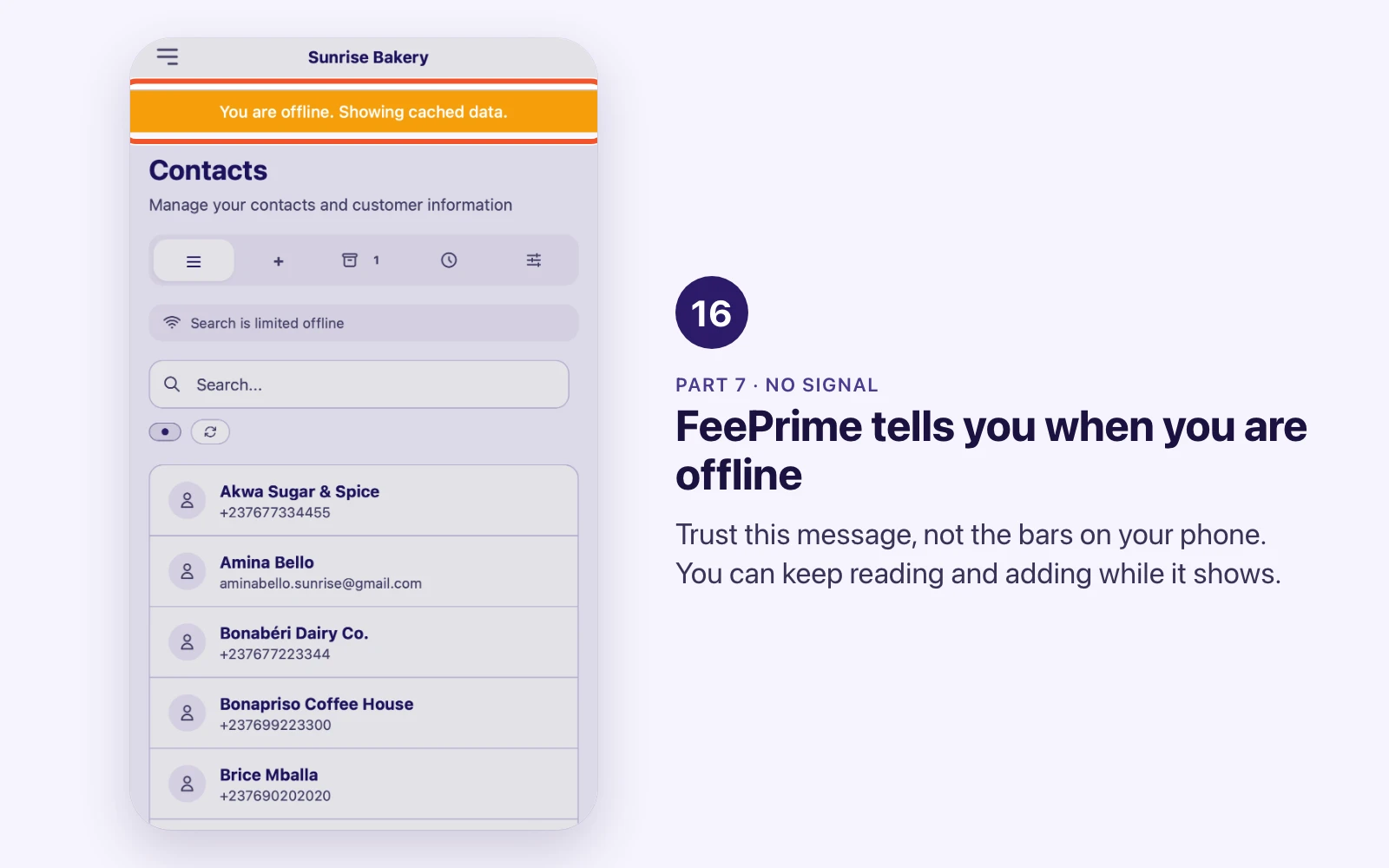
You can keep reading, and in many parts you can keep adding. A new contact is kept on your phone, marked Not synced, and sent by itself when the signal comes back.
What to know about working offline:
- Do not clear your browser or reinstall while something says Not synced. Until it is sent, your phone holds the only copy.
- Trust FeePrime, not the bars on your phone. A phone can show full signal with no working internet. FeePrime checks that it can really reach the server.
- Not every part works offline, only the ones people need out in the field.
- Search only looks at what is on your phone, which is your recent records, not everything.
- Some details wait for the signal. Offline you see a record’s own fields, but not extras FeePrime works out on the server, like line tables or linked payments.
Try it
On staging.feeprime.com, a practice copy of FeePrime:
- Open Contacts and search for two letters of a name.
- Switch between the three views.
- Edit a contact and save. Did it go live, or into Pending?
- Open that contact’s Audit Trail and read your own change.
- Archive it, find it under Archived, and Restore it.
- On your phone, turn on airplane mode, add a contact, then turn airplane mode off and watch it send.
Do it once, calmly, and none of this will surprise you when it matters.