
Vaults & Automated Vault Schedules: Ring-fencing funds and recurring drips
Before you start, sign in and open Digital Wallets / Vaults / Wallet Vaults.
Can’t find it? It may be turned off for your business, or your account may not be allowed to open it. Ask the person who set up your FeePrime. They can fix both.

Photo: Ayodeji Alabi on Unsplash
On Monday morning, Sunrise Bakery’s main Manna Finance wallet shows 4,200,000 FCFA after Hôtel Akwa settled two monthly pastry invoices. Looking at one big number feels comfortable—until Grace Ewane pays a rush flour order and a generator overhaul on Wednesday, and Amina Bello realizes Friday’s Akwa shop rent (650,000 FCFA) and CNPS social security payment (480,000 FCFA) just got spent by mistake.
Keeping every franc in one open operating pool is how profitable shops run short on rent day. In FeePrime, Wallet Vaults pull reserved money out of your everyday spending balance without opening a separate bank account, and Wallet Vault Schedules drip recurring payouts automatically on your calendar while obeying every approval rule your business already set.
1. How Wallet Vaults separate reserved cash from daily spending
A Wallet Vault is a ring-fenced sub-account inside your business wallet. Money deposited into a vault no longer appears in your spendable operating balance—so cashiers and payers cannot accidentally use rent money to buy flour—yet it remains 100% under your business’s control and visible on your books.
  [ Main Operating Balance ]  (Digital Wallets / Our Wallet / Business Wallet Balances)
      │               ▲
   Deposit         Withdraw
      ▼               │
  ┌────────────────────────────────────────────┐
  │  Wallet Vault (locked to 1 Issuer + 1 CCY) │  e.g. "Douala Rent & CNPS Reserve"
  │  Issuer: Manna Finance  |  Currency: FCFA  │
  └─────────────────────┬──────────────────────┘
                        │  Automated drip (Wallet Vault Schedules)
                        ▼
  ┌────────────────────────────────────────────┐
  │      Settings / Access / Spending Controls │  (caps, approvals, new-recipient hold)
  └─────────────────────┬──────────────────────┘
                        ▼
  [ Recipient Wallet ]  (Landlord, Head Baker allowance, regular supplier)
Every vault is locked at creation to one issuer and one currency—for example, Manna Finance · FCFA. Even if Sunrise Bakery later accepts FCFA from a second licensed issuer, those two balances never mix inside one vault. Every deposit, withdrawal, and scheduled drip uses the exact issuer the vault belongs to, and FeePrime always displays the real currency (FCFA with the issuer’s name), never cryptic internal token codes.
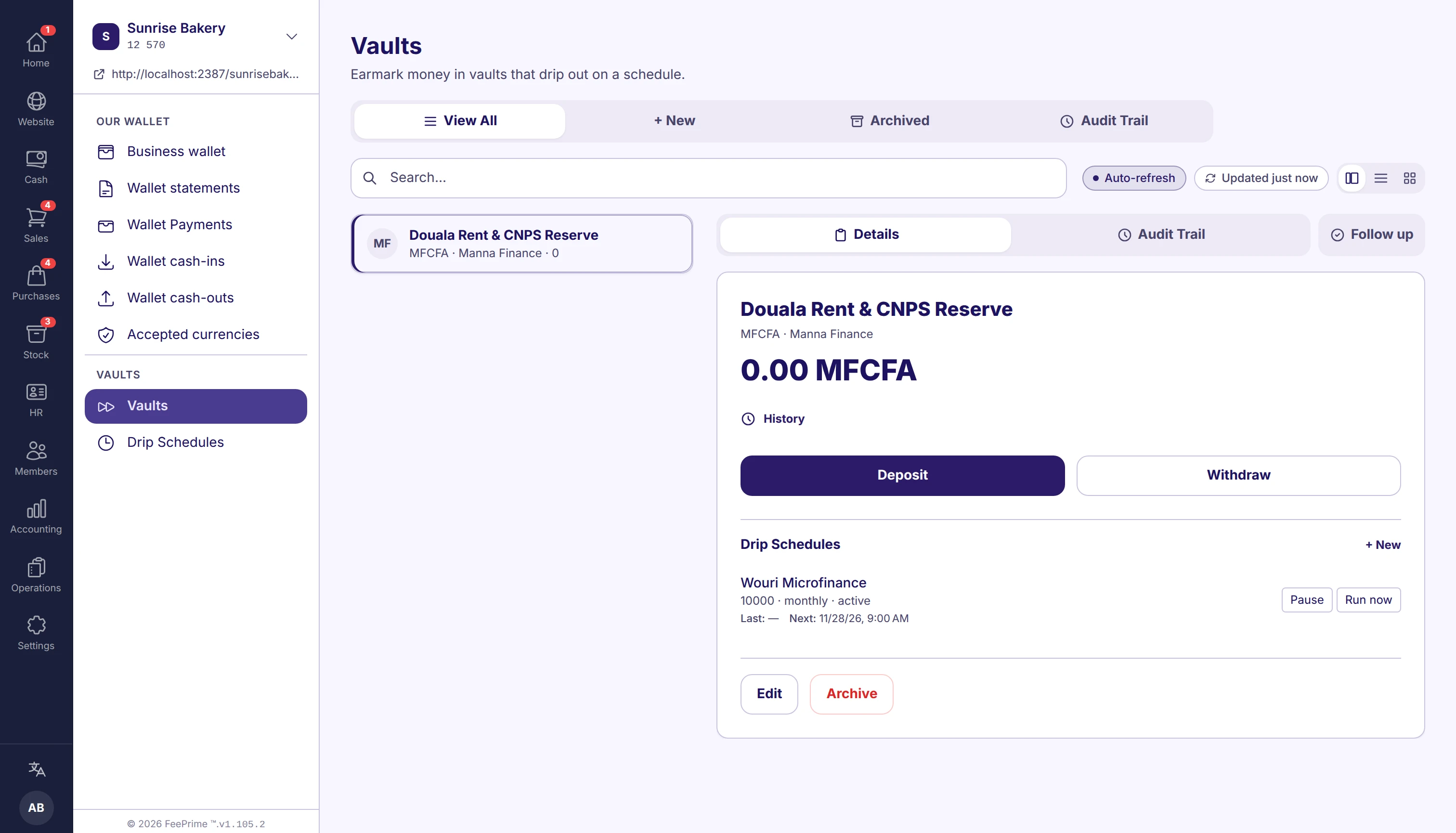 Wallet Vaults ring-fencing Sunrise Bakery rent and CNPS reserves with automated recurring Vault Schedules.
2. Creating a named vault, depositing, and withdrawing cleanly
Open Digital Wallets / Vaults / Wallet Vaults and click to create a new vault. The form is intentionally brief:
- Name: Give each reserve a plain operational name, such as Douala Rent & CNPS Reserve, New Convection Oven Fund, or Weekly Baking Supplies.
- Currency: Pick the currency you are ring-fencing (for Sunrise Bakery, FCFA under Manna Finance—FeePrime locks the issuer automatically behind the scenes).
- Notes (optional): Write the internal rule for touching this money, such as “Rent due on the 1st (650,000 FCFA) + CNPS due on the 15th (480,000 FCFA). Owner approval required for any withdrawal.”
Once saved, you have two clean moves:
- Deposit: Moves FCFA from your main operating balance into the vault. FeePrime records a deposited event with its exact amount and ledger entry reference.
- Withdraw: Pulls FCFA back from the vault into your main operating balance when you need it (for example, when Sunrise Bakery buys its new oven). FeePrime records a withdrawn event with its own ledger entry reference.
Common mistake: Putting every goal into one generic “Savings” vault. When rent, taxes, and equipment sit in one bucket, nobody knows whether rent is truly covered. Create one vault per clear obligation.
Common mistake: Renaming a finished vault for a brand-new goal. When Sunrise Bakery finishes saving for its oven and withdraws the money, archive the old vault and create a new one for the delivery motorbike. Archiving keeps the full deposit and withdrawal audit trail tied to the right purpose.
Running a single shop with two fixed monthly bills? Start with just two vaults—Rent Reserve and Tax & CNPS Reserve. Leave extra capital-project vaults for later; nothing breaks.
3. Setting up automated drips with Wallet Vault Schedules
Setting money aside is half the job; paying predictable obligations on time without manual reminders is the other half. Open Digital Wallets / Vaults / Wallet Vault Schedules to attach recurring payouts to any funded vault.
When creating a schedule, fill in:
- Vault: The exact vault that funds the drip (e.g., Douala Rent & CNPS Reserve or Weekly Baking Supplies).
- Recipient Wallet Account Number and Recipient Name: The personal or business wallet receiving the funds—for example, the Akwa landlord’s wallet, or Paul Kamga’s wallet for a fixed weekly ingredients float.
- Drip Amount: The exact FCFA sent each time the schedule fires (e.g.,
650,000FCFA). - Frequency: Choose daily, weekly, or monthly for normal business bills (hourly and minute also exist for specialized high-frequency treasury sweeps). FeePrime shows only the timing fields that match your choice:
- Daily / Weekly / Monthly: set Time of Day (e.g.,
08:00). - Weekly: also pick Day of Week (
monthroughsun). - Hourly: pick Minute of Hour.
- Daily / Weekly / Monthly: set Time of Day (e.g.,
- Timezone, Start Date, and End Date: Pin the schedule to your local business clock—
Africa/Doualafor Sunrise Bakery—pick the first date it should run, and add an End Date for fixed-term commitments like a 12-month lease or equipment instalment plan. Once the final run finishes, the schedule marks itself completed automatically.
Common mistake: Leaving End Date blank on a fixed-term lease or repayment. Without an End Date, a monthly schedule keeps trying to pay month 13. Always enter the contract’s last date up front.
4. Day-to-day controls: Pause, Resume, Run Now, and handling Failed runs
Real business calendars shift. FeePrime gives treasury managers four direct controls on every schedule without deleting or retyping it:
- Pause & Resume: If the Akwa landlord agrees to skip August rent during roof repairs, click Pause. The schedule logs a paused event and skips runs cleanly until you click Resume.
- Run Now: Need to send Paul Kamga’s Friday baking allowance on Thursday afternoon before a Douala public holiday? Click Run Now. FeePrime triggers one immediate payout without disturbing the regular Friday rhythm.
- Red
Failedbadge &Retry: Sometimes a scheduled drip cannot go through—most commonly because the vault does not hold enough FCFA, or the recipient’s KYC tier limit cannot accept that amount. When that happens, FeePrime logs a failed event with the exact reason and flags the schedule with a redFailedbadge.
Fixing a failed run takes two steps: read the failure reason, fix the root cause (deposit the missing FCFA into the vault, or ask the recipient to upgrade their KYC tier / adjust the amount), and click Retry. FeePrime sends the missed payout once without duplicating anything.
Common mistake: Ignoring a red Failed badge or recreating the schedule. Never build a second identical schedule when one fails—that risks double-paying next month. Fix the balance or limit and click Retry on the original schedule.
5. How Spending Controls protect automated drips too
A schedule is a convenience, never a loophole around company approvals. Every automated drip from a Wallet Vault passes through the exact same Settings / Access / Spending Controls rules that govern manual payouts.
Suppose Amina Bello sets Sunrise Bakery’s Spending Controls so that any payout above 300,000 FCFA—or any first-time payout to a brand-new recipient—must be held for an Approver. If Grace Ewane (a Payer) creates a 650,000 FCFA monthly rent schedule, the drip will not slip out silently on the 1st of the month. Instead, FeePrime holds the payment and routes it to Amina Bello for one clean Approve or Reject decision—whether she reviews it in the FeePrime ERP or switches to Sunrise Bakery inside the Manna Finance Wallet Portal using the top Account Switcher.
Common mistake: Assuming “automated” means “unsupervised.” Review active schedules during your monthly close and keep your personal caps and approval thresholds current in Settings / Access / Spending Controls.
6. Checking vault history and statements
Every vault keeps its own event log (deposited, withdrawn), and every schedule logs executed, failed, paused, resumed, cancelled, and completed events with ledger references. Pair that with Digital Wallets / Our Wallet / Business Wallet Balances and Digital Wallets / Our Wallet / Business Wallet Statements at month-end to confirm in seconds that rent and CNPS left on time while everyday operating cash stayed untouched.
Try it
Practice on staging.feeprime.com—a practice copy of FeePrime, kept apart from the real thing—in five minutes:
- Open Digital Wallets / Vaults / Wallet Vaults and create a vault named Douala Rent & CNPS Reserve in FCFA, with a short note listing your monthly targets.
- Deposit
650,000FCFA from your business operating balance into the new vault, then open Digital Wallets / Our Wallet / Business Wallet Balances to verify your spendable balance dropped by650,000FCFA. - Open Digital Wallets / Vaults / Wallet Vault Schedules and create a monthly schedule from that vault for
650,000FCFA at08:00in timezoneAfrica/Douala, with a Start Date and a 12-month End Date. - Click Pause, verify the paused state, then click Resume—or trigger a small test schedule with Run Now to watch the executed event appear.
- Open Digital Wallets / Our Wallet / Business Wallet Statements to trace the deposit and payout ledger entries cleanly.
Once your rent and tax reserves live in their own vaults, Monday morning’s balance finally tells you what you can truly spend.