
Wallet-to-Wallet Transfers, Bills, Fixed Assets, and Third-Party Payments
Before you start, sign in and open Digital Wallets / Our Wallet / Wallet Payments.
Can’t find it? It may be turned off for your business, or your account may not be allowed to open it. Ask the person who set up your FeePrime. They can fix both.

Photo: Ayeni Ekundayo on Unsplash
Friday afternoon at Sunrise Bakery in Douala used to look the same every week. Grace Ewane had 20 bags of Flour 50kg to pay for, a balance due on a new commercial deck oven, and an urgent packaging bill that a linked sister shop asked Sunrise Bakery to cover. Paying meant pulling cash from the safe, handing envelopes to a rider, or typing mobile transfers one by one — and then spending Saturday morning keying every payment into the books a second time.
Worse, whenever the 3G signal dropped mid-transfer, nobody was sure whether the money had left. Clicking twice risked paying the same supplier twice. Forgetting a journal entry left paid bills sitting open in accounts payable.
With FeePrime Digital Wallets, you pay suppliers, equipment vendors, and linked partner requests straight from your business wallet in FCFA (issued by Manna Finance). Every payment follows your Spending Controls, checks the receiver’s limits before a single franc moves, cannot execute twice, and settles your accounting books automatically.
1. Wallet Payments vs. Organisation Wallet Transfers
Under Digital Wallets / Our Wallet, you will see two outgoing transfer screens. Knowing when to use each keeps your books clean.
- Wallet Payments (
Digital Wallets / Our Wallet / Wallet Payments): Your everyday operational payout screen. Every payment started from a supplier bill, a fixed asset, a linked payment request, or a payroll run creates a record here. It obeys Settings / Access / Spending Controls, shows who holds the recipient wallet, records why a payment was held for approval, and stamps the final ledger reference once settled. - Organisation Wallet Transfers (
Digital Wallets / Our Wallet / Organisation Wallet Transfers): Direct wallet-to-wallet transfers between organisation wallets. You enter Beneficiary Wallet, Currency, Amount, Processing Fee, and an optional Memo. Once created, a transfer cannot be edited — it stays as a permanent audit record.
On Wallet Payments, you fill in five clear fields:
- Issuer & Currency: Select your issuer (for example, Manna Finance) and currency (FCFA — FeePrime always shows the real pegged currency, never internal token codes).
- Recipient Wallet: Enter any wallet account number on the platform. You do not need a saved Contact record first, which makes paying a one-off technician or new vendor fast.
- Amount: Shown clearly as real FCFA money on both the send and confirmation screens, even if the staff member preparing the payment holds no personal balance with that issuer.
- Memo (optional, but smart): A free-text note like “20 bags Flour 50kg — delivery Akwa” is saved for your team’s reference. When you pay another FeePrime business’s invoice with a structured invoice reference in the memo, FeePrime matches and books the payment straight against that invoice on the receiver’s side.
Running a one-person shop? You can pay suppliers straight from Bills and Wallet Payments with simple limits. Running a team like Sunrise Bakery? Keep Grace Ewane as Payer and Amina Bello as Approver so every large or new-recipient payout gets a second pair of eyes.
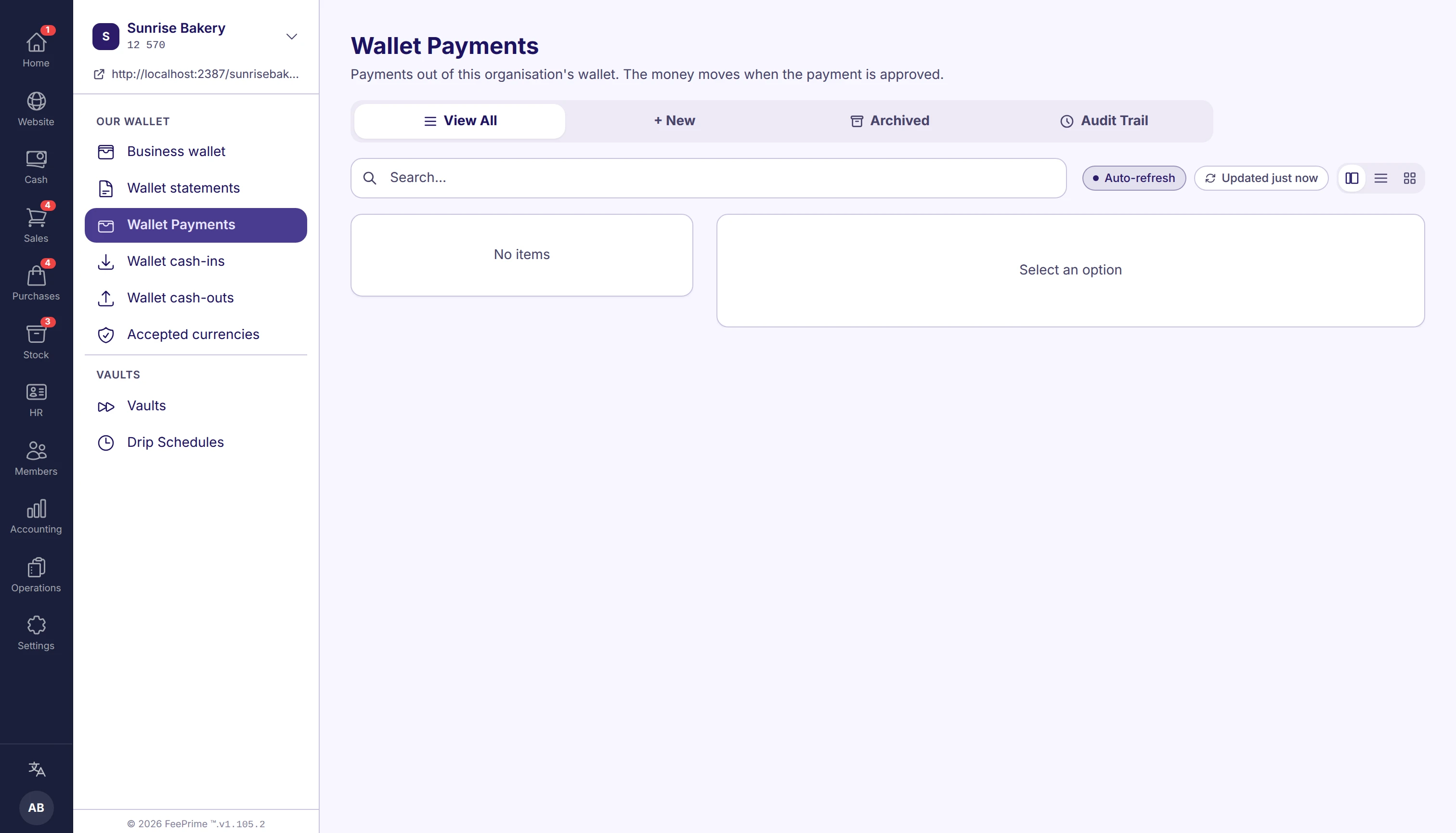 Wallet Payments workspace enforcing maker-checker approval and deterministic double-pay protection.
2. How FeePrime guarantees zero double-payments
Slow internet and busy offices are where double-payments happen. FeePrime protects every wallet payment through one strict pipeline:
Bill / Fixed Asset / Payment Request / Direct Send
                      │
                      ▼
     [ Up-front check: receiver KYC tier limit ]
                      │
                      ▼
   [ Spending Controls: instant OR held for Approver ]
                      │
      (Approver sees payee name + amount + held reason)
                      ▼
    [ One-time ledger execution (cannot run twice) ]
                      │
                      ▼
  FCFA moves + Ledger reference stamped + Books settle
    (Automatic recovery finishes books after any outage)
Three built-in safeguards run quietly behind every payment:
- One permanent ledger reference per approval: Every approved payment is locked to a single ledger identity. Even if Grace taps twice or refreshes a frozen phone screen, the same approval can never pay out twice.
- One execution at a time: FeePrime claims an approved payment once while processing it, blocking any overlapping attempt.
- Automatic bookkeeping recovery: If a power cut, network drop, or routine server restart happens right after the FCFA leaves your wallet, FeePrime runs an automatic recovery check every few minutes. It finishes writing the accounting entries without moving a second franc, so a paid bill or fixed asset never stays stuck as unpaid.
Common mistake: Never create a second wallet payment just because your screen froze or the signal dropped. Open Digital Wallets / Our Wallet / Wallet Payments and Business Wallet Statements first. If the payment succeeded, you will see its stamped ledger reference. If it failed, you will see the exact reason written on the row.
3. Paying supplier bills by wallet
When Sunrise Bakery receives 20 bags of Flour 50kg worth 420,000 FCFA, Grace does not type a manual transfer from memory. She pays straight from the bill:
- Open Procurements / Paying / Bills and click the open supplier bill.
- Click Pay via Wallet.
- Check the amount in FCFA and verify the recipient wallet holder’s name that FeePrime displays beside the supplier’s wallet number.
- Submit the payment.
What happens next depends on Sunrise Bakery’s Settings / Access / Spending Controls:
- If 420,000 FCFA is within Grace’s limit and the flour mill is an already-trusted wallet, the payment executes immediately.
- If it exceeds Grace’s personal cap — or if Sunrise Bakery has never paid that wallet before — the payment lands in Amina Bello’s Pending queue (both in FeePrime and in the Issuer Portal). Amina sees the exact payee holder name, the FCFA amount, and the held reason so she knows whether she is reviewing an over-limit amount or a brand-new recipient.
The moment the payment settles, your Manna Finance wallet balance drops by 420,000 FCFA, the bill status switches to paid, and supplier payables (OHADA 401) clear automatically. This works cleanly even if your business does not have the Expenses module enabled.
Common mistake: Never approve a held payment without checking the holder name shown next to the wallet number. One mistyped digit sends money to the wrong person. If the name on screen does not match the supplier on the paper invoice, reject the payment and verify the wallet number by phone.
4. Paying for fixed assets so the asset settles itself
Big equipment purchases are different from weekly flour deliveries. In OHADA accounting, a commercial deck oven belongs under fixed assets and investment suppliers (OHADA 481), not daily operating expenses.
Suppose Sunrise Bakery buys a 1,800,000 FCFA commercial deck oven and records it under Procurements / Returns & Assets / Fixed Assets:
- Open the fixed asset record under Procurements / Returns & Assets / Fixed Assets.
- Trigger the wallet payment to the equipment supplier (either from Sunrise Bakery’s own wallet or through a linked business asked to cover the purchase).
- Confirm the holder name, check the amount in FCFA, and let Amina approve if Spending Controls hold it.
Once the wallet payment settles, the fixed asset settles itself automatically. FeePrime clears the supplier liability and records the settlement on the asset with the wallet ledger reference — no second cash entry required, and no need to turn on the Expenses module.
Common mistake: Never pay an equipment vendor with a standalone wallet transfer and then type a manual cash payment on the fixed asset. Starting from the asset keeps the transfer, approval trail, and OHADA books tied together.
5. Third-party payments: Paid-for-others and linked-business requests
Growing businesses often have a main entity pay a supplier on behalf of a sister shop or a linked partner. For example, Sunrise Bakery (Akwa) and a linked Bonapriso shop — or a linked corporate partner like Hôtel Akwa — can connect their FeePrime organisations in one tap.
Requesting Business ──(Payment Request)──► Paying Business (Wallet)
                                                 │
                                          Sends FCFA once
                                                 │
                                                 ▼
                                         Supplier Wallet

Result: Supplier paid + Original bill/asset cleared + Both books balanced
Here is how third-party settlement works:
- The requesting business creates a Payment Request (or Paid for Others request) asking its linked FeePrime partner to pay a specific supplier bill or fixed asset.
- The paying business opens Cash / Money / Payment Requests (or Cash / Money / Paid for Others) and chooses to pay by wallet.
- FeePrime verifies the request, routes the payout through Spending Controls, and sends the FCFA directly to the supplier’s wallet.
- Every book settles itself across both linked businesses: the supplier bill or fixed asset marks itself paid on the requesting business’s side, the paying business’s wallet balance updates, and the inter-business receivable/payable records cleanly on both ledgers without manual re-typing.
Operating a single shop with no sister companies or linked partners? Leave Payment Requests and Paid for Others untouched. Nothing breaks.
6. Receiver tier limits, held reasons, and reading error messages
Not every payment should go through blindly. FeePrime stops bad transfers early and tells you plainly why:
- Up-front receiver tier check: Before any FCFA leaves your wallet, FeePrime checks the recipient’s KYC tier limits (per-transaction, daily, or balance cap). If a small vendor is still at Tier 1 and cannot receive 1,800,000 FCFA, FeePrime refuses the payment right on the form and names the receiver’s limit. Your money never gets stuck in transit.
- Clear held reasons: Pending approvals explicitly state why a payment paused (over personal limit vs. first time paying a new wallet), helping Amina decide in seconds.
- Plain execution errors: If a payment is approved and then fails at execution — for example, because another payout reduced your wallet balance or the supplier hit their daily cap five minutes earlier — FeePrime writes the exact execution error directly on the payment row.
- Calm dashboard warnings: Your dashboard only highlights your own wallet limits when you are close to reaching one, so your screen stays uncluttered until action is needed.
Common mistake: Never tell a blocked supplier to “just try again” without reading the message. If the refusal names a receiver tier limit, ask the supplier to request a higher tier from Manna Finance on their Business Verification page (or split the settlement if agreed). If the error shows insufficient balance, cash in first via your distributor or field agent.
Try it
Practice this entire flow safely on staging.feeprime.com — a practice copy of FeePrime, kept apart from the real thing.
- Open Digital Wallets / Our Wallet / Business Wallet Balances and note your available FCFA balance with Manna Finance.
- Open Procurements / Paying / Bills, pick an open supplier bill, and click Pay via Wallet — check the payee holder name shown beside the wallet number before submitting.
- Open Digital Wallets / Our Wallet / Wallet Payments and inspect the new row: read its held reason (if held) or approve it as an Approver.
- Try entering an amount above a Tier 1 receiver’s limit on a test wallet payment to see how FeePrime stops the send on the form and names the limit.
- Open Digital Wallets / Our Wallet / Business Wallet Statements to confirm the settled FCFA debit matches the ledger reference stamped on the payment.
Once you run two supplier bills this way, Friday reconciliations take five minutes instead of two hours.