
Staff: Setting up your product marketplace
Before you start, sign in and open Portal Marketplace / Vendors / Portal Settings.
Can’t find it? It may be turned off for your business, or your account may not be allowed to open it. Ask the person who set up your FeePrime. They can fix both.

Photo: Vitaly Gariev on Unsplash
Opening a multi-vendor marketplace without setting the rules first is like unlocking the gates of a market hall before assigning stalls. The first merchant who walks in posts phone chargers next to artisanal coffee. A shopper on a slow phone in Douala hits a mandatory sign-up wall and closes the tab. Another buyer asks a delivery question and nobody knows whether your staff or the seller is supposed to reply.
Nadine runs MaketCM, a curated Cameroonian product marketplace serving Douala and Yaoundé. Before inviting Hervé from KamerCraft to list his Douala Leather Messenger Bags (28,000 XAF) and Mount Cameroon Arabica Coffee 500g packs (6,500 XAF), she spends fifteen minutes locking down four things: what can be sold, how listings get approved, how shoppers like Stéphanie place orders, and what the public storefront shows.
This lesson walks you through that exact setup, in the order that saves you from rework later.
1. Check your marketplace scope in Portal Marketplace Grants
Before Nadine touches a single seller rule, she confirms how MaketCM is scoped under Organisations / Grants / Portal Marketplace Grants. This grant is set up by the platform administrator who activates your marketplace, and it defines the outer walls of your market:
- Marketing Name (
marketing_name): The public brand shoppers actually see. Your registered legal entity might be Société Maket Distribution SARL, but buyers know you as MaketCM. Don’t mix up your legal company name with your Marketing Name — shoppers search for and trust the trading brand. - Cascading product categories (
allowed_parent_categories→allowed_product_categories→allowed_product_subcategories): Instead of typing category codes by hand, FeePrime lets you pick from the live product taxonomy. Picking a parent category automatically narrows the product categories below it, and picking those narrows the subcategories. That way a seller can never accidentally publish motor oil in a craft and food marketplace. - Allowed cities: Restricts the marketplace to the cities you actually serve — for MaketCM, Douala and Yaoundé. Those cities also power the city filter buttons shoppers tap on the public storefront.
Here is how your grant, settings, and optional tiers fit together to build what Stéphanie sees:
[1. Portal Marketplace Grants]  (Platform scope)
    Marketing Name + Allowed Categories (cascading) + Allowed Cities
                 |
                 v
[2. Portal Settings]            (Your daily rules — one record)
    Listing Approval + Free Allowance + Order Login + Order Contact
    + Seller Noun + Sell Intro + Visible Sections (portal_shows)
                 |
                 v
[3. Portal Vendor Types]        (Optional paid seller tiers)
    Max Listings + Rank Boost (Featured) + Faster Quote Access
                 |
                 v
[Focused Public Storefront]     (City buttons: Douala | Yaoundé)
    Shoppers browse local, in-scope products and check out cleanly
If you do not have access to Organisations / Grants, ask your FeePrime onboarding contact to adjust your allowed categories or cities before you invite sellers.
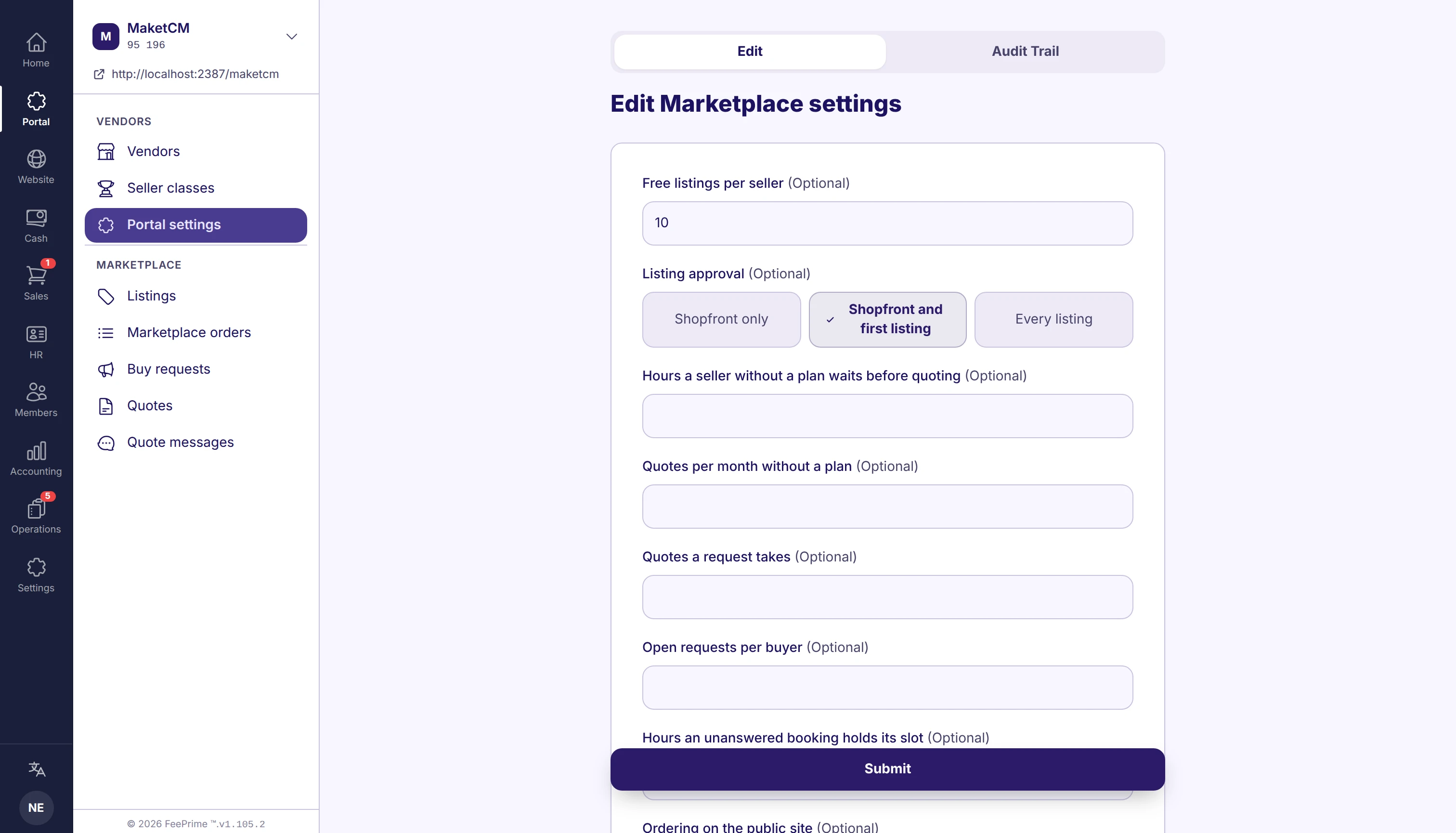 Portal Settings for MaketCM: vertical, listing approval rules, guest checkout, and seller onboarding intro.
2. Configure seller and approval rules in Portal Settings
Open Portal Marketplace / Vendors / Portal Settings. Your organisation runs one marketplace, so this screen holds one single settings record for MaketCM. Open and edit it directly — you do not create multiple copies.
Start with the three fields that control seller onboarding:
- Vertical (
vertical): Set to marketplace for a product marketplace. If your organisation only has the product marketplace enabled, FeePrime resolves this automatically and will not even ask you to pick it. - Free Listing Allowance (
free_listing_allowance): How many live products a seller with no paid membership can keep published at the same time. Leave it blank to use the default of 3 live listings. Enter 0 only if every seller must buy a membership before publishing their very first item. Never enter 0 by accident when you intend to let new merchants try the marketplace for free, or Hervé will hit a paywall the moment he tries to post his first bag. - Listing Approval (
listing_approval): Decide how tightly Nadine’s team reviews products before shoppers see them:first_listing(the default for products): Nadine approves KamerCraft’s shopfront and Hervé’s very first product (his Douala Leather Messenger Bag). Once both look solid, Hervé’s next listings — like his 500g Arabica coffee packs — go live without waiting in a queue.profile_only: Nadine approves the seller’s shopfront once, then trusts every listing they publish afterward. Best when you already know every merchant personally.every_listing: Staff must approve every single product before it appears on the storefront. Use this for tightly curated luxury goods or regulated items.
Don’t turn on every_listing unless your team can review submissions the same day. If Hervé uploads fresh coffee stock on Friday morning and nobody approves it until Tuesday, he will stop updating his catalog.
3. Decide how shoppers check out and who answers them
Still inside Portal Settings, set the two rules that shape every buyer’s experience on a phone:
- Order Login (
order_login): Controls whether Stéphanie must sign in before placing an order.both: The most flexible option for a growing Cameroon marketplace. First-time shoppers on 3G can order as guests without inventing a password, while repeat buyers can sign in to view their order history.no_login: Guest checkout only — fastest path when you want zero sign-in friction.login_required: Every shopper must have an account before checking out. Choose this if you only sell to registered members or need strict buyer verification.
- Order Contact (
order_contact): Controls who handles buyer questions and order coordination.vendor: Enquiries go straight to the seller (Hervé at KamerCraft answers questions about leather strap length or pickup in Akwa).organisation: Enquiries route to your marketplace staff (Nadine’s team at MaketCM handles buyer support and coordinates with Hervé behind the scenes).
Check order_contact before launch so customer messages don’t land in the wrong inbox. If Nadine promises central buyer support on MaketCM’s homepage but leaves order_contact on vendor, Stéphanie will end up messaging sellers who weren’t expecting direct calls.
4. Shape your storefront wording, visible tabs and city buttons
The final block of Portal Settings controls how MaketCM sounds and what appears on the public storefront:
- Seller Noun (
seller_noun): Choose the word that fits your community — Seller, Merchant, Artisan, or Maker. FeePrime uses this word across the seller application door and storefront labels so MaketCM feels local and intentional. - Sell Intro (
sell_intro): Two or three clear sentences shown on your seller sign-up page. Nadine writes a plain welcome explaining who can sell on MaketCM, what cities are covered, and how quickly applications are reviewed. - Portal Shows (
portal_shows): Pick which sections are visible on your public storefront. Turn off anything you are not running yet so Stéphanie never clicks into an empty tab.
When these settings are saved, your public storefront opens focused and clean — with city buttons right at the top matching your grant:
+-----------------------------------------------------------+
|  MaketCM                                    [Sell on MaketCM]
|  Choose your city:  [ Douala ]  [ Yaoundé ]               |
|  Categories:  Leather Goods  |  Coffee & Specialty Foods  |
+-----------------------------------------------------------+
|  [Featured] Douala Leather Messenger Bag     28,000 XAF   |
|             KamerCraft · Douala                           |
|             Mount Cameroon Arabica 500g       6,500 XAF   |
|             KamerCraft · Douala                           |
+-----------------------------------------------------------+
When Stéphanie taps Douala, she only sees products available in Douala instead of scrolling past items stuck in another town. Fewer wasted taps mean faster orders on mobile data.
5. Optional: Add paid seller tiers in Portal Vendor Types
Just launching with free listings? Skip Vendor Types for now. Nothing breaks. Free sellers simply follow your free_listing_allowance from Portal Settings.
Once MaketCM has steady traffic and Nadine wants to offer paid plans (for example, a Gold Artisan tier), open Portal Marketplace / Vendors / Portal Vendor Types and configure each tier:
- Membership Name (
membership_name) and Rank (rank): The tier name sellers see and its display order. - Max Listings (
max_listings): How many live products sellers on this tier can hold. Leave Max Listings blank for unlimited — never type 0 when you mean unlimited, because zero silently caps sellers at no listings at all. - Rank Boost (
rank_boost): Choosenone,low,medium, orhigh. Higher tiers appear first on the sellers directory and rise within each relevance band under the default Recommended sort, earning a buyer-facing Featured badge. If Stéphanie explicitly sorts by Price: low to high, FeePrime respects her sort and ignores Rank Boost (while keeping the Featured label visible). - Buy-request wait time: If you run buyer Wanted requests, paid tiers can quote sooner while free providers wait out the default 24-hour lead delay.
Try it
Practice on staging.feeprime.com — a practice copy of FeePrime, kept apart from the real thing.
- Sign in and open Portal Marketplace / Vendors / Portal Settings.
- Confirm your Free Listing Allowance (leave it blank for the default of 3, or test entering
5) and set Listing Approval tofirst_listing. - Set Order Login to
bothand pickvendorororganisationfor Order Contact depending on how your team wants to handle buyer messages. - Fill in a clear Seller Noun (like Artisan or Merchant) and a short Sell Intro, then save.
- Open your marketplace’s public storefront link, tap a city button (such as Douala), and verify that the city filter and sell button match what you configured.
Once those rules are saved, your marketplace is ready to welcome its first sellers cleanly.