
Counter Cash-In and Cash-Out: personal QR codes, 4-digit & 6-digit codes, and receipts
Before you start, sign in to your Wallet Portal and open the Agent tab.
Can’t find it? Your Agent application may still be waiting for approval from your Distributor, or you may be signed into the wrong issuer portal. Check with your Distributor — or the person who set up your FeePrime — before serving customers.

Photo: Rohan Odhiambo on Unsplash
Every busy morning at Kiosk Bonapriso in Douala looks the same. Diane Tchoupo stops by on her way to work to withdraw 40,000 XAF from her smartphone wallet. Right behind her, Junior from Sunrise Bakery pulls up on his delivery motorbike with 150,000 XAF in cash to deposit into the bakery’s business wallet. Five minutes later, Paul the cashier arrives to collect 180,000 XAF from the bakery’s wallet to pay a flour supplier.
At a busy counter, two mistakes cost agents real money fast: entering your PIN before you count the cash, and handing out notes against a fake screenshot on someone’s phone. One careless minute can wipe out a whole week of commissions.
FeePrime’s Agent screen (/wallet/agent) is built to stop both mistakes. Every transaction runs strictly on your separate Agent wallet — never mixed with your personal household wallet — and uses clear live checks so your cash drawer and your digital float always match.
1. Cash-In: count the notes before you touch your PIN
A Cash-In turns physical cash in a customer’s hand into digital balance in their wallet. Physical notes go into your drawer, and digital float moves out of your Agent wallet into theirs (minus the issuer’s fee).
You can run a Cash-In for three kinds of people at your counter:
- Smartphone customers like Diane Tchoupo — scan their personal QR code or type their wallet number.
- Walk-in feature-phone customers like Mireille Ndongo or Samuel Ekani — type their wallet number or registered phone number.
- Business staff like Junior from Sunrise Bakery — scan the business QR or type the Business wallet number. Business Cash-Ins never require a collection code. Anyone trusted with the cash and the business wallet number can deposit funds straight into the company’s wallet.
Follow the exact same four-step rhythm every time:
- Take and count the physical notes first. Check for torn or counterfeit bills and confirm the total out loud with the customer before you unlock your PIN pad.
- Identify the wallet. On the Agent tab, choose Cash-In, then scan the customer’s QR code or enter their wallet number (or phone number for an assisted customer).
- Enter the amount and read the live fee preview. FeePrime displays the customer’s name, the transaction fee set by Manna Finance, and the exact net amount that will land in their wallet. Confirm the name and net amount with the customer.
- Enter your 4-digit Agent PIN. Only after the cash is safely in your hand do you confirm with your PIN. FeePrime posts the transfer immediately and credits your automatic commission share to your Agent wallet.
Never type your Agent PIN while the customer is still digging through their bag. Once you confirm a Cash-In, digital float leaves your Agent wallet instantly. If the customer comes up 10,000 XAF short, you are the one left chasing the difference.
You cannot Cash-In to yourself. FeePrime blocks self-service deposits into your own Agent wallet. Whenever your float runs low, top it up properly using Buy Float with your Distributor (Wouri Microfinance), as covered in Lesson 3.
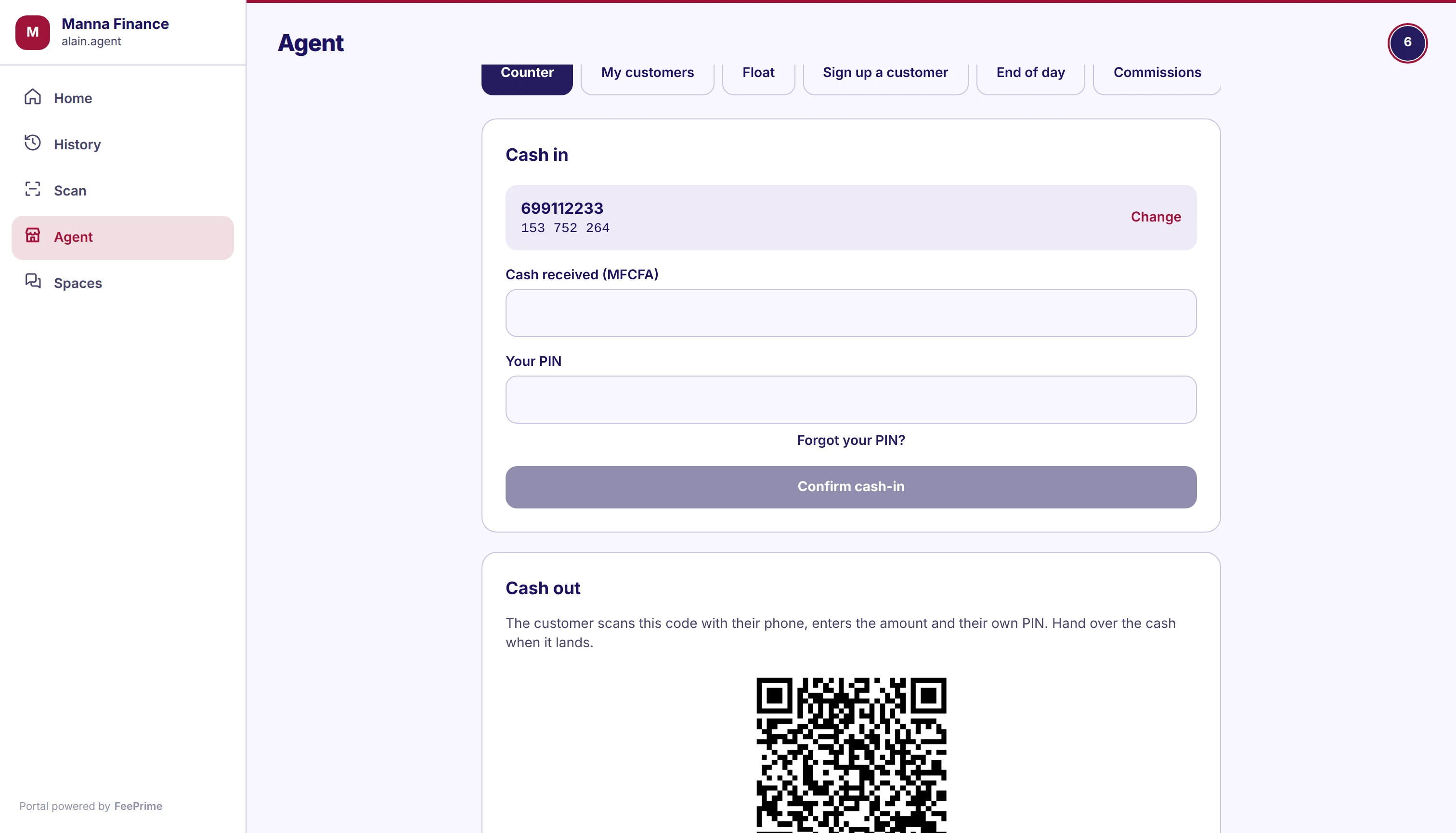 Live Counter Cash-In lookup, Agent Counter QR for smartphone Cash-Out, and live Counter history displaying the matching 4-digit Counter Code.
2. Smartphone Cash-Out: match the 4-digit Counter Code on your live screen
A Cash-Out runs in the opposite direction. The customer sends digital balance into your Agent wallet (so your digital float goes up), and you hand physical notes out of your drawer.
For a smartphone customer like Diane Tchoupo, the customer starts the withdrawal on their own phone:
- Display your Agent Counter QR at the window (on your screen or printed and laminated beside the counter).
- Diane scans your Agent Counter QR, types the withdrawal amount (for example, 40,000 XAF), and enters her own 4-digit PIN on her phone.
- As soon as her transfer clears, both screens — Diane’s phone and your live Agent counter screen — display the exact same 4-digit Counter Code tied uniquely to that payout.
- Check the customer’s name, the exact amount, and the 4-digit Counter Code on your own live screen, confirm they match Diane’s code, and only then count out the 40,000 XAF.
CASH-IN (Customer deposits cash)
  Customer hands notes -> Agent counts -> Agent enters wallet/QR + amount
  -> Check live fee preview -> Agent enters AGENT 4-digit PIN
  Result: Drawer cash (+) | Agent float (-)

SMARTPHONE CASH-OUT (Personal customer withdraws cash)
  Customer scans Agent Counter QR -> Enters amount + CUSTOMER 4-digit PIN
  -> BOTH screens show the exact same 4-digit Counter Code
  -> Agent verifies live 4-digit code on OWN screen -> Hands over notes
  Result: Drawer cash (-) | Agent float (+)

BUSINESS CASH-OUT (Merchant staff withdraws company cash)
  Manager generates 6-digit collection code in Business Workspace
  -> Staff gives 6-digit code at kiosk -> Agent verifies business & amount
  -> Agent confirms payout -> Hands over notes
  Result: Drawer cash (-) | Agent float (+)
GOLDEN RULE: Never hand over cash against a screenshot, photo, or SMS on a customer’s phone. Fake confirmation screenshots are the oldest trick in mobile money. A fraudster can edit a picture in ten seconds, but they cannot make a real 4-digit Counter Code appear on your live Agent screen. If it is not live on your screen, do not open the drawer.
3. Business Cash-Out: verify the 6-digit collection code
Businesses do not withdraw money with a personal 4-digit Counter Code. If any employee could scan a counter QR and empty Sunrise Bakery’s wallet, the owner would never sleep.
Instead, when Amina needs 180,000 XAF in cash to pay a flour supplier, she creates a cash-out inside Sunrise Bakery’s FeePrime workspace under Digital Wallets / Our Wallet / Business Wallet Cash-Outs. FeePrime generates a single-use 6-digit collection code locked to that exact amount, and Amina gives that code to Paul the cashier.
(If a merchant asks how to set up their company wallet, vaults, or collection codes, point them to our full Digital Wallets, Vaults & Transfers course.)
At Kiosk Bonapriso, Alain handles Paul’s Business Cash-Out in three clean steps:
- Ask for the 6-digit collection code — never accept a 4-digit personal code or a handwritten note for a business withdrawal.
- Enter the 6-digit code on the Agent screen and check the business name (Sunrise Bakery) and the exact approved payout amount (180,000 XAF) that FeePrime returns.
- Confirm the payout on your screen, then count out 180,000 XAF in front of Paul. Your Agent float goes up automatically, and the collection code is marked used so it can never be claimed twice.
Never pay a different amount than what the 6-digit code shows. If the code is for 180,000 XAF and you only have 100,000 XAF in physical notes in your drawer, do not make a partial deal on paper. Wait until you return excess float for cash with Wouri Microfinance, or direct Paul to another nearby agent.
4. Walk-in feature-phone customers and kiosk counter habits
Not every customer in Douala carries a smartphone. When Mireille Ndongo or Samuel Ekani — walk-in customers you onboarded through Assisted Signup — want to withdraw cash, they do not scan a QR code. Instead, you start an assisted Cash-Out on your device and hand them the phone for a second so they can type their own 4-digit PIN privately.
Only the agent who signed up an assisted customer can debit their sub-account. That rule protects their balance and makes offline mode safe when the network drops. We walk through Assisted Signup, Tier 2 KYC capture, and offline queuing step by step in Lesson 5.
Small kiosk vs. busy multi-staff counter:
- Running a solo kiosk? Print and laminate your Agent Counter QR and tape it inside the glass where smartphone customers can scan it without reaching over your phone. Keep your screen facing you so nobody reads your PIN.
- Running a busy shop with counter staff? Keep a dedicated counter phone logged into the Agent tab, never share your Agent PIN out loud, and check your live float balance before promising a large Business Cash-Out.
5. Receipts, today’s counter history, and handling network hiccups
Every completed Cash-In, Smartphone Cash-Out, and Business Cash-Out immediately generates a live receipt and adds a line to today’s counter history on your Agent screen. Each line shows the customer or business name, transaction type, amount, fee, and confirmation status.
Never tap twice when mobile data stalls. If your 3G connection freezes right after you enter your PIN, do not submit the same Cash-In a second time. Wait a few seconds, refresh today’s counter history, and check whether the entry already posted. Retrying blindly can send a customer double float from your Agent wallet.
Remember too that every counter operation automatically checks both Manna Finance’s network-wide ceilings and Wouri Microfinance’s per-agent limits (per transaction and daily totals). If a large withdrawal is blocked because it crosses your per-transaction cap, FeePrime tells you right on screen — no guessing and no silent failure. We cover limits, commissions, and balancing your drawer at Day Close in Lesson 6.
Try it
Practice on staging.feeprime.com — a practice copy of FeePrime, kept apart from the real thing — so you can test every counter flow without risking real XAF:
- Sign in to the practice Wallet Portal and open the Agent tab.
- Run a sample Cash-In for a personal wallet number, inspect the live fee preview (fee and net credited amount), and confirm with your test Agent PIN.
- Run a second Cash-In to a sample Business wallet number and notice that no collection code is needed for deposits.
- Trigger a sample smartphone Cash-Out via your Agent Counter QR and practice matching the 4-digit Counter Code on the live Agent screen before marking notes handed over.
- Open today’s counter history and tap a completed entry to verify its live receipt details, fee breakdown, and updated Agent float balance.
Once this four-step rhythm becomes muscle memory, you can serve a queue of ten customers in ten minutes without a single drawer shortage.