
Sales orders
Before you start, sign in and open Sales / Selling / Sales Orders.
Can’t find it? It may be turned off for your business, or your account may not be allowed to open it. Ask the person who set up your FeePrime. They can fix both.

Every growing shop eventually hits the same wall. Hôtel Akwa calls Sunrise Bakery at 7:00 AM for 400 croissants and 10 bags of Flour 50kg before lunch. Amina writes it on a notepad, shouts the list to the back store, and sends a WhatsApp message to Junior on the delivery motorbike. By midday, 7 bags have left, nobody knows whether the last 3 are still owed, and Paul at the counter is not sure whether to bill for 7 or 10.
A sales order ends that guesswork. It is the firm document your counter and warehouse work from. It says what you have promised to supply, to whom, and from where — and it stays open until every promised item has actually left the building.
Even better, sales orders work offline. If the signal drops in the Akwa bakery or out in the yard, you can still record the commitment and let FeePrime sync once you are back online.
1. Where a sales order sits in the sale
A quote is a price offer. A customer order is what the buyer asked for. A sales order is your firm promise to supply physical goods — the bridge between taking the sale and moving stock off your shelves.
Quote (optional) ──► Order (customer request) ──► Sales Order (firm promise)
                                                        │
                           ┌────────────────────────────┴──────────────────────────┐
                           ▼                                                       ▼
              Ask to pick and pack                                       Issue an Invoice
        (Stock / Movements / Picking)                               (Sales / Selling / Invoices)
                           │
                           ▼
             Gather with + / - or scan
                           │
                           ▼
               Pack into a shipment
       (Stock / Movements / Shipments) ──► Stock leaves + Delivery
Notice the two separate tracks below the sales order. Stock only leaves your shelves when you pack a shipment — never when you save a sales order. And money is requested on an invoice under Sales / Selling / Invoices. Keeping the promise (sales order), the goods leaving (shipment), and the demand for payment (invoice) separate is what prevents double-shipping and forgotten bills.
2. Creating a sales order
There are two ways a sales order starts at Sales / Selling / Sales Orders:
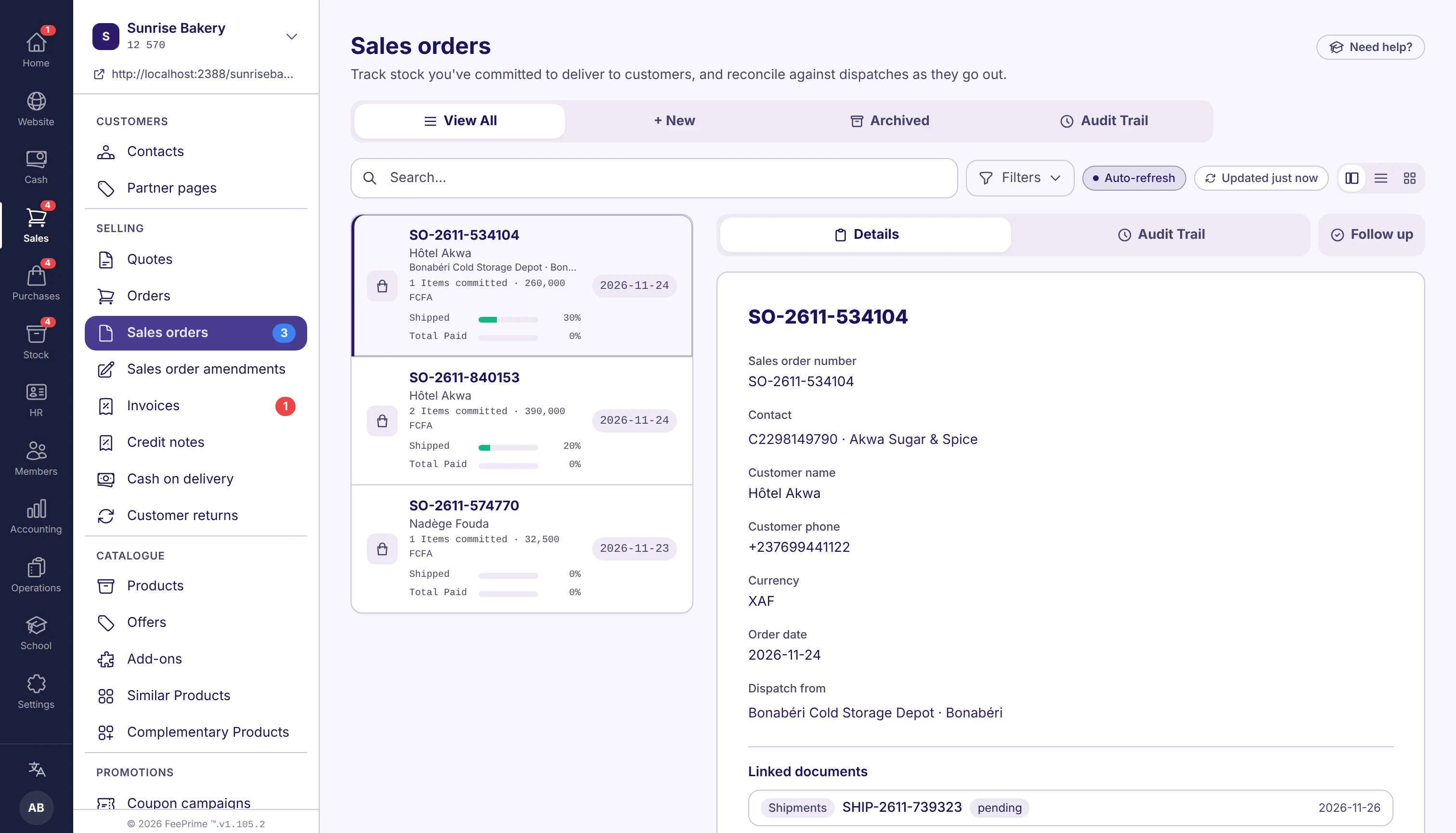 Sales Orders under Sales / Selling, with Hôtel Akwa open and the “Ask to pick and pack” action.
Option A: From an existing customer order (fastest)
If the buyer already has a record in Sales / Selling / Orders — for example, Nadège Fouda placed an order online or Paul logged a counter order — pick that order in the Order field near the top of the form.
FeePrime immediately prefills the customer’s name, phone, email, pickup location, currency, and the physical stock line items from that order. If the customer asked for home delivery on their order, that home delivery carries straight through to the sales order and later to the shipment — you do not have to re-type the delivery details.
Option B: Directly from a phone call or counter request
Regular wholesale buyers often skip the storefront and just call. Leave the Order field empty, enter the customer and items, and save.
- Sales order number: Leave it blank and FeePrime automatically assigns the next sequential number (
SO001,SO002, and so on). Only type your own reference if you keep an external numbering book. - Affiliate / Partner: If a partner brought you a direct phone or counter sale, select them in the Affiliate field. FeePrime applies any eligible partner discount, locks the commission rates onto the document when you save (so later contract changes cannot re-price work already agreed), and pays the partner once an invoice is issued against the sales order.
- Never fill in the Affiliate field when converting from an Order. That source order already carries the partner. Putting a second copy on the sales order risks conflicting commission figures.
3. Sending it to the warehouse: Ask to pick and pack
Once a sales order with physical goods is saved, you do not need paper slips or shouted instructions to get the goods pulled from the store.
Open the sales order and click Ask to pick and pack.
FeePrime raises a pick request holding everything still left to ship on that sales order. Your storekeeper sees it right away in two places: - Under Stock / Movements / Picking, and - On the Inventory tab card.
You never create a pick request from scratch. Every pick request starts from a sales order, so the warehouse only ever pulls goods that were genuinely promised.
Inside the pick request detail pane, the storekeeper works down the list as items go into crates:
- Tap + and - next to each line to record what has been gathered, or
- Scan the barcode or SKU (completely optional) to add one unit directly to the matching line.
As the work moves forward, the pick request moves cleanly through its stages: requested → picking → packed (or cancelled if the request is called off before dispatch).
4. Packing into a shipment (including short picks)
When the crate is ready to go on Junior’s motorbike or into the delivery van, the storekeeper clicks Pack into a shipment.
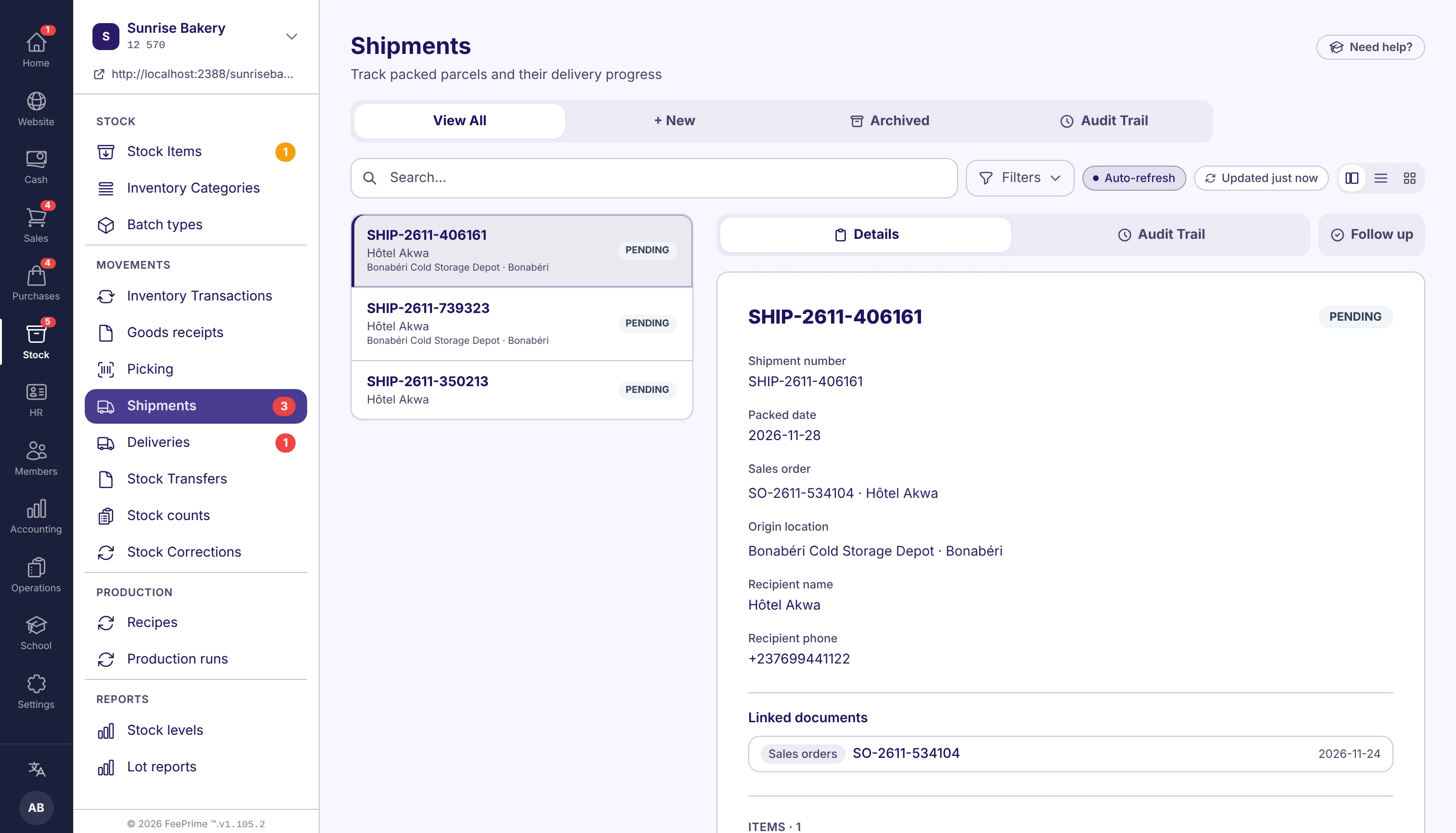 Packed Shipment under Stock / Movements / Shipments, linked back to Hôtel Akwa’s sales order.
FeePrime turns what was gathered into a Shipment under Stock / Movements / Shipments, and that is the exact moment stock leaves your inventory.
Two practical safeguards are built right into packing:
- Short picks keep deliveries moving. Suppose Hôtel Akwa ordered 10 bags of Flour 50kg, and Sunrise Bakery only has 7 bags ready at 8:00 AM. The storekeeper records
7on the pick request and clicks Pack into a shipment. Those 7 bags leave stock and head out immediately so the hotel kitchen does not stall. The remaining 3 bags stay open on the sales order. When the afternoon flour delivery arrives, Amina clicks Ask to pick and pack again — and FeePrime raises a pick request for just the remaining 3 bags. Nothing is cancelled, and nothing has to be re-typed. - Short-stock safeguard with “Pack anyway”. If the storekeeper is looking at 7 real bags stacked on the pallet, but FeePrime’s stock balance only shows 5 (because yesterday’s receipt has not been logged yet), FeePrime warns you instead of silently going negative. If the goods are genuinely sitting in front of you, choose Pack anyway so the delivery leaves on time, then log the missing stock receipt separately.
Once packed, Stock / Movements / Shipments tracks the handoff all the way to the customer’s gate — even offline. Drivers and staff can log packed, picked up, in transit, and delivered (with the receiver’s name, phone number, signature, and a proof-of-delivery photo), or record partial (with a shortfall reason), refused, returned, or cancelled if something goes wrong at the door.
5. Why you can’t edit or archive a sales order
Open a saved sales order and you will notice something deliberate: there is no Edit button and no Archive button.
That is a safeguard, not a missing feature. A sales order is a firm commitment that reserves stock and anchors your audit trail. Quietly changing or hiding an old sales order would make stock counts and delivery records impossible to trust.
When plans change — and in real trade they always do — use the right counter-document:
- Customer reduces a quantity or you typed
20instead of12? Record a Sales Order Adjustment under Sales / Selling / Sales Order Adjustments. - Customer calls back wanting extra items added? Create a new sales order for the additional goods.
- Only part of the order could be supplied? Use a short pick during packing or record a partial delivery on the shipment so the history reflects what truly happened.
Three common traps to avoid: - Never treat a saved sales order as proof that stock has left. Until there is a shipment, the goods are still on your books. - Never hold back a ready vehicle waiting for the last missing box if the buyer wants what is ready today — short-pick and let the balance stay open. - Never pick an affiliate twice when converting from an Order — let the originating order carry the partner.
6. Small shop vs bigger warehouse
You do not have to turn on every habit on day one. Match the flow to how your business actually runs:
- One-person counter or small stall (like the Marché Central stall)? If you hand goods straight across the counter with no separate back store, you do not need barcode scanners, affiliates, or pick requests for everyday walk-in sales. Leave them off — nothing breaks. When a buyer does place an advance order, save the sales order and turn it straight into a shipment when they collect.
- Wholesale bakery, distributor, or multi-staff shop (like Sunrise Bakery Akwa supplying Hôtel Akwa)? Use the full chain: Order → Sales Order → Ask to pick and pack → Pack into a shipment → Invoice. Counter staff make the promise, storekeepers gather and pack what is physically on the shelf, riders capture proof of delivery, and accounts bill cleanly from the same record.
Try it
Open staging.feeprime.com — a practice copy of FeePrime, kept apart from the real thing — and run a full short-pick flow in five minutes:
- Open Sales / Selling / Sales Orders and create a new sales order for a customer with 10 units of a physical product. Leave the sales order number blank so FeePrime generates it automatically, then save.
- On the saved sales order, click Ask to pick and pack to raise a pick request for the warehouse.
- Open Stock / Movements / Picking (or click the card on the Inventory tab) and open your new pick request.
- Tap
+until you have gathered 7 of the 10 units, then click Pack into a shipment (if a short-stock warning appears in staging, click Pack anyway). - Open Stock / Movements / Shipments to see the 7 units dispatched, then return to your sales order and confirm that the remaining 3 units are still open and ready for a second pick.
Once you watch a short pick leave the exact remaining balance open automatically, you will never go back to scribbling warehouse lists on scrap paper.