
Business locations
Before you start, sign in and open Settings / Business / Business Locations.
Can’t find it? It may be turned off for your business, or your account may not be allowed to open it. Ask the person who set up your FeePrime. They can fix both.
A business location is any real place your business works from. A shop, a bakery, a warehouse, a market stall. It can even be a delivery motorbike.
It looks like a small settings screen. It is not. Every bag of flour, every croissant, and every XAF of cash in FeePrime sits somewhere, and that somewhere is a location. Mix up your locations and your shelves stop matching reality by afternoon.
The video with this lesson walks through it in about three minutes. The screens below follow it step by step.
1. Your places
Open Settings / Business / Business Locations.
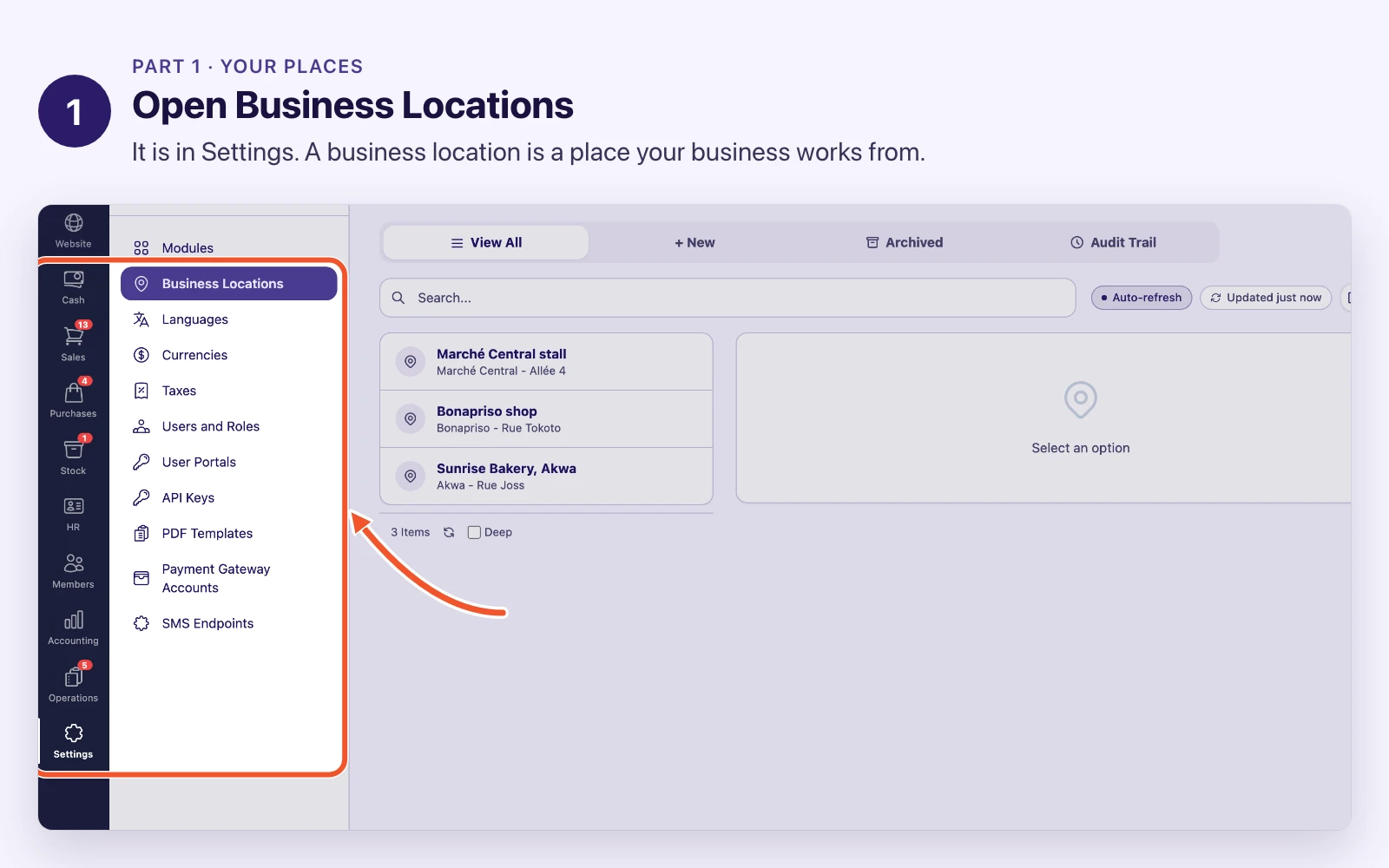
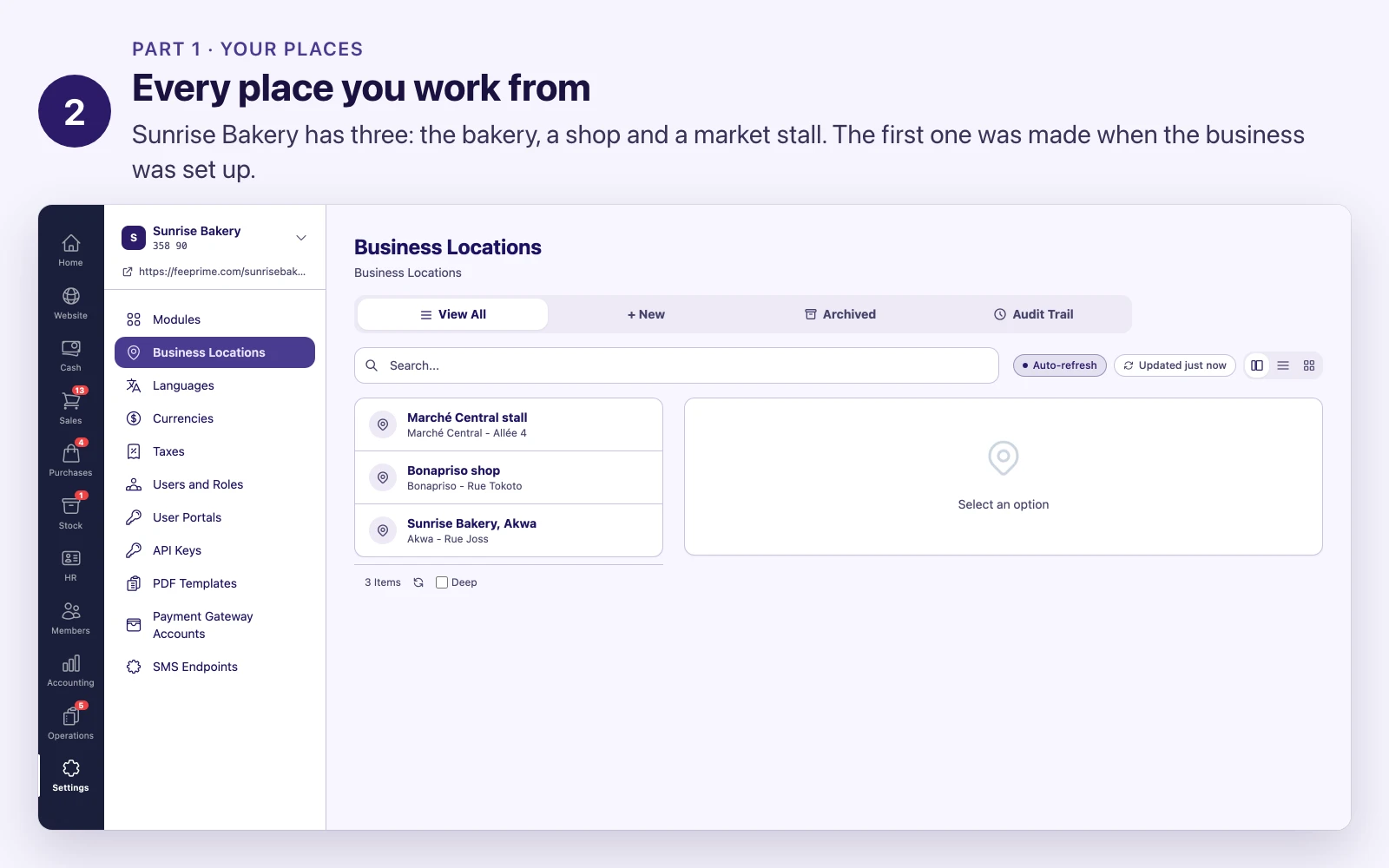
Sunrise Bakery runs from three fixed places: the bakery in Akwa, a shop in Bonapriso, and a stall at Marché Central. You already have your first place—FeePrime created it when your business was set up.
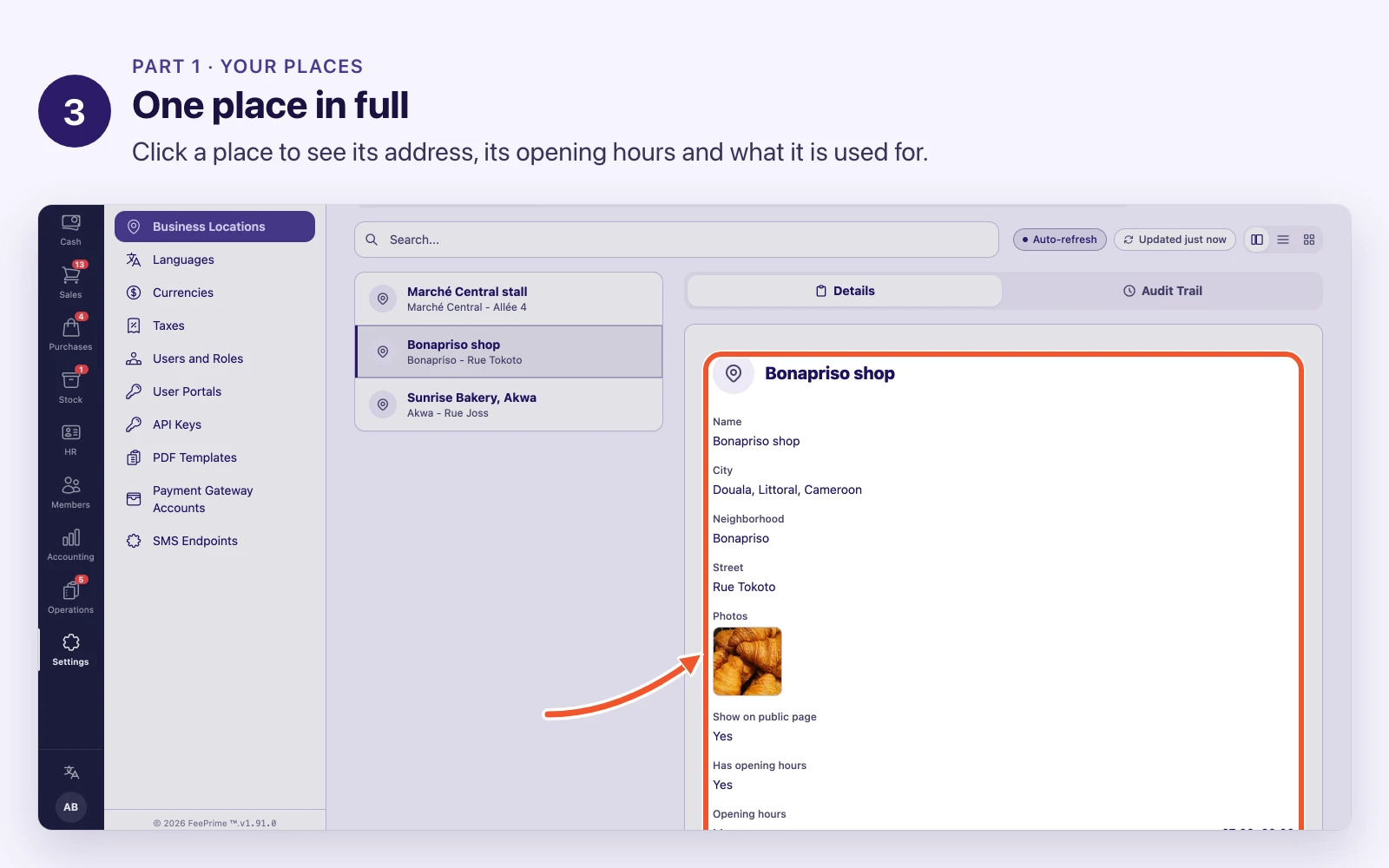
Click any place to see its full record: address, opening hours, and what it is used for.
2. Put each place on the map
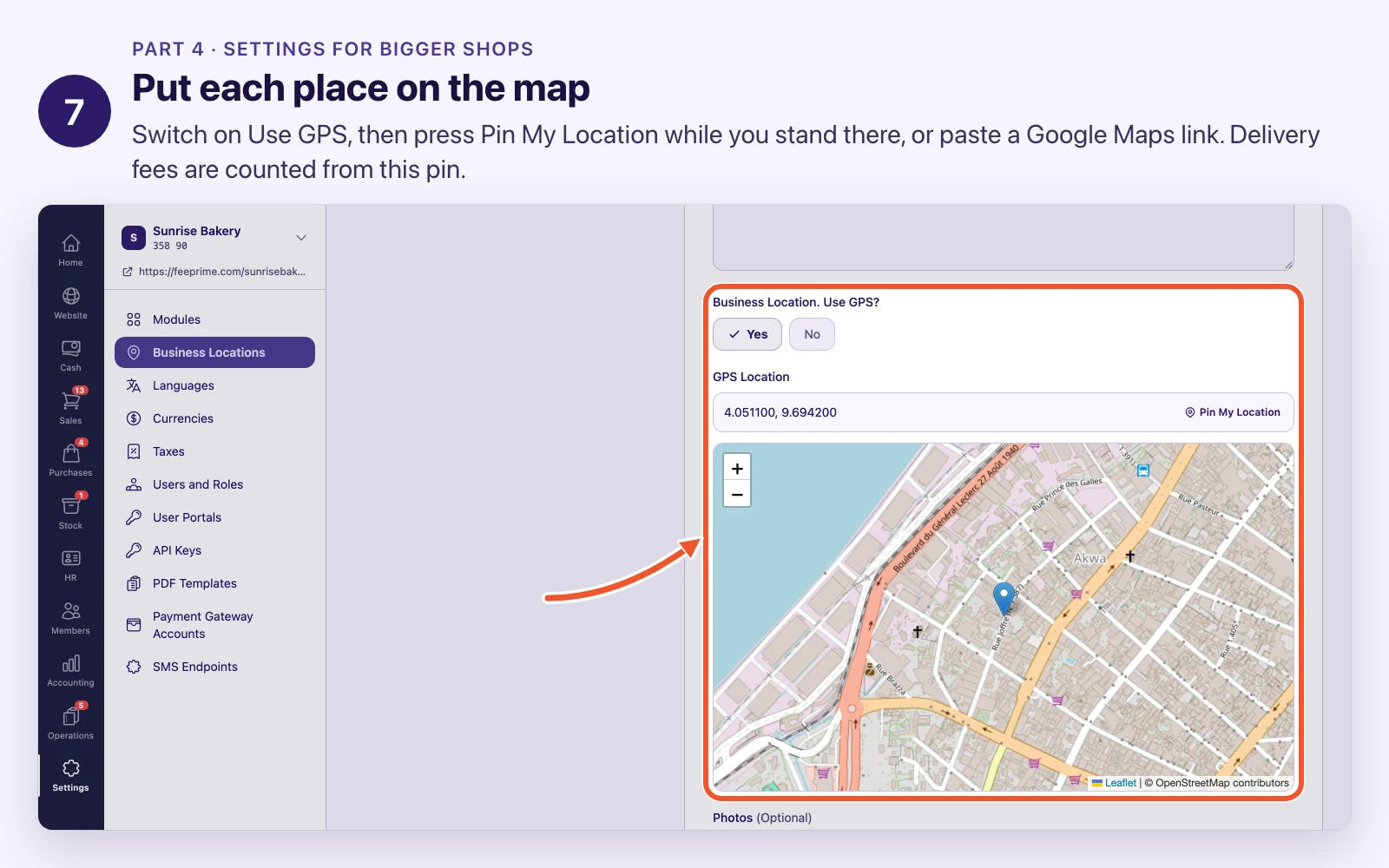
Give every fixed place its GPS location: the exact spot where it stands. Many streets have no name or number, so a written address alone will not bring a customer or rider to your door.
That GPS pin powers two things:
- Home delivery. FeePrime counts the delivery fee kilometre by kilometre from this pin to the customer. A place without a GPS pin cannot offer home delivery.
- Your website. Your location page displays a live map so customers can tap for directions straight to you.
To pin it, edit the place, switch on Use GPS location, and pick one option:
- Stand inside the shop with your phone and press Pin My Location.
- Paste a Google Maps link or coordinates (like
4.0511, 9.6942). - Click the exact spot on the map.
Save once for each place—ideally while standing inside it.
3. Stock is kept per place
Stock never floats vaguely “in the business”. It lives in a specific place. Open Stock / Stock / Stock Items, click the Stock Levels tab, and search for croissants:
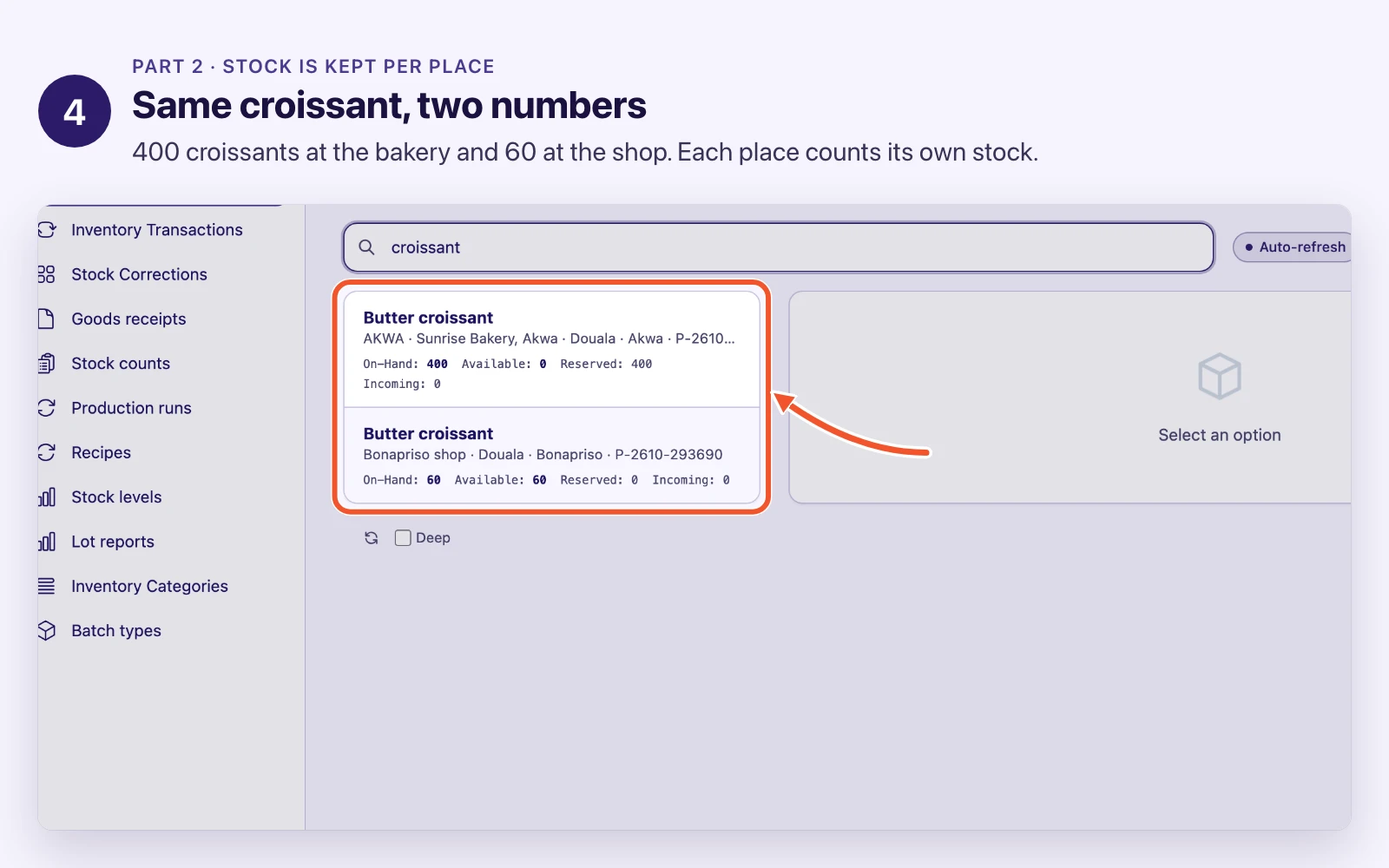
   Sunrise Bakery, Akwa (Warehouse + Ovens) ── 400 croissants
        │
        ├── Internal transfer ──▶ Bonapriso shop (Own stock: 60)
        ├── External dispatch ──▶ Marché Central stall (Holds 0)
        └── Internal transfer ──▶ Delivery motorbike (Junior's load)
The Bonapriso shop’s 60 croissants came from the Akwa bakery. Record that move in Stock / Movements / Inventory Transactions as an Internal transfer so FeePrime knows where goods left and where they landed.
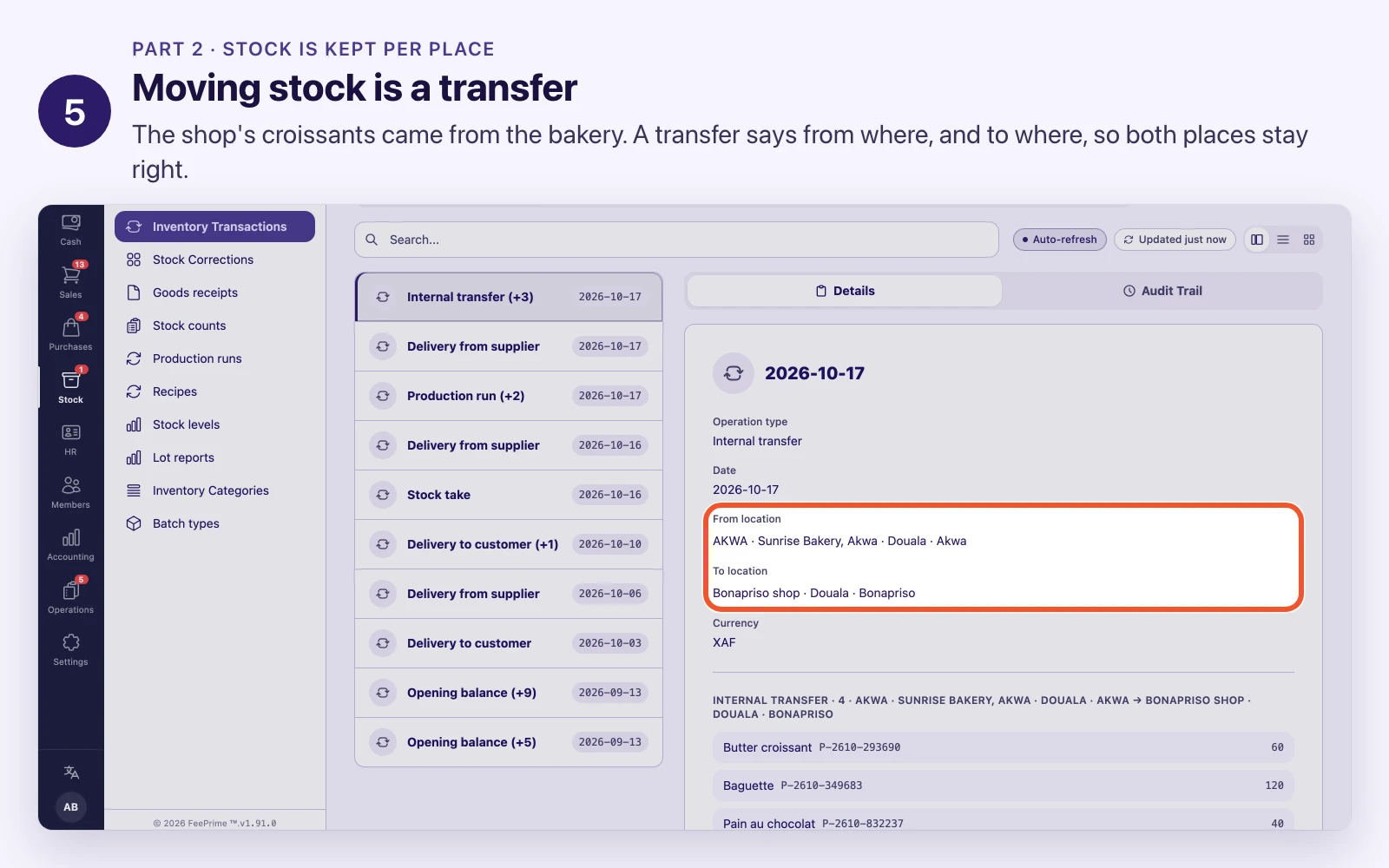
Never fix a stock number by typing over it. If Amina sends 60 croissants to Paul at Bonapriso and only changes the shop’s number, the bakery still thinks it holds those 60 croissants. Now two places are wrong. Record the transfer and both stay honest.
Always pick the right location on a sale or delivery. That choice decides which shelf empties.
4. Own stock vs external dispatch
Not every place holds stock on site. Switch Business Locations to the table view and check the Dispatch column.
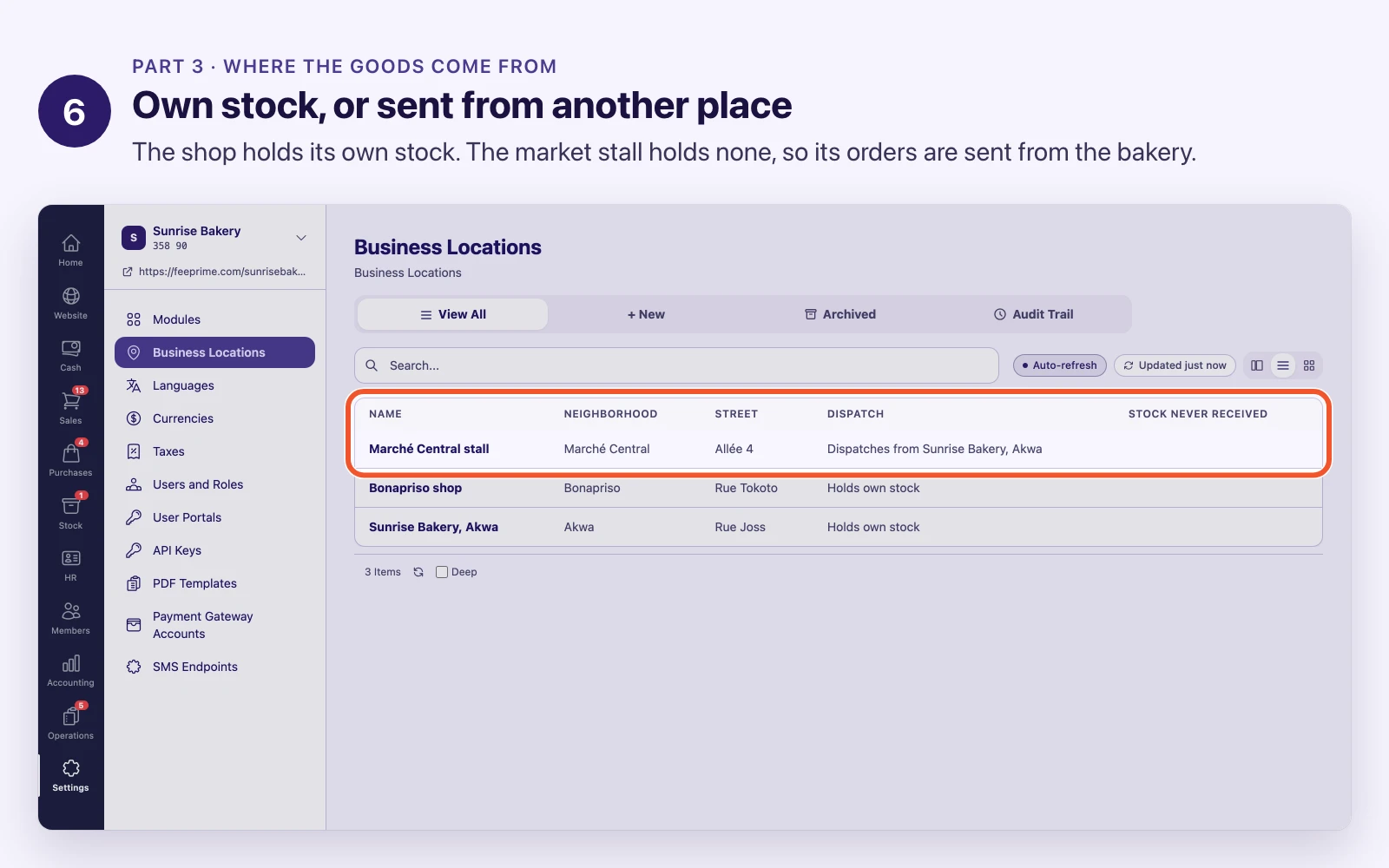
- Bonapriso shop holds its own stock: Serves as Warehouse is switched on.
- Marché Central stall holds none: Needs External Dispatch is on, with Dispatch Location set to the Akwa bakery. When the stall takes an order, FeePrime deducts the goods from the bakery automatically.
5. Settings for bigger operations
Click Edit on a place and you will see extra options. One shop, no deliveries, nothing baked or made? Leave these off. Nothing breaks. Turn them on only when you need them:
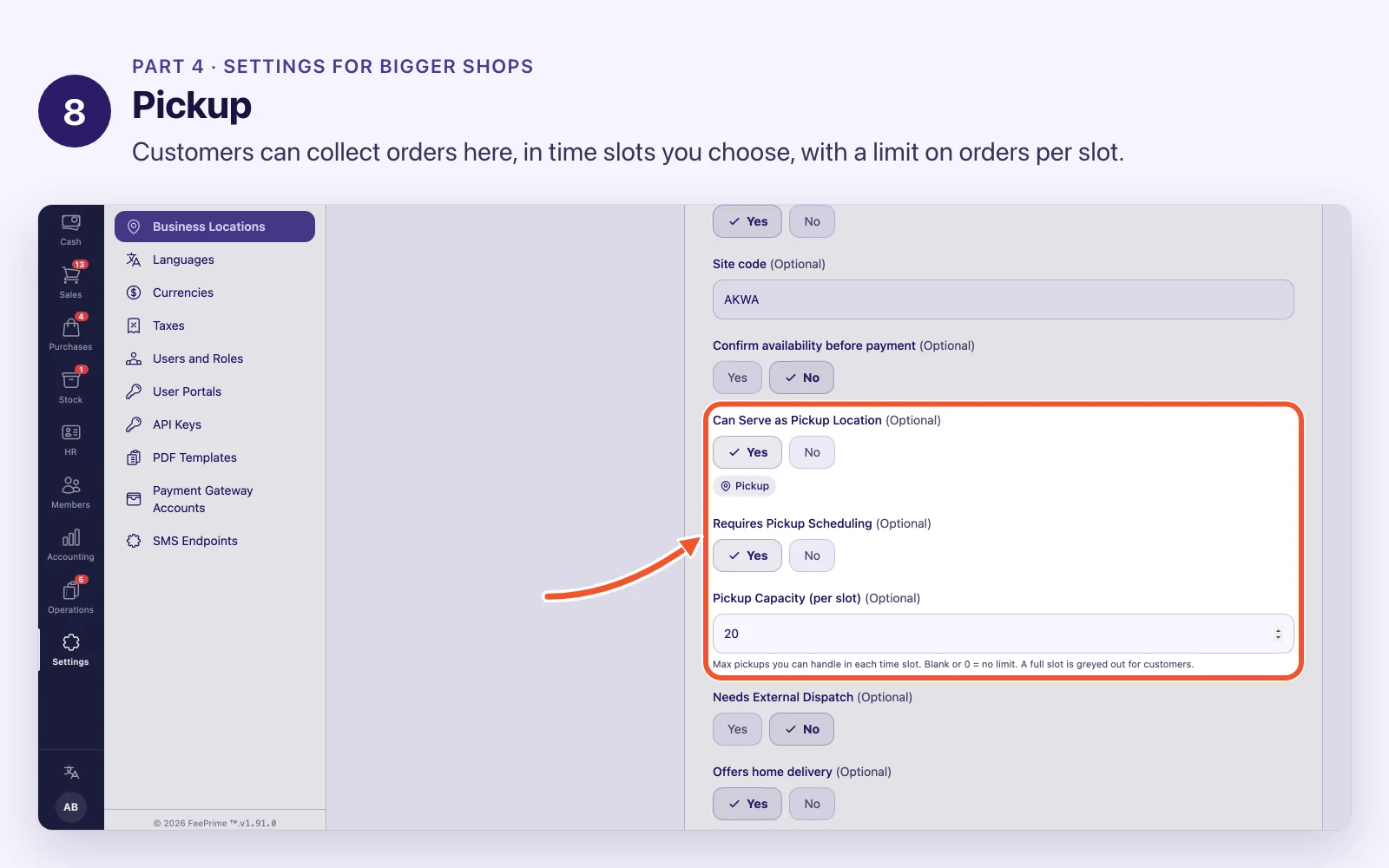
Pickup. Customers order ahead and collect in person. - Switch on Can Serve as Pickup Location. - Optional: enable Requires Pickup Scheduling and set Pickup Capacity (per slot) so your counter does not get flooded at lunch. - A pickup point must hold its own stock or name its Dispatch Location before FeePrime lets you save.
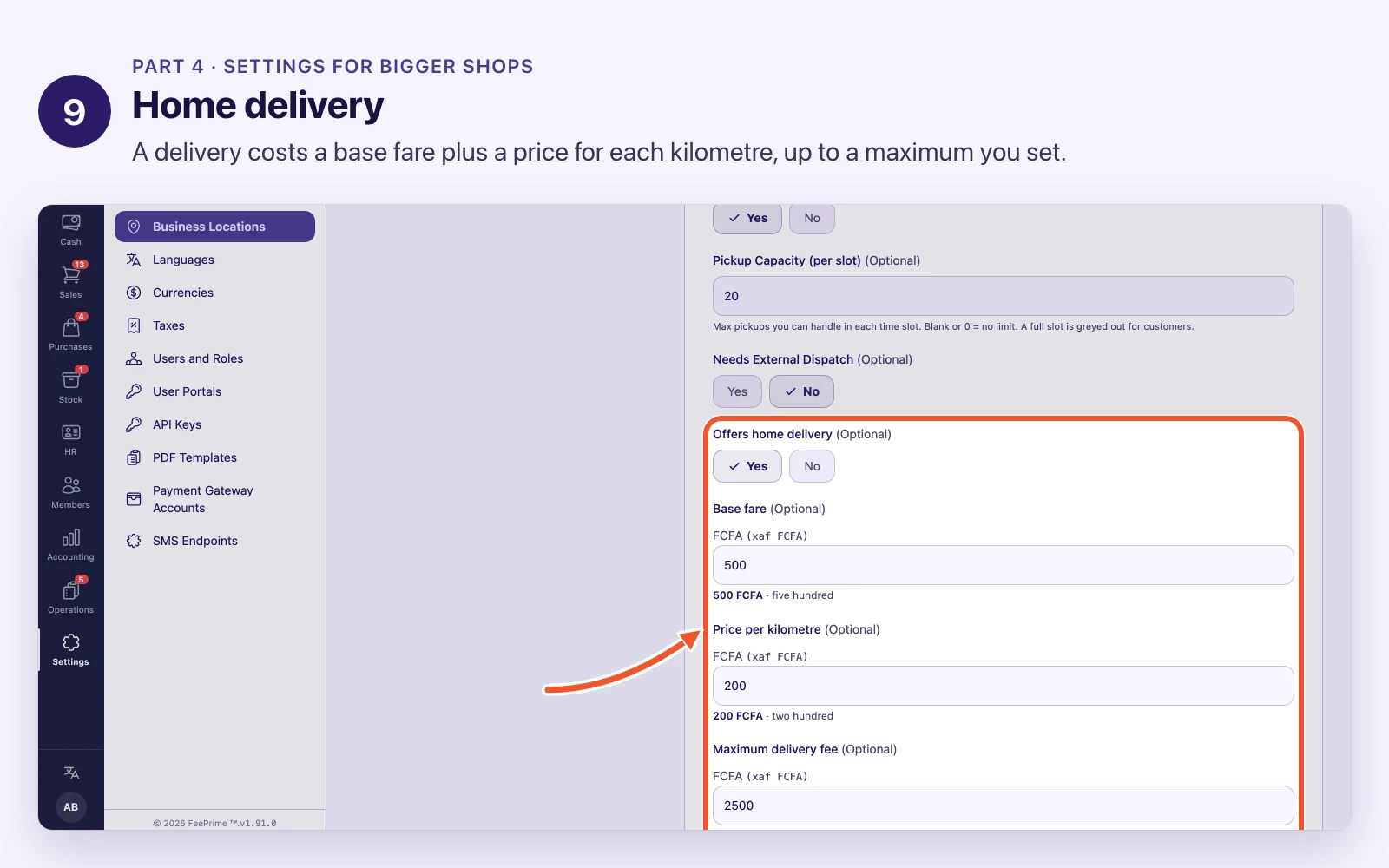
Home delivery. You bring orders to the customer. - Turn on Offers home delivery. - Set Base fare, Price per kilometre, and Maximum delivery fee—for example, 1,000 XAF base plus 250 XAF/km, capped at 3,000 XAF. - Set Deliveries per day to cap daily volume.
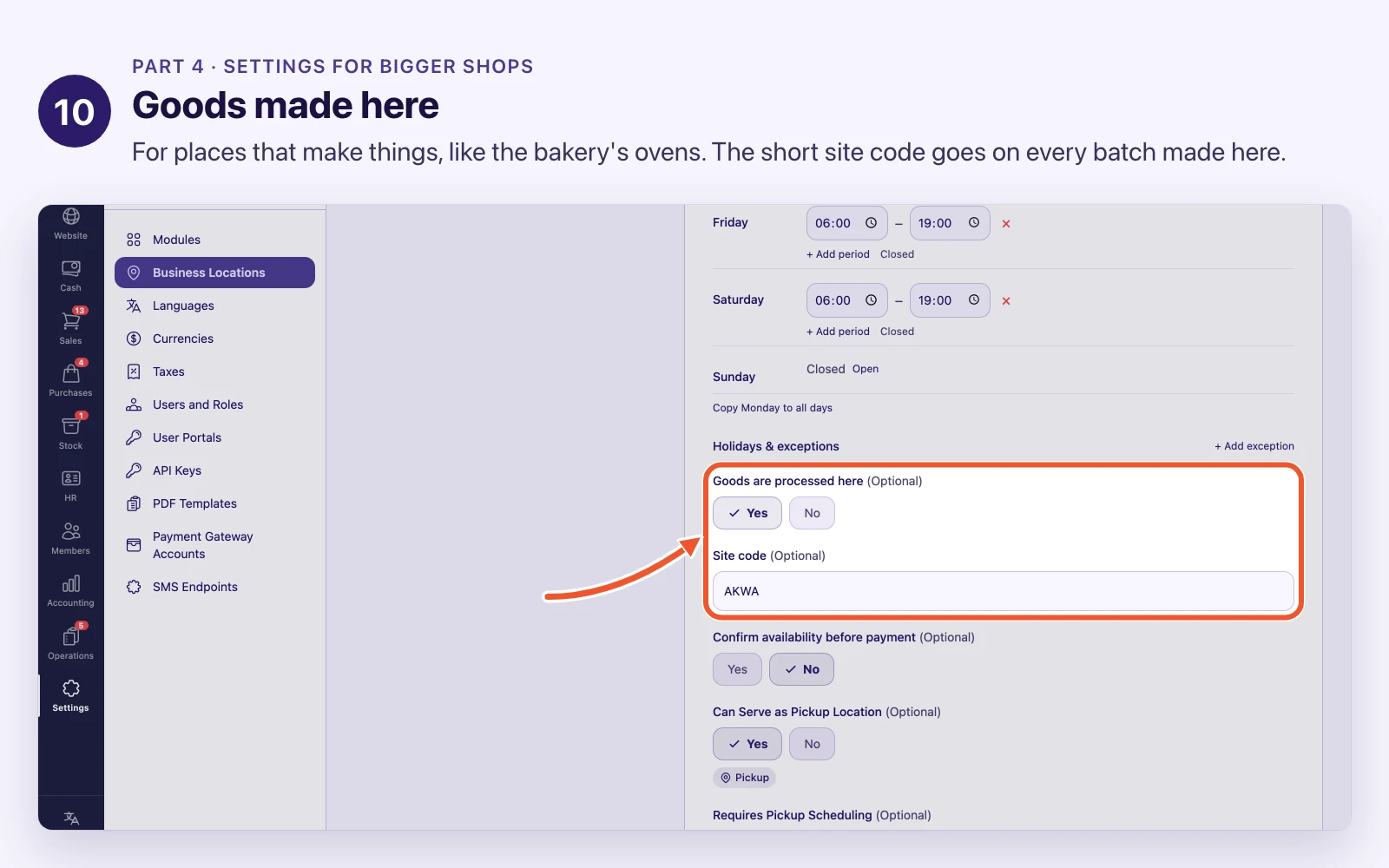
Goods made here. For kitchens, ovens, and workshops.
- Switch on Goods are processed here and enter a short Site code (Sunrise Bakery uses AKWA) so every batch carries its origin.
Restocking. Use Replenished from (warehouses) and Restock lead time (days) to note which warehouse refills a shop and how many days it takes.
6. A place that moves
A location does not need walls. Click New, set This location moves to Yes, pick Vehicle, enter its name and Registration plate, and choose who is Assigned to it—here, Junior on the delivery motorbike.
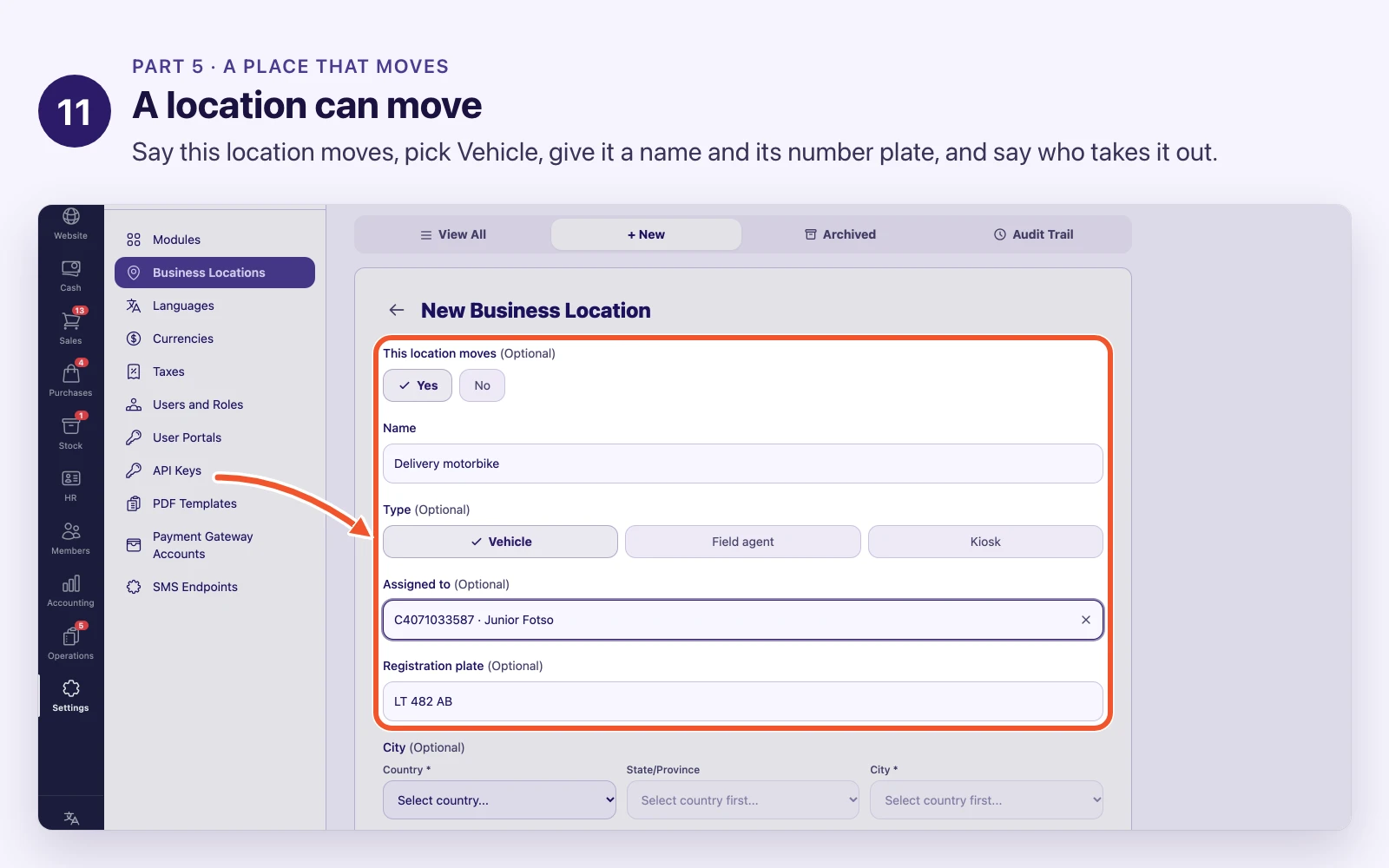
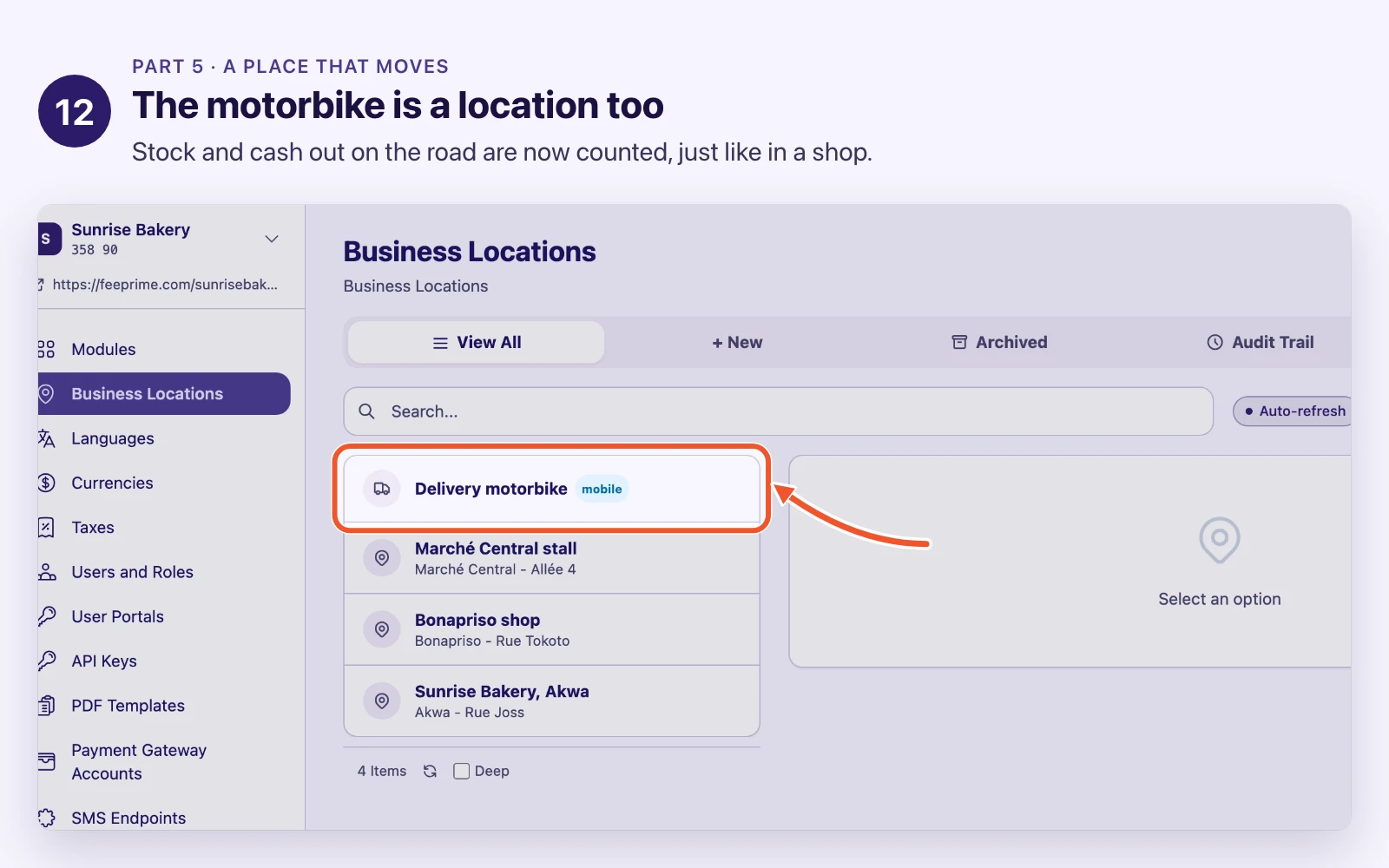
Save it. Stock and cash out on the road are now counted just like a shop, instead of vanishing between the bakery and Hôtel Akwa.
7. On your website—and set them up early
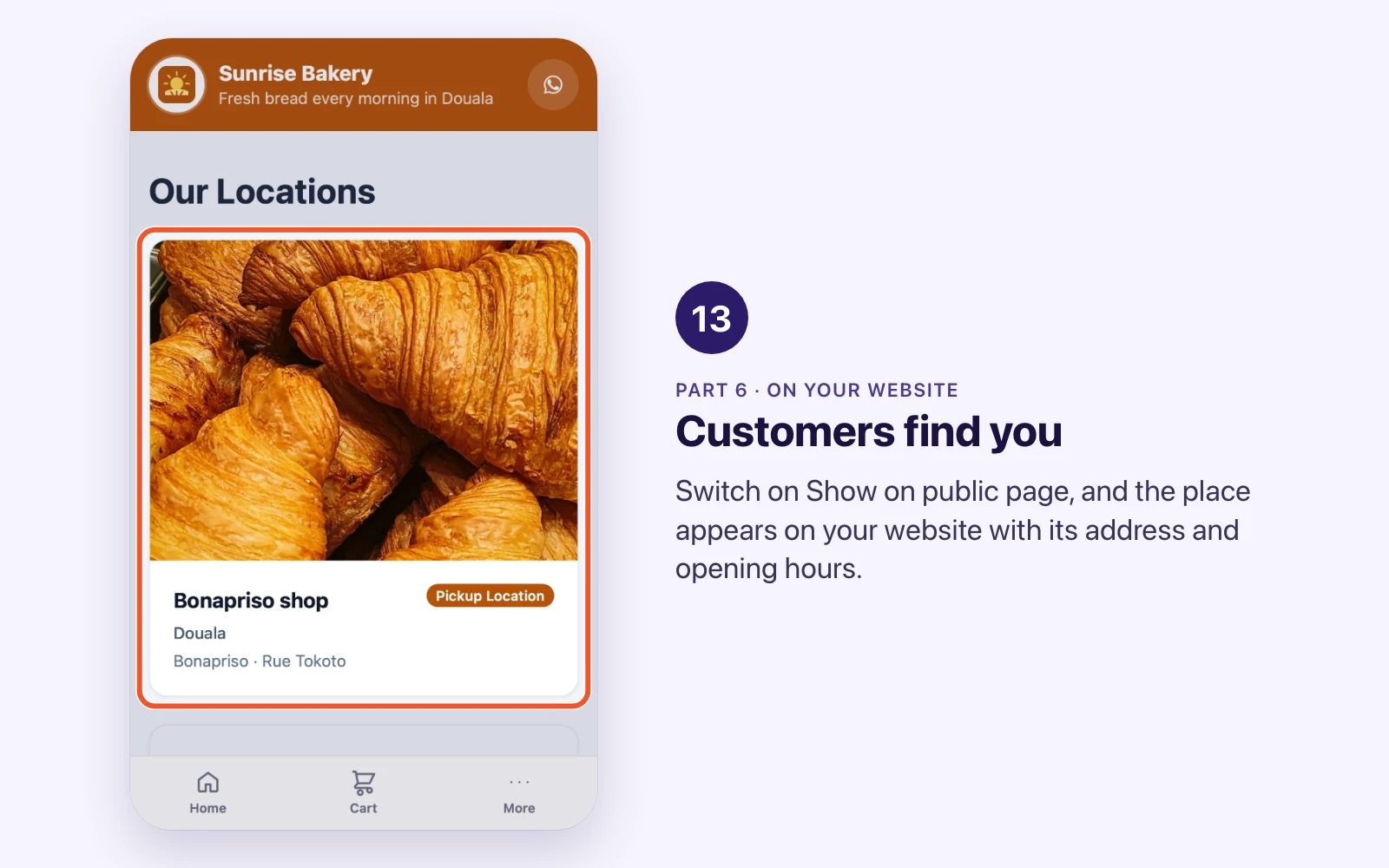
Switch on Show on public page and the place appears on your website with its address, map, and opening hours. Leave it off for back-office warehouses customers should not visit.
Add every real place on day one. Because every stock count and movement belongs to a location, splitting one combined warehouse into two after a year of history is painful. Spend ten minutes up front and save hours later.
Try it
On staging.feeprime.com (a practice copy of FeePrime, kept apart from the real thing):
- Open Settings / Business / Business Locations and inspect the default place.
- Add a second shop, switch on Serves as Warehouse, and drop a GPS location on the map.
- Open Stock / Movements / Inventory Transactions and record an Internal transfer between the two places.
- Check Stock / Stock / Stock Items (Stock Levels tab) to see the same item listed separately for each place.
- Create a moving Vehicle location and assign it to a staff member.
Once you see that stock always lives somewhere, every inventory lesson clicks into place.