
Modules, currencies, taxes, and business settings
Before you start, sign in and open Settings / Business / Modules, Settings / Business / Currencies, Settings / Business / Taxes, Settings / Business / Languages, and Settings / Access / API Keys.
Can’t find one of them? It may be turned off for your business, or your account may not be allowed to open it. Ask the person who set up your FeePrime. They can fix both.

Photo: Christina @ wocintechchat.com M on Unsplash
Open the Settings menu for the first time and it can look like a cockpit. Four groups, more than a dozen screens, and names like API Keys, SMS Endpoints, and Payment Gateway Accounts.
Here is the good news: most of Settings is not part of your daily job. When Amina sets up Sunrise Bakery in Douala, she touches a handful of screens on day one, checks them once in a while when the business grows, and leaves the technical plumbing alone.
This lesson covers the settings you will actually meet, the single rule that keeps you from breaking old invoices, and the few screens that should stay in the hands of the business owner or lead admin.
1. Modules: turn on only what your team actually uses
Start in Settings / Business / Modules. This screen decides which parts of FeePrime appear in your sidebar.
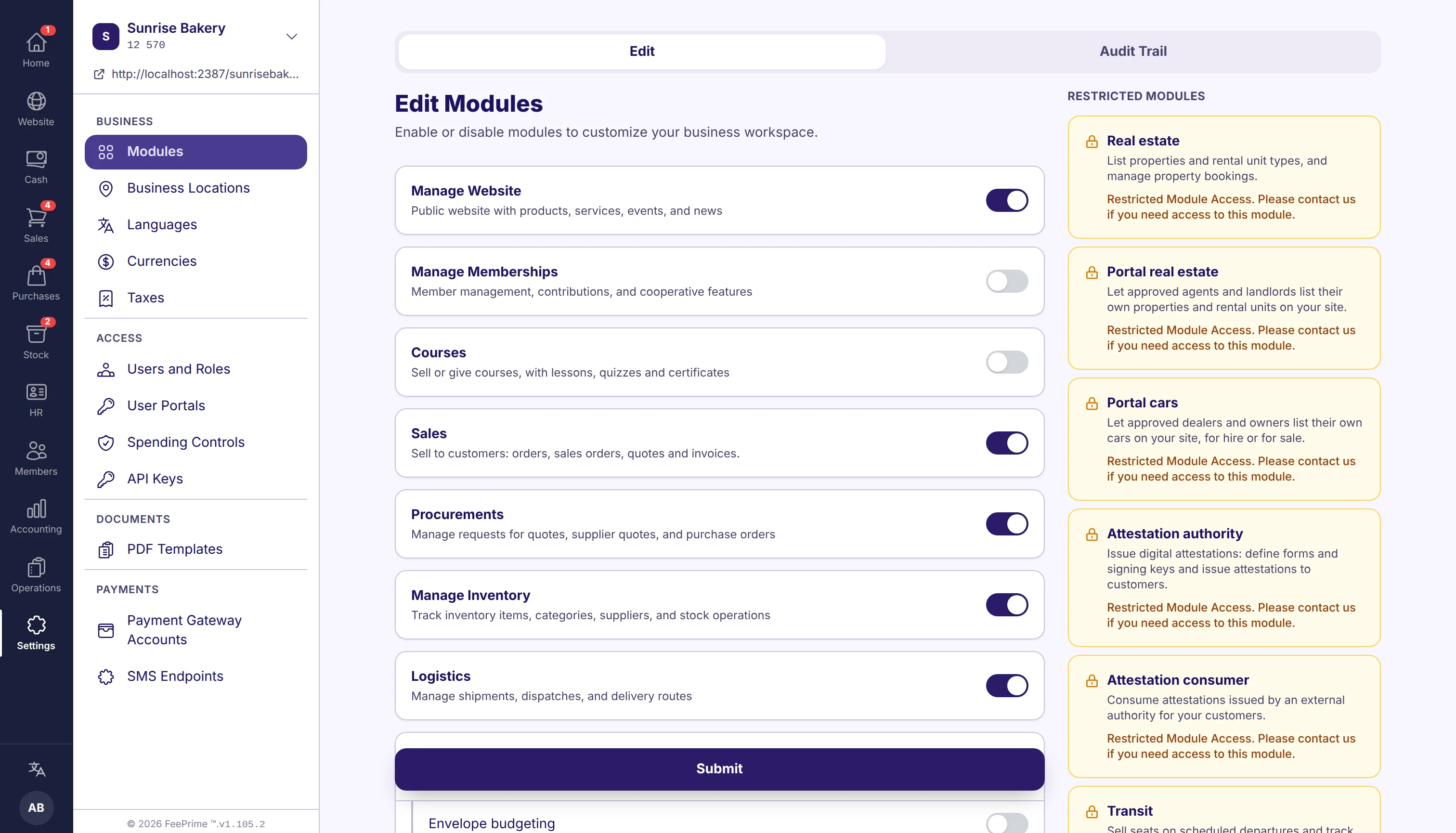 Settings → Modules in FeePrime: toggle only the modules your team needs (Sales, Procurements, Inventory, Logistics) while Restricted vertical packs stay neatly on the right.
FeePrime serves bakeries, wholesalers, clinics, schools, transport fleets, and property managers. You do not need every tool on day one. Switching off modules you do not use keeps the sidebar short so Paul the cashier is never hunting past School or Real Estate just to open his till.
- One shop, simple counter sales? Keep Sales, Cash, and Inventory on, plus Procurements if you buy flour and butter from suppliers. Leave HR, Transportation, and Events off. Nothing breaks.
- Growing into deliveries, payroll, or a public catalogue later? Come back to Settings / Business / Modules and switch the new module on when you are ready. Your existing records stay untouched.
Keep the menu lean. A shorter sidebar means fewer wrong clicks on a busy Saturday morning.
2. Currencies, taxes, and languages: set these before anyone enters money
Once your modules are on, four screens under Settings / Business shape almost every document your team will create.
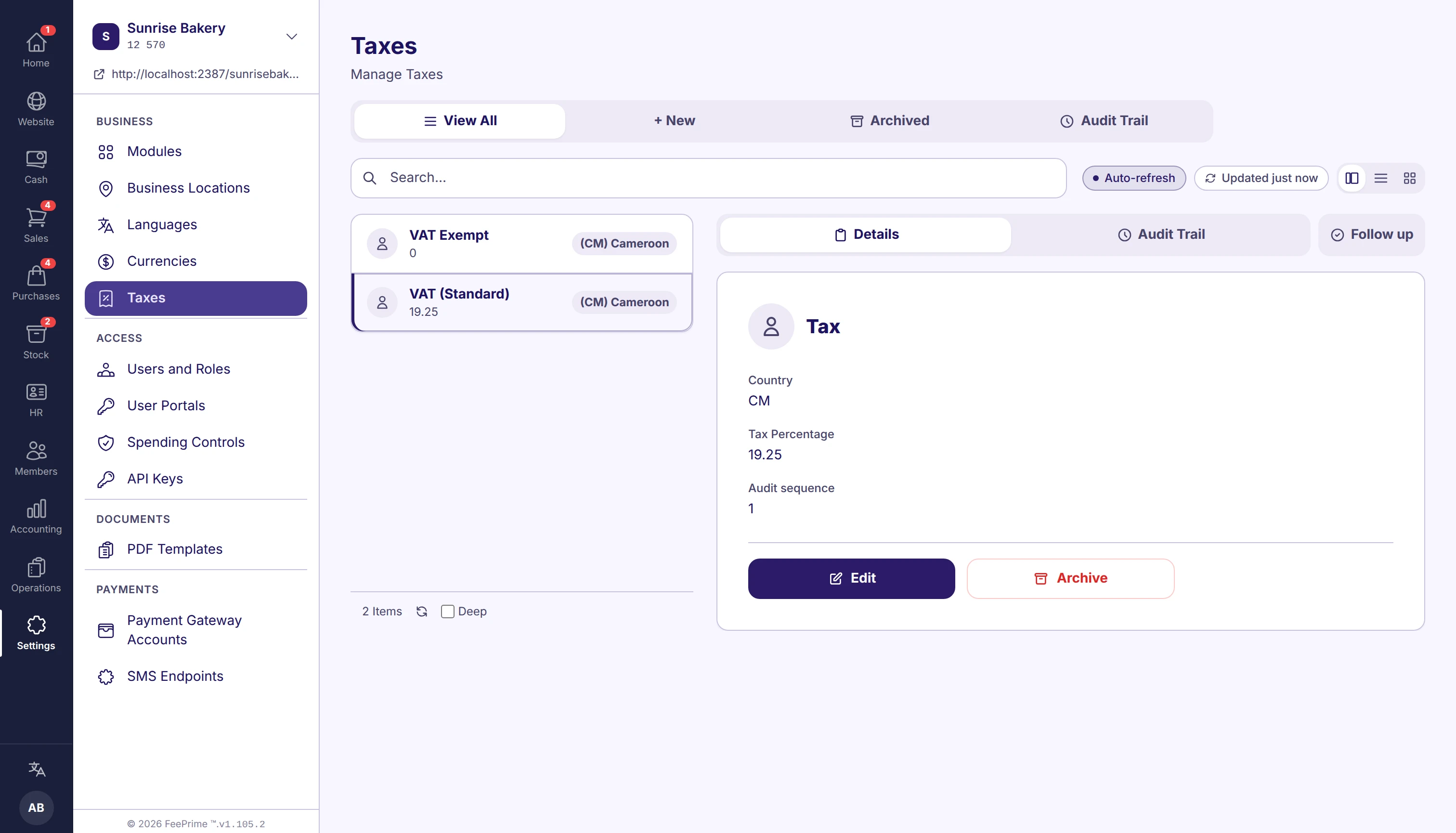 Settings → Taxes in FeePrime: configure Cameroon VAT (Standard 19.25%) and VAT Exempt (0%) once so every quote and invoice calculates tax consistently.
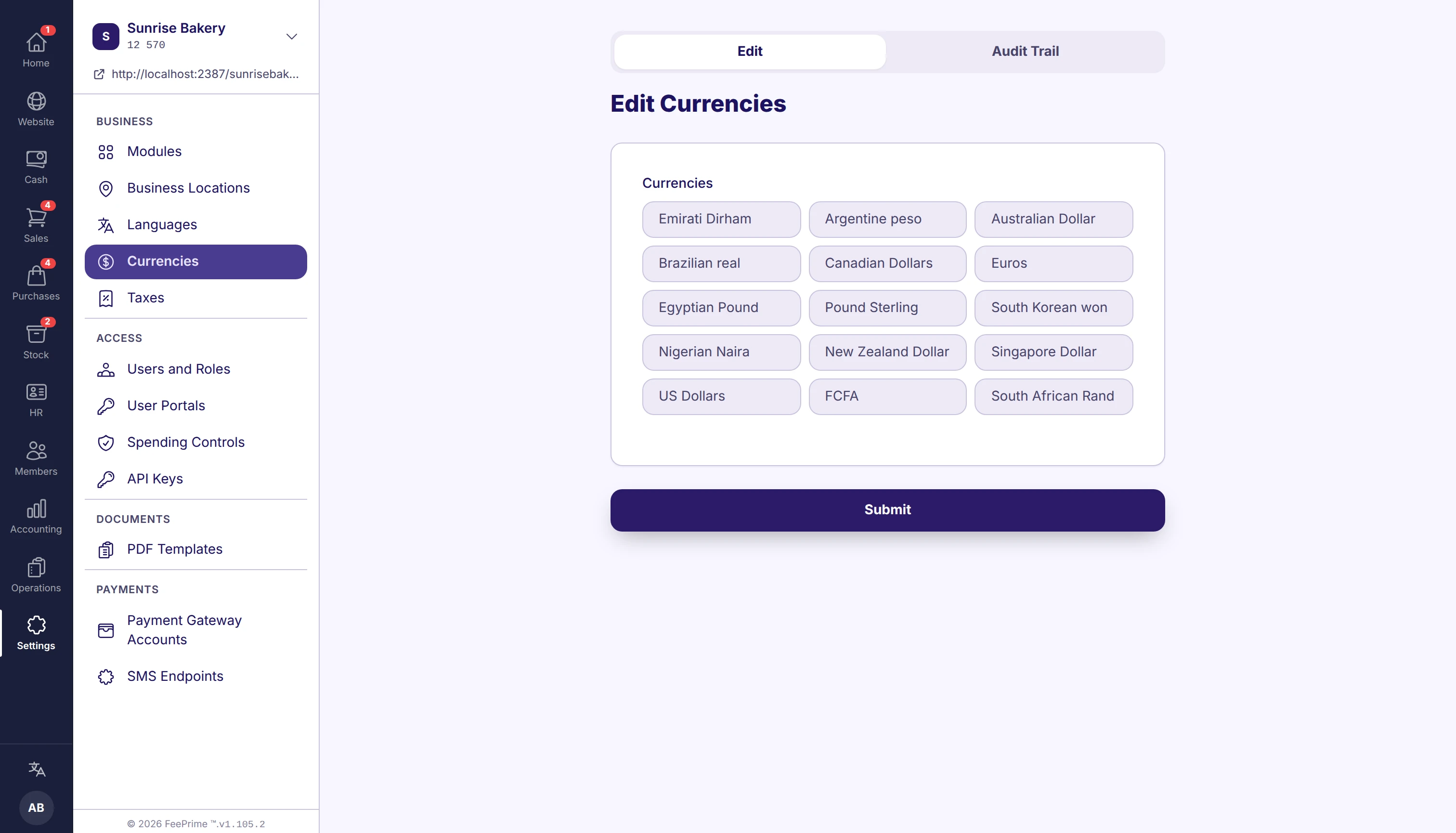 Settings → Currencies in FeePrime: activate FCFA and only the foreign currencies you trade in, with every change recorded in the Audit Trail.
Currencies (Settings / Business / Currencies). This is the list of currencies your business works in. Every price, invoice, bill, expense, and cash account belongs to one currency on this list, so get it right before anyone records the first sale. Sunrise Bakery works in XAF at its Akwa bakery and Bonapriso shop, and only adds EUR if it starts buying oven parts from a European supplier.
Taxes (Settings / Business / Taxes). These are the tax rates your business applies, such as Cameroon’s 19.25% TVA or a 0% exempt rate for tax-free goods. Sales quotes, invoices, and supplier bills point at these rates rather than typing a percentage by hand.
Languages (Settings / Business / Languages). This controls which languages your business publishes and maintains content in. Turning a language on tells FeePrime that translatable fields—like product names or public pages—now expect text in that language. In Cameroon, Sunrise Bakery turns on French and English because customers read both, and leaves every other language off so staff are not staring at empty boxes they will never fill.
Business Locations (Settings / Business / Business Locations) and Stores (Settings / Business / Stores). Your physical places and selling points live right alongside these screens. They have their own lesson because stock, cash tills, and staff permissions tie back to them—treat them with the same care.
3. The golden rule: settings are pointed at, not copied
Almost every mistake people make in Settings comes from forgetting one rule:
Settings are pointed at, not copied.
When Paul sends three invoices to Hôtel Akwa with 19.25% TVA, those invoices do not take a private photocopy of the number 19.25%. All three point at the same tax rate record in Settings / Business / Taxes.
  Invoice #104 (Hôtel Akwa)  ----+
  Invoice #105 (Nadège Fouda) ---+---> [ Tax Rate: TVA 19.25% ]
  Invoice #106 (Marché Stall) ---+               ^
                                                 |
                       Edit this rate and you change what
                       all three invoices are pointing at.
The exact same rule applies to Currencies and Business Locations. That is why two habits save hours of cleanup later:
- Never edit a tax rate to fix one bad invoice. If Paul picked 0% instead of 19.25% TVA on one invoice for Hôtel Akwa, fix that invoice to point at the 19.25% rate. Leave both tax rates untouched.
- When a rule changes, add a new entry and leave the old one alone. If the government introduces a new tax rate next year, create the new rate for new invoices so last year’s invoices still point at what applied when you issued them.
4. High-impact settings to leave to the owner or admin
A few screens under Settings look like ordinary forms, but they carry a hidden trap: a mistake here does not show up on the screen you saved. It shows up hours or weeks later, somewhere completely different.
- Payment Gateway Accounts (
Settings / Payments / Payment Gateway Accounts). Decides where your customers’ online and mobile-money payments actually land. One wrong digit sends real money nowhere—or breaks checkout. - SMS Endpoints (
Settings / Payments / SMS Endpoints). Controls the messages that leave FeePrime in your business’s name. Test changes only with whoever owns your SMS account. - API Keys (
Settings / Access / API Keys). Lets outside software read and write your FeePrime data with real permissions, just like a member of staff. Treat an API key like a password. Issue one deliberately, never paste it into a shared chat, and cancel it the day the outside tool or contractor no longer needs it. - Spending Controls (
Settings / Access / Spending Controls). Sets approval limits on what staff can spend without sign-off. Changing a threshold without telling Amina can either block urgent flour purchases or let big payouts slip through unchecked. - PDF Templates (
Settings / Documents / PDF Templates) and Extra Field Definitions (Settings / Documents / Extra Field Definitions). Changes the layout of every future invoice, receipt, or form across the whole business at once.
None of these screens are dangerous to look at, and it helps to know they exist. Just do not experiment with them on your live business. Ask the person who owns them before changing a line.
5. You have finished FeePrime Essentials
That is the whole of FeePrime Essentials. You now know how the entire system hangs together—no matter which department you work in tomorrow:
- One structure everywhere: your business turns on the modules it needs, and every module works with clear records.
- Every change leaves a trail: important actions can require approval, and you can always check who did what and when.
- Archive, never delete: old customers, products, and rates stay in history so past reports still make sense.
- Nothing floats in mid-air: stock belongs to a warehouse, cash belongs to an account or till, and permissions belong to a person.
- Settings are pointed at, not copied: add new entries when rules change instead of rewriting history.
Everything else in FeePrime is just one department’s specific fields built on these same habits. Move on to the course for your daily role—Sales, Cash, Inventory, or Procurements—and keep the practice site open as you learn.
Try it
Open staging.feeprime.com—a practice copy of FeePrime, kept apart from the real thing—and run this 5-minute check:
- Open Settings / Business / Modules and scan which modules are switched on for the practice business.
- Open Settings / Business / Currencies and check which currencies are already listed before any sale is entered.
- Open Settings / Business / Taxes and click into an existing rate like 19.25% TVA to inspect it—without editing the percentage.
- Open Settings / Business / Languages and notice which languages are active for translatable fields.
- Open Settings / Payments / Payment Gateway Accounts and Settings / Access / API Keys to see where the high-impact controls live, then back out without saving changes.
Nice work—you are ready for the operational courses.