
Create your first business
Before you start, sign in at feeprime.com. This lesson starts on your Home page — there is no sidebar menu to open yet. Once your business exists, you can review these choices anytime under Settings / Business.
Joining a business that already runs on FeePrime? Do not create a second one. Ask the person who set up your FeePrime to invite your email under Settings / Access / Members, then skim this lesson so the setup makes sense.
Everything in FeePrime hangs off a business, so creating one is the first thing that happens. Most shop owners only run this wizard once, in about two minutes. Yet four small choices you make here — your web address, languages, currencies, and business contact — quietly shape every product sheet, invoice, and WhatsApp link your team uses for years.
When Amina launches Sunrise Bakery in Douala, getting those four choices right up front means her dashboard, cashiers, and public website all work together from minute one. Getting them wrong — like skipping French until 500 products are typed in — creates hours of avoidable cleanup.
Sign in (6-digit email code)
        │
        ▼
Start A New Business ──► Languages & Name ──► Web Address (permanent!)
                                                      │
                                                      ▼
Live Website + Dashboard ◄── WhatsApp & City ◄── Modules & Currencies
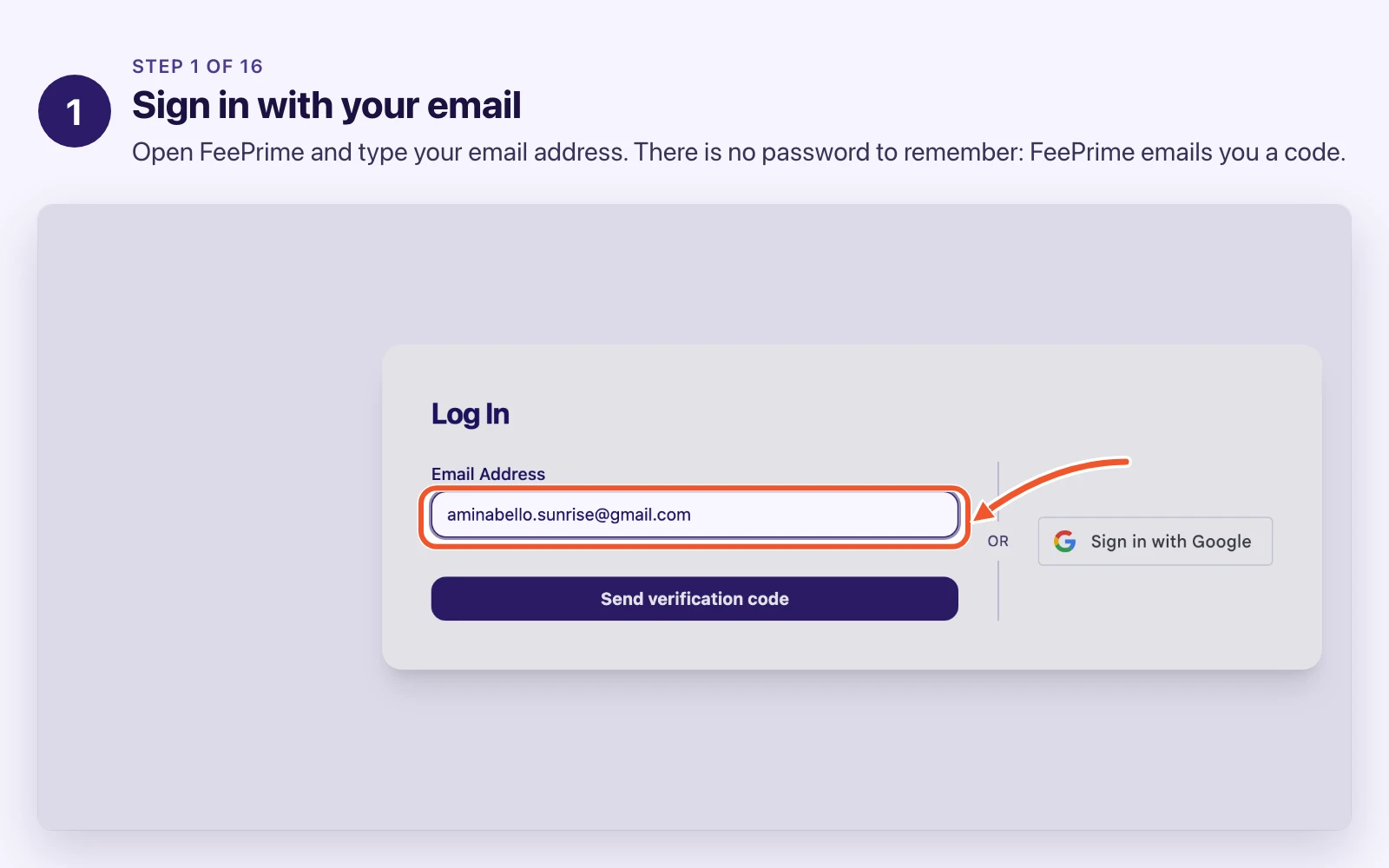
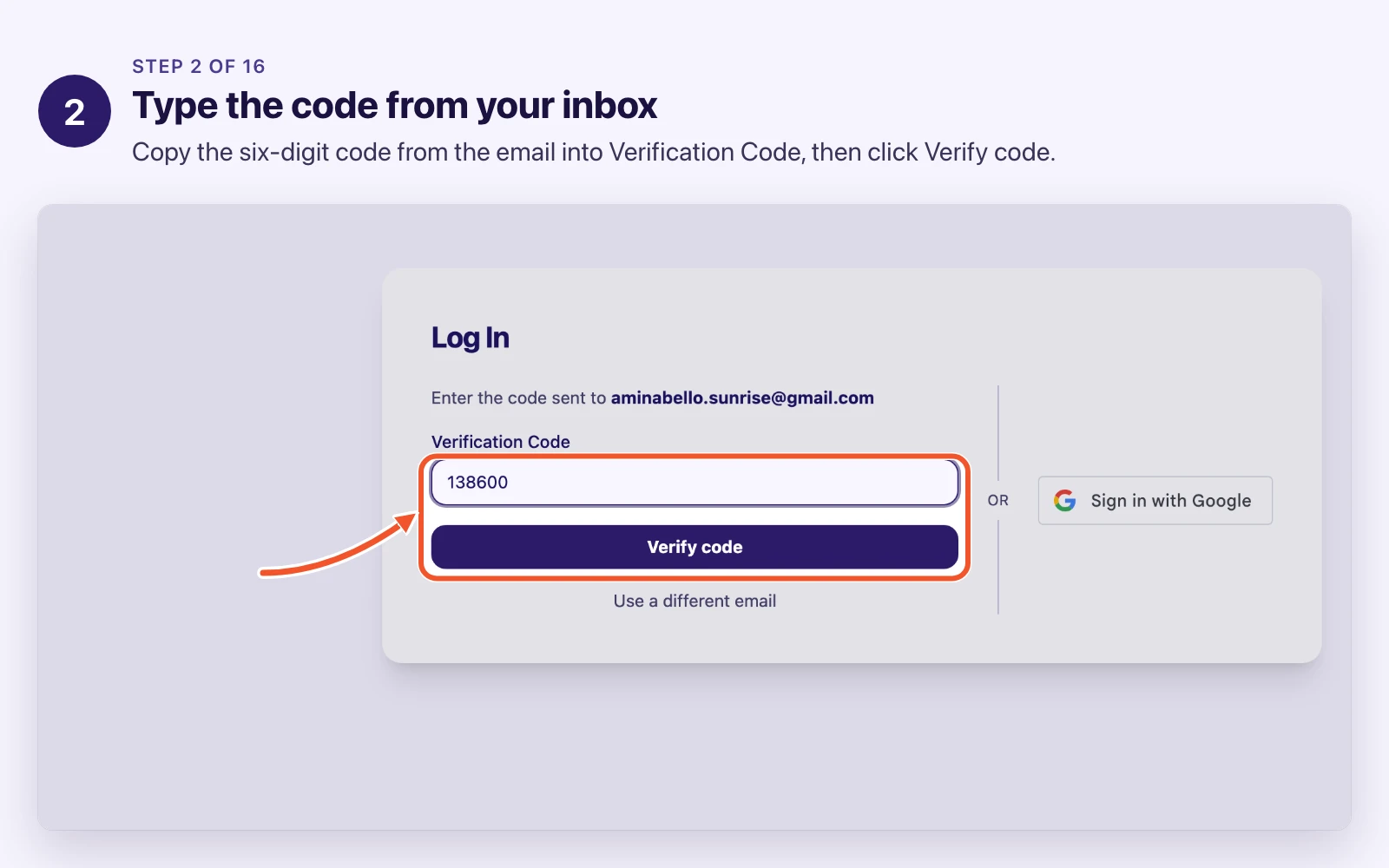
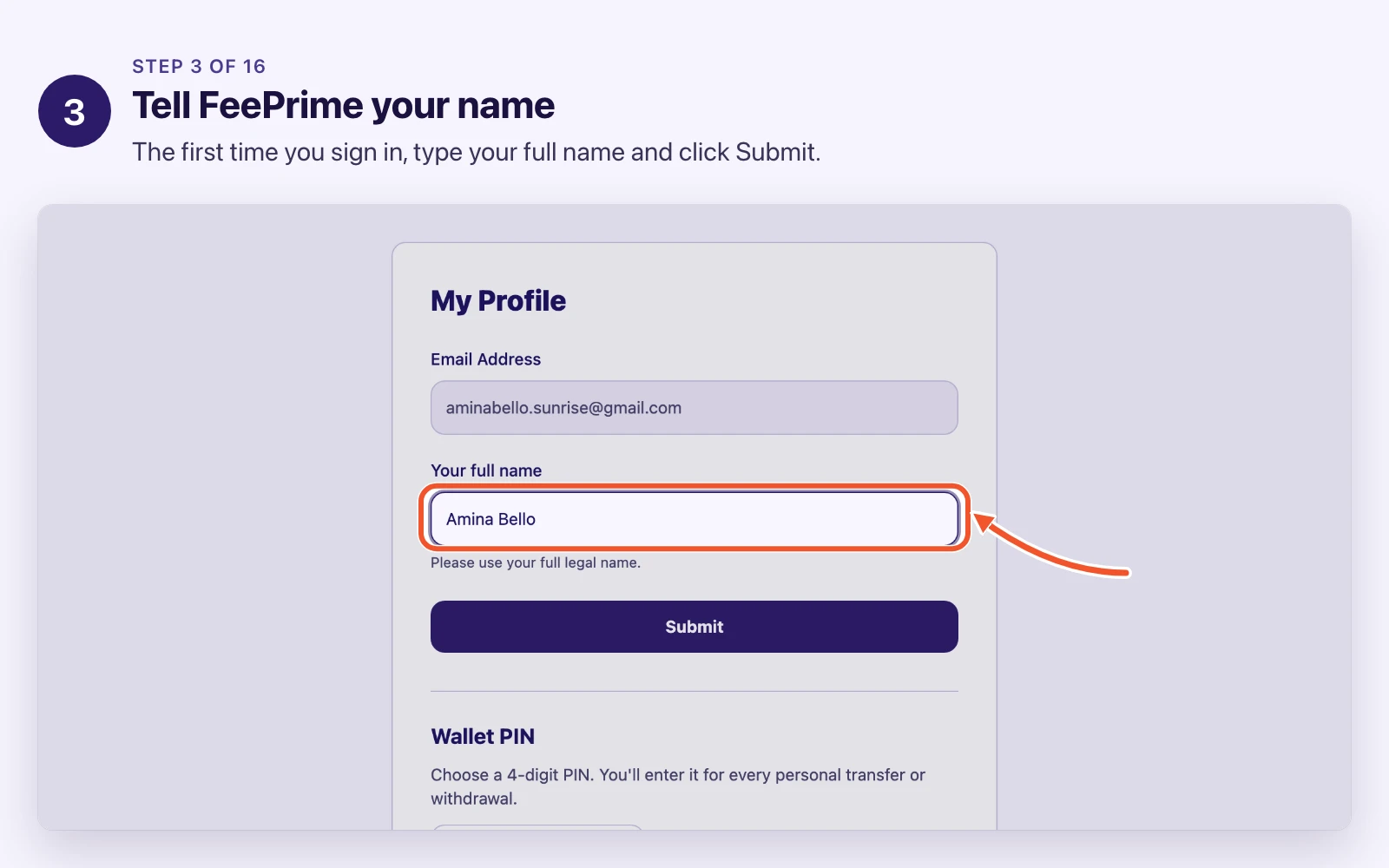
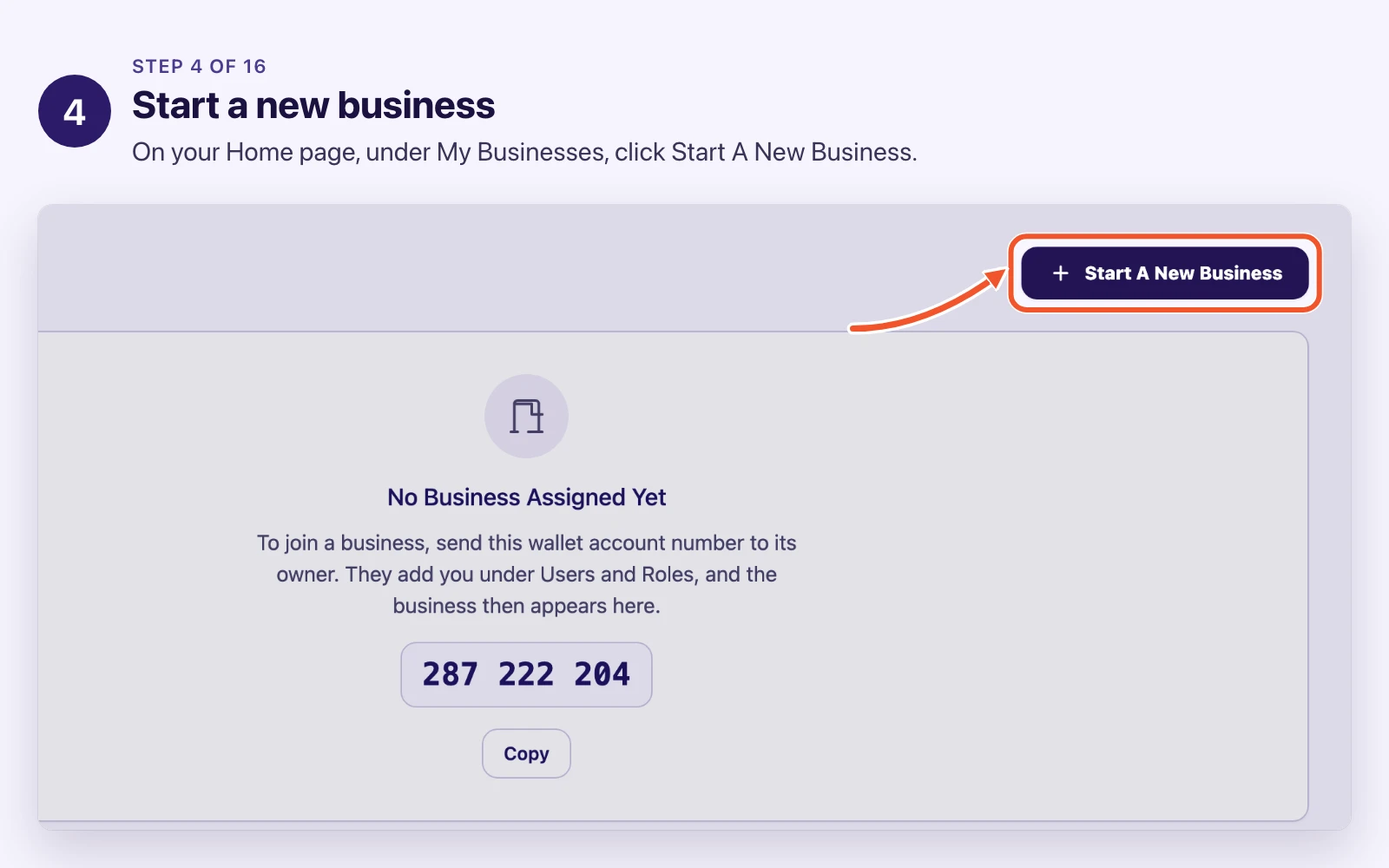
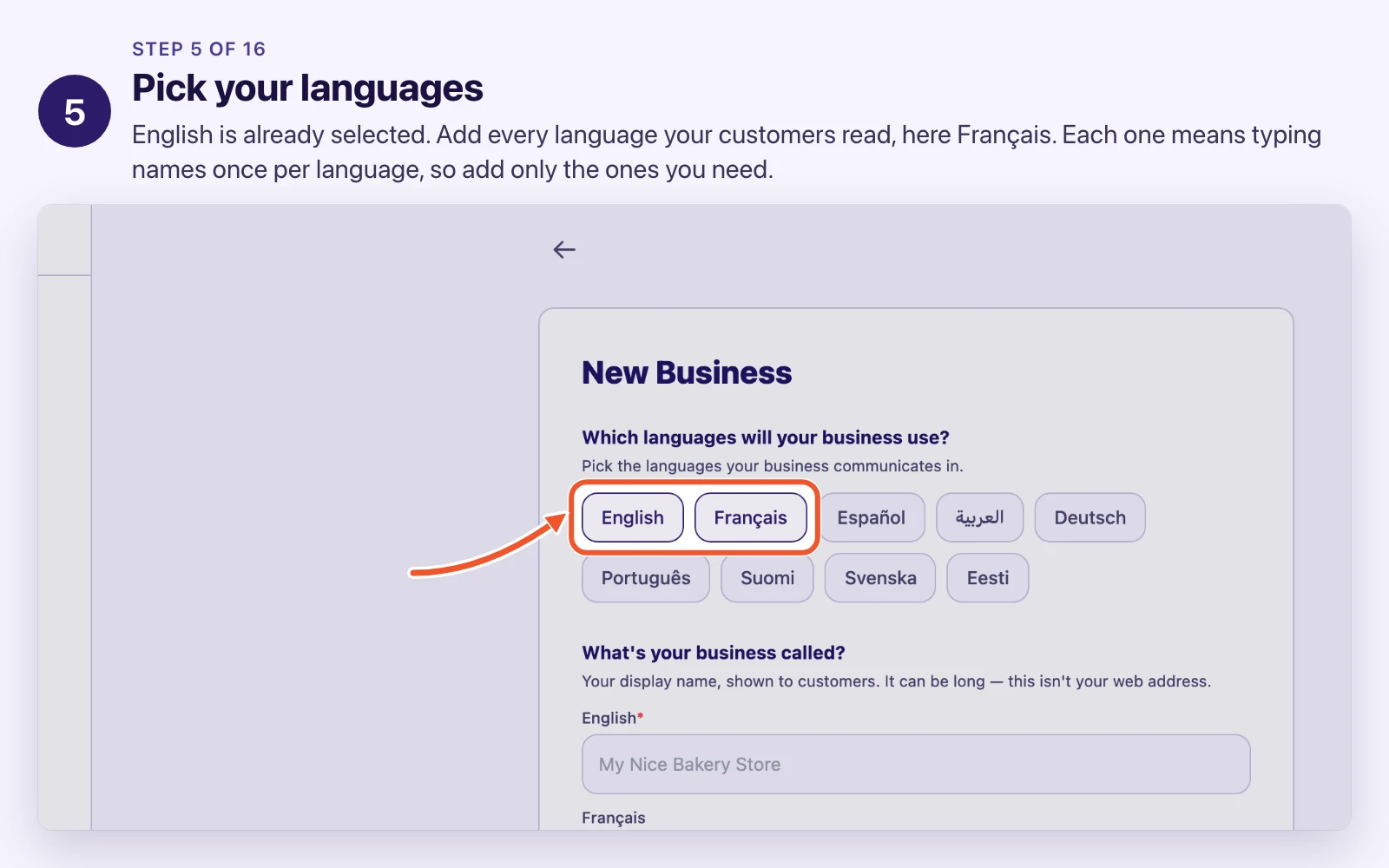
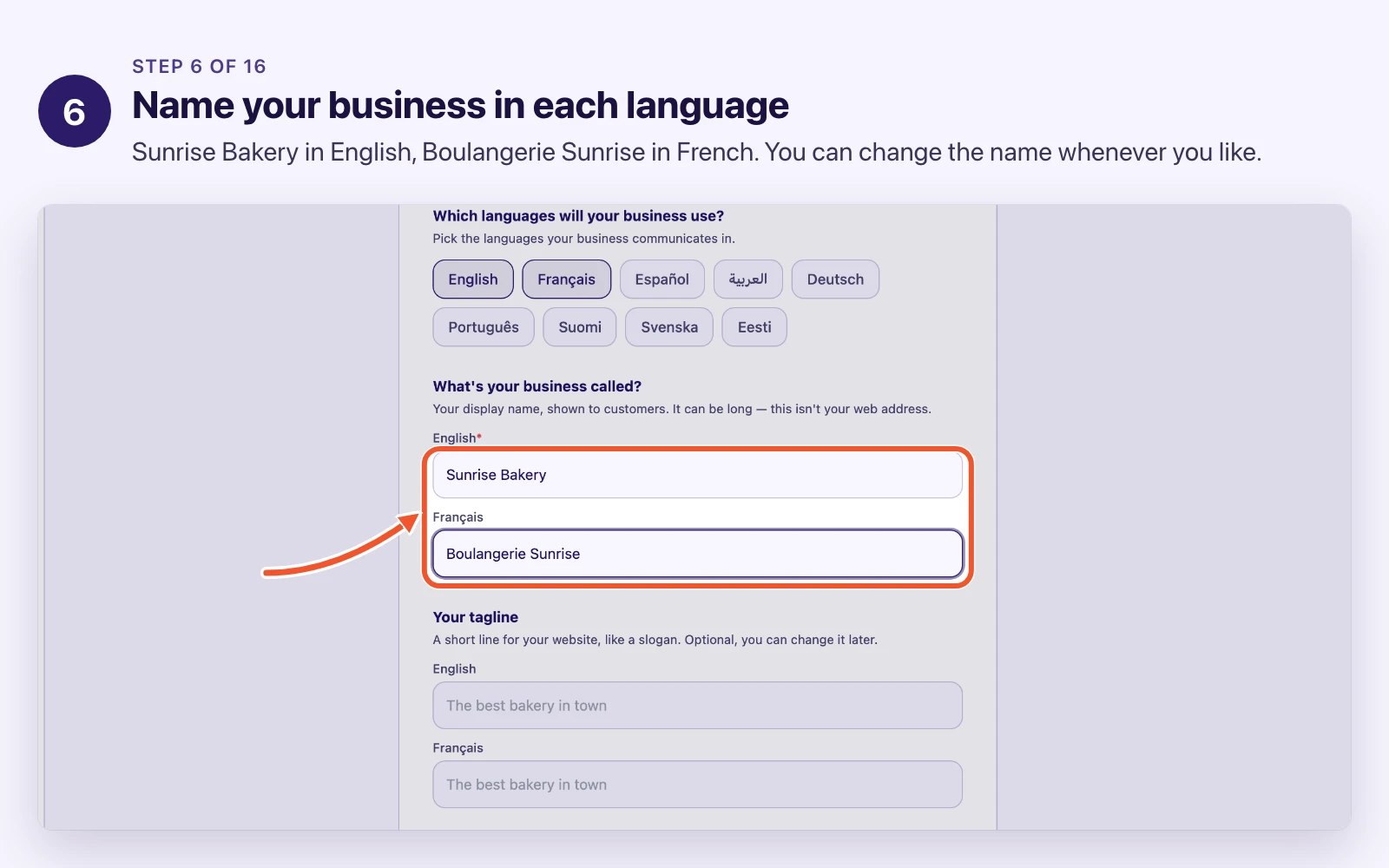
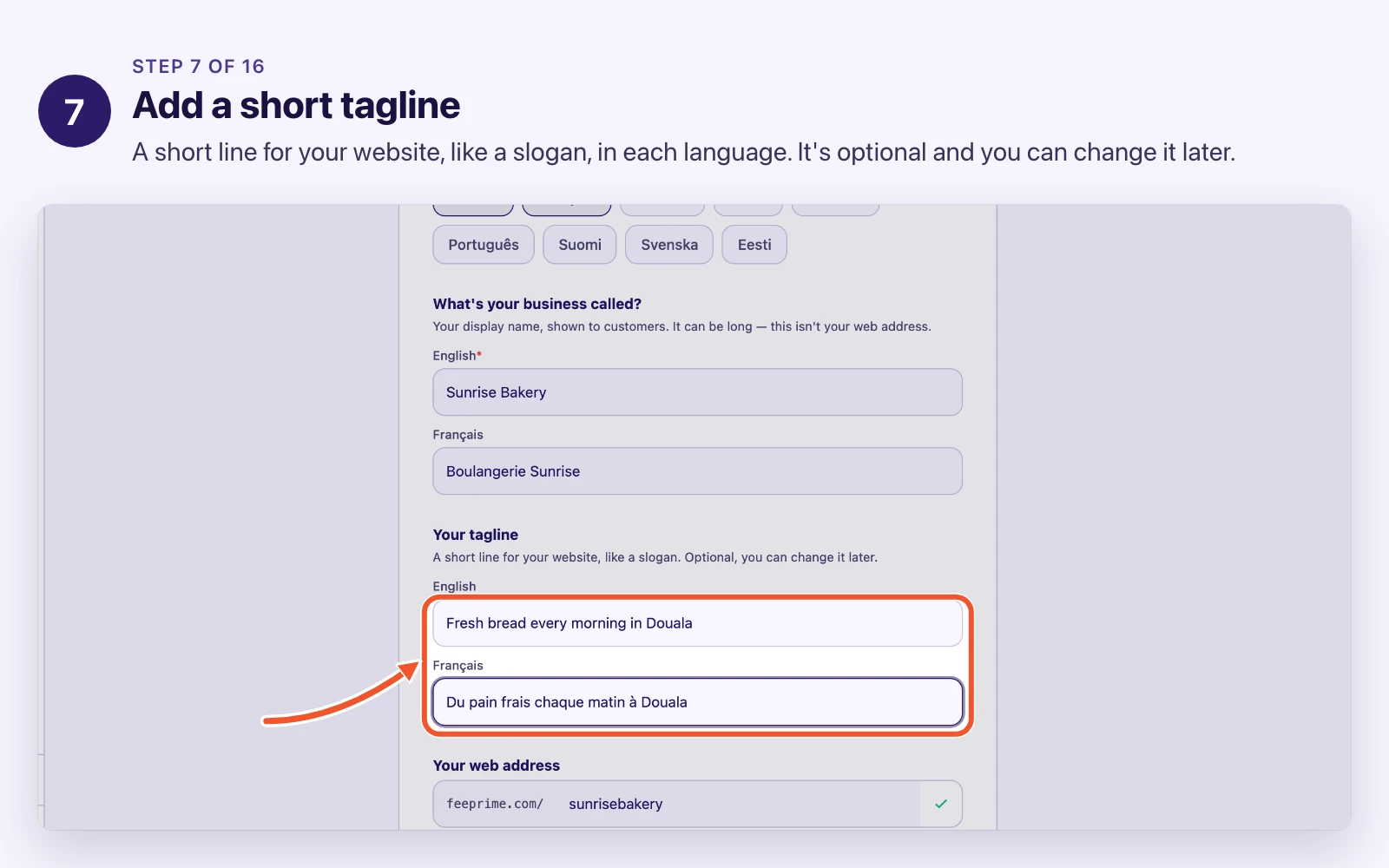
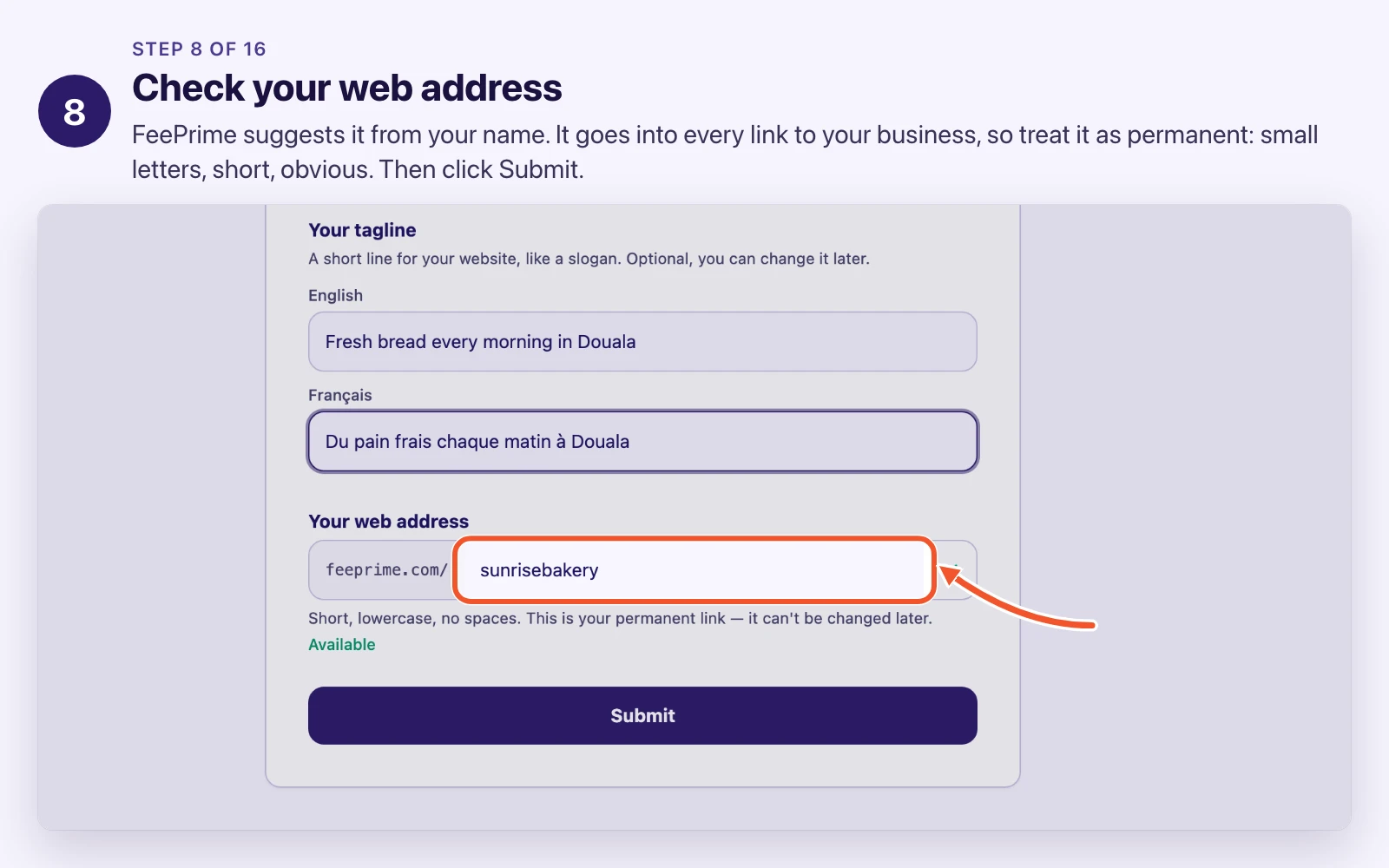
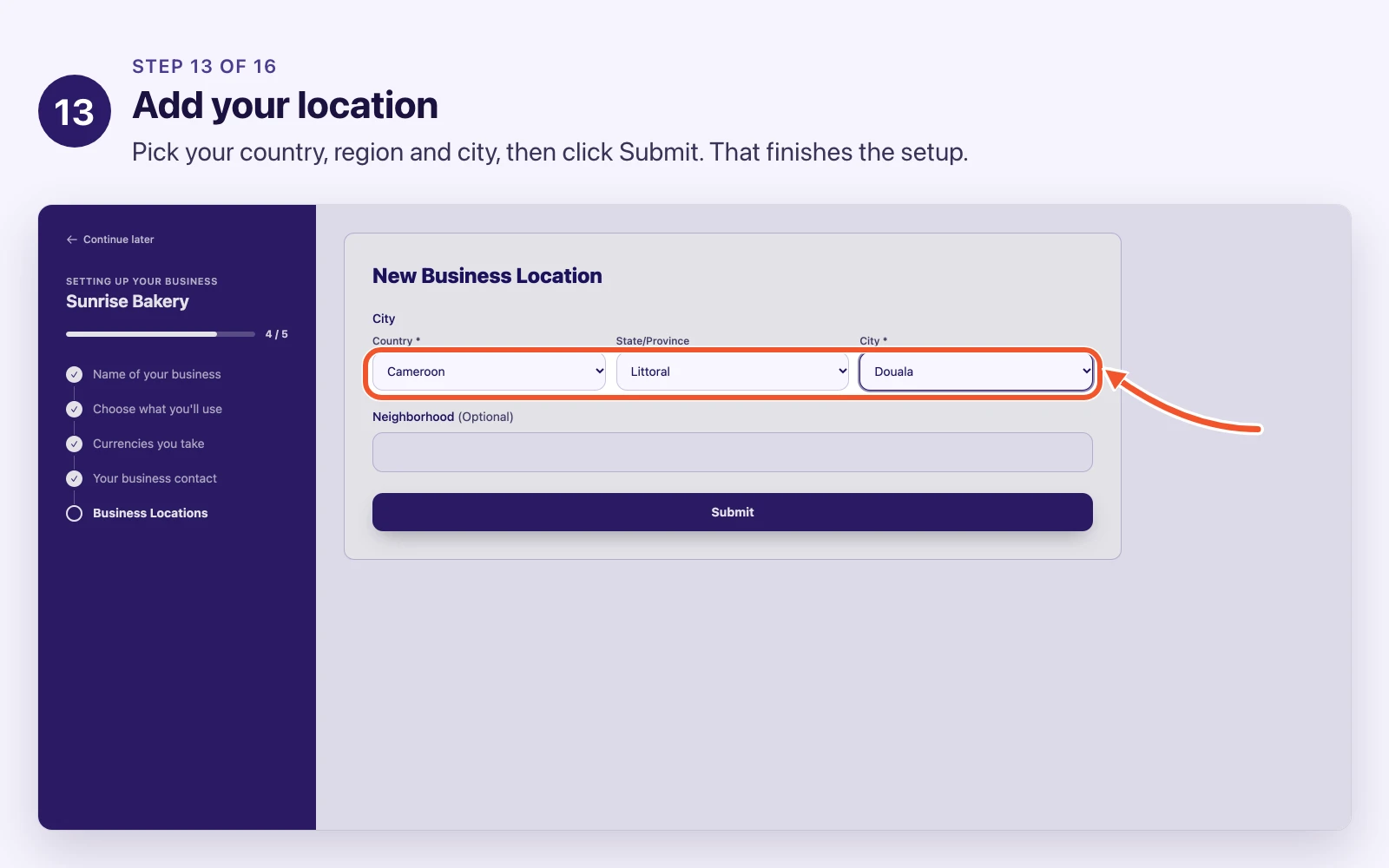
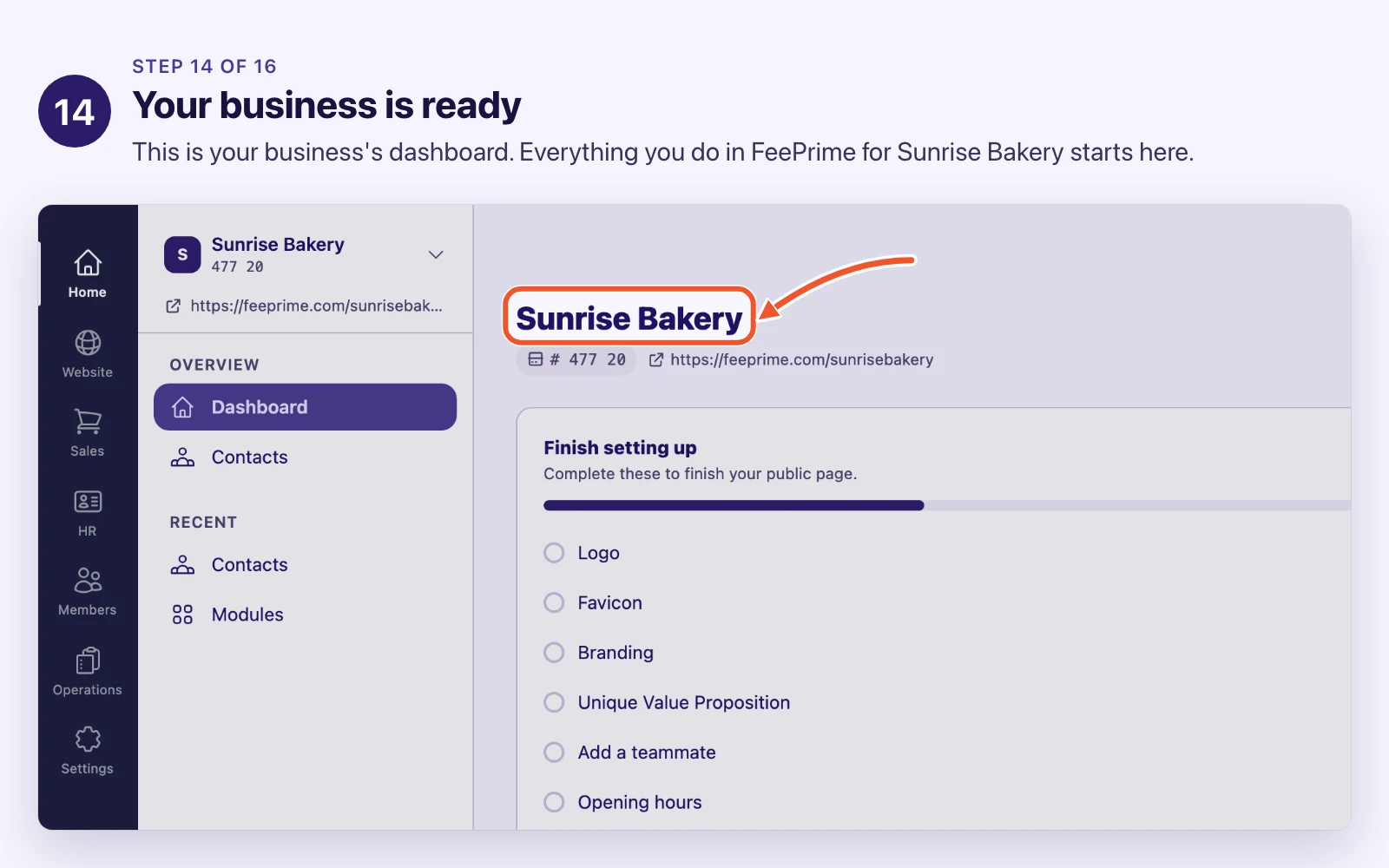
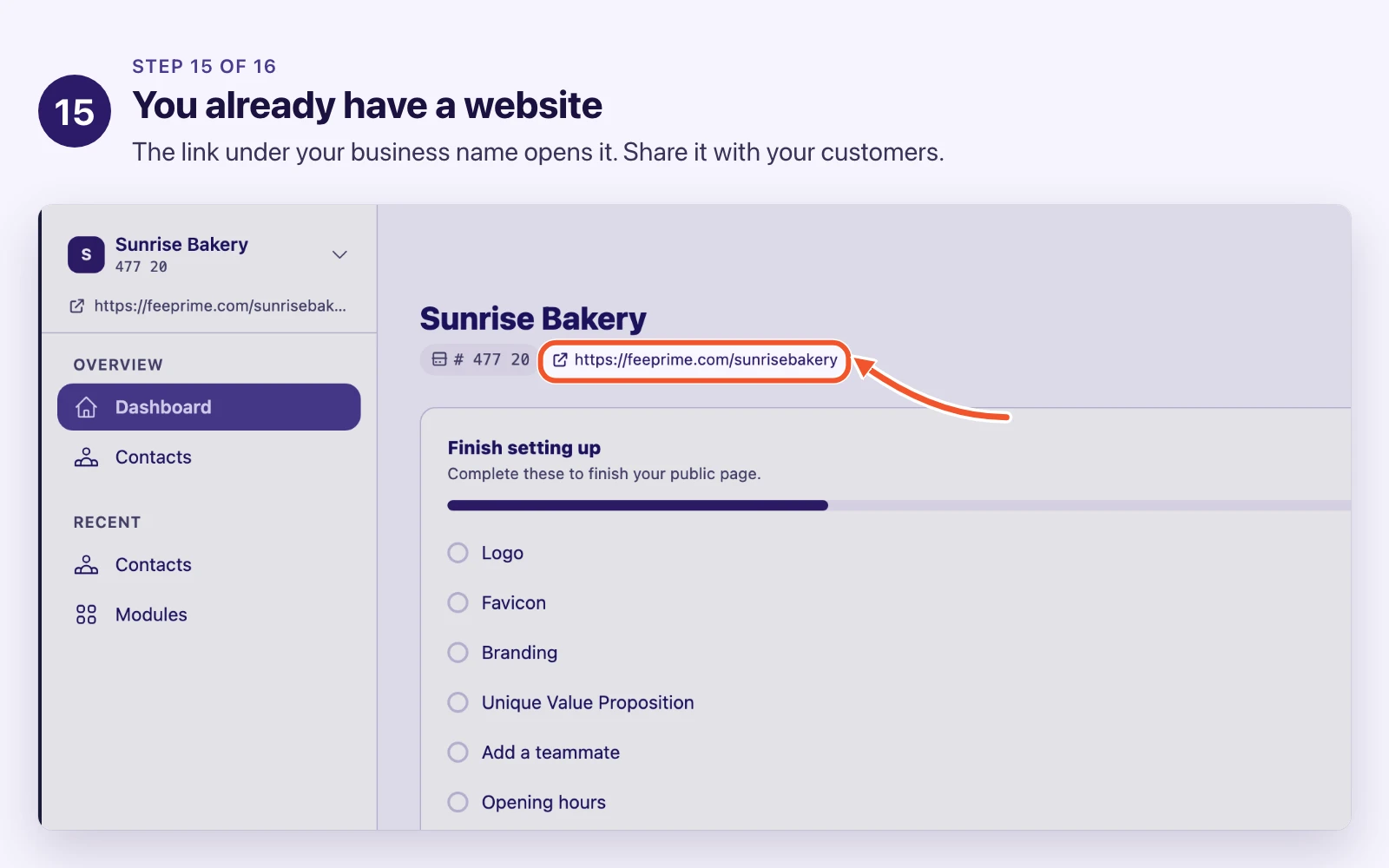
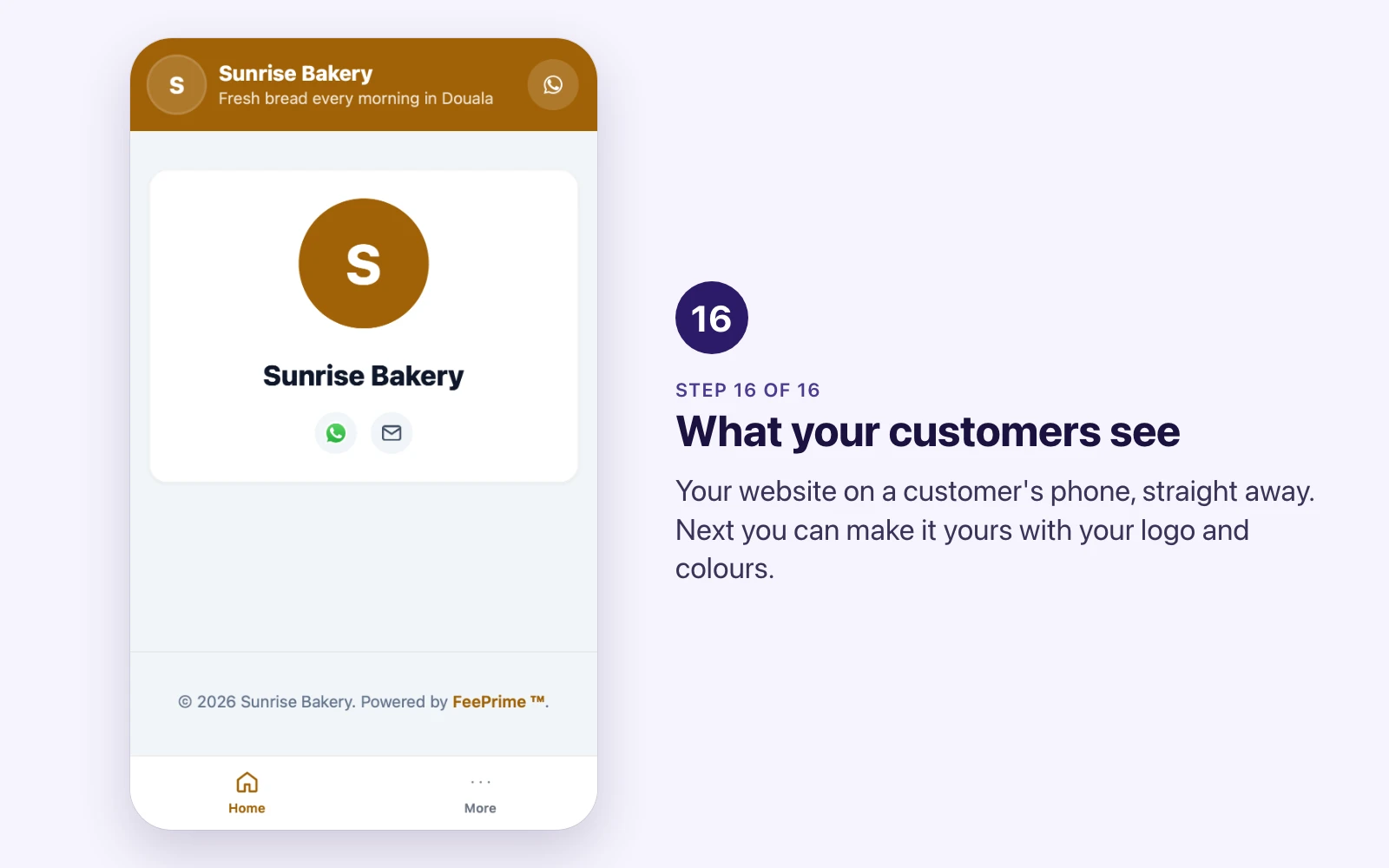
The video with this lesson shows the whole setup in about two minutes. The pictures below follow it screen by screen, and the gallery has the same pictures if you would rather flip through them.
1. The setup, screen by screen
2. Treat your web address as permanent
Your business has a display name, like Sunrise Bakery (and Boulangerie Sunrise in French). Separately, it has a web address: a short word in small letters with no spaces, like sunrisebakery.
You can change your display name whenever you like. Never rush the web address. It becomes part of every public link your business shares:
   feeprime.com / sunrisebakery / en / products
                  ^^^^^^^^^^^^^    ^^
                  web address      language
FeePrime suggests one from your name. Check it carefully before clicking Submit. Do not put a year or a single branch name in it. If Amina picks sunrise-akwa-2026 and opens a Bonapriso shop next year, changing that web address breaks every printed flyer, WhatsApp link, and bookmark Hôtel Akwa already saved.
3. Lock in languages and currencies before anyone enters data
These two settings are the ones shops regret rushing.
- Languages (
Settings / Business / Organisation Languages): Every language you switch on adds an extra input box on products, offers, and pages — so one loaf can be Bread in English and Pain in French. Only pick languages your customers genuinely read. Adding a second language after 500 items exist leaves 500 blank names to backfill; adding extra languages “just in case” slows down staff forever. - Currencies (
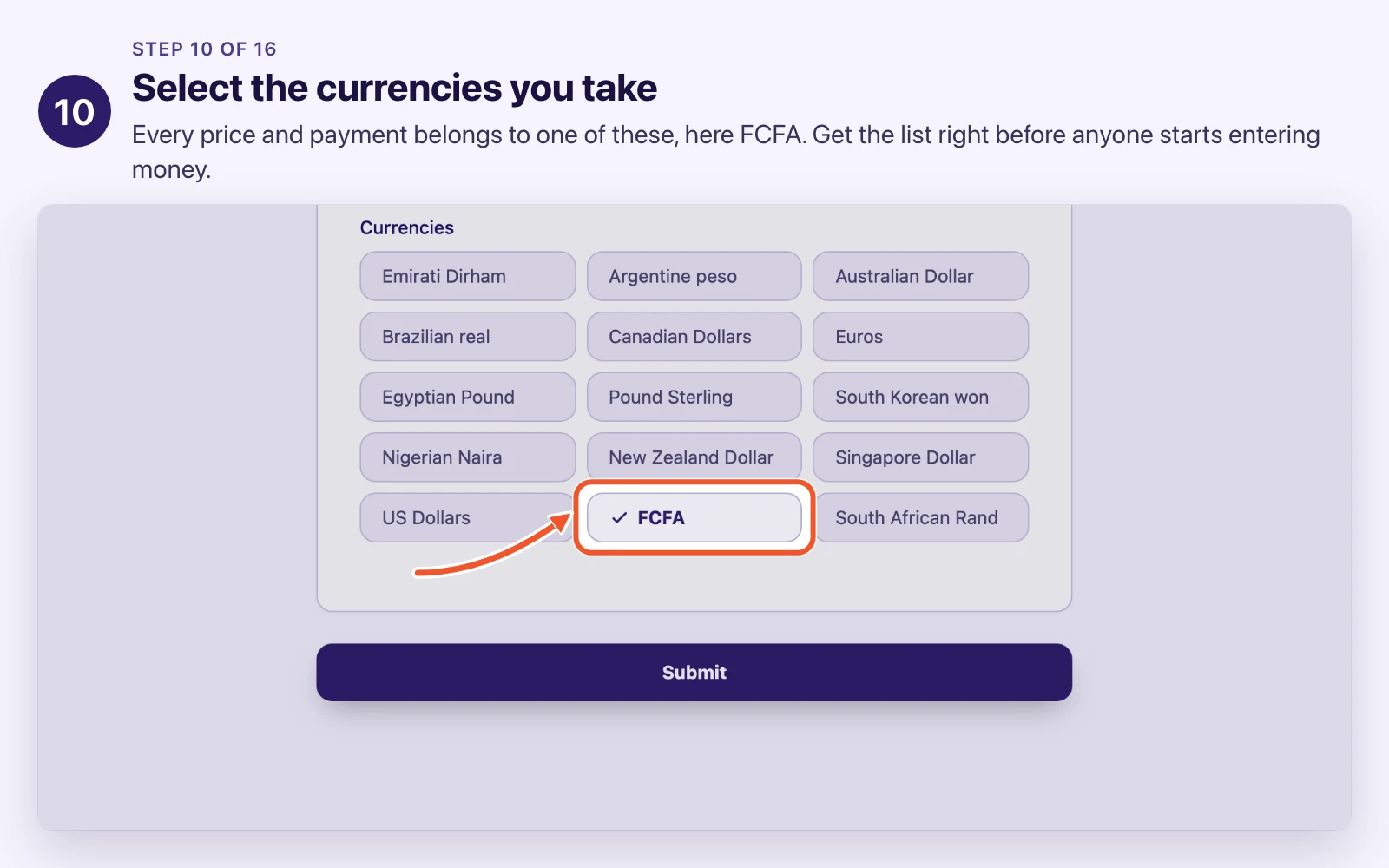
Settings / Business / Currencies): Every price and payment belongs to a currency on this list, such as FCFA (XAF). You can add a new currency later, but you cannot rewrite the currency on payments already recorded.
One neighbourhood shop selling in French and FCFA only? Keep it to French and FCFA. Nothing breaks, and daily work stays twice as fast. Bilingual clients like Hôtel Akwa or cross-border EUR orders? Switch both on now.
4. Start lean with modules and keep your business contact clean
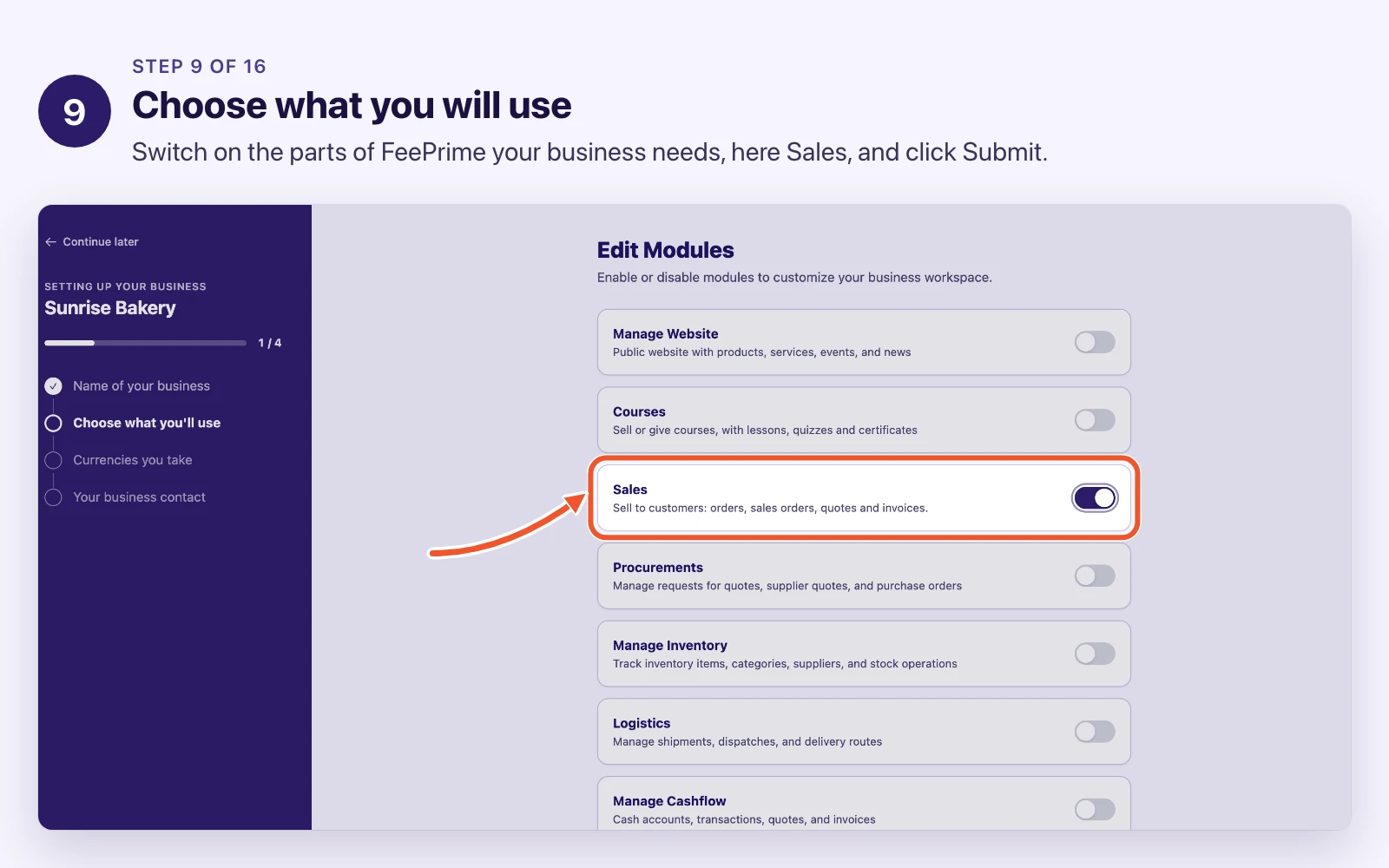
On Step 9, switch on only what you will use this week — for example Sales. You can turn on Cash, Inventory, or Procurements anytime later under Settings / Business / Modules. Starting lean keeps the sidebar calm for Paul the cashier.
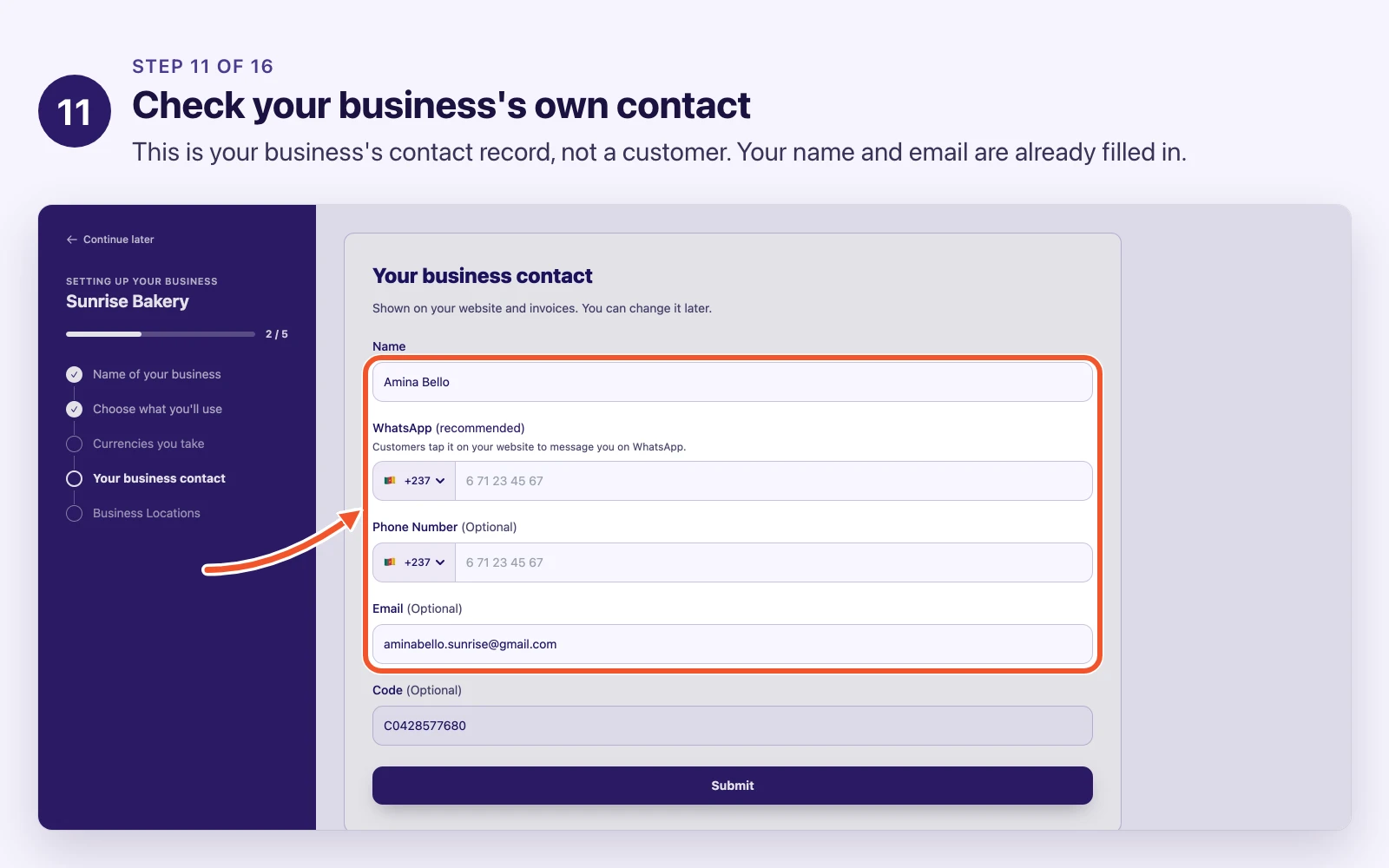
On Step 11, FeePrime shows a contact already filled in with your name and email. Do not overwrite it with your first customer. That record is your business’s own contact — how customers reach Sunrise Bakery. Real customers like Nadège Fouda or Hôtel Akwa belong later under Sales / Customers / Contacts.
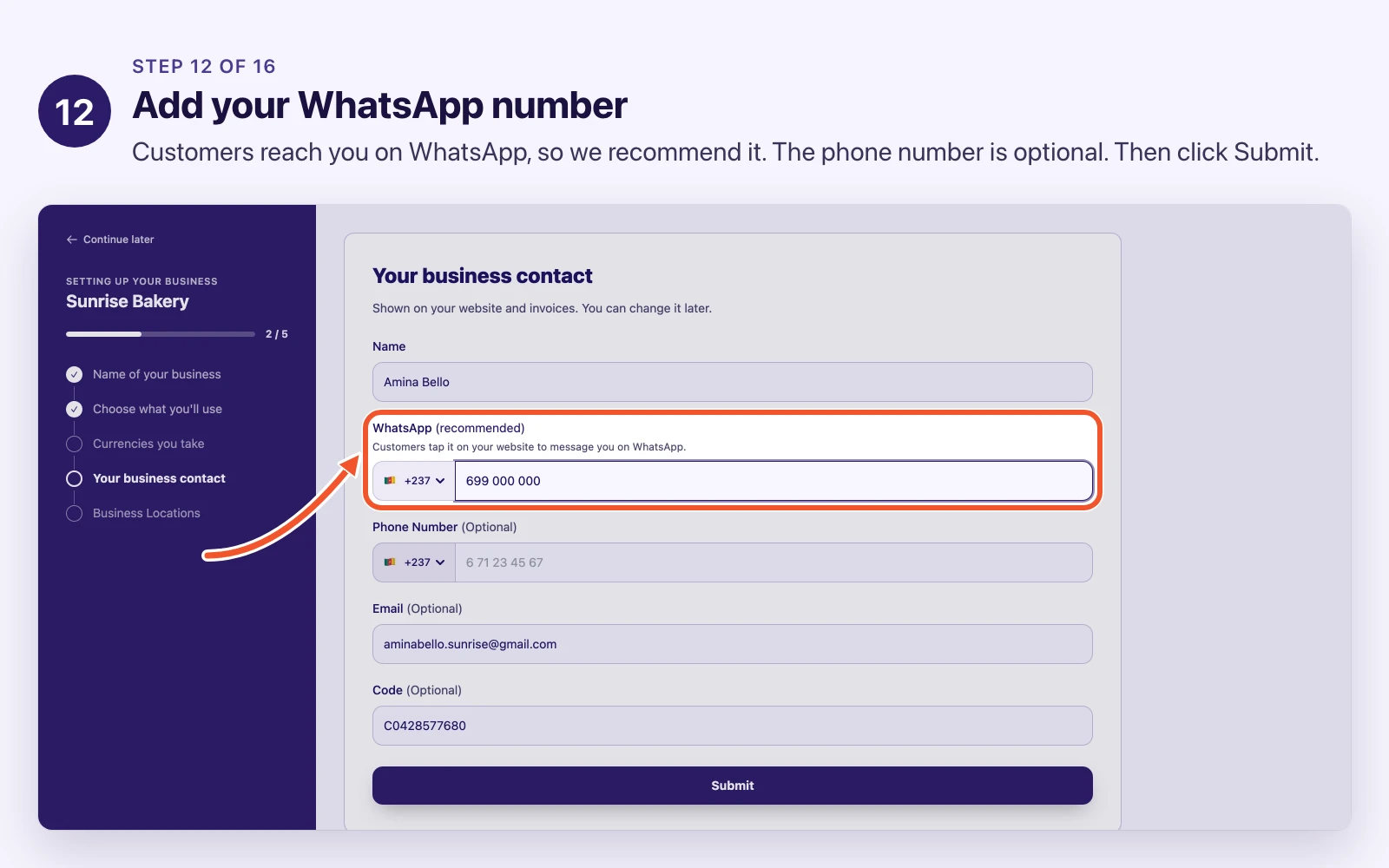
Add your shop’s WhatsApp number and city (editable later under Settings / Business / Business Locations). That WhatsApp number powers the chat button on your live website, and your business contact prints on invoices. As soon as setup finishes, your website is already live — you can add your logo and colours next under Website / Site / Organisation Branding.
Try it
Practice on staging.feeprime.com — a practice copy of FeePrime, kept apart from the real thing.
- Open staging.feeprime.com, enter your email, and verify the six-digit code from your inbox.
- On your Home page under My Businesses, click Start A New Business.
- Create a practice shop: select your languages, pick a short lowercase web address with no spaces, enable Sales, and select FCFA.
- Confirm your business contact, add a WhatsApp number and city, and finish setup.
- From the dashboard, tap the link under your business name on your phone to inspect your live website, then open Settings / Business to see where your modules, languages, and currencies live.
That quick loop — adjust a detail in FeePrime, refresh your public link, and see it live — is the everyday rhythm of running your shop here.