
Navigating menus, Contacts, approvals, and audit trails
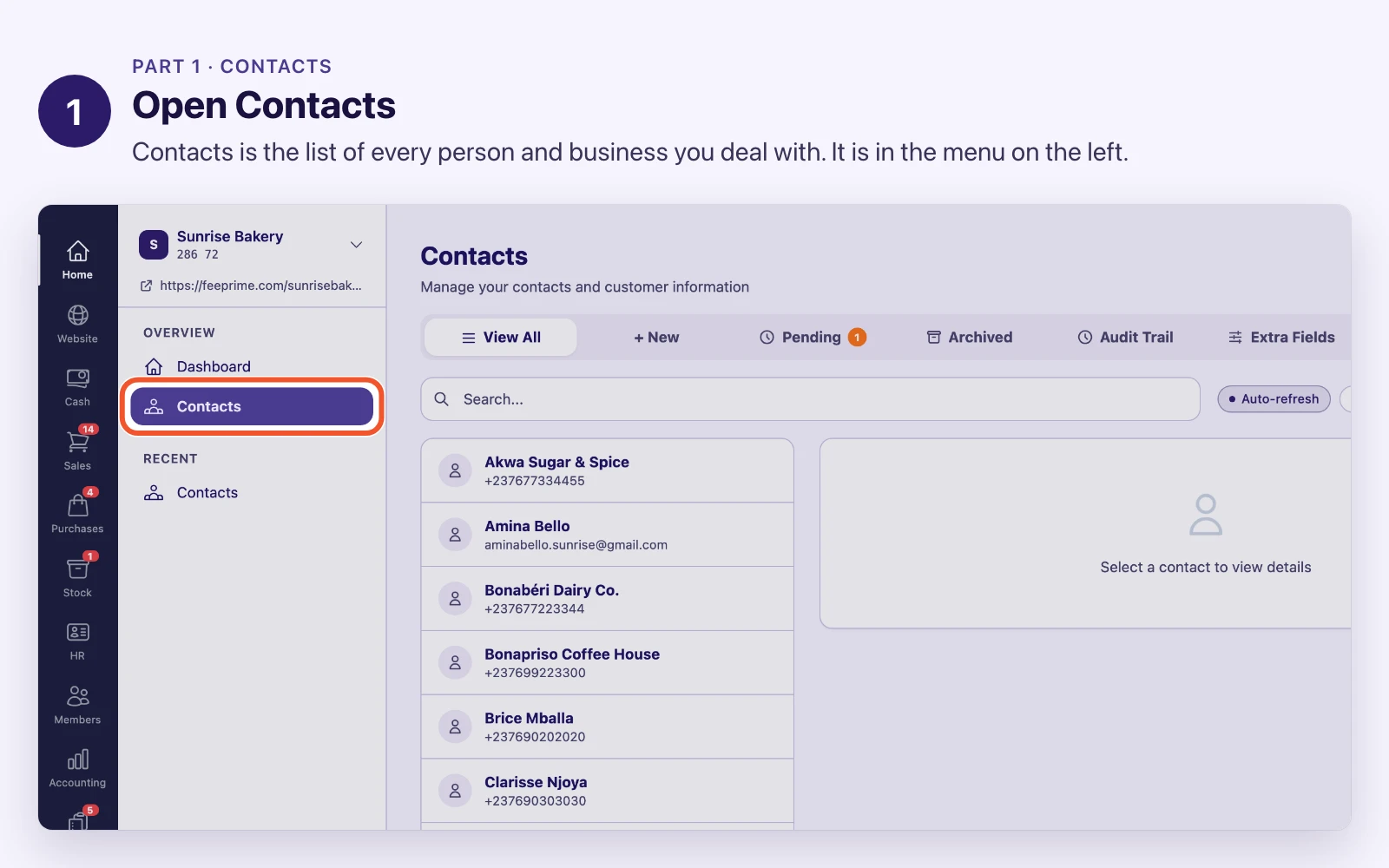
Before you start, sign in and open Sales / Customers / Contacts.
Can’t find it? It may be turned off for your business, or your account may not be allowed to open it. Ask the person who set up your FeePrime. They can fix both.
On day one at Sunrise Bakery, Paul the cashier opens FeePrime and sees dozens of tools—Sales, Cash, Purchases, Stock, HR, Settings. It looks big until you notice one rule: almost every screen in FeePrime works the exact same way. Learn Contacts once, and you already know how to search, filter, approve, audit, and archive across quotes, bills, stock, and cash.
The three-minute video walks through it live, and the screens below follow along step by step.
1. Contacts: one shared list for everyone
Contacts holds every person and business you deal with—customers, suppliers, and staff—in one list shared by the Akwa bakery, the Bonapriso shop, and the Marché Central stall.
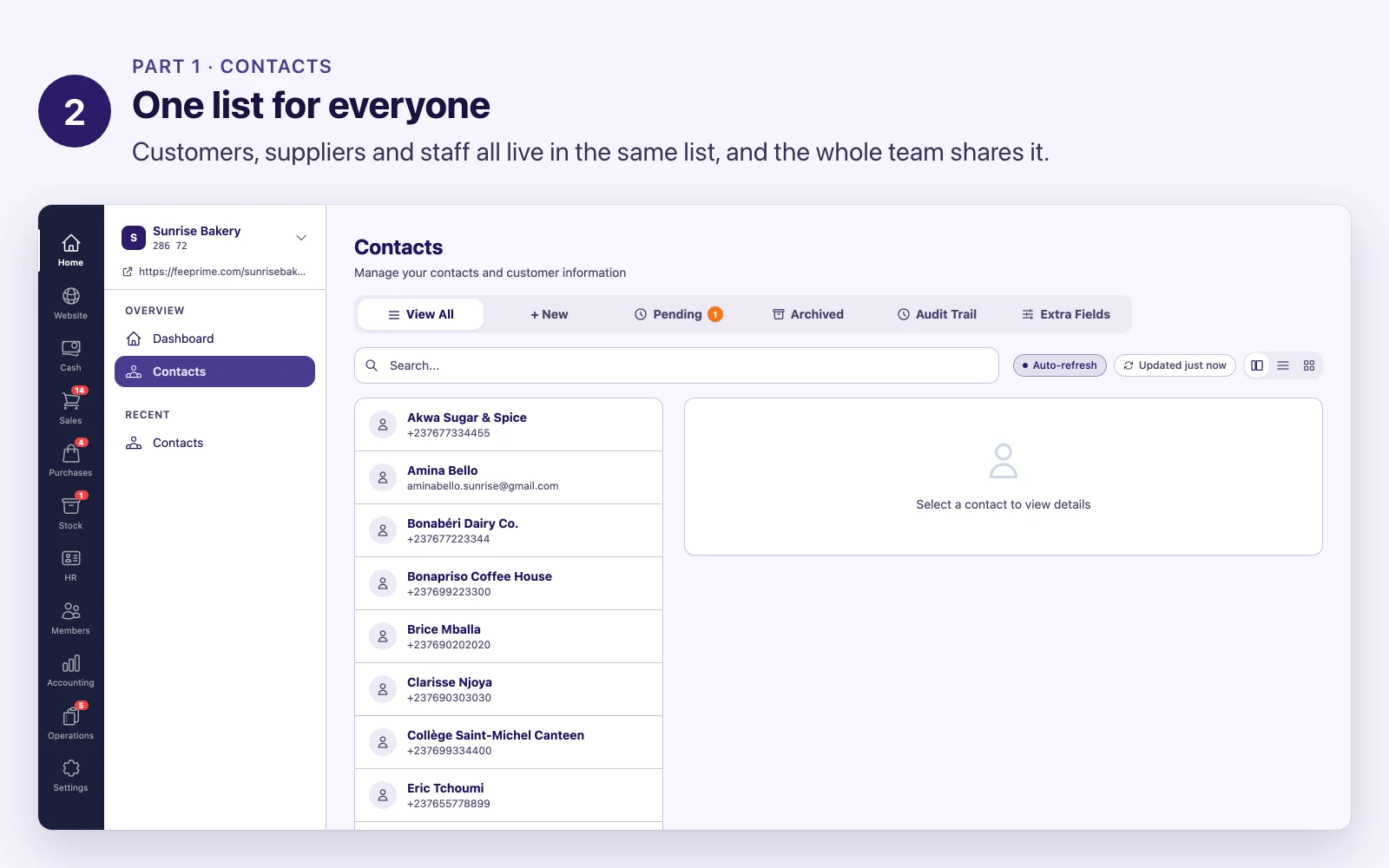
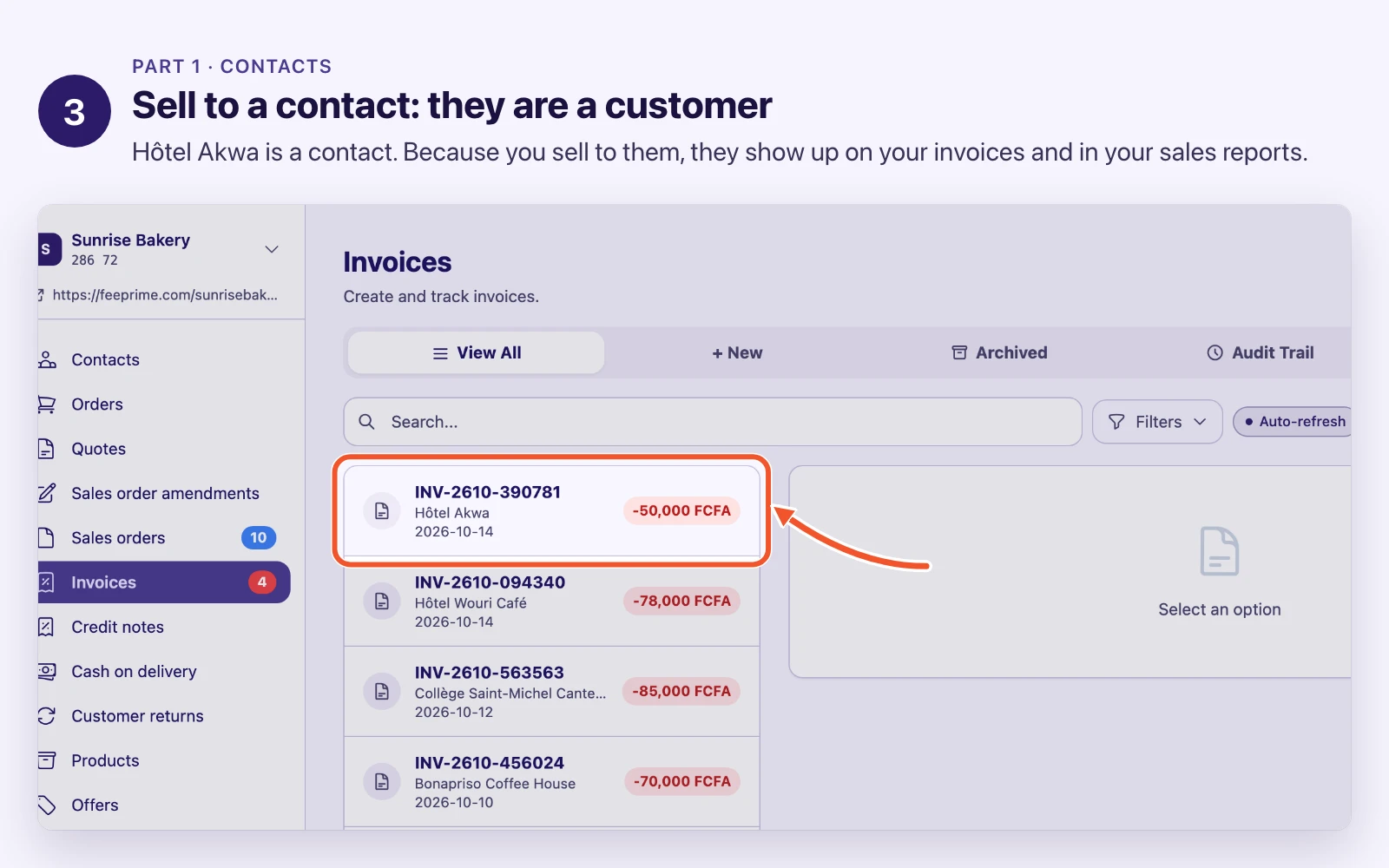
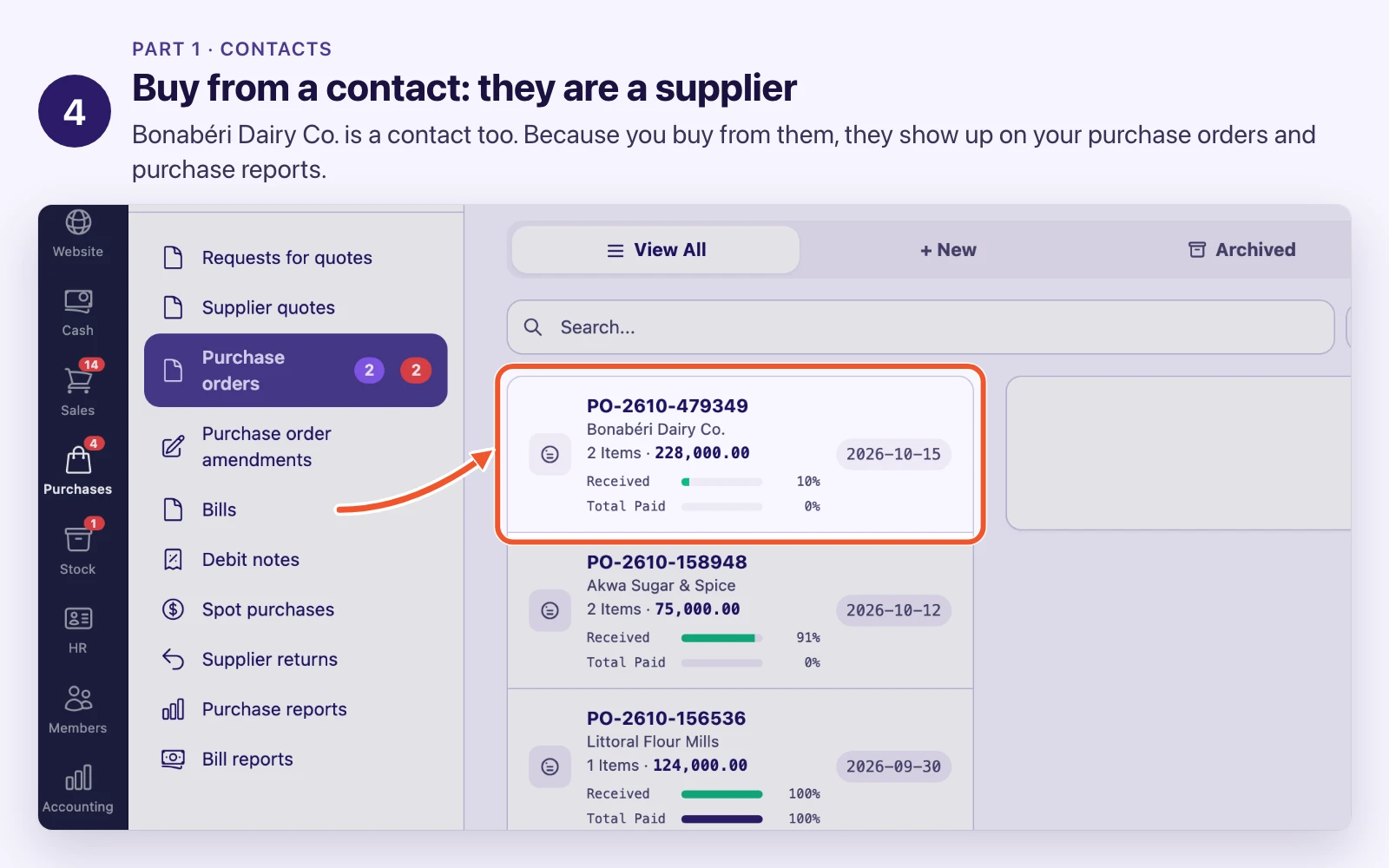
A contact is never locked into one label. It takes its role from what you do with it:
- Sell to them and they are a customer on quotes, sales orders, invoices, and sales reports.
- Buy from them and they are a supplier on purchase orders, bills, and purchase reports.
- Employ them and they appear in HR.
Many partners are both. Sunrise Bakery buys 50kg flour bags from Douala Mill, and the same mill orders 400 croissants every Friday. Keep one contact: fix their WhatsApp number once and every invoice and bill updates together.
FeePrime assigns each contact a short code (such as C001) so two people with the same name stay distinct. Do not type over it unless your shop runs its own numbering scheme.
2. The grouped sidebar menu
The dark bar on the far left groups FeePrime by job: Sales, Cash, Purchases, Stock, HR, and Settings. Click a job and its modules open beside it under labelled workflow groups:
Dark bar (Job)     Workflow group     Module
-----------------------------------------------------------
Sales          ->  Customers      ->  Contacts, Affiliates
               ->  Selling        ->  Quotes, Sales Orders, Invoices
               ->  Catalogue      ->  Products, Offers
Purchases      ->  Ordering       ->  Purchase Orders
               ->  Paying         ->  Bills
Stock          ->  Movements      ->  Goods Receipts, Picking, Shipments
Cash           ->  Tills          ->  Tills, Till Sessions
Settings       ->  Business       ->  Modules, Stores, Taxes
               ->  Access         ->  Members
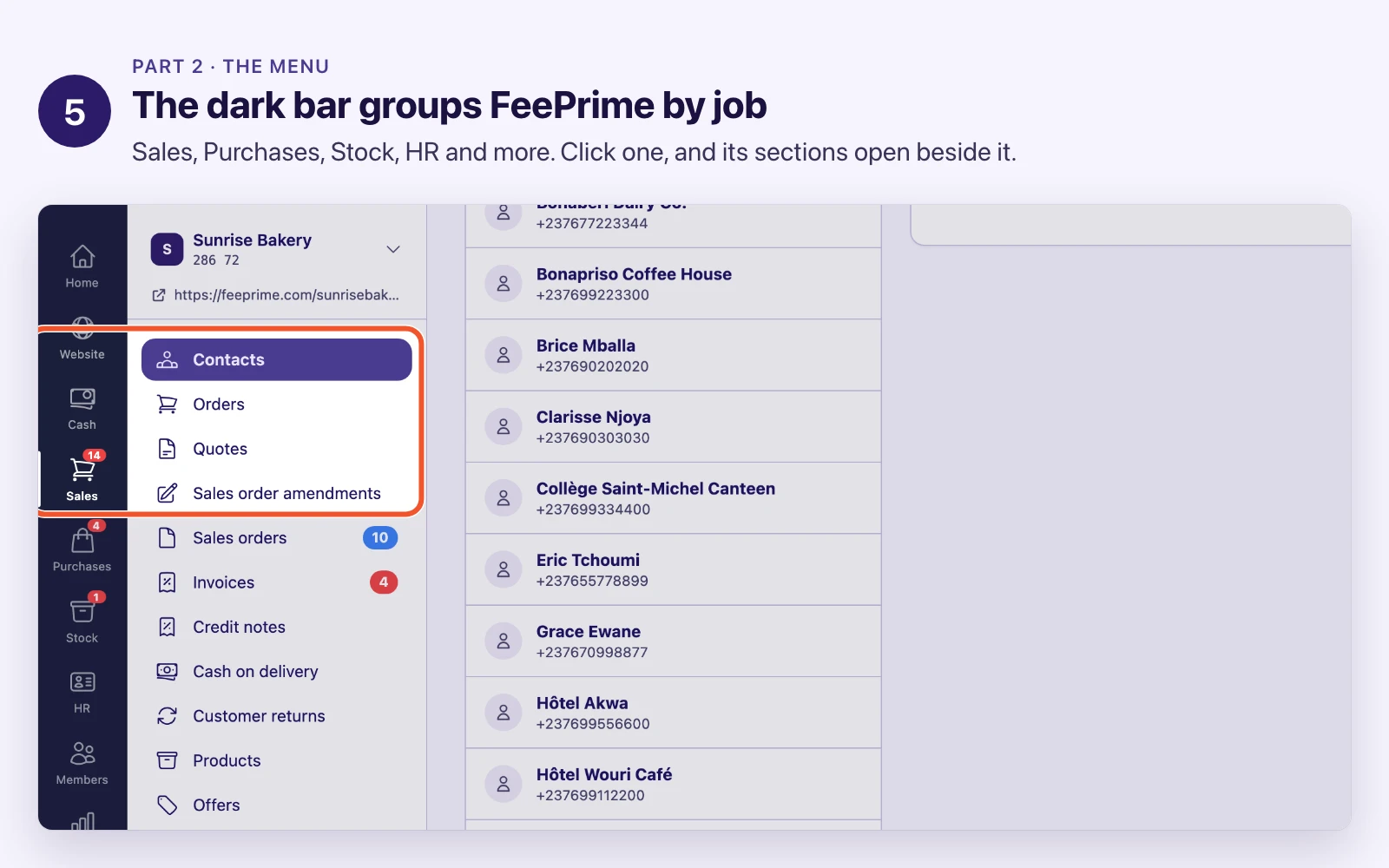
Most staff spend their whole shift inside one or two groups—ignore the rest. If a colleague mentions a menu you do not see, nothing is broken: either it is turned off in Settings / Business / Modules, or your role does not need it.
3. Every list works the same
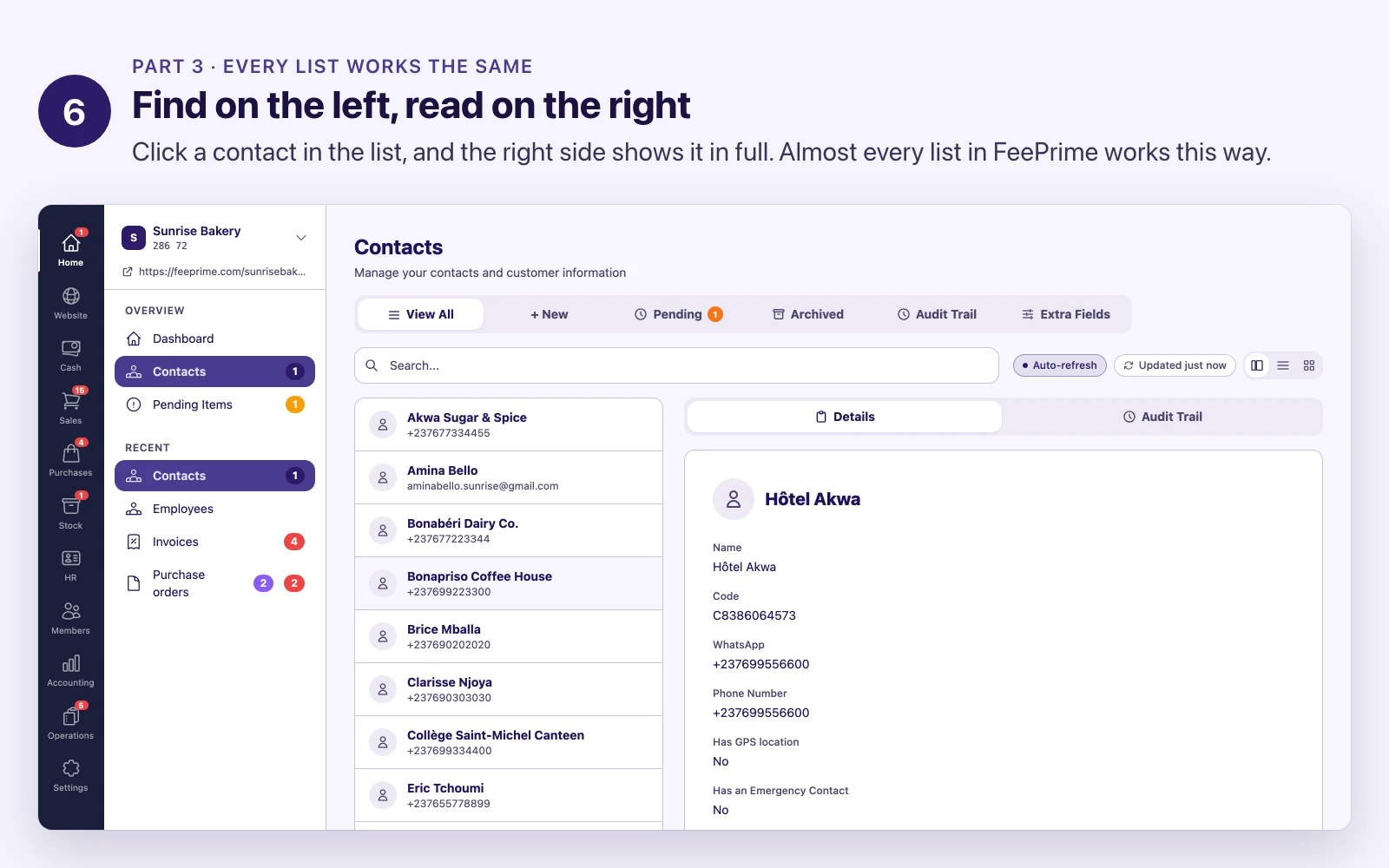
Open almost any module and you see the same split screen: find records on the left, read and act on them on the right.
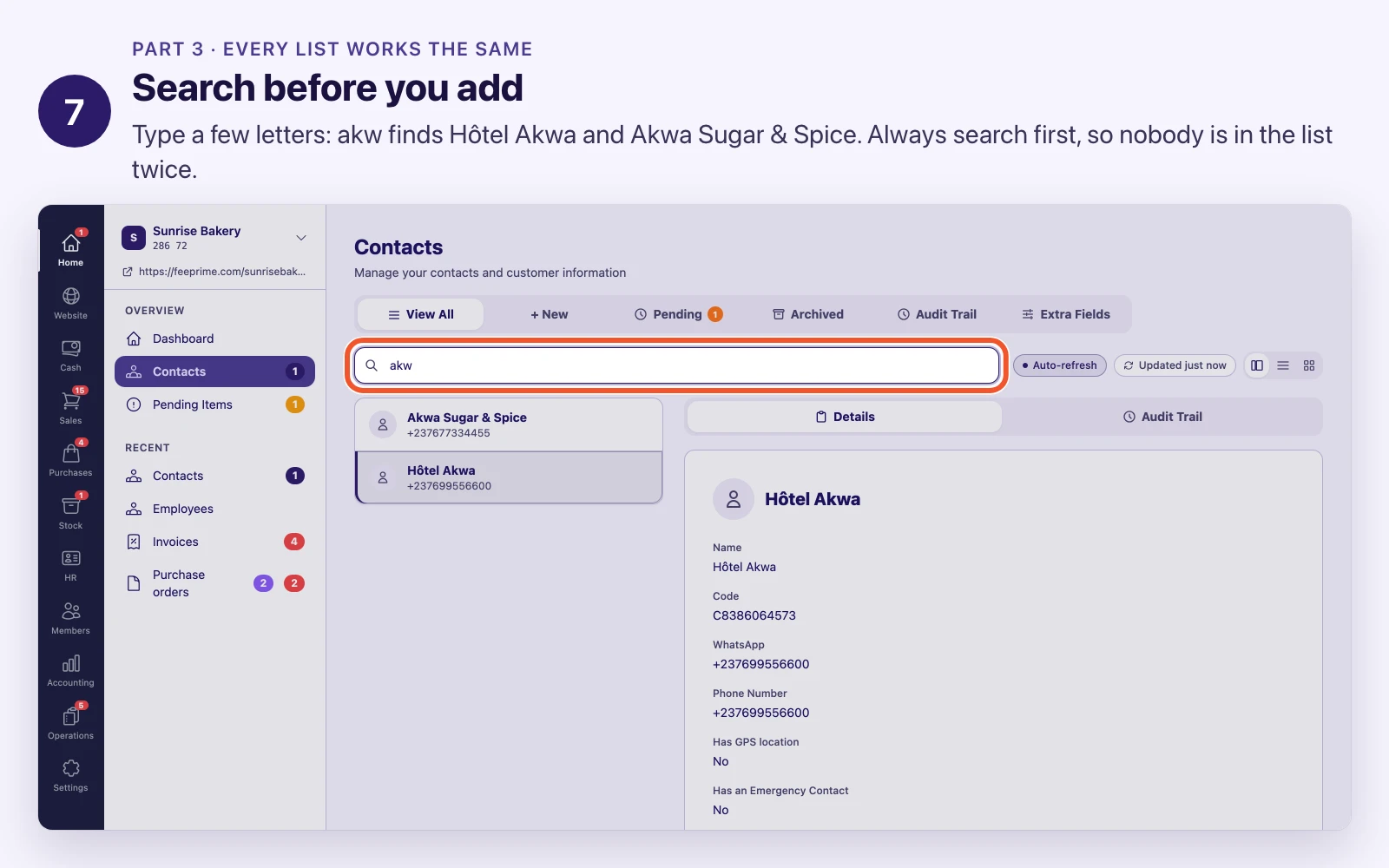
Search before you add. Type two or three letters in the search box—akw finds both Hôtel Akwa and Akwa Sugar & Spice, even when you are unsure of the spelling.
Entering the same buyer twice (Awa Ndiaye and Ndiaye, Awa) splits what they owe across two balances. FeePrime warns you when a new contact looks like someone who may already exist—when that banner appears, stop and open the existing record. Still search first every time so nicknames and short names are caught before you type.
Long lists split into pages at the bottom. If a search looks empty, confirm you are on page 1.
Three views, one search. The buttons beside the search box switch between list and detail, table (best for comparing numbers), and cards. Your search stays active as you switch.
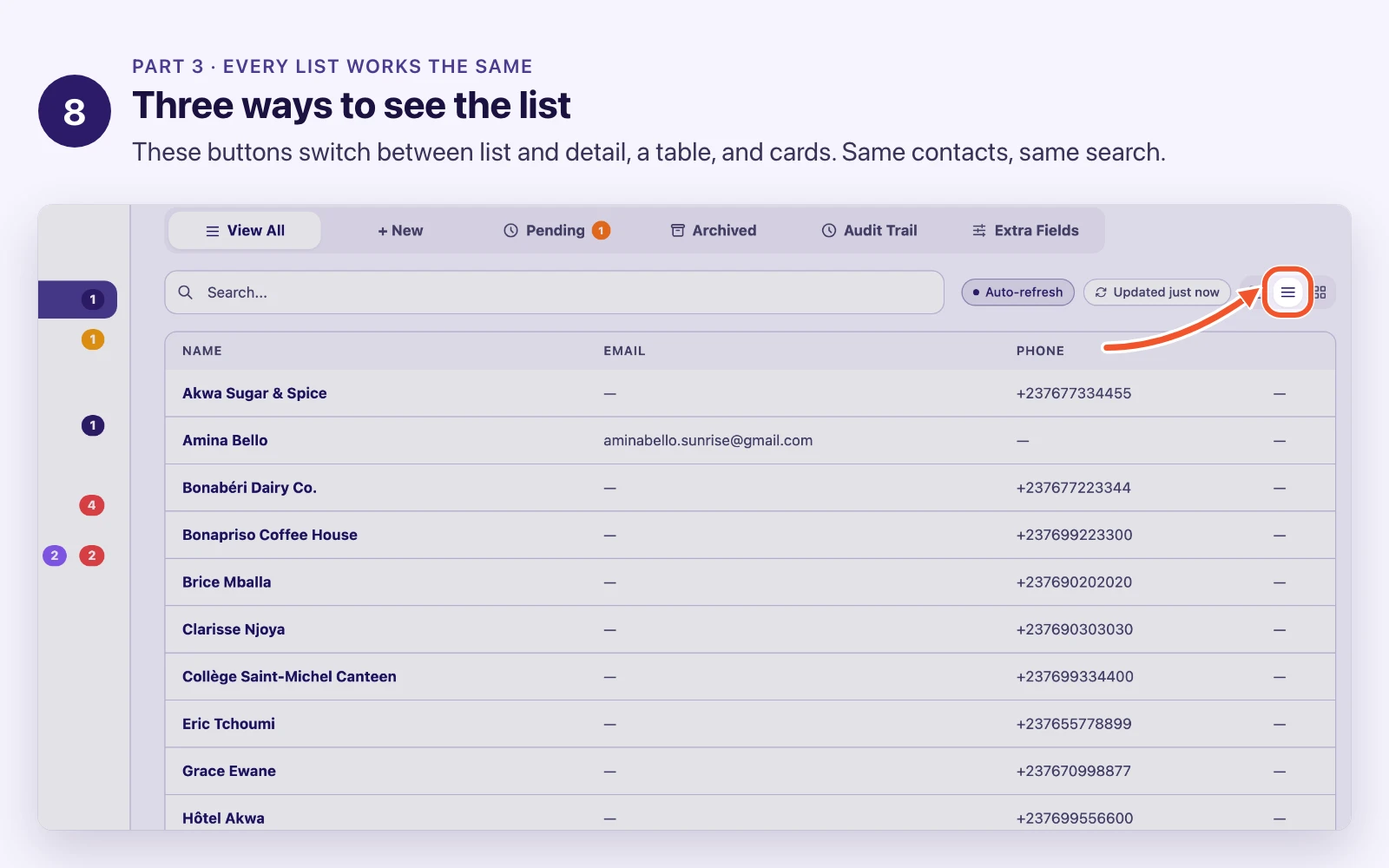
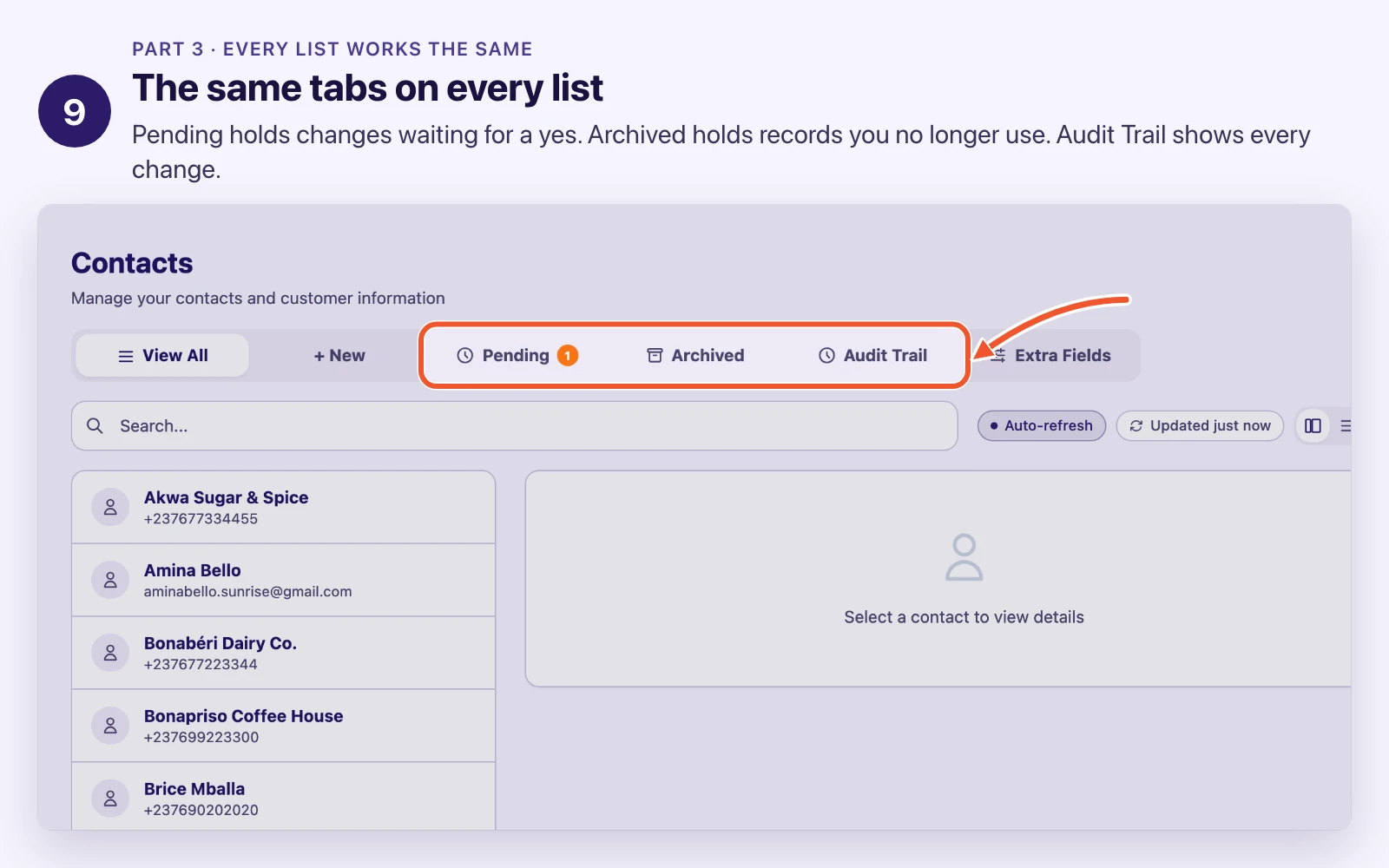
The same three tabs everywhere. Above most lists you will find:
- Pending: edits waiting for a manager to approve (shown only when something is waiting).
- Archived: retired records kept safely out of daily view.
- Audit Trail: every change made on this list.
4. Approvals: changes that wait for a yes
When you save an edit, one of two paths runs:
You save a change
       |
Allowed to approve here?
   |               |
  Yes              No
   |               |
Live now     Waits in Pending -> Approver clicks Approve or Reject
When Paul updates Hôtel Akwa’s phone number, his edit waits in Pending. Amina sees the old number crossed out beside the new one and clicks Approve or Reject. Both decisions are logged.
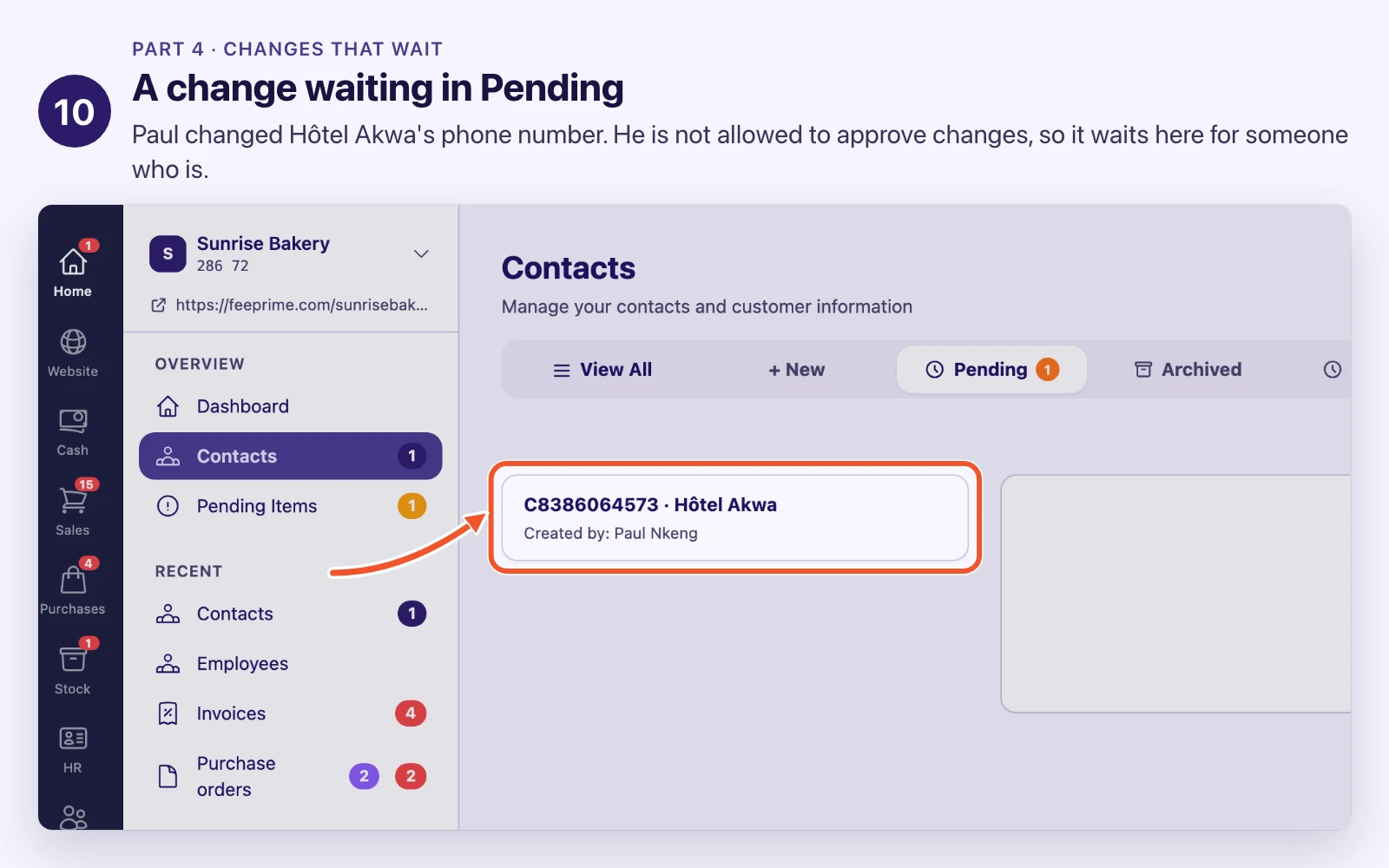
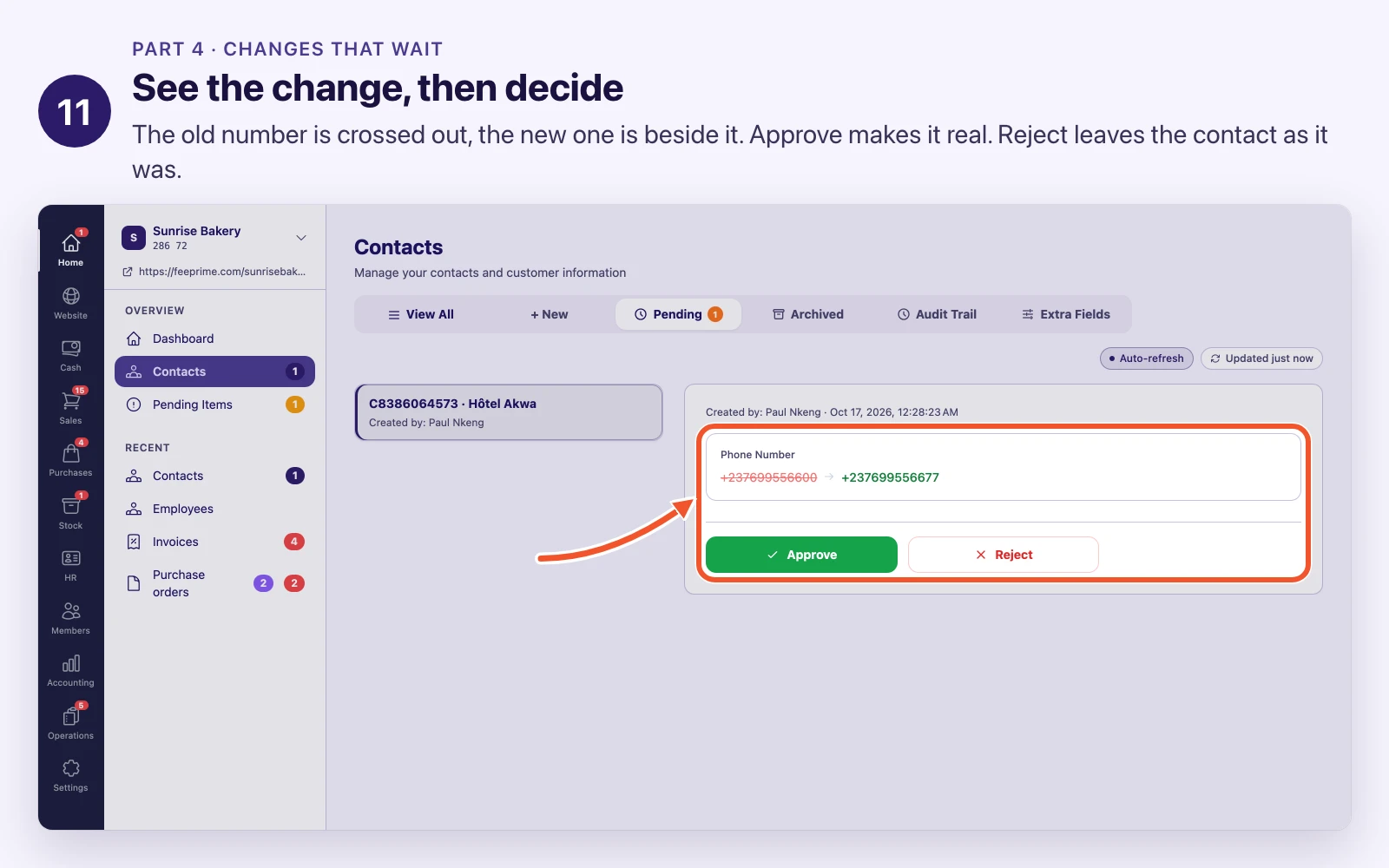
Saved an edit and cannot see it live? Check Pending first. Nothing broke—it is simply waiting for a manager’s yes.
5. The Audit Trail: who changed what
Nothing in FeePrime changes in secret. Open any contact and click Audit Trail to see who edited it, who approved it, when, and every old value crossed out beside the new one (a cleared field shows (empty)).
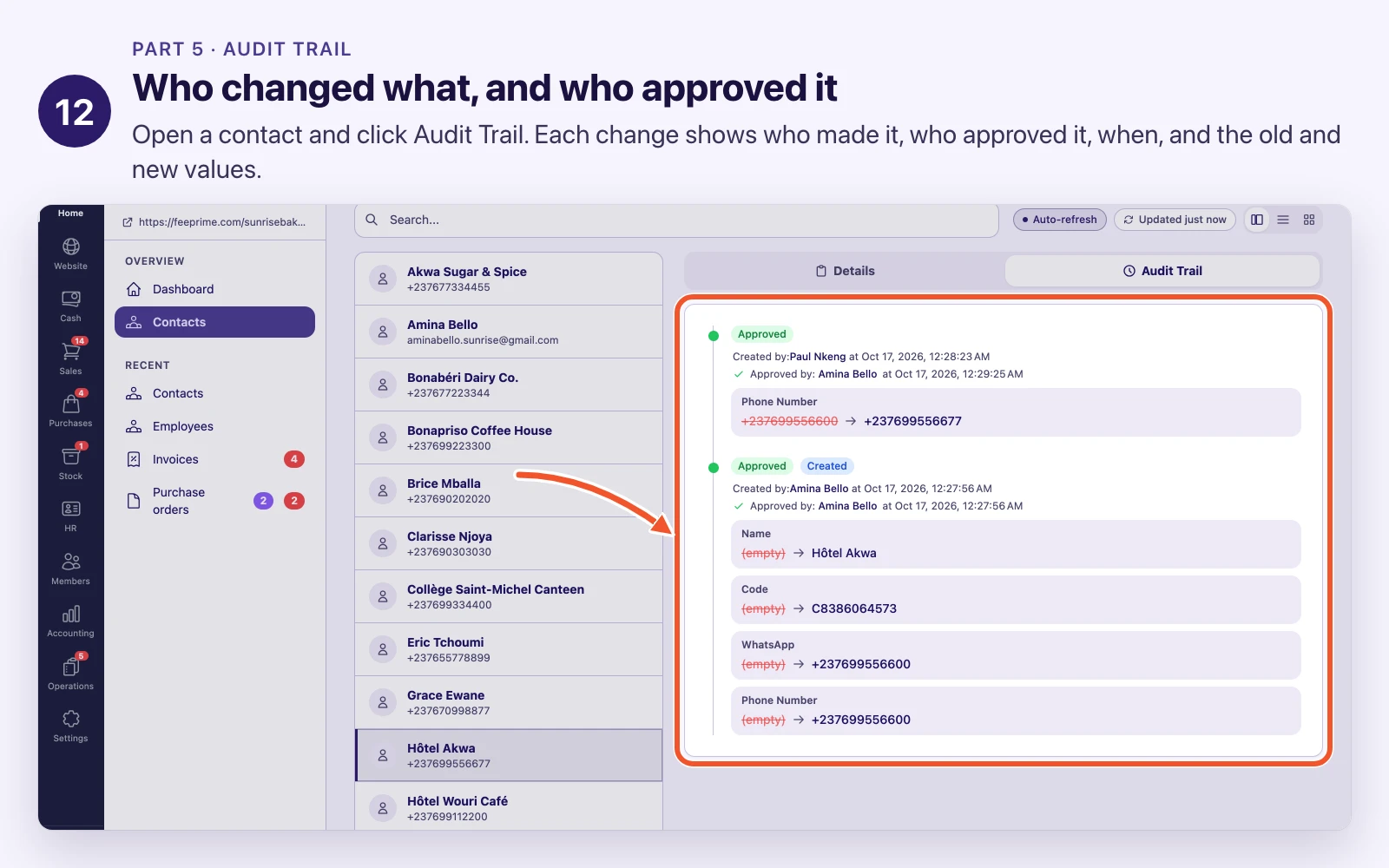
Use the contact’s Audit Trail when you know which record changed, or the list’s Audit Trail above the table when you only know something changed yesterday. Many financial records also carry an unbroken Audit sequence number so accountants can verify nothing was removed.
6. Archive, never delete—and keep setup simple
When you stop trading with a partner, click Archive. The record leaves your daily list while staying linked to every past invoice and bill so last year’s accounts remain accurate. Need them back? Open Archived and click Restore.
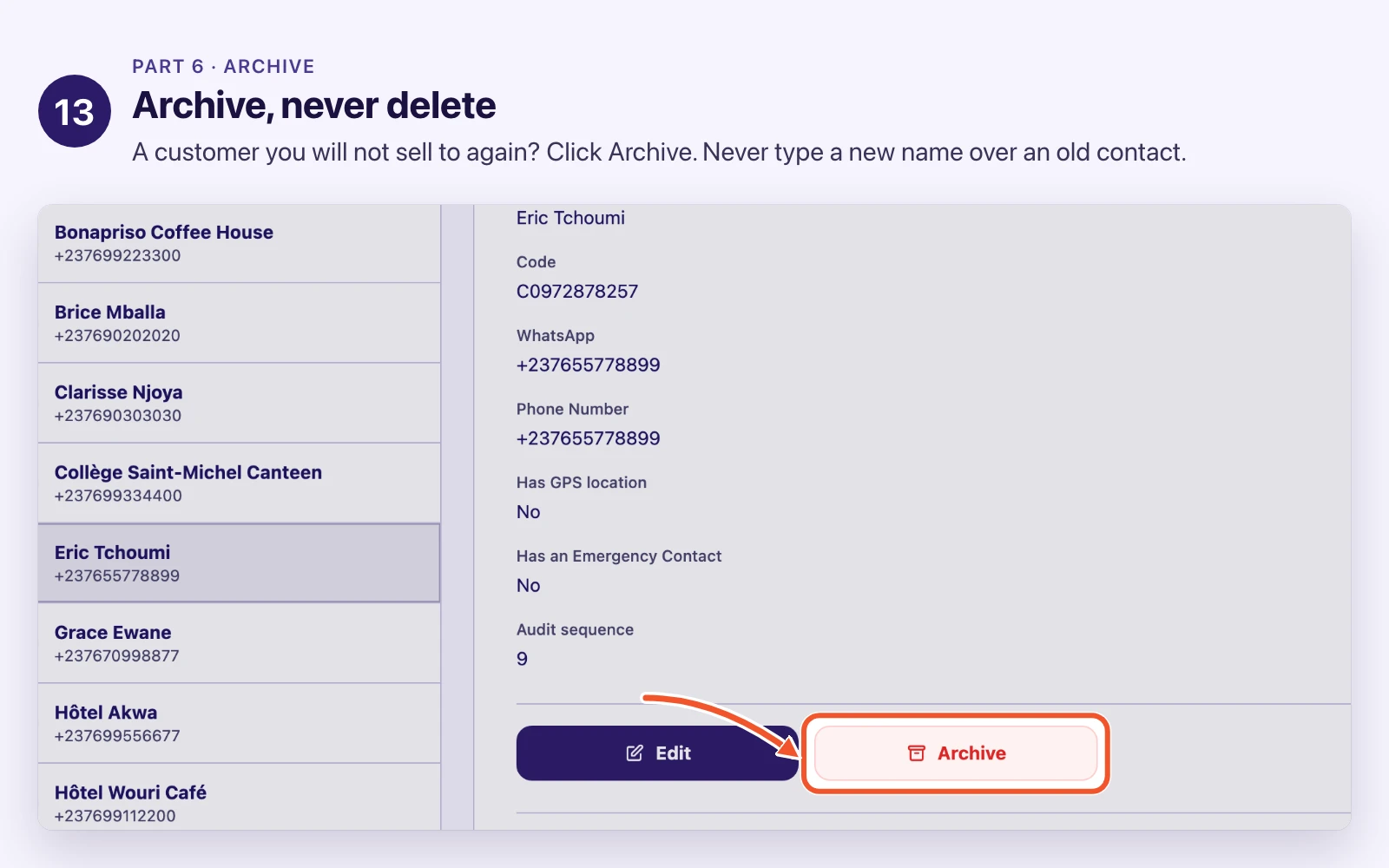
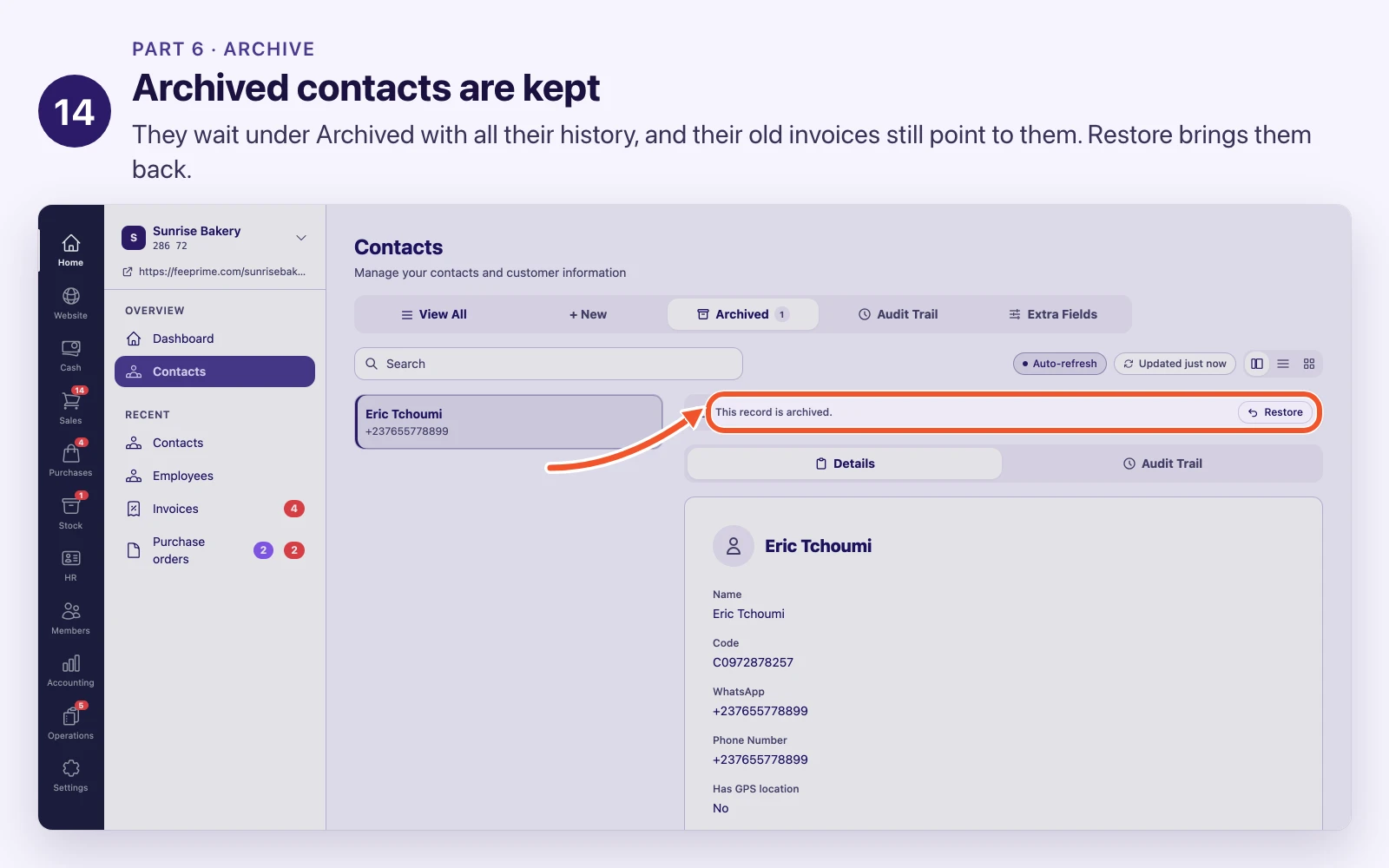
Never rename an old contact for someone new. Overwriting an old supplier’s name rewrites history so every past bill appears to belong to the new business.
Small shop vs growing team: Running one counter on your own? A name and phone number are plenty—leave approval rules, Tax ID (NIU), and extra fields off; nothing breaks. Growing team with cashiers and B2B clients? Set up approvals in Settings / Access / Members and enter each partner’s Tax ID (NIU) so TVA invoices print cleanly.
7. Working when 3G drops
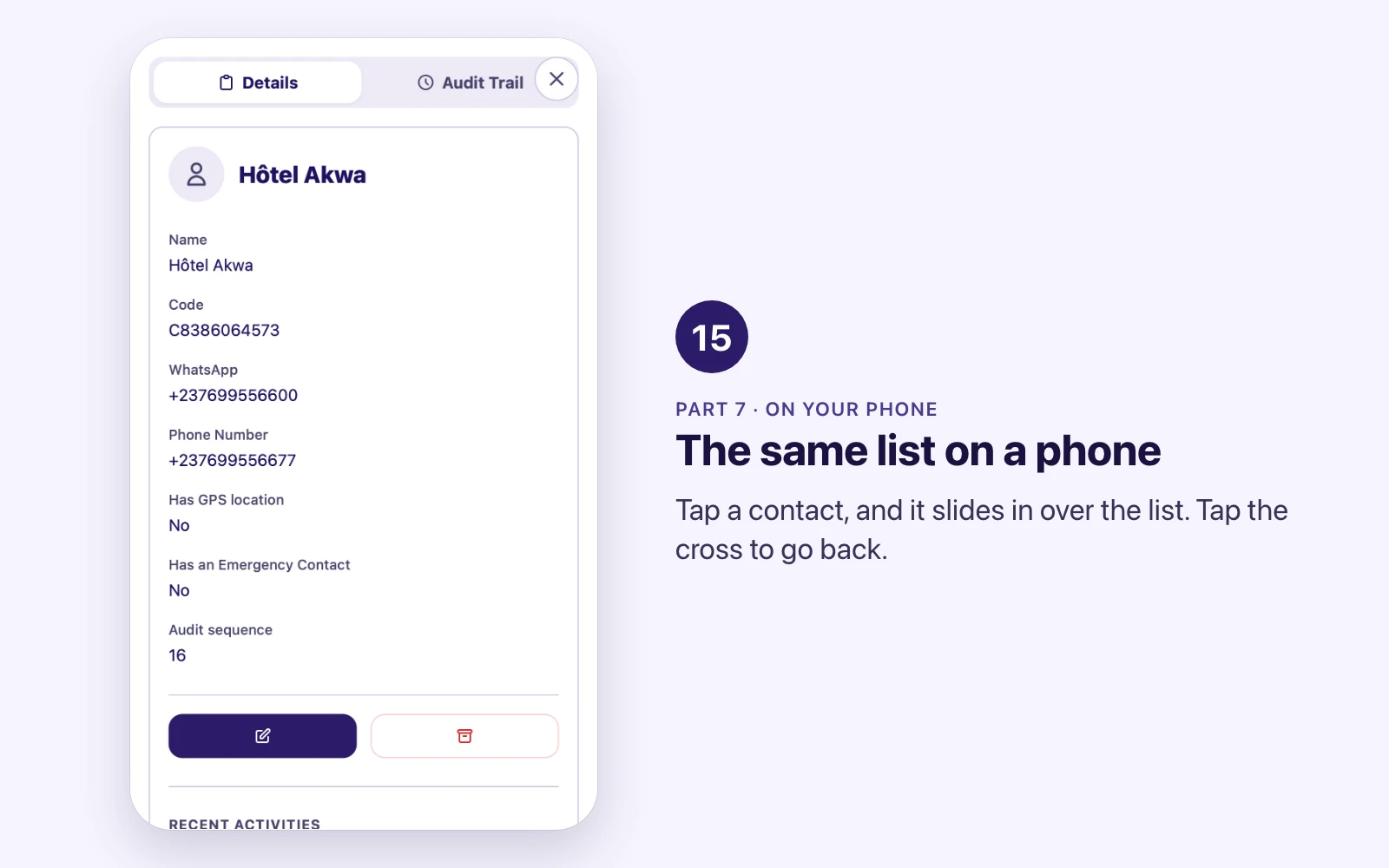
Contacts keeps working when mobile signal cuts out at the Marché Central stall. Junior can still browse existing contacts and save new buyers.
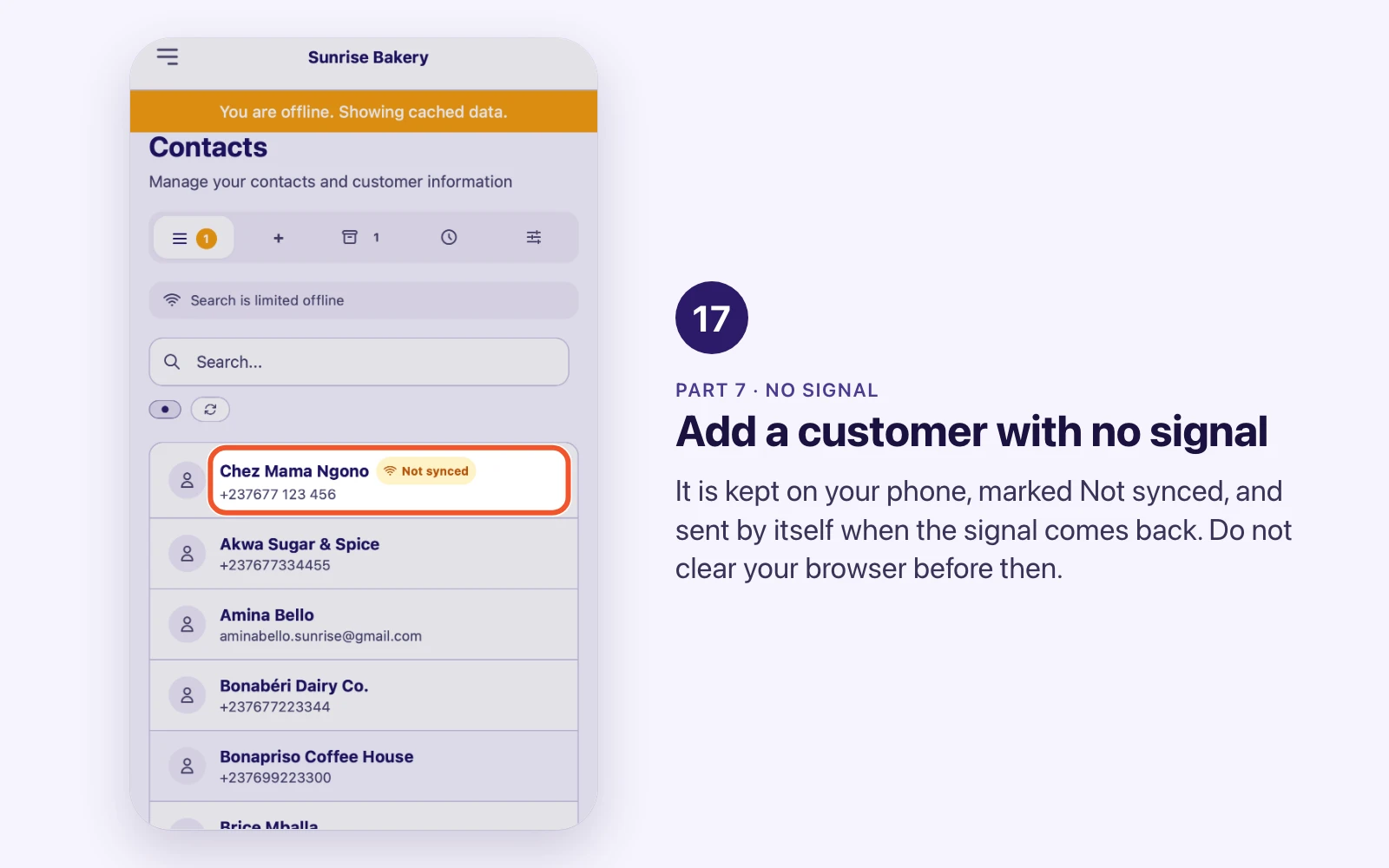
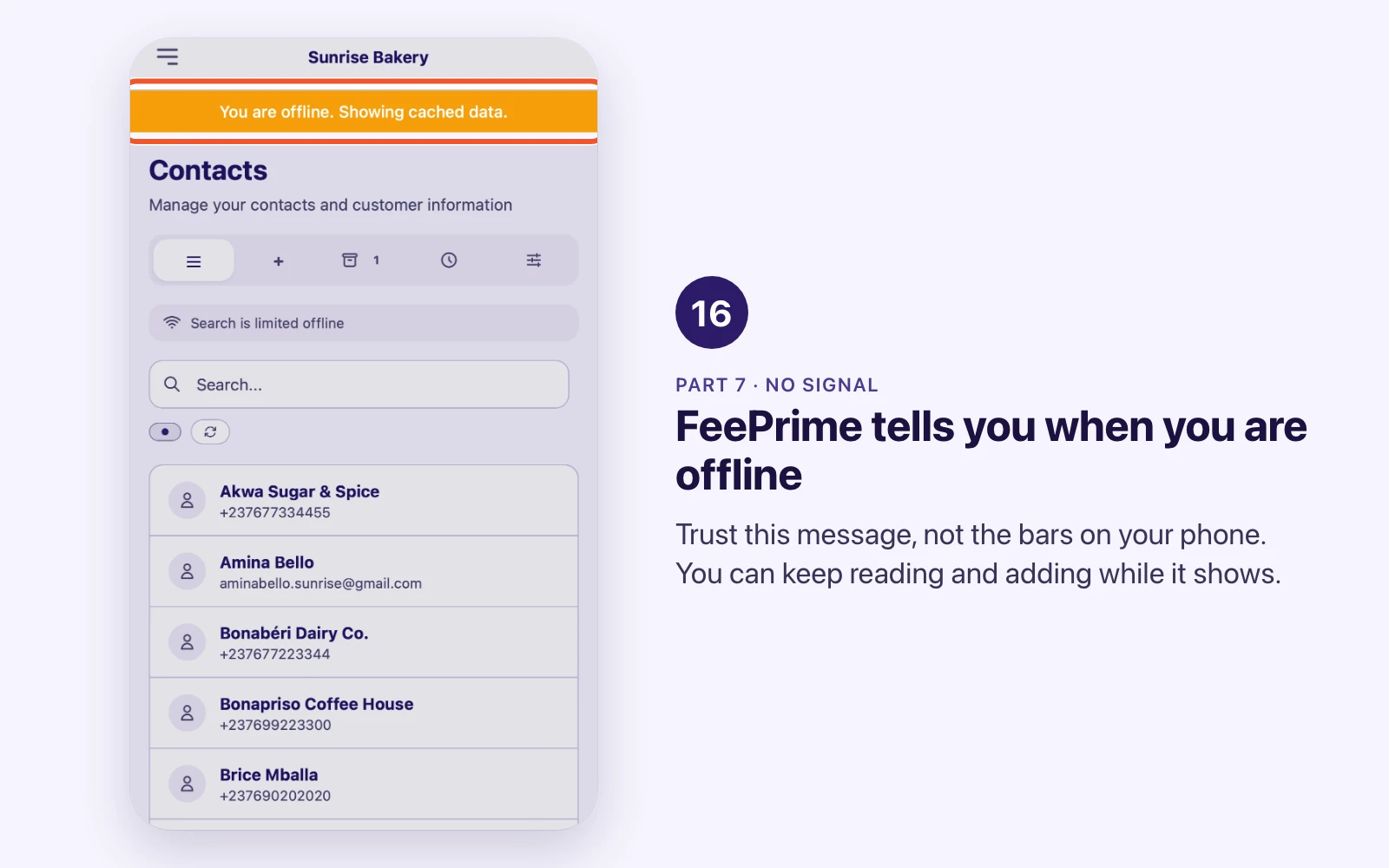
Offline entries show Not synced until your phone or laptop reconnects. Do not clear browser data or re-type them on another device—once signal returns, FeePrime sends them through automatically.
Try it
Practice safely on staging.feeprime.com—a practice copy of FeePrime, kept apart from the real thing—in five minutes:
- Open Sales / Customers / Contacts from the grouped sidebar.
- Type akw in the search box, then switch from list view to table and cards—watch your search stay active.
- Start adding a contact whose name matches an existing one and spot the possible-duplicate warning.
- Open any contact, click Audit Trail, and read who changed what.
- Create a test contact, click Archive, then open Archived and click Restore.
Once those five clicks feel natural, you already know how almost every screen in FeePrime works.