
Sellers: Joining the marketplace and publishing your first product
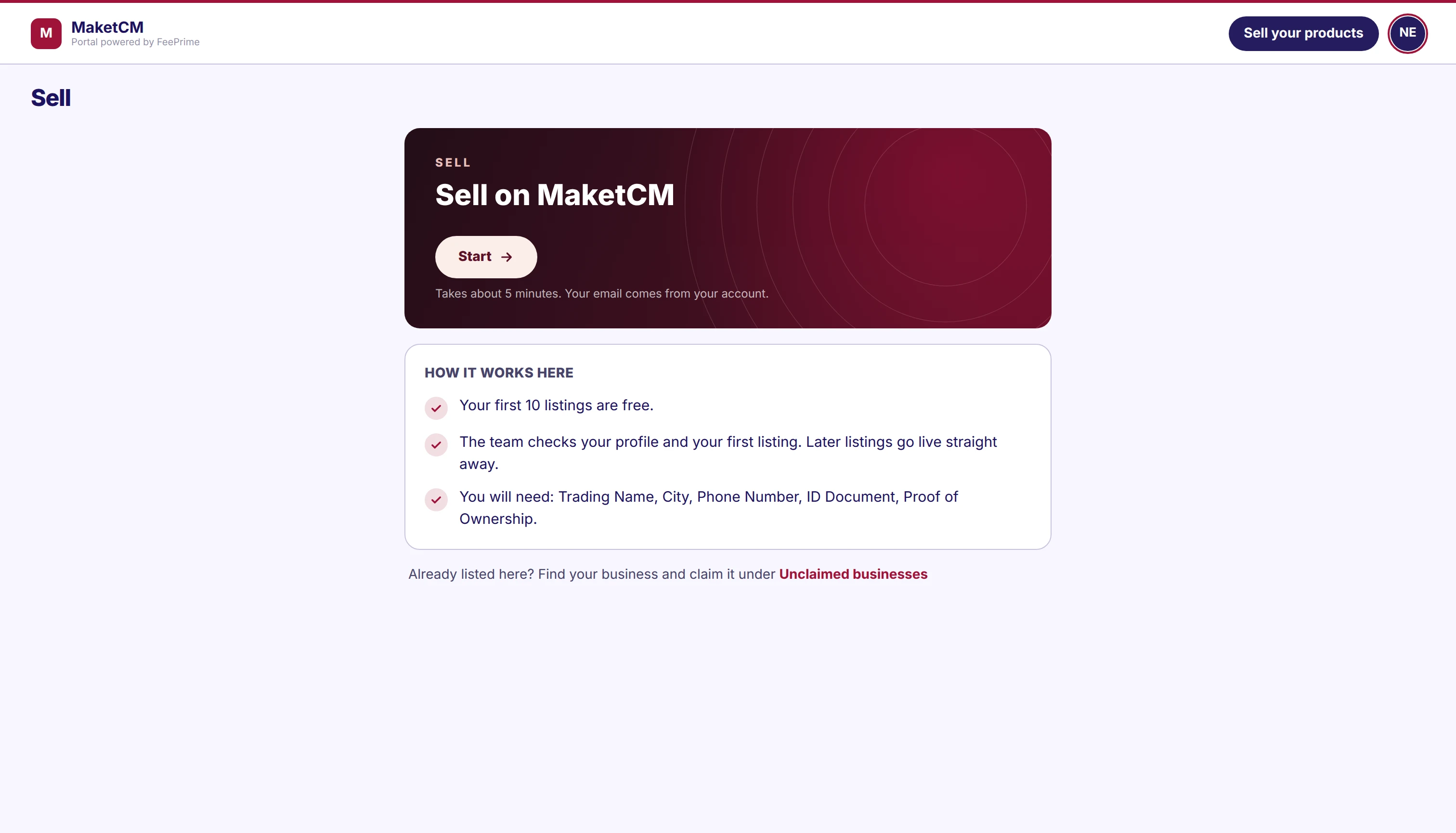
Before you start, open your marketplace portal (for example, MaketCM), sign in to your account, and open the seller onboarding page—or click My listings in the portal header.
Can’t find it? Make sure you are signed in with the account you want to sell under. If seller registration is closed on your marketplace, ask the marketplace team—they can turn it on for you or add your first listing on your behalf.

Photo: Alexander Kirov on Unsplash
If you run a small workshop or shop, selling through WhatsApp statuses gets exhausting fast. Hervé runs KamerCraft in Akwa, Douala, making Douala Leather Messenger Bags and packing Mount Cameroon Arabica Coffee 500g pouches. Every week he answers the same twenty messages from shoppers like Stéphanie: “How much is the brown bag?” “Do you deliver to Bonapriso?” “Are you open on Saturday?”
Joining MaketCM replaces that daily back-and-forth with one clean shopfront. Buyers see real prices, sharp photos, clear pickup or delivery terms, and live availability before they place an order. Even better, FeePrime does not make you fill out a five-step form, wait three days for an email, and log back in later just to list one item. You apply to sell and publish your very first product on the exact same page.
1. One page to apply and publish your first product
When Hervé signs in to MaketCM to join as a seller, the onboarding page puts two jobs together in one calm flow: setting up the KamerCraft shopfront profile, and drafting his first listing (Douala Leather Messenger Bag). That way, when Nadine on the MaketCM team opens his application, she sees both who he is and what he actually sells.
Hervé signs in on MaketCM
        │
        ▼
Single seller onboarding page
├── 1. Shopfront profile (name, city, phone, ID, delivery & pickup)
└── 2. First product (Douala Leather Messenger Bag, photos, price, qty)
        │
        ▼
Submit  ──►  Saved (queues offline automatically if 3G drops)
        │
        ▼
Pending review (visible right away under "My listings")
        │
        ▼
Nadine approves shopfront + first listing
        │
        ▼
Live on MaketCM  +  Shareable KamerCraft shopfront link
Working on weak 3G at your workshop? Do not panic if your connection flickers right as you tap submit on a product listing. Creating a listing moves no money, so FeePrime holds your draft in an offline outbox and sends it automatically the moment your signal returns.
 Single-page seller onboarding where a new merchant applies and publishes their first product together.
2. Setting up your shopfront profile so buyers trust you
The top half of the onboarding page creates your public seller profile. Think of it as the signboard outside your Akwa workshop—every detail here helps Stéphanie decide whether she trusts you with her money.
Fill in the essentials cleanly:
- Trading name: The name customers know you by (for Hervé,
KamerCraft). - Logo and About: A clear square logo or workshop photo, plus two or three honest sentences on what you make or sell.
- City, Phone number, and Email: Choose your real operating city (
Douala) and a phone number you actually answer during business hours. - Opening hours and Portfolio: Your real workshop hours (
Mon–Sat, 08:30–18:00) and a few extra photos of your craft if you want to show your range. - Verification documents: Upload your ID document, plus an Ownership document or Licence number when the marketplace asks for them.
Why does Nadine have to review every new seller profile before it goes public? Because a public shop name with a phone number on it is the very first thing a scammer tries to fake. One human check protects honest artisans like Hervé and gives buyers confidence.
Never skip your city, phone number, or ID document hoping to add them later. Incomplete applications sit stuck in pending review while the marketplace team chases you on WhatsApp, pushing your launch back by days.
Just starting out as a one-person artisan? If you do not yet have a formal trade licence number or a big portfolio gallery, leave those optional fields blank. Nothing breaks, and you can update your shopfront details from the portal whenever your business grows.
3. Delivery vs pickup: set clear rules before your first order
Half of all cancelled marketplace orders happen because the buyer expected home delivery and the seller only does workshop pickup—or because nobody agreed on the delivery fee up front. Set your fulfilment rules right on your shopfront profile:
- Offers delivery: Turn this on only if you have a reliable way to get parcels to buyers.
- Delivery fee: State a clear flat rate (for example,
1,500 XAFwithin Douala). - Delivery lead time: Be realistic—
Same dayor24 hoursbeats an optimistic promise you miss in rain traffic.
- Delivery fee: State a clear flat rate (for example,
- Offers pickup: Turn this on if shoppers can come collect their order.
- Pickup address: Give landmarks people in your city actually use (for example,
Akwa, opposite Boulevard de la Liberté, Workshop 4), paired with accurate Opening hours.
- Pickup address: Give landmarks people in your city actually use (for example,
Hervé starts with Offers pickup turned on at his Akwa workshop and Offers delivery turned on for Douala at 1,500 XAF within 24 hours. When Stéphanie looks at his bag from Bonapriso, she knows both options before she taps buy.
Never turn on delivery if you do not yet have a dependable rider or a clear price. Start with pickup only until your delivery plan is solid. You can switch delivery on later from your seller profile in under a minute.
4. Publishing your first product (and avoiding duplicate listings)
Right below your shopfront details on the same onboarding page, add your first product. Pick one flagship item you actually have in stock today—for Hervé, that is his Douala Leather Messenger Bag.
Fill in each product field clearly:
- Product name and Product summary: Use the plain words a buyer would search (
Douala Leather Messenger Bag), then write a short summary covering size, leather finish, laptop fit, and strap length. - Photos: Take two or three bright daylight photos on a clean background. A clear phone photo beats a dark workshop shot every time.
- City, Category, and Brand: Set
Douala, pick the matching Parent category, Product category, and Product subcategory, and enterKamerCraftas the Brand. - Asking price and Currency: Enter the real price (
28,000) and currency (XAF). - Unit, Pack size, Available quantity, and Minimum order: Choose the unit (
piece, or enter a custom unit if yours is not listed), set pack size (1 bag—or500gwhen Hervé later lists his Mount Cameroon Arabica Coffee), enter how many are ready (12), and set the minimum order (1).
When your price changes or an item sells out, edit or archive the existing listing—never post a duplicate. Posting four listings for the same leather bag or coffee pack at four different prices confuses buyers and makes your whole shop look unreliable.
Remember one important difference between your product listings and your shopfront profile:
- Product listings: You can edit prices, photos, and stock anytime, and you can archive a sold-out product yourself. Archiving removes it from public search immediately so shoppers stop ordering something that is gone.
- Shopfront profile: You can edit your hours, bio, phone, and delivery settings anytime, but you cannot archive your own shopfront. Closing a shop that may still have open orders is a marketplace staff decision—message Nadine if you ever need to pause or close KamerCraft.
5. Finding “My listings” and understanding pending review
As soon as you submit the onboarding page, click My listings in the portal header. Because every listing is linked directly to your signed-in account, everything you have drafted, submitted, or published shows up in one tidy list.
Here is what the review states mean:
- Pending review: Right after you apply, both your new shopfront profile and your first listing wait in the marketplace team’s queue (
Portal Marketplace / VendorsandPortal Marketplace / Marketplaceon Nadine’s screen). Buyers cannot see them in public search yet. - Approved and live: Once Nadine checks your details and approves KamerCraft and your
Douala Leather Messenger Bag, both go live across MaketCM. Under the standard product marketplace setup, your first listing waits for a human check—once you are approved and trusted, adding your next products (likeMount Cameroon Arabica Coffee 500g) is much faster.
Do not re-submit your application or re-post your product while it says pending review. Submitting twice does not speed up approval; it only puts duplicate drafts in Nadine’s inbox.
6. Sharing your filterable seller shopfront link
The moment KamerCraft is approved, you have your own seller shopfront link on MaketCM. Opening that link filters the marketplace straight to KamerCraft’s live products and displays your logo, bio, city, opening hours, delivery and pickup options, public tags, and verified badge (once Nadine marks your shop verified).
Put that link to work on day one:
- Paste it into your WhatsApp Business profile and status caption.
- Drop it under every Facebook, Instagram, or TikTok photo of your goods.
- Send it directly whenever a customer asks, “What else do you have in stock today?”
Next time Stéphanie messages Hervé from Bonapriso, he sends one link instead of twelve photos. She opens KamerCraft on 3G, sees the Douala Leather Messenger Bag and Mount Cameroon Arabica Coffee 500g, checks his Akwa pickup address and 1,500 XAF delivery option, and orders straight away.
Try it
Practice on staging.feeprime.com—a practice copy of FeePrime, kept apart from the real thing—and run through this five-minute launch checklist:
- Open the practice marketplace portal, sign in, and open the seller onboarding page.
- Fill in a test shopfront profile (trading name, city, phone number, and opening hours) and set Offers pickup with a clear pickup address—leave delivery off or add a realistic fee and lead time.
- On the same page, add your first product with a clear name, summary, category, asking price, unit, pack size, and available quantity, then submit.
- Click My listings in the portal header and check that your new listing appears in pending review without submitting a duplicate.
- Open a live practice listing, edit its asking price once, and note where the archive option sits for sold-out items.
Once you have walked through those five clicks, putting your real shop online takes less than ten minutes.