
Member login, locked updates, and member portals
Before you start, sign in and open Members / Engagement / Member Updates, Members / Membership / Member Portals, and Members / Membership / Membership Types.
Can’t find one? It may be turned off for your business, or your account may not be allowed to open it. Ask the person who set up your FeePrime. They can fix both.

Every membership organisation hits the same support call in its first week. Nadège Fouda from Sunrise Bakery pays her annual dues to the Douala Bakers Guild, then phones Amina at the office: “Where do I log in? Do you have a username and password for me?”
If Amina panics and creates a staff account for Nadège inside FeePrime, she has just handed a guild member the keys to the association’s back office. If instead she understands one simple rule, that call takes thirty seconds: members log in on your public website, never inside the staff app.
Understanding that split answers almost every question your members will ever ask about logging in, reading locked updates, and renewing when their membership runs out.
1. Two completely different logins: staff app vs public website
FeePrime keeps your team’s workspace strictly separate from what your members see.
- Your staff log in to the FeePrime app. They see the sidebar, modules, business records, cash, and permissions you assign to them.
- Your members log in on your public website. They enter their email address and sign in with a one-time code sent to their email. There is no sidebar, no modules, and no password to forget.
Once signed in on your public pages, a member sees the exact same website visitors see—plus every update, opportunity, or lesson that their membership unlocks.
Never give a member a staff login so they can “check their account.” A member is not a user of the app. Adding an ordinary member under Settings / Access / Members gives them access to internal records meant for your staff. Keep staff logins strictly for the people who run the organisation.
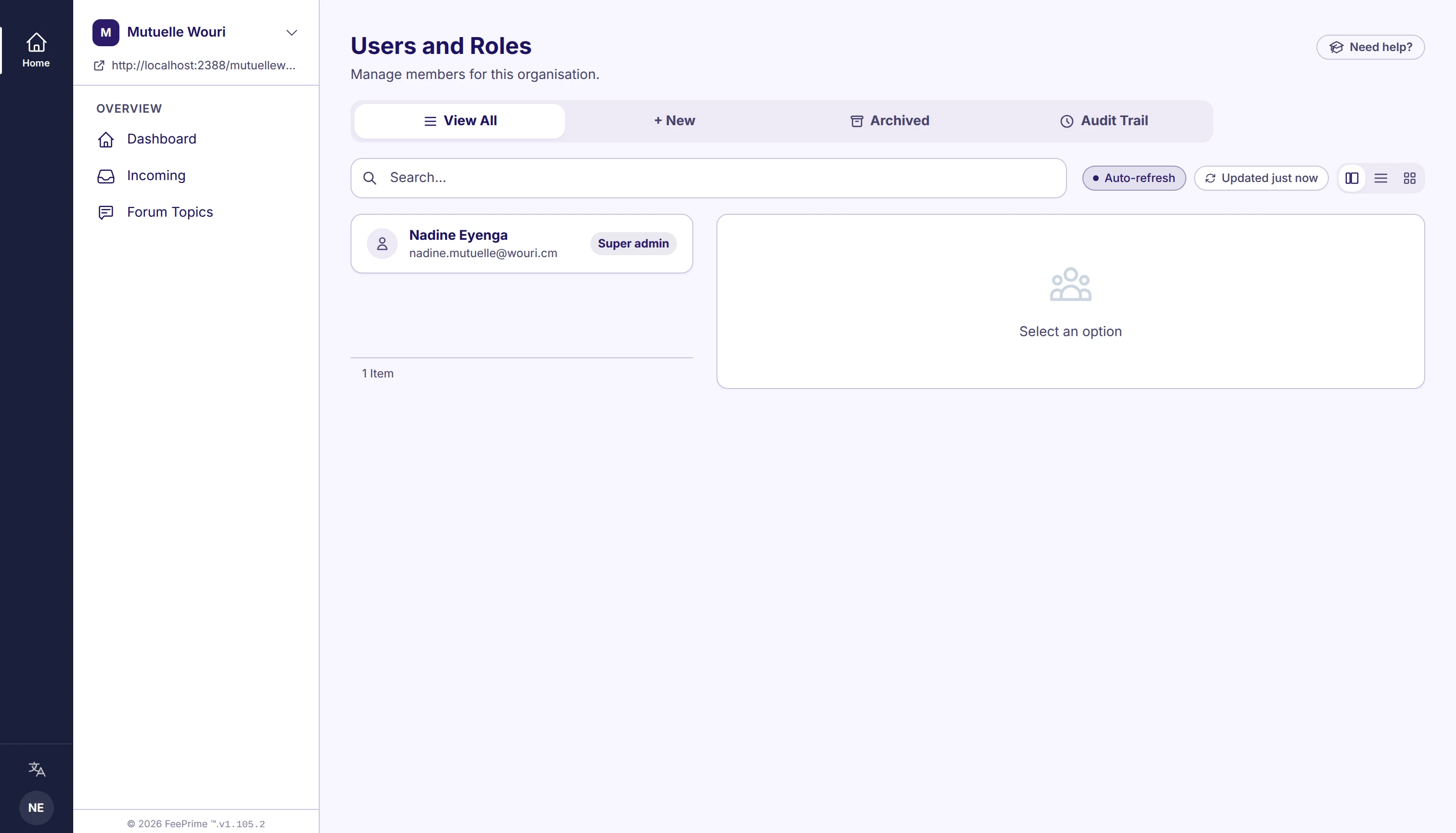 members screen in FeePrime (Mutuelle Wouri).
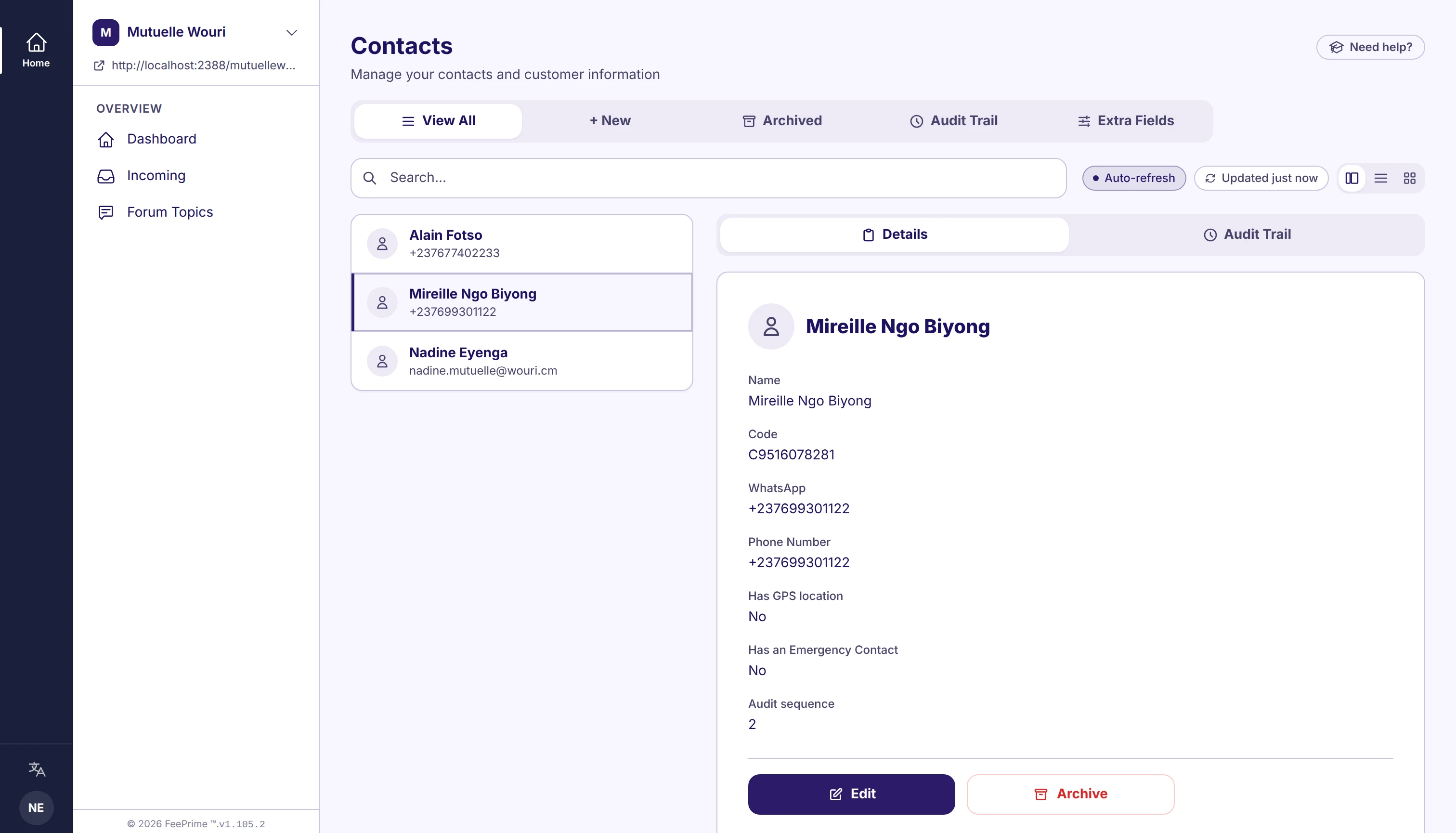 contacts screen in FeePrime (Mutuelle Wouri).
2. How the member widget works on your public pages
On every page of your public FeePrime website, there is a small chip in the corner: the member widget.
- When logged out: Clicking the chip opens the email login box so the member can request a one-time code.
- When logged in: The chip displays the member’s membership type and current status, and lets them log out again.
That small chip is the entire member account experience, and it is small on purpose. You do not need to pay a developer to build a separate member dashboard. For a trade guild, alumni group, cooperative, or club, the corner widget plus locked content is your portal.
3. Locking updates, opportunities, and course lessons by membership type
You decide which content is open to the world and which content belongs exclusively to paid or approved members. Three places support the access membership types setting:
- Members / Engagement / Member Updates — notices, bulletins, price lists, and announcements aimed specifically at your members.
- Website / Content / Opportunities — tenders, wholesale offers, or member deals.
- Website / Learning / Course Lessons — training materials reserved for specific tiers.
When you open Members / Engagement / Member Updates to publish a bulletin—for example, a monthly group-buy flour schedule for Douala bakeries—you fill in its type, publication date, headline, body, photos, rank, and access membership types.
The rule on access membership types is simple:
- Leave it empty: The item is public. Anyone visiting your website can read the whole thing.
- Pick one or more membership types: Only people holding an active membership of at least one selected type can open the body. For instance, Amina can select both Standard Member (Sunrise Bakery) and Corporate Member (Hôtel Akwa) on a single update so both tiers can read it while the general public cannot.
4. What visitors, lapsed members, and active members each see
When you lock an update, FeePrime does not hide it completely. Locked items stay visible but locked to everyone else.
That is deliberate. A members-only benefit nobody can see advertises nothing. Showing the headline tells a visitor what your guild actually delivers; locking the body makes joining worth paying for.
Access also checks for a membership that is active right now (as tracked under Members / Membership / Memberships). Look at how the exact same locked update behaves for three different people:
                 [ Locked Member Update on Public Website ]
                 (Access membership types: Standard, Corporate)
                                     |
         +---------------------------+---------------------------+
         |                           |                           |
         v                           v                           v
  1. LOGGED-OUT VISITOR       2. LAPSED MEMBER            3. ACTIVE MEMBER
  (Not signed in)             (Paul — expired yesterday)  (Nadège — active today)
  ---------------------       --------------------------  -----------------------
  Sees headline +             Logs in via corner chip     Logs in via corner chip
  locked preview              with one-time email code    with one-time email code
         |                           |                           |
         v                           v                           v
  Invited to join             Sees locked preview +       Full body and photos
                              prompt to renew now         unlock immediately
Notice what happens to Paul in the middle column. Yesterday his annual membership ran out. Today he opens your website to check the latest wholesale sugar prices, signs in with his email code, and hits the lock—along with a clear prompt to renew. That is the single best moment to ask someone to renew: right when they are standing in front of something they used to be able to read.
5. When to skip Member Portals (and when you actually need them)
While exploring the sidebar, you will see Members / Membership / Member Portals. This page records a portal entry for an individual member.
Most small and mid-sized organisations never need to touch Member Portals. If you run an association of 50 shops, a neighborhood cooperative, or a professional club, leave it alone. Your public pages, the corner member widget, and locked Member Updates already do the whole job—nothing breaks when Member Portals is empty.
Only reach for Members / Membership / Member Portals when your operation specifically requires maintaining a dedicated portal record per member. Treat it as a specialist tool for bigger or custom setups, never as your starting step.
6. What to keep public vs what to lock behind membership
The most common mistake new organisations make is locking everything on their website.
If every update, every opportunity, and every lesson sits behind a lock, a first-time visitor lands on an empty wall that just says “members only.” Nobody pays dues to join a black box.
Use a simple balance instead:
- Keep public: Who you are, what your organisation achieved last month, upcoming public events, and general announcements (leave access membership types blank). Give visitors proof that the group is active and trustworthy.
- Lock for members: The high-value items membership genuinely buys—group-buy supplier prices, private committee minutes, member-only opportunities, and subscriber training lessons.
Let your public posts prove your value, and let your locked headlines make people curious enough to join.
Try it
Practice this safely on staging.feeprime.com—a practice copy of FeePrime, kept apart from the real thing—before changing anything on your live site:
- Open Members / Engagement / Member Updates and publish one public update by leaving access membership types completely empty.
- Publish a second update with an appealing headline and select one tier from Members / Membership / Membership Types in access membership types.
- Open your public website in a private browser window (logged out) and compare the two updates side by side.
- Click the corner member widget and sign in with a one-time email code for a test member whose membership has expired, and note the locked view and renewal prompt.
- Sign out, then sign in with an active member holding the matching membership type and confirm the full update unlocks immediately.
Five minutes on staging lets you see all three views with your own eyes, so you can guide any real member with confidence.