
Money: Commissions, seller payouts, invoices and refunds
Before you start, sign in and open Sales / Promotions / Revenue Share, Sales / Selling / Invoices, Sales / Selling / Credit Notes, and Cash / Money / Customer Refunds.
Can’t find it? It may be turned off for your business, or your account may not be allowed to open it. Ask the person who set up your FeePrime. They can fix both.

Photo: Brandy Kennedy on Unsplash
Stéphanie orders one Douala Leather Messenger Bag (45,000 XAF) and two 500g packs of Mount Cameroon Arabica Coffee (6,000 XAF each) from KamerCraft on MaketCM. She pays 57,000 XAF upfront on her phone.
That single payment immediately raises three questions. How much belongs to Hervé at KamerCraft, and how much is MaketCM’s marketplace fee? What document does Stéphanie (or a corporate buyer like Hôtel Akwa) receive for accounting? And if one coffee pack arrives torn open, how do you return the 6,000 XAF without breaking your stock counts, your 19.25% TVA records, or Hervé’s Friday payout?
On a messy marketplace, staff treat total cash collected as profit and spend Friday afternoon arguing with sellers over WhatsApp screenshots. FeePrime separates commissions, invoicing, credit notes, and cash refunds into four dedicated screens so Nadine (marketplace staff) and Hervé (seller) always reconcile to the exact same franc.
1. How money moves on a marketplace order
Think of every paid order on MaketCM as following two tracks: the normal settlement track (splitting platform fees and seller payouts, plus formal invoicing) and the correction track (reversing money and returning cash when something goes wrong).
Stéphanie pays MaketCM (57,000 XAF)
       │
       ├──► Sales / Promotions / Revenue Share
       │    Splits order value → MaketCM fee + Hervé's commission
       │    └─► Seller Portal "Commissions" statement
       │        (commission credits + payouts interleaved by date, zero buyer PII)
       │
       ├──► Sales / Selling / Invoices
       │    Formal tax invoice (locked once posted — never edited or archived)
       │    └─► Buyer Portal shows lines & terms (hides internal notes & warehouse)
       │
       └──► If a pack arrives damaged or a price was wrong:
            1. Goods come back  → Sales / Selling / Customer Returns (fixes stock)
            2. Reverse invoice  → Sales / Selling / Credit Notes (Dr 7011/443, Cr 4111)
            3. Send cash back   → Cash / Money / Customer Refunds (cash leaves account)
Keeping each step in its own screen prevents the three most expensive mistakes on a marketplace: double-counting returned stock, overpaying TVA on cancelled sales, and paying out cash with no audit trail.
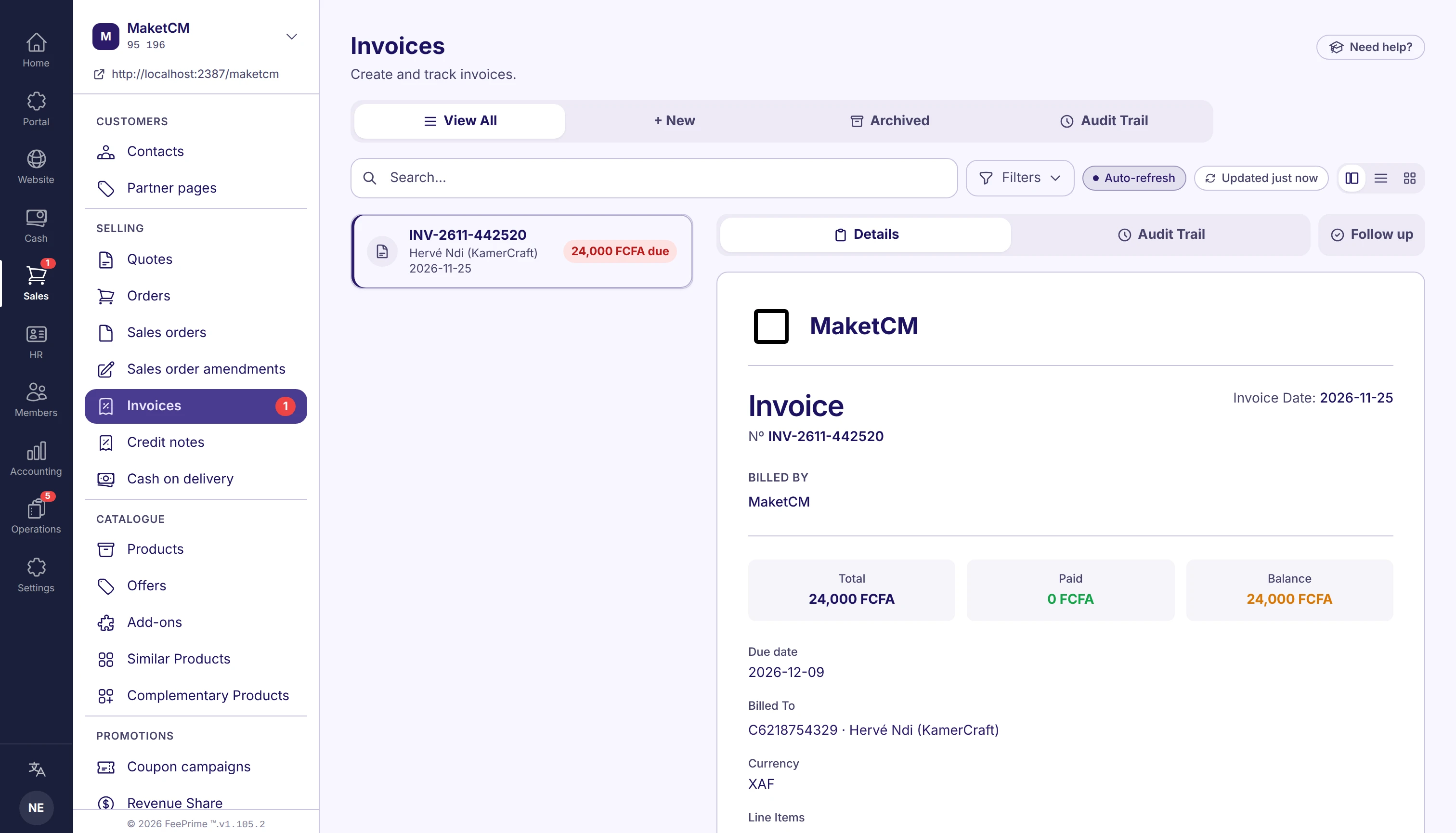 Marketplace commission invoicing under Sales / Selling / Invoices.
2. Setting commissions and reading the seller statement
Open Sales / Promotions / Revenue Share to define who earns a share on an offer or product. Each rule links an Offer (or a specific SKU) to one or more Commissions contacts from Sales / Customers / Contacts. When MaketCM also runs co-branded partner links under Sales / Customers / Affiliates, the organisation still decides which merchandise is eligible, while affiliate rates layer cleanly on top of category rules.
Once orders settle, Hervé does not need Nadine to export spreadsheets every Friday. He opens the Commissions statement inside his seller portal. Every earned commission credit and every payout transfer appears interleaved by date in one clean running timeline — so he can see what he earned on Tuesday’s bag sale and when Friday’s transfer cleared, without waiting on a phone call.
Just as important is what the statement leaves out: it never leaks buyer PII. Hervé sees the commission dates, amounts, and payouts, never Stéphanie’s private phone number, home street address, or personal account notes.
Common mistake: Exporting raw shopper order sheets to WhatsApp to prove seller payouts. Sharing raw buyer lists leaks customer phone numbers and addresses, eroding buyer trust across MaketCM. Direct sellers to their portal Commissions statement instead.
Just starting MaketCM with five Douala artisans and one flat commission rate? Set up one simple rule per offer under Sales / Promotions / Revenue Share and leave Sales / Customers / Affiliates untouched. Growing to 50 sellers with different rates per SKU or influencer links? Add SKU-specific rules and affiliate campaigns only when you actually need them.
3. Issuing formal invoices (and what buyers see)
For corporate buyers like Hôtel Akwa ordering 20 packs of KamerCraft coffee — or any shopper needing an official tax receipt — Nadine opens Sales / Selling / Invoices.
Start at the top of the form with Invoice Date. You choose the date first because it controls how the invoice sorts, files, and hits your accounts, while FeePrime generates the Invoice Number for you. Fill in the Client, Due Date, Invoice Title, From Location, Currency, and Invoice Items (with quantities, prices, and 19.25% TVA where applicable). You can also record Payment Terms, Payment Options, and a Pickup Date and Pickup Time if the buyer is collecting at MaketCM’s Akwa pickup point.
When Stéphanie or Hôtel Akwa signs into their customer portal, FeePrime automatically limits what they can view. They see only their own invoices and customer-safe fields (number, dates, title, currency, line items, payment terms and options, and pickup details). Internal warehouse locations, internal order or quote IDs, and internal staff notes stay hidden by default.
Common mistake: Trying to edit or archive a posted invoice after spotting a typo. Once an invoice is posted in FeePrime, it cannot be edited or archived. Stripping a posted invoice out of the books would silently erase revenue and receivables while leaving stock movements behind. Always correct a posted invoice with a credit note.
4. Handling returns and price fixes with Credit Notes
Suppose one of Stéphanie’s 6,000 XAF coffee packs arrives split open. Two separate things happened: physical goods came back, and money billed on the invoice must be reversed.
- Stock comes back first: The storekeeper logs the physical return in Sales / Selling / Customer Returns. That updates inventory.
- Money reverses second: Nadine opens Sales / Selling / Credit Notes and creates a credit note linked to the original Invoice.
On the credit note form, pick the Credit Note Date, select the Invoice (FeePrime carries the Client and Currency cleanly), and fill in Reason — this field is required, because an unexplained credit looks like hidden revenue write-down during an audit. Link the Customer Return when physical goods came back, and add the credited Lines including the matching 19.25% TVA.
Behind the scenes, FeePrime posts the proper OHADA reversal automatically: Dr 7011 (sales revenue) and Dr 443 (VAT collected), Cr 4111 (the customer’s receivable subaccount). That lowers what the buyer owes and ensures MaketCM does not pay tax on a reversed sale.
What if no goods come back? Say Hôtel Akwa keeps all 20 packs of coffee even though delivery arrived two days late, and Nadine grants a 10,000 XAF goodwill discount. Open Sales / Selling / Credit Notes, link Hôtel Akwa’s invoice, leave Customer Return blank, write “Late delivery goodwill discount” in Reason, and enter 10,000 XAF in Lines (credit notes are capped at the invoice total, not locked to exact original lines). Print the credit note and send it to Hôtel Akwa so their accountant applies it.
Common mistake: Expecting a credit note to restock items or pay cash back. A credit note is a locked accounting document — it never adds stock (avoiding double-counting with Customer Returns) and never sends cash out of your bank or mobile money wallet.
5. Releasing cash back via Customer Refunds
If Hôtel Akwa has not paid its invoice yet, the 10,000 XAF credit note simply reduces the unpaid balance — no cash moves. But Stéphanie already paid 57,000 XAF upfront for her order, so MaketCM now owes her 6,000 XAF back.
Nadine opens Cash / Money / Customer Refunds to record the actual payout back to Stéphanie’s mobile money or cash account. FeePrime keeps Customer Refunds separate from Cash / Money / Transactions on purpose: your support or finance clerk can release an approved refund cleanly without being handed open access to every payment the business has ever taken.
Common mistake: Sending a cash refund before posting the credit note. If you pay 6,000 XAF back without a credit note, your cash account drops while your sales and VAT accounts stay inflated. Follow the sequence every time: Customer Return (if goods returned) → Credit Note → Customer Refund.
6. Reconciling platform fees vs seller payouts
At the end of each week, Nadine reconciles what shoppers paid against what belongs to sellers. Suppose MaketCM collects 250,000 XAF in paid orders for KamerCraft across Douala and Yaoundé, with a 15% marketplace fee:
- Gross shopper cash collected: 250,000 XAF (checked in Cash / Money / Cash Accounts and Cash / Bank / Reconciliation Queue)
- MaketCM platform fee (15%): 37,500 XAF (MaketCM’s true revenue)
- Hervé’s seller payout (85%): 212,500 XAF (less any refunded items already reversed by credit note)
Common mistake: Spending gross shopper cash as marketplace income. The 212,500 XAF sitting in MaketCM’s account belongs to KamerCraft, not to your office budget. Review Portal Marketplace / Marketplace / Orders alongside Cash / Money / Cash Accounts before every payout run so seller settlements and platform fees never blur together.
Try it
Open staging.feeprime.com — a practice copy of FeePrime, kept apart from the real thing — and run through one complete money and refund cycle in five minutes:
- Open Sales / Promotions / Revenue Share and create a commission rule linking a sample offer to a seller contact.
- Open Sales / Selling / Invoices, set today’s Invoice Date, pick a sample client, add two product lines, and post the invoice.
- Open your posted invoice and confirm there is no edit or archive button — FeePrime protects the accounting trail automatically.
- Open Sales / Selling / Credit Notes, link that invoice, write a short Reason (such as “Damaged item on delivery”), credit one line with tax, and click print to preview the customer copy.
- Open Cash / Money / Customer Refunds and record the matching cash refund for the credited amount so your cash balance stays accurate.
Run this loop once in staging and your next real Friday payout on MaketCM will take ten minutes instead of half an afternoon.